Locked segments in the CAT editor
Overview
If segments appear locked in the Smartcat CAT editor, this is almost always caused by one of four reasons. This article explains each cause and how to resolve it.
When to use it
-
Translators see locked segments and cannot complete a project or edit a segment
-
Someone in your workspace is unable to review a translation because segments are locked
-
You see a "Locked by manager" message on a segment
-
Segments are locked after importing an XLIFF file
How to use it
⚠️The resolution for each of the causes below requires user permissions to view the editor from the organization side of the workspace. Typically this permission belongs to the Workspace Admin and Project Manager roles.
Cause 1: Previous workflow stage not confirmed
This is the most common cause for suppliers assigned to a project. In a project with multiple workflow stages (for example, AI Translation → Translation Review → Proofreading), a segment must be confirmed in each stage before the next stage can access it.
Identify the issue:
-
Open the document in the CAT editor
-
Go to Filters → Current workflow stage → Unconfirmed segments to find any unconfirmed segments
-
Hover over the confirmation icon in the toolbar. Confirmed stages appear highlighted, unconfirmed stages appear grayed out
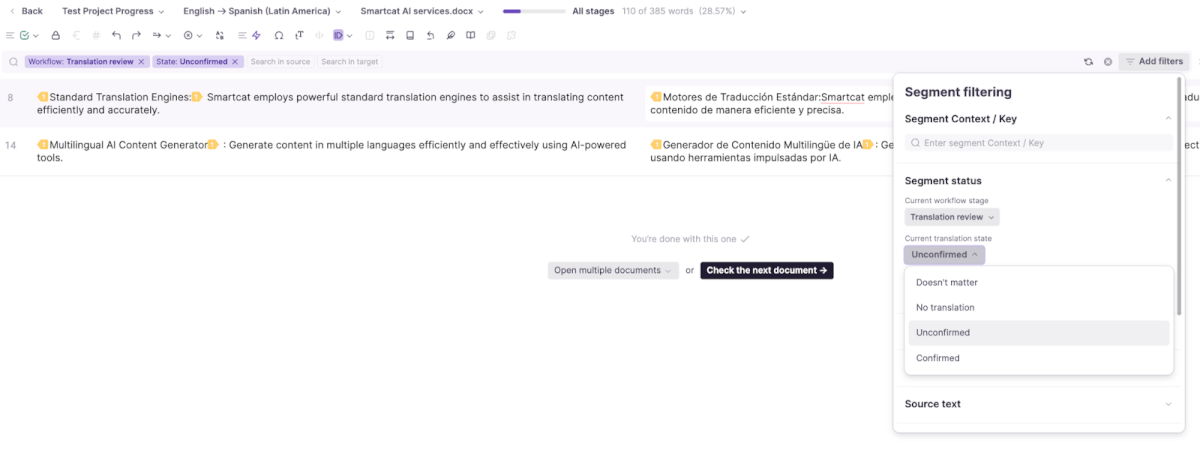
Resolve it:
-
Review any segments flagged with critical issues (tag errors, glossary mismatches, formatting problems) and fix them
-
Confirm all segments in the previous stage.
Segments in the next stage become editable once the previous stage is fully confirmed. You only need to click each stage once. You may need to wait to see the change; if you click too quickly you may accidentally confirm different stages.
💡 If a segment is intentionally blank and not meant to be translated, lock it manually to prevent project completion issues.
Cause 2: Segments locked by a manager
Workspace Admins and Project Managers can manually lock segments to prevent changes. These appear completely grayed out and display a "Locked by manager" tooltip on hover.
Resolve it:
-
Open the project in the CAT editor
-
Hover over the locked segment to confirm it shows the "Locked by manager" message
-
Click the Lock/Unlock icon in the toolbar to toggle the segment's lock status

The segment is unlocked and available for editing.
Cause 3: Segments locked by XLIFF import settings
If you import an XLIFF file and the segments are locked immediately after the file loads in the project, or if the progress looks high despite no one translating the file, this may be caused by the import settings.
If a file was imported with the setting Lock segments for imported translations and confirm them to the last stage selected, those segments are locked automatically on import.
Resolve it:
- Re-upload the file with the lock option deselected
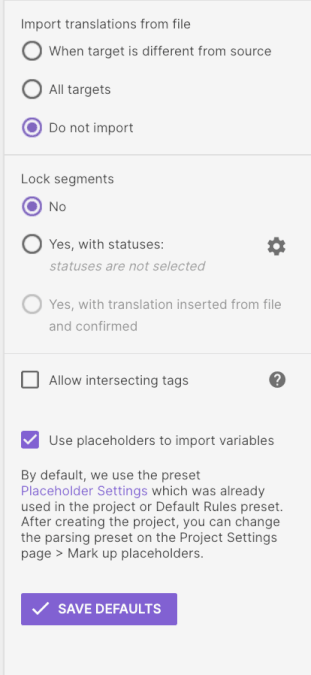
Segments are unlocked and editable.
📌Segments from an XLIFF file can be locked even if you do not select the Lock segments option when importing the file. If a translation unit has an attribute “translate” with value “no” it is locked in the editor regardless of the selection during import. You must edit the XLIFF file itself if you want to edit this segment in Smartcat.
Cause 4: File split among multiple suppliers
When a large file is divided among multiple suppliers working on the same language task, each supplier can only access their assigned portion. Segments outside their range appear locked.
Verify the assignment:
-
Go to Project Settings → Tasks
-
Check the supplier's assigned segment range
-
Confirm that the locked segments fall outside their allocation
If the assignment is configured correctly, no action is needed. If it is incorrect, update the task allocation.
Result: Each supplier can access only their assigned segments — this is expected behavior.
Lock a range of segments at once
To lock a range of segments at once, for example, segments 600-3000):
-
Open the document in the Smartcat editor
-
Optionally, use Ctrl+G to jump to the first segment number, click that first segment to select it, then hold Shift and click the last segment in the range — this selects everything in between
-
Click the Lock icon in the editor toolbar to lock the whole selection; clicking it again unlocks it (it's a toggle)
Locked segments turn grey and show a Locked by manager tooltip on hover. Locking is available to Workspace Admins and Project Managers. Avoid using Ctrl+A/Cmd+A select all for this — on some systems (notably Mac) it selects the entire page instead of the segment list. For very large ranges, if the Shift-click selection becomes unwieldy while scrolling, you can lock in smaller consecutive blocks instead — the end result is the same.
FAQs
All of a supplier's segments are locked. What is the most likely cause?
The previous workflow stage has not been confirmed. Ask the relevant person to confirm segments in the prior stage.
Only part of the file is locked for a supplier. Why?
The file is likely split among multiple suppliers. Check the task assignments in Project Settings → Tasks.
I see the "Locked by manager" tooltip. Who can unlock it?
Workspace Admins and Project Managers can unlock segments using the Lock/Unlock icon in the CAT editor toolbar.
Blank segments can't be confirmed. What should I do?
Lock them manually. Blank segments that are intentionally untranslated must be manually locked to prevent project completion issues.
Want to learn more?
See how Smartcat can transform your localization workflow.
Still need help?
Our support team responds within one business day.