Add services and rates on the Client Portal
Overview
When all the preparations for the portal launch are done, the next step is to add services and rates for those services to make the portal operable. This article walks you through what to do.
📌 The portal page stays blank until you add a service to your account in Smartcat.
Service addition
All services provided by your company are located in the Services tab of the Clients section.
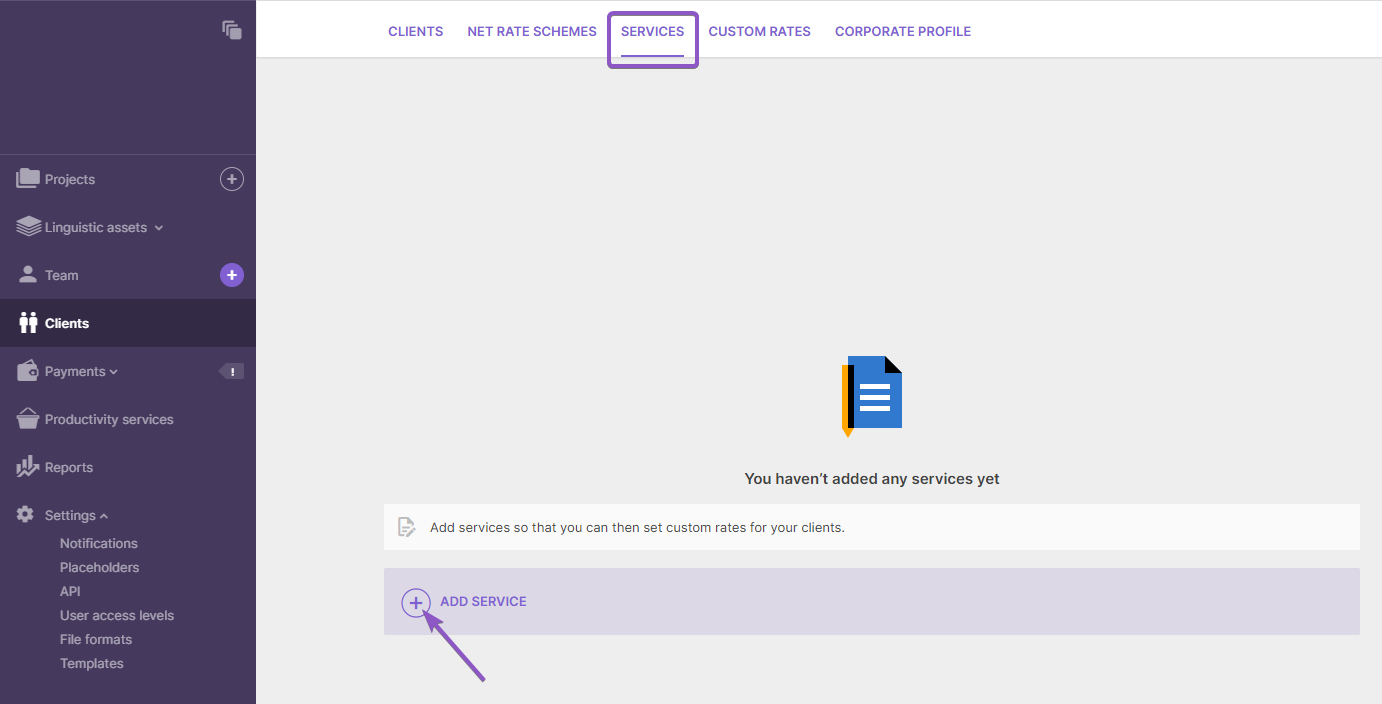
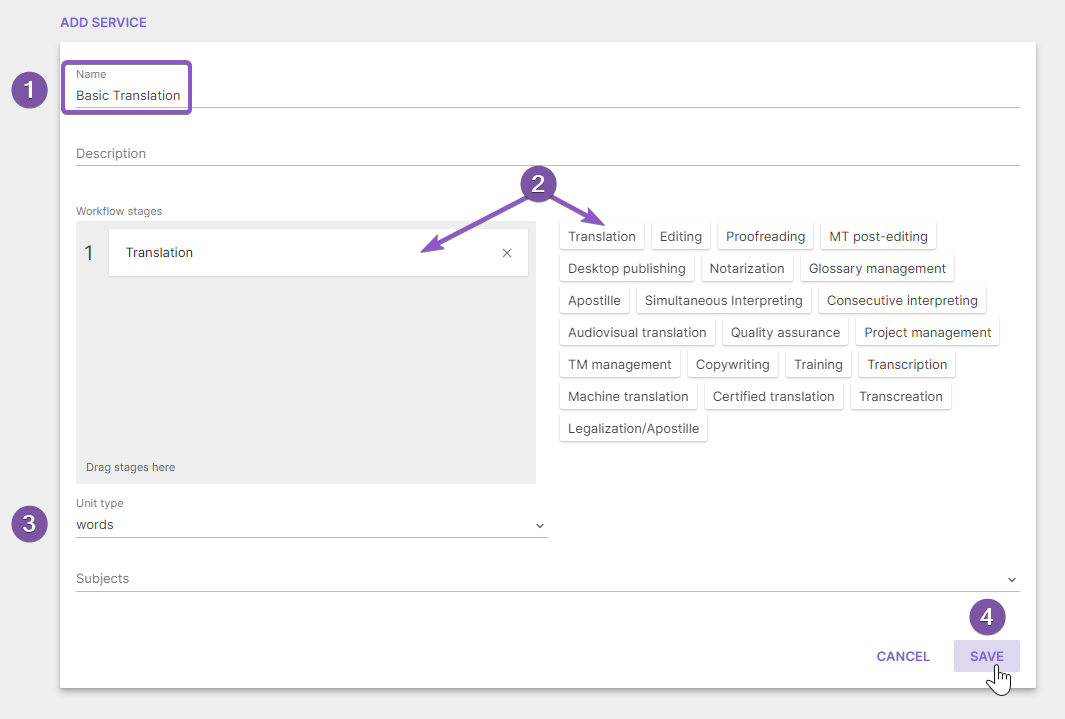
The plus sign opens the form for adding a new service. In this form, specify general information about the service:
-
Service name and description
-
Workflow stages
-
Unit type for calculating the cost and relevant subjects
-
Save the service
After you add the first service, the plus button disappears and all new services are ordered in the list. The Add service button moves to the top left of the page.
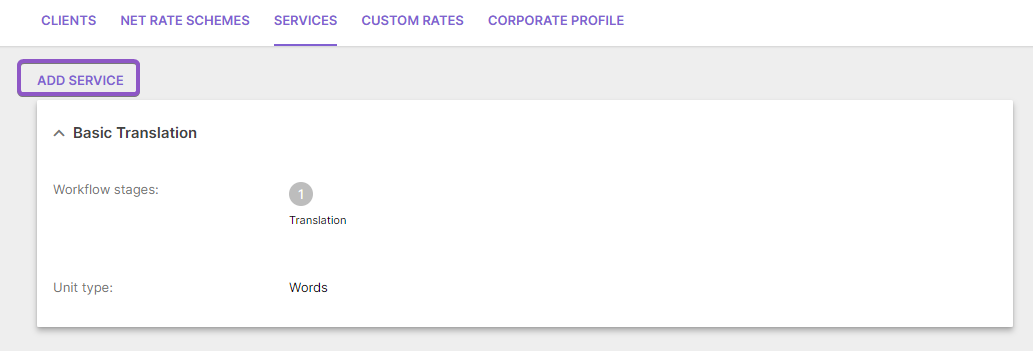
Your service now appears in the services list, ready for rates to be added.
Service rates
A service has to have a rate and language pair before it appears on the portal page. Here is how to add rates and languages.
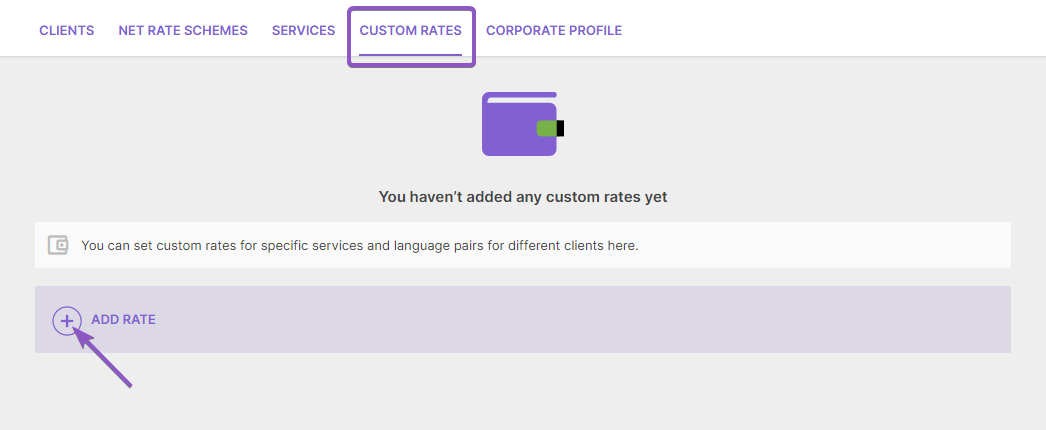
Go to the Custom Rates tab, where Smartcat displays rates already added and where you can set new ones.
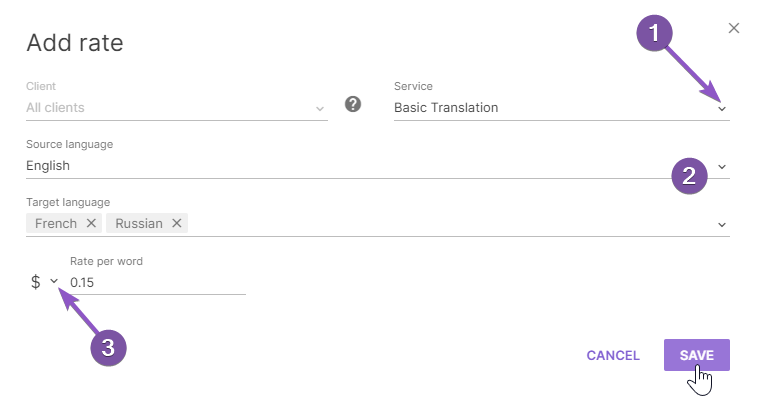
The form for adding rates has these fields:
-
Name of a service already added
-
Language pair (there may be several target languages)
-
Currency and rate per unit
The process is straightforward and easy to follow if you plan to add a dozen rates.

💡 The Rate per unit field (3) is not mandatory. Leave it empty if you don't need to bill a particular client. To set up a specific rate for a client from your list, create the rate and specify the client in the form.
Bulk import of services and rates
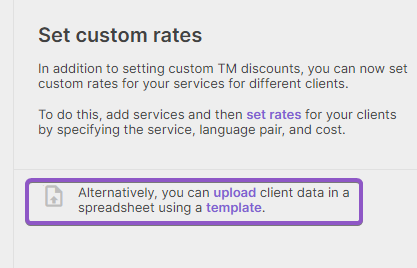
Smartcat also supports importing services and rates in bulk. Follow a two-step order: first import services, and only then the rates related to those services.
A template in the Services tab helps with the import.
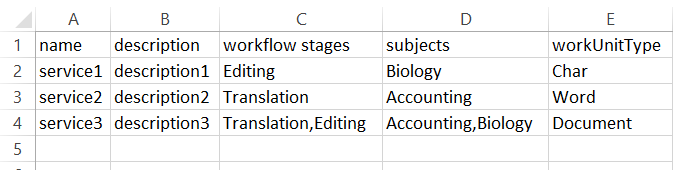
The template is in .csv format and has several fields, including:
-
Service name
-
Service description
-
Workflow stages (specify several stages separated by commas)
-
Subject (specify several separated by commas)
-
Unit type
With services added, download the rates template from the corresponding tab. The filter panel hides the rate import settings, so close it first. There you find a rates template that resembles the services template.
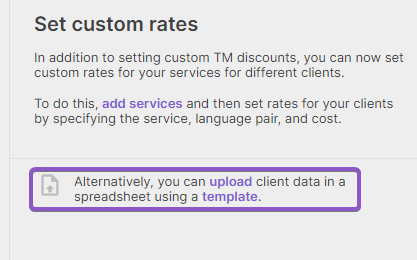
Fill in the rates template with the following data:
-
Service name that you added or imported earlier
-
A specific client's name, or All clients if you plan to apply the rate to all your clients
-
Source language code
-
Target language code
-
Rate per unit, using a point as the separator
-
Currency code of the rate
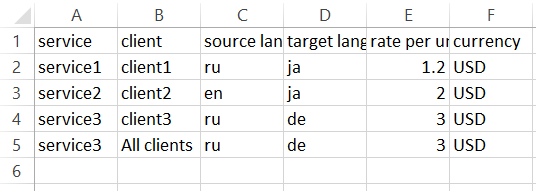
Bulk import is a more convenient way to add services and rates when you plan to add dozens of services with different rates.
Operable portal
After you add services, the portal page updates automatically and shows the services set in your Smartcat account.
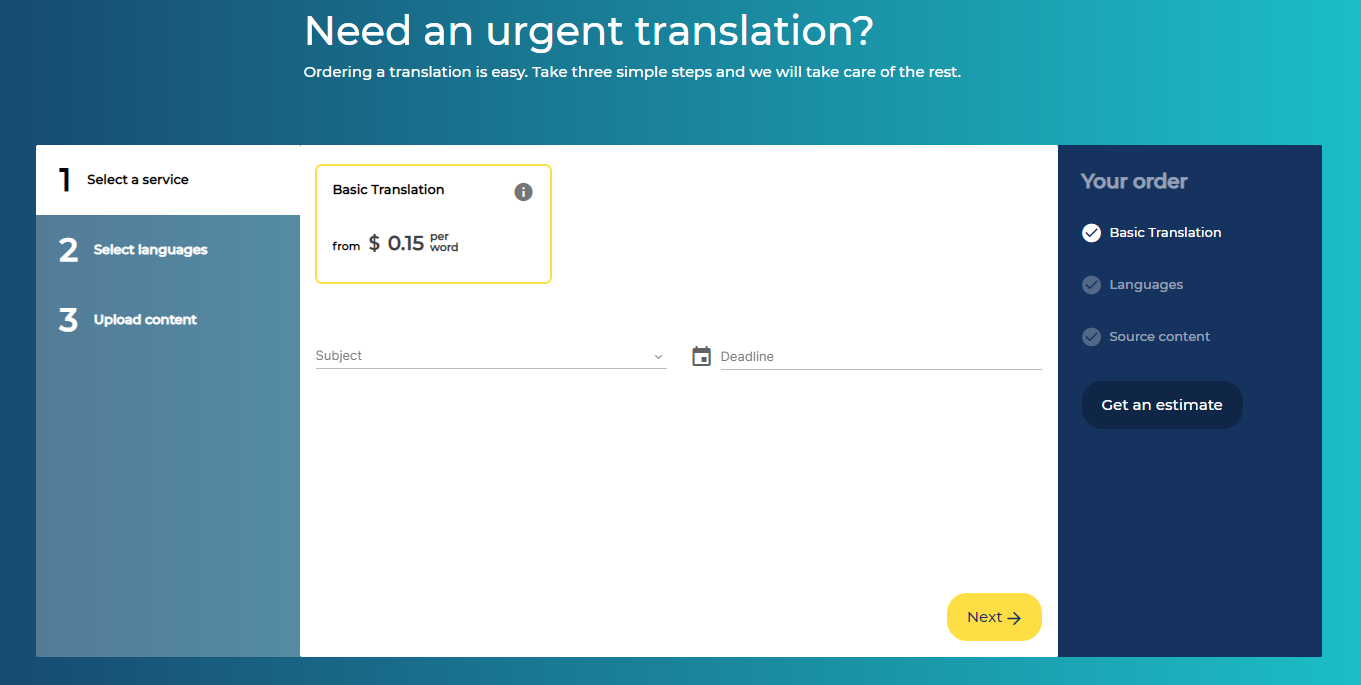
Your customers can now place an order from this page following the step-by-step workflow. You can find a more detailed description of this workflow in the article on how to use the client portal.
Corporate profile
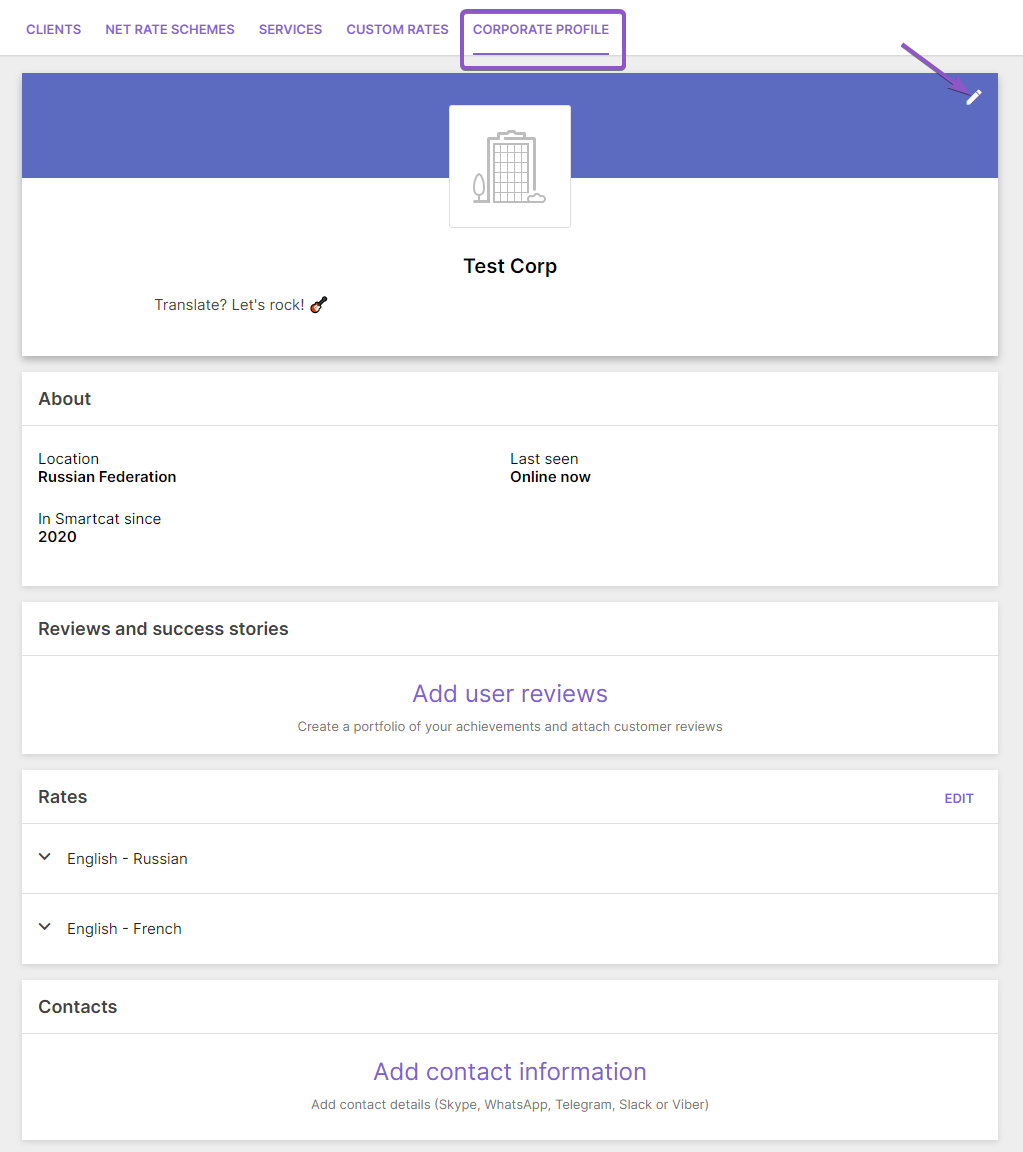
Besides the portal, the services and rates you add are visible in your corporate profile, making them available to customers who search for suppliers using the Smartcat Marketplace.
Here you can also edit company details, including description, company history, contacts, and reviews.
FAQs
Why does my Client Portal page stay blank after I set it up?
The portal page shows no content until you add at least one service to your account. Once a service has both a rate and a language pair, it appears automatically on the portal page.
Do I need to add rates before a service appears on the portal?
Yes. A service must have at least one rate and language pair configured before it displays on the portal page — adding the service alone is not enough.
Can I leave the "Rate per unit" field empty when adding a rate?
Yes, the Rate per unit field is optional. Leave it empty if you don't want to bill a particular client for that service; you can also set client-specific rates by specifying the client when creating the rate.
What's the difference between adding services individually and using bulk import?
Individual entry works well for adding a handful of services and rates, while bulk import (via CSV templates for Services and Rates) is more efficient when adding dozens of services with multiple rates. Bulk import requires importing services first, then rates.
Where else do my services and rates appear besides the Client Portal?
They also appear in your corporate profile, which is visible to potential customers browsing the Smartcat Marketplace — so filling out your services thoroughly helps you get discovered there too.
Want to learn more?
See how Smartcat can transform your localization workflow.
Still need help?
Our support team responds within one business day.