XLIFF export and import
Overview
Smartcat lets you export any document as an XLIFF file, edit it in an external tool, and import it back. This supports working offline, using another CAT tool, external review and QA, and delivering translations as bilingual files.
When to use it
-
Working offline — Smartcat's CAT editor is online, so export documents as XLIFF, work in your preferred XLIFF editor offline, then import them back and continue
-
Using another CAT tool — export documents assigned by a Smartcat client, translate them in your CAT tool of choice, and import them back; in a multi-user project this does not affect other participants' progress
-
External review — when a customer's in-house or in-country team must review before final layout, export XLIFF for them; you can choose whether to confirm the changed segments on re-import
-
External QA — run exported XLIFF files through a QA tool such as Verifika, Xbench, lexiQA, or QA Distiller, then re-import
-
Bilingual delivery — when a client wants both a translated document and a bilingual file, export completed documents as XLIFF from the Export menu
How to export XLIFF files
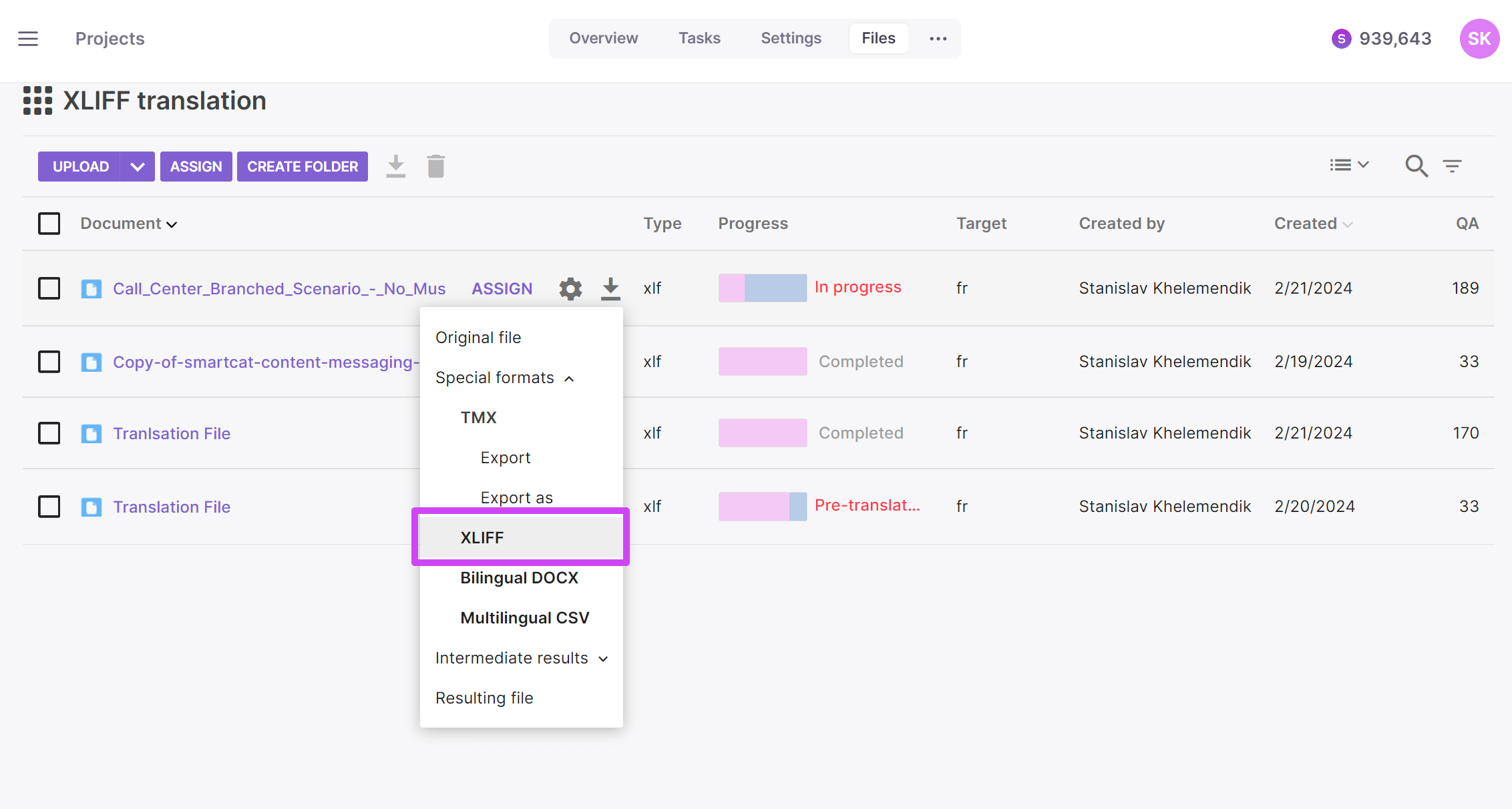
On the project page, select the documents to export and choose XLIFF under Special formats in the Export menu. You can then work with the files in any tool that supports XLIFF.
💡 Smartcat has integrations with some QA tools, which removes the need to export XLIFF files at all.
Your documents are exported as XLIFF 1.2 files.
How to import XLIFF files back
-
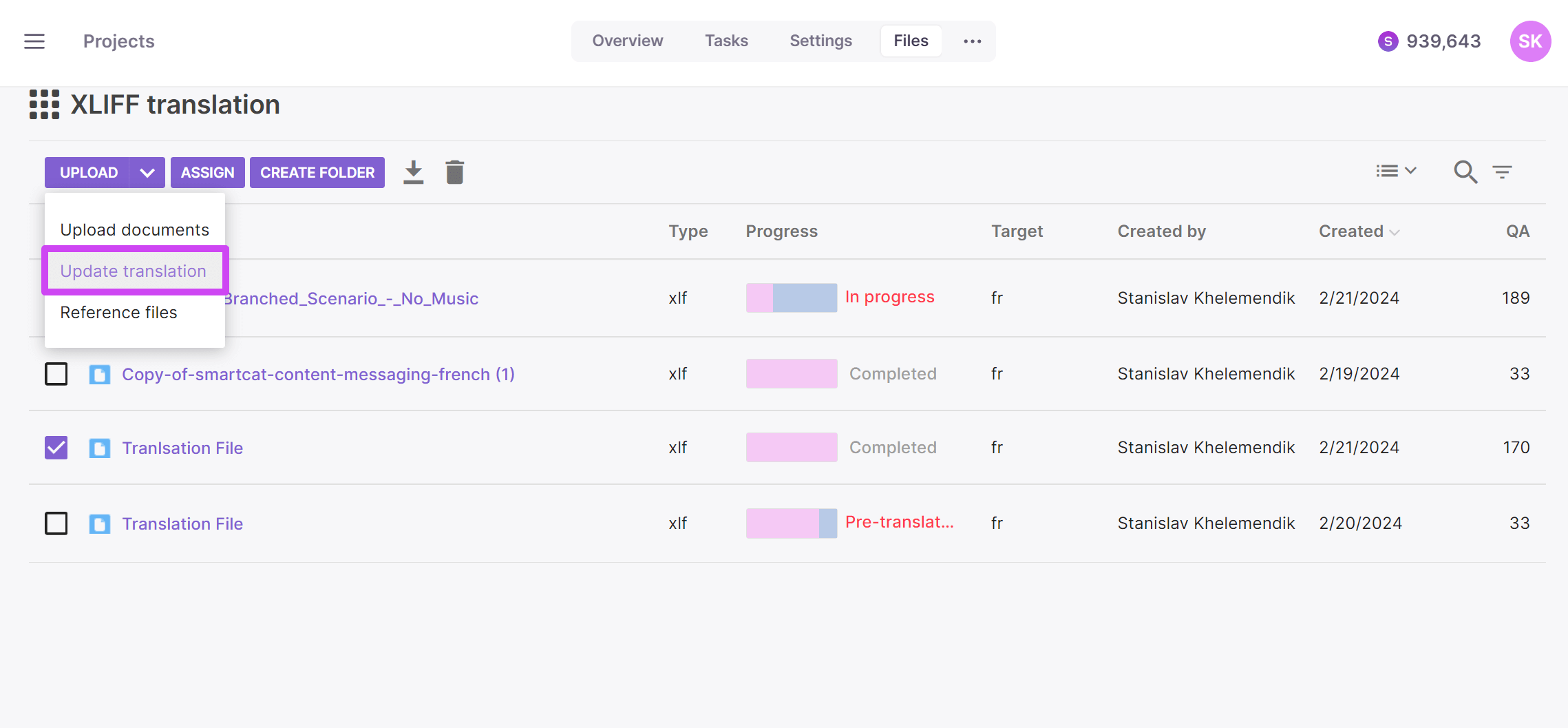
On the project page, click the arrow to the right of the Upload button and choose Update translation
-
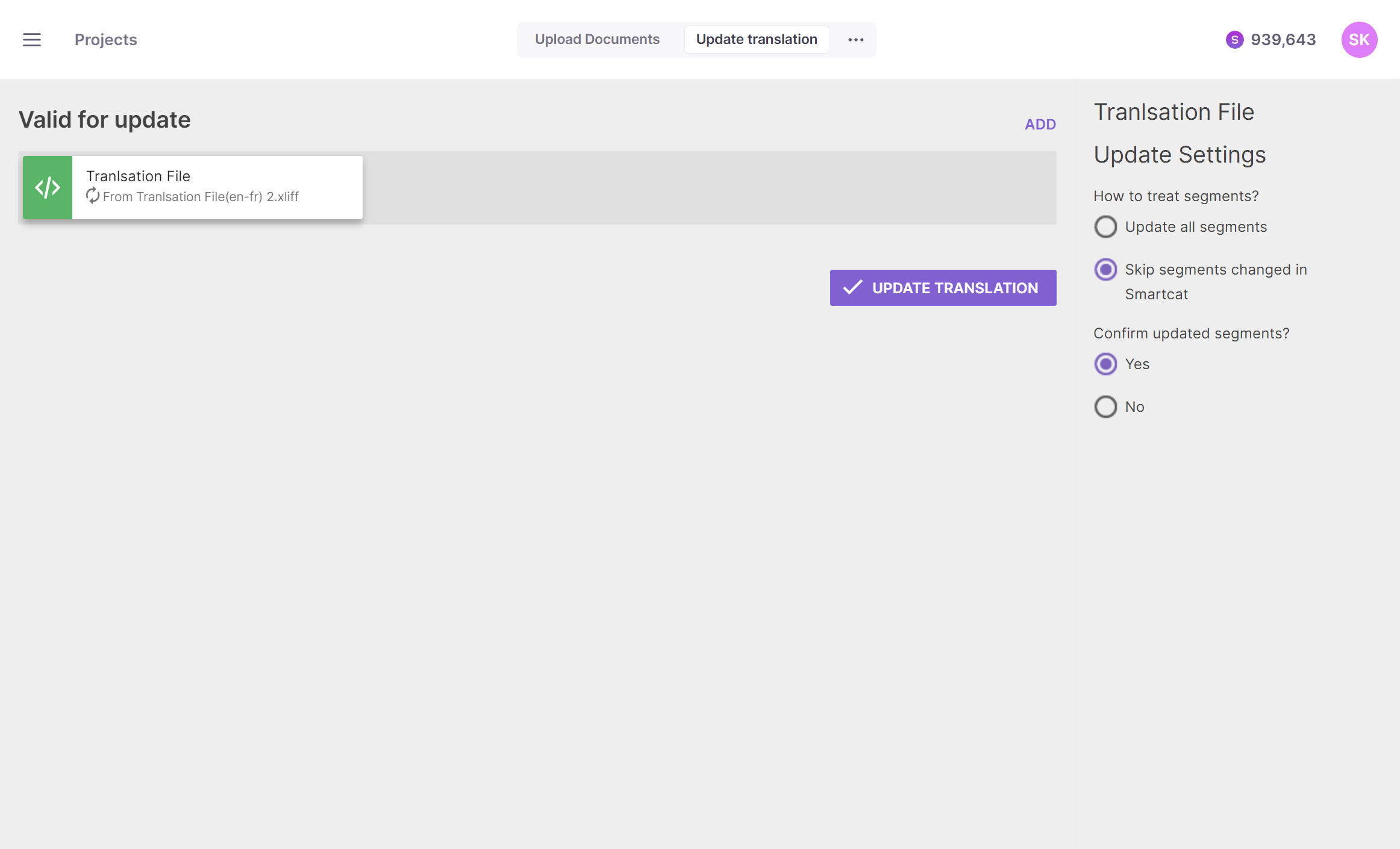
In the wizard, choose your import settings — if segments changed in Smartcat while you edited the file externally, decide whether to overwrite them (Update all segments) or not (Skip segments changed in Smartcat). You can also confirm all updated segments and save them to the Translation Memory, or keep them unconfirmed to check later
After import, the updated segments are marked Updated in the CAT editor.
XLIFF version and compliance
Smartcat works with most XLIFF-based formats but exports in XLIFF 1.2, the most stable format supported by most translation tools. Smartcat is fully compliant with the XLIFF 1.2 specification and adds only a few Smartcat-specific tag attributes to imported files for convenience.
Recommended XLIFF editors
If you do not have a CAT tool installed, Smartcat recommends Poedit (version 2.2 or later), a free offline translation editor. Virtaal is another good option.
FAQs
When would I want to work with XLIFF files instead of staying in the Smartcat editor?
Common cases include working offline, using a different CAT tool you prefer, having a customer's in-house team do external review before final layout, running external QA tools like Verifika, Xbench, lexiQA, or QA Distiller, or delivering a bilingual file alongside the final translation.
If a client's in-country reviewer edits the exported XLIFF, do I have to accept all their changes?
No — you can choose whether to confirm the changed segments on re-import, giving you control over which edits get accepted into the project.
Does exporting XLIFF for one team member affect the work of others on the same project?
No — in a multi-user project, exporting and working externally with your assigned documents does not affect other participants' ongoing progress.
What XLIFF version does Smartcat produce?
XLIFF 1.2.
Want to learn more?
See how Smartcat can transform your localization workflow.
Still need help?
Our support team responds within one business day.