Managing Cues in the Subtitle Editor: Add, Delete, Merge, and Split
When to use it
Use this guide when you need to manage cues (subtitle segments) in Smartcat's Subtitle Editor. This includes adding new cues, deleting unwanted ones, merging adjacent cues, or splitting long cues into smaller segments.
What are cues?
Cues are individual subtitle segments that appear on screen during specific time intervals. Each cue contains text and has start/end timestamps that control when it displays during video playback.
Managing cues in the Subtitle Editor
All cue management takes place on the right side of the Subtitle Editor where you can see your subtitle text organized by timestamps.
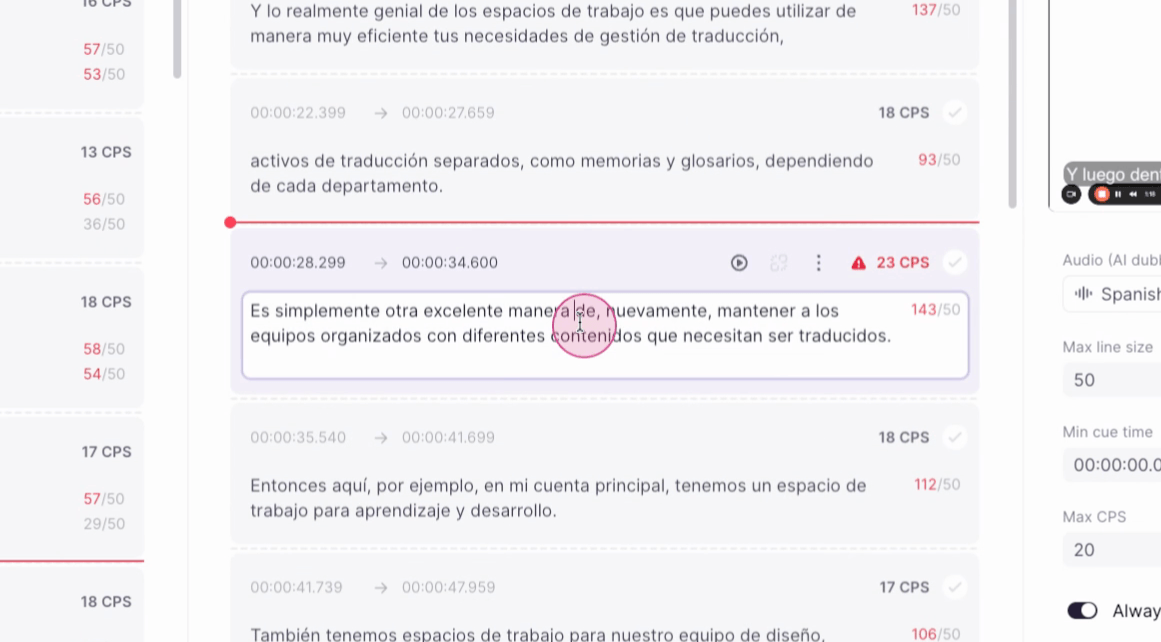
Delete a cue
To remove an unwanted cue:
-
Locate the cue you want to delete in the subtitle panel
-
Click the three dots (⋯) button on the cue
-
Select Delete from the dropdown menu
-
The cue will be permanently removed
Add a new cue
There are two ways to insert a new cue:
Method 1: Using the dots menu
-
Click the three dots (⋯) button on any existing cue
-
Select Insert before or Insert after from the dropdown menu
-
An empty cue will appear for you to add text
Method 2: Quick insert (faster)
-
Hover your cursor over the border between two cues
-
Click the floating + button that appears
-
A new empty cue is created at that position
Merge cues
Cues can be merged one at a time with an adjacent cue using the dots menu:
-
Click the three dots (⋯) button on the cue you want to merge
-
Select Merge with previous or Merge with next from the dropdown menu
-
The two cues combine into a single cue with all the text
⚠️ Merge with previous is only available when there is a cue before the current one; Merge with next is only available when there is a cue after it. These options are disabled when no adjacent cue exists.
Split a cue
To divide a cue into separate segments, use the Split by lines button in the cue toolbar:
-
Click on the cue you want to split
-
Press Enter inside the cue's text area to create at least two lines of text
-
Click the Split by lines icon button in the cue toolbar
-
Each line will become a separate cue
⚠️ The Split by lines button is disabled until the cue contains at least two lines of text. If the button is greyed out, enter a line break by pressing Enter first.
Creating line breaks within a cue:
-
Press Enter to create multiple lines within a single cue
-
This organizes text across multiple lines without splitting the cue
Best practices
-
For AI dubbing: Keep complete sentences or clauses in single cues to avoid unnatural pauses in the synthetic voice
-
For readability: Ensure each cue doesn't exceed your CPS (Characters Per Second) limits
-
For timing: Make sure cue start/end times align properly with the video content
-
For consistency: Use the Settings tab to configure CPS limits and other parameters across your entire subtitle file
Troubleshooting
Can't find the dots menu? Look for the three dots (⋯) icon on the right side of each cue.
Split by lines not working? The button is disabled until the cue has at least two lines of text. Click inside the cue and press Enter to add a line break first.
Want to learn more?
See how Smartcat can transform your localization workflow.
Still need help?
Our support team responds within one business day.