Clone a project
Overview
With the project copying feature, you can duplicate an existing project with all its settings, translations, revisions, and comments. This lets you save project progress and make a backup version of your project. Once the project is cloned, you can edit the new one without affecting the original.
How to copy a project
-
Go to the project you want to clone
-
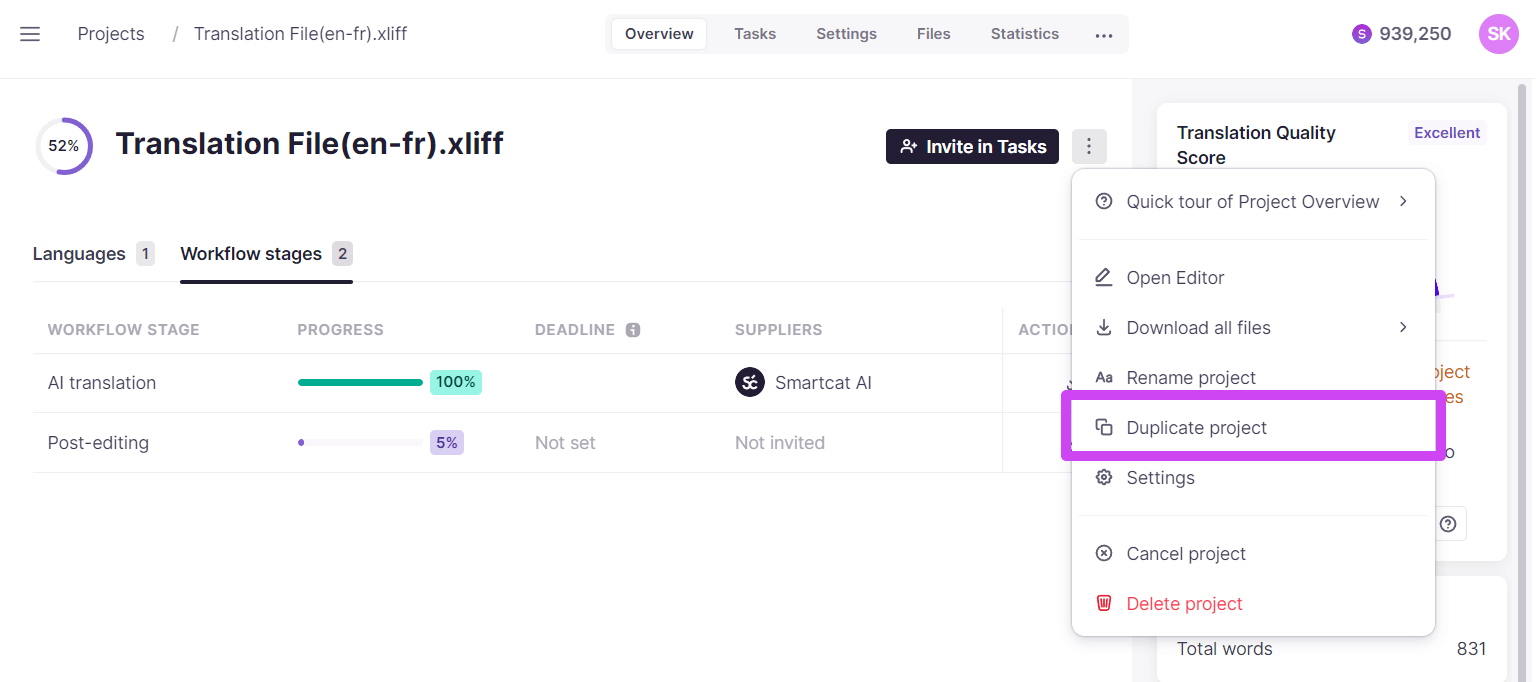
Click the three dots and select Duplicate project from the drop-down menu
-
Enter a name for the cloned project
-
Select the elements you want to clone: documents, translations, comments, and/or revisions
-
Click Copy
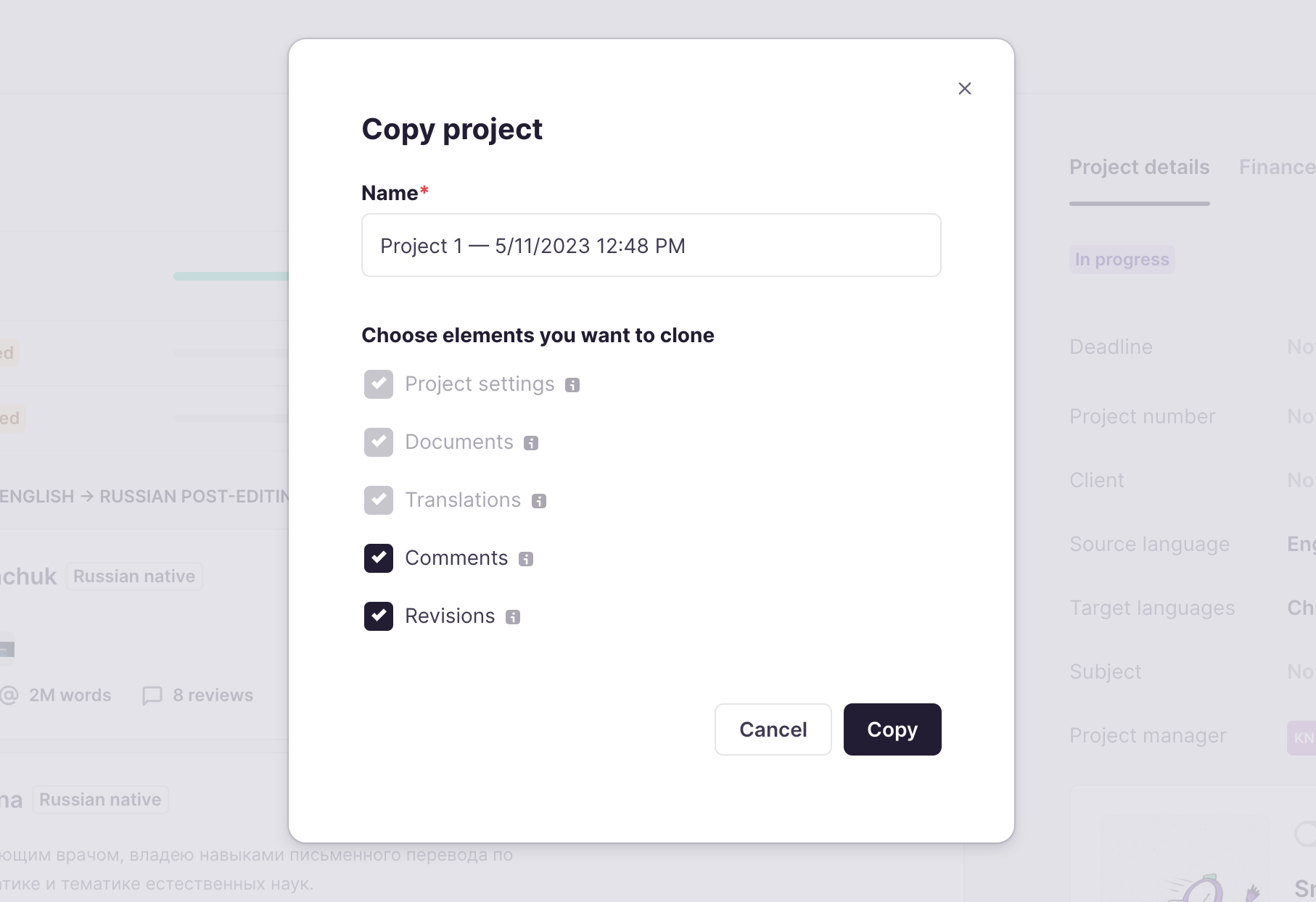
The copied project then appears in your main Projects list.
What gets cloned
The following elements of the project are cloned.
Project settings
📌 This option is always enabled.
-
Source and target languages
-
Workflow settings
-
Description, External Tag, Client, Subject
-
Linguistic assets
-
AI translation rules
-
QA check settings
-
Placeholder settings
Documents
Additionally copies documents (source) and reference files.
Translation
Current translations (but not translation history).
📌 This option is available only together with Documents.
Comments
Document and segment comments.
📌 This option is available only together with Documents.
Revisions
Segment revisions (segment edit history).
📌 This option is available only together with Translation.
Cloned project naming
When the project is copied, the name appears automatically as follows, though you can edit it afterward:
-
Copy of '{ORIGINAL_PROJECT_NAME}' from {YYYY-MM-DD}— the default template -
{GENERATED_NAME} ({N})— used to disambiguate the project name when the first template is already in use
Have more questions? Learn more about project management.
FAQs
Does cloning a project affect the original project in any way?
No. Once cloned, the new project is completely independent — you can edit it freely without changing the original.
Can I clone comments and revisions without cloning the translations?
No. The Comments option is only available if you also clone Documents, and Revisions is only available if you also clone Translation — these options depend on each other rather than working independently.
Does cloning bring over the translation history, or just the current translations?
Only the current translations are copied — the full translation history (previous edits/versions) is not cloned.
What exactly counts as "Project settings" when cloning?
Source and target languages, workflow settings, description, external tag, client, subject, linguistic assets, AI translation rules, QA check settings, and placeholder settings — these are always cloned regardless of which other elements you select.
Want to learn more?
See how Smartcat can transform your localization workflow.
Still need help?
Our support team responds within one business day.