Translate an HTML file in Smartcat
Overview
Smartcat lets you translate your HTML files. Follow these steps to create a high-quality translation for your HTML files.
Upload your HTML file
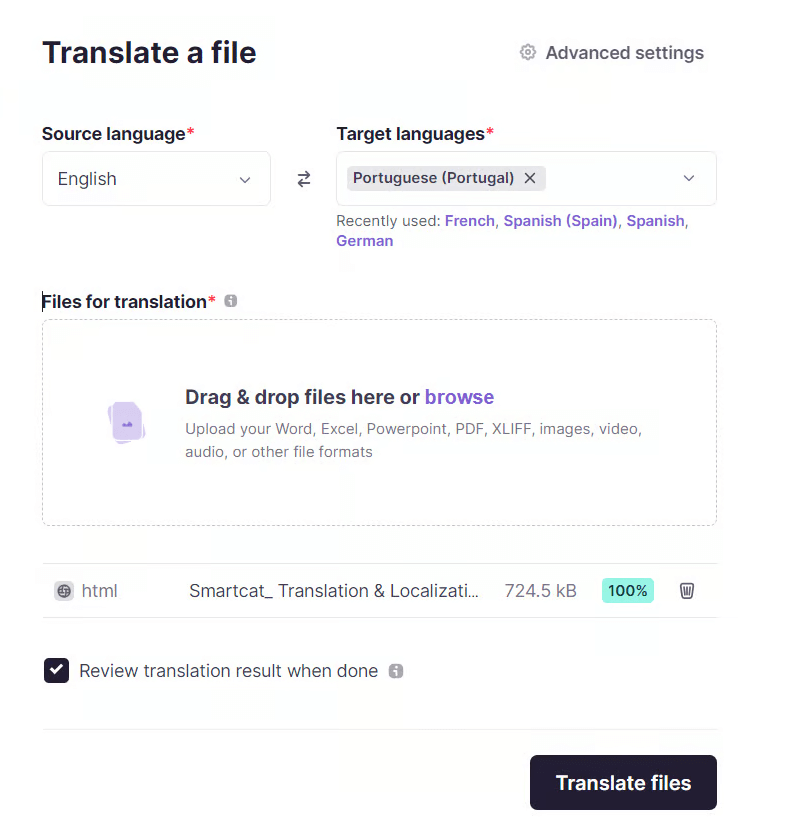
Open your workspace and click Translate a File or ask Smartcat AI to translate an HTML file..
That opens the project creation tab.
-
Specify both the source and target languages
-
Select your HTML file from the computer
-
Click Translate files
An Overview tab opens, where you can view the workflow stages. When the progress bar of the AI translation workflow stage reaches 100%, the stage is complete and you can open your HTML file in the CAT editor.
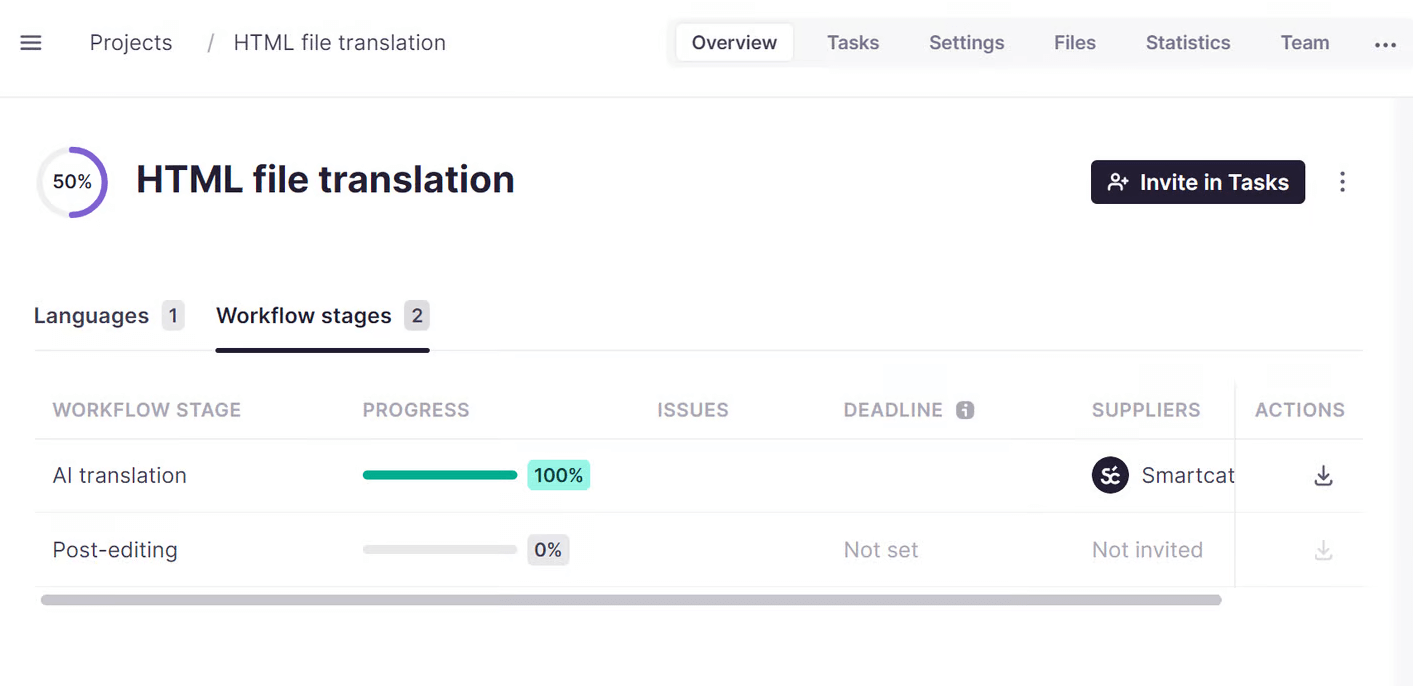
Your HTML file is now uploaded and translated, ready for review.
Upload your file to an existing project
Another option for working with your HTML file in Smartcat is to upload your file to an existing project.
-
Open your project
-
Go to the Files tab and click the Upload button
-
Select Upload documents from the drop-down menu
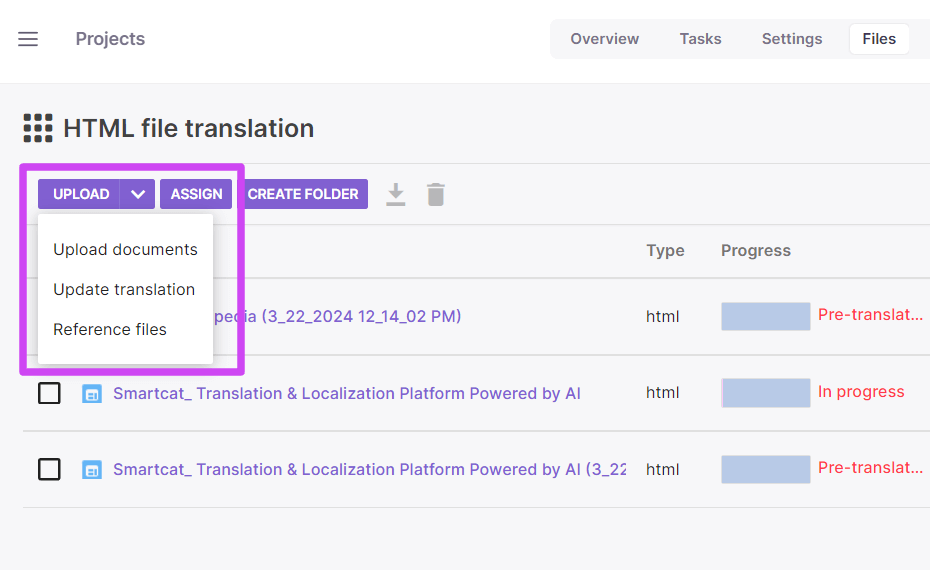
Select your file from the computer and click Finish. You can upload multiple files at once.
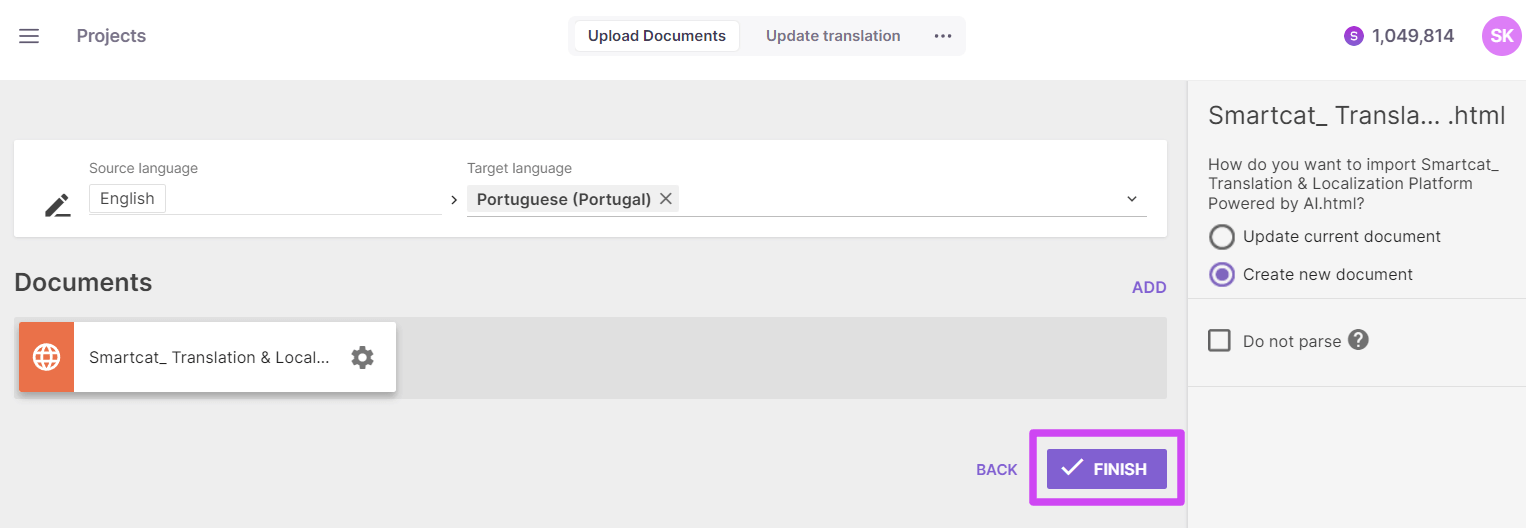
Your file is now added to the existing project.
Review your translation
Open your file from the Files tab. The editing area is divided into segments.
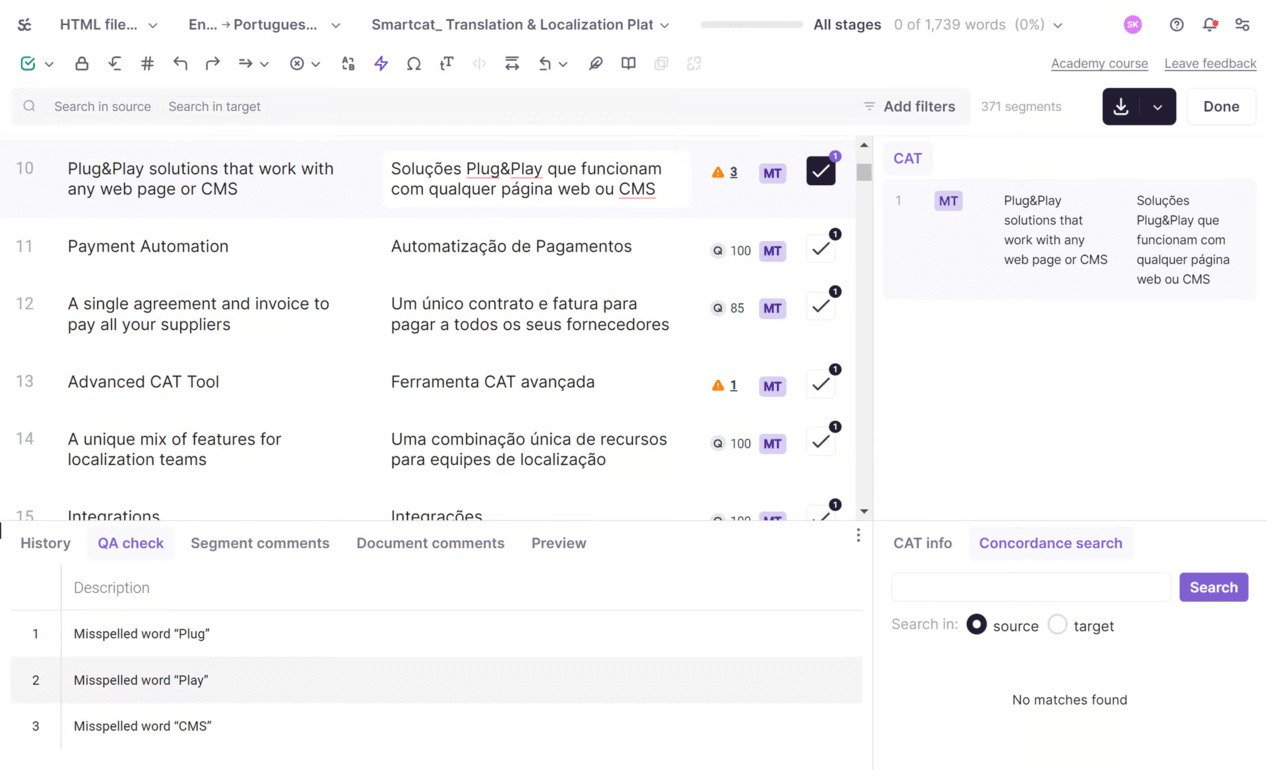
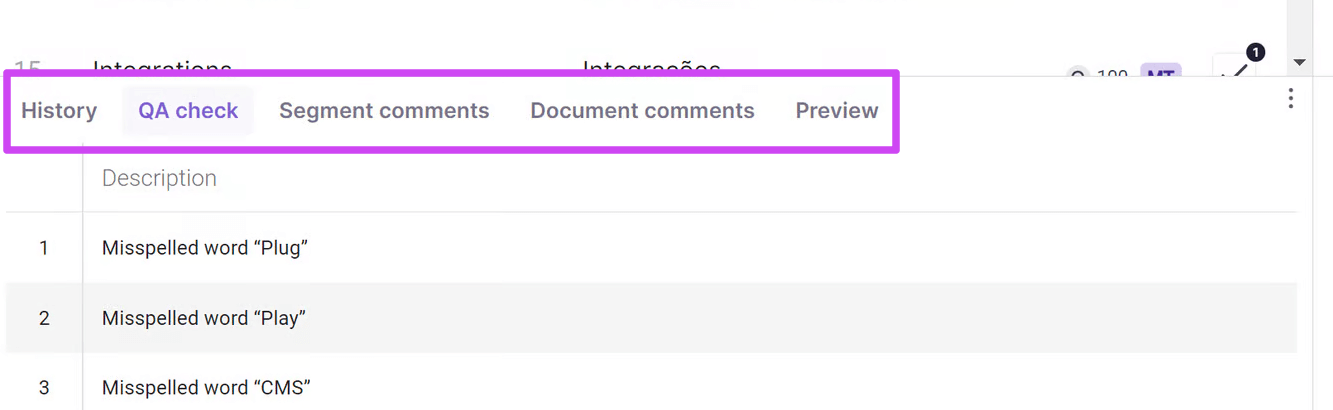
Edit your translation if necessary. Below the editing area, you'll find various tabs.
-
History — monitor the edit history of your file
-
QA check — check the Quality Assurance tab for inaccuracies if there are any. You can also track errors via the orange warning sign on the right of the segment
-
Segment comments & document comments — add comments to specific text segments or to an entire document for other assignees
-
Preview — view the preview of your HTML file in the respective tab. The preview automatically displays the selected text segment within the source file
Live preview
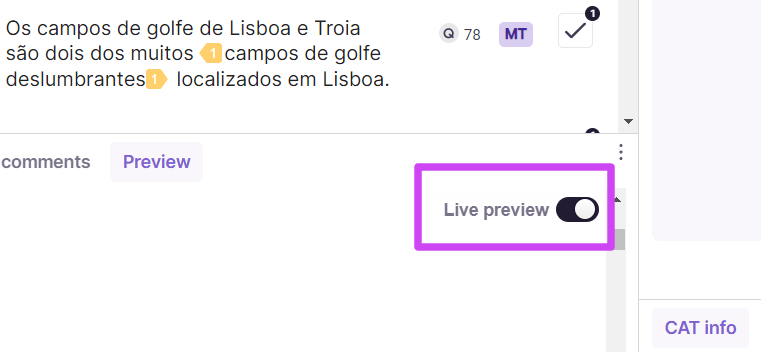
Live preview lets you work directly with the source text. Use the switcher in the Preview tab to activate this feature.
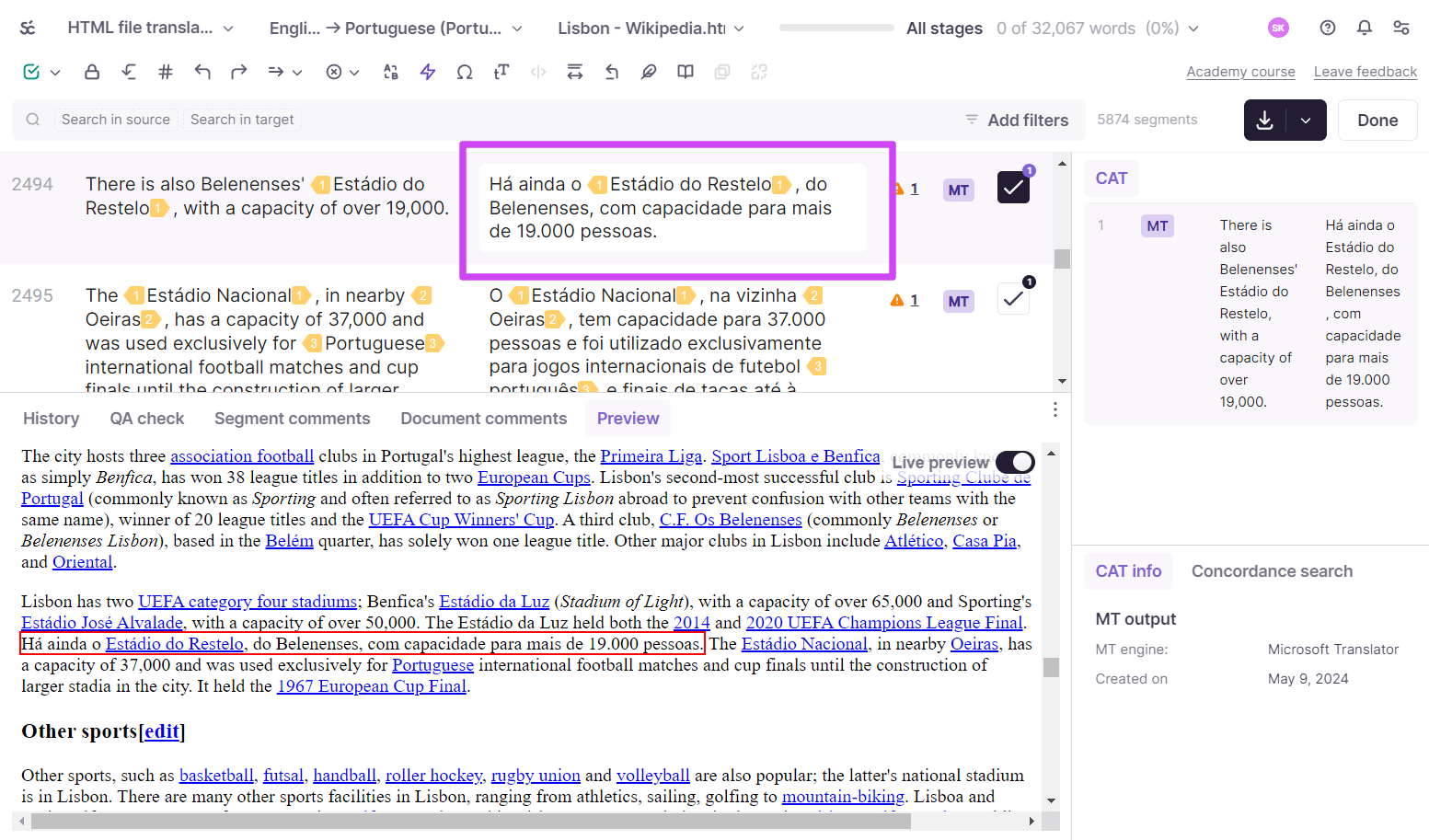
Click the translated segment to go to its corresponding segment in the source text. The Live preview displays the specific text segment in the target language. Use this feature to monitor how the translation fits into your HTML file structure.
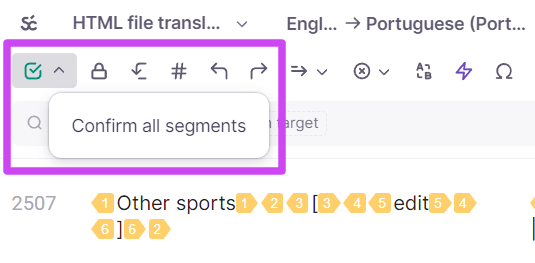
Review and confirm one segment after another by clicking the checkbox on the right of the text segment. To confirm all segments at once, click the checkbox icon in the toolbar.
Assign a reviewer
A good idea is to assign the review of the translation to another reviewer. Smartcat lets you assign tasks to a reviewer within the platform.
To invite a reviewer, go to the Tasks tab. Select the Post-editing task.
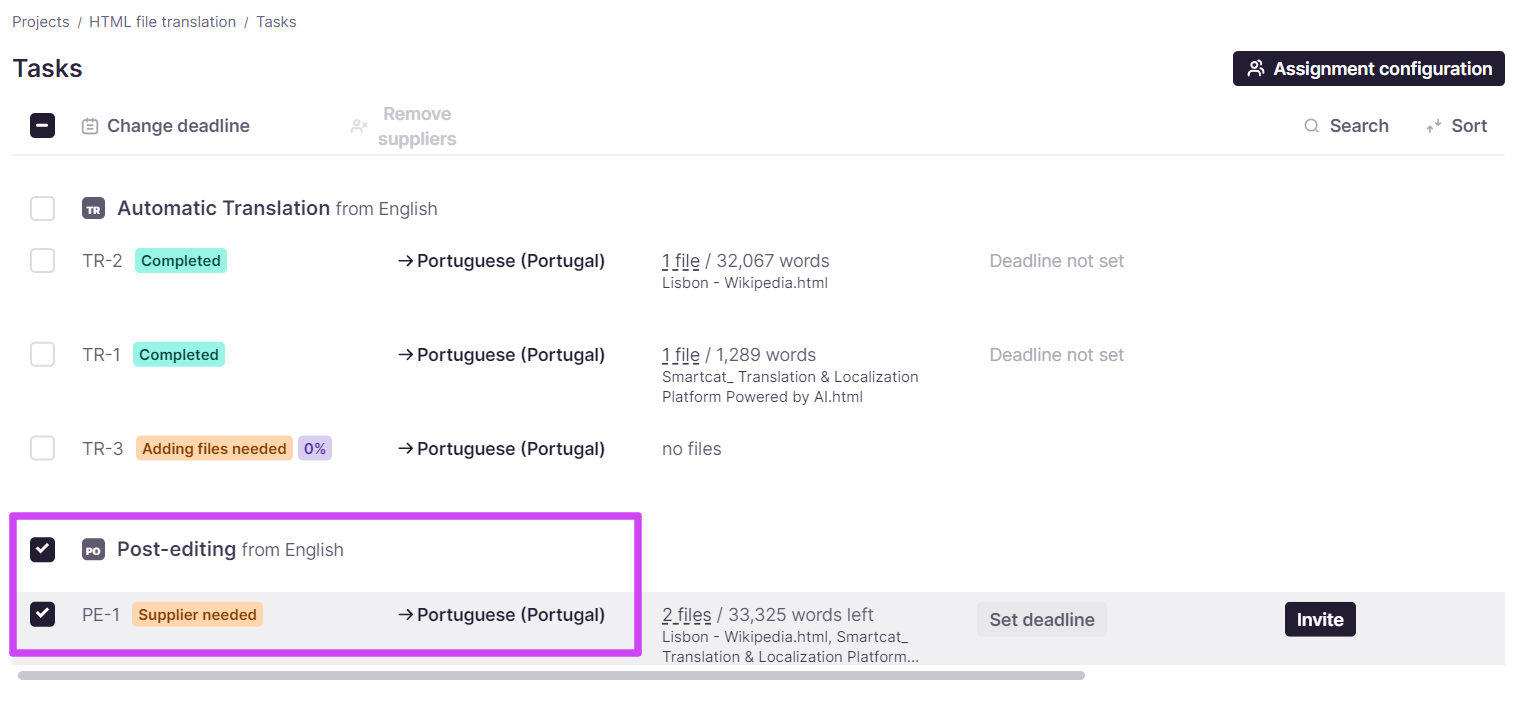
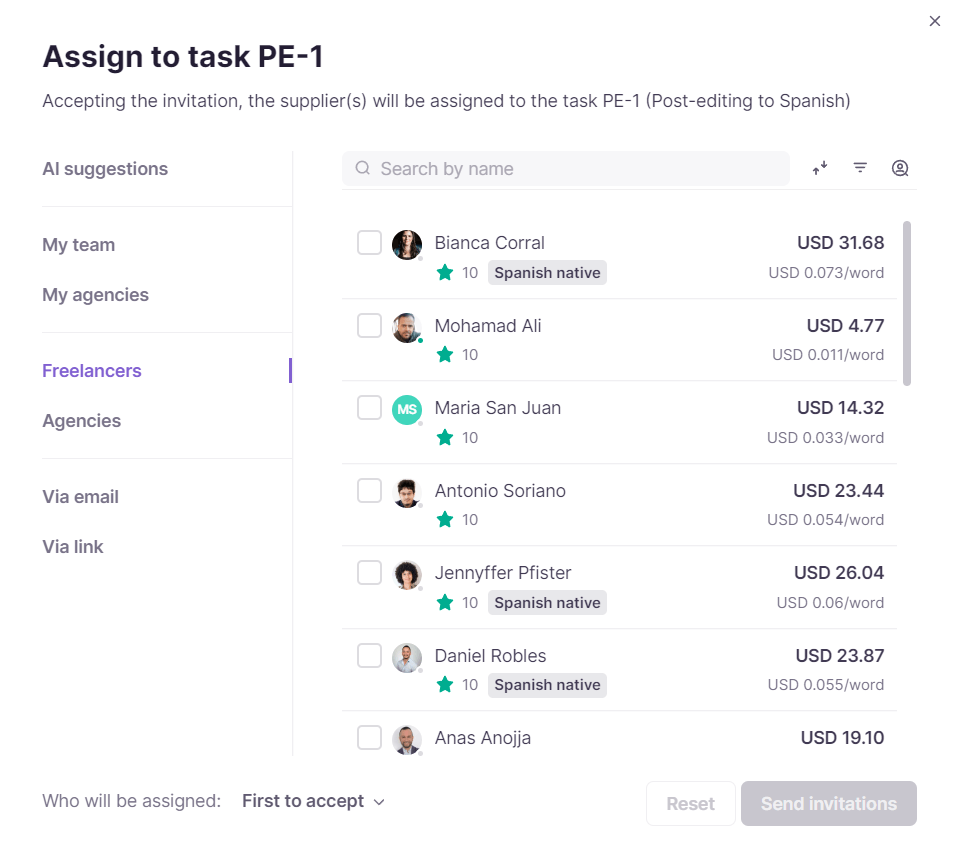
Click Invite. In the following pop-up, you can choose from various options.
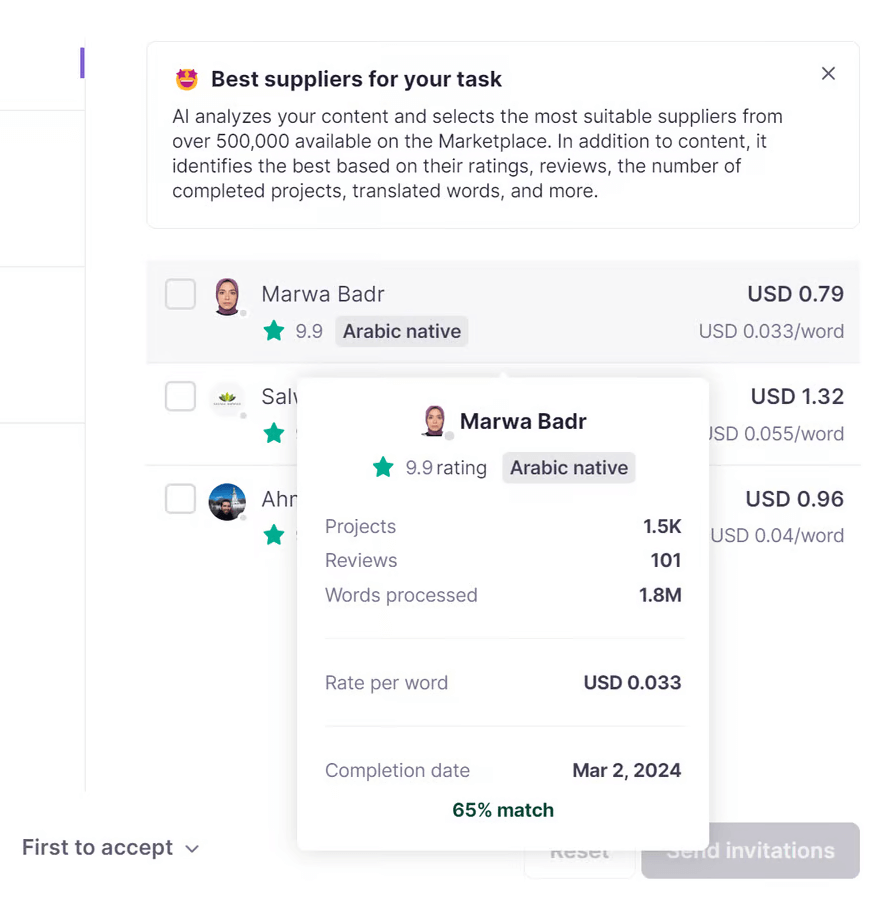
- AI suggestions — Smartcat AI analyzes content and selects the most suitable suppliers from a Marketplace of over 500,000 vetted linguistic reviewers based on various criteria including ratings, reviews, and completed projects
Hover over a supplier's profile to view concise statistics.
After you select a suitable reviewer, click the Send invitations button. The reviewer receives an invitation. Check the invitation status in the Tasks tab.
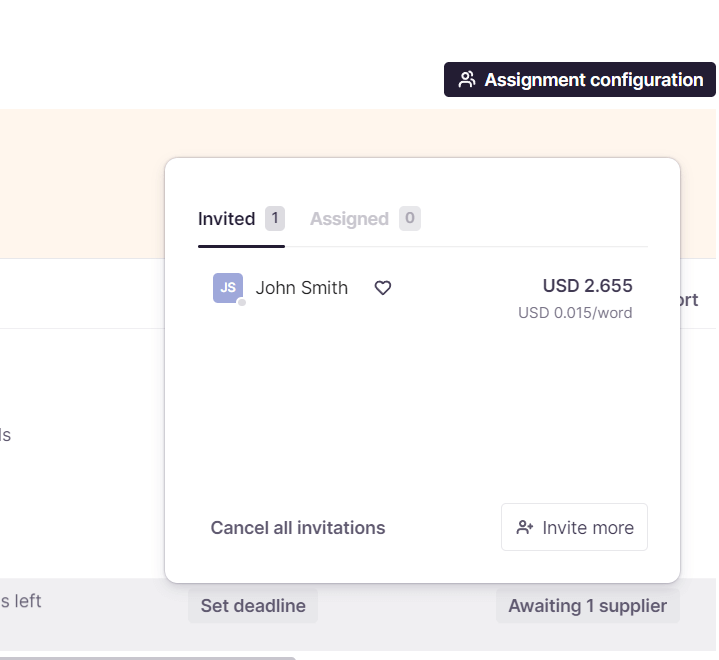
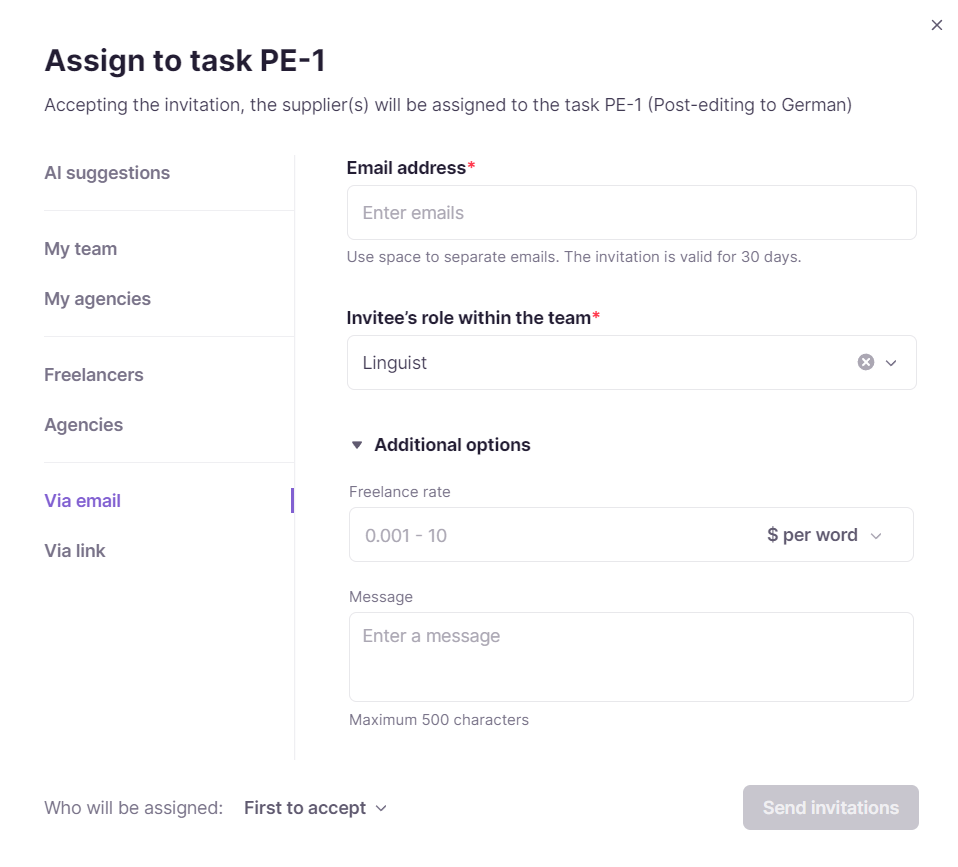
Other invitation options include:
-
Agencies — find the vendor on the Smartcat Marketplace and save it to your agencies list
-
Human linguistic reviewers — use search criteria to find a reviewer that best suits your needs
-
My team — select a reviewer from your team
-
My agencies — select a vendor from your saved agencies
-
Via email — enter the email and specify the role of the specialist you want to invite to your project. In additional options you can specify the rate and enter the invitational message
-
Via link — generate an invitational link for a reviewer. As in the previous option, you can specify the role and rate, and write a message
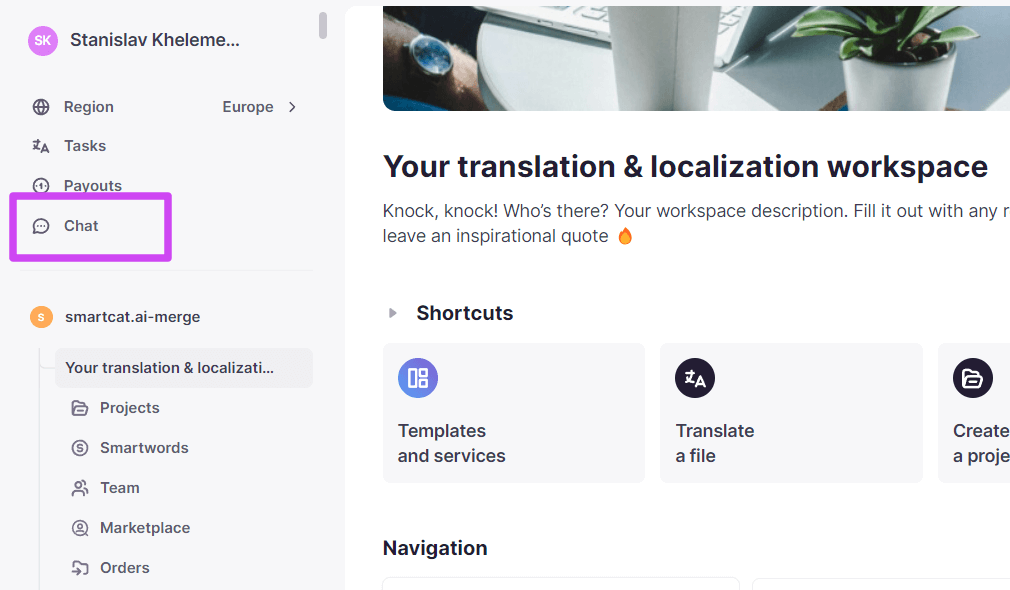
After you assign a reviewer, you can track the progress of the task in the Overview tab. To communicate with assigned reviewers, use the in-built chat. Access the chat via the message icon in your workspace.
Export your HTML file
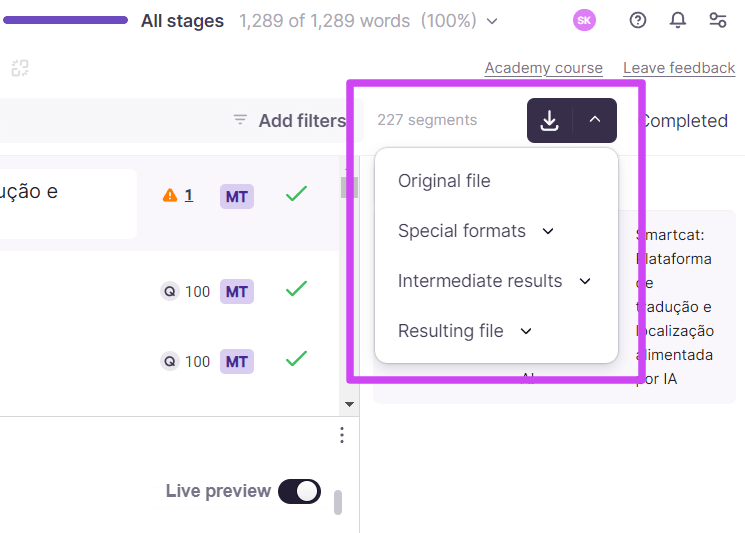
Once review and edit of your AI translation is complete, click the Done button in the CAT editor and download your resulting file in HTML format. If you choose the Special formats option in the drop-down menu, you can export your file in TMX, XLIFF, or CSV.
FAQs
Can I add an HTML file to a project I already created, instead of starting a new one?
Yes — open the existing project, go to the Files tab, click Upload, and choose Upload documents. You can upload multiple files at once.
What is Live Preview and why would I use it?
Live Preview lets you see the translated segment rendered directly within your HTML file's structure. Click a translated segment to jump to its corresponding spot in the source, so you can check how the translation fits visually before finalizing.
How do I confirm my translated segments once I'm done reviewing them?
Click the checkbox next to each segment to confirm it individually, or click the checkbox icon in the toolbar to confirm all segments in the file at once.
What formats can I export my finished HTML translation in?
By default you download the file in HTML format. If you choose the Special formats option in the download dropdown, you can also export as TMX, XLIFF, or CSV.
How does Smartcat suggest a reviewer for my translation?
Smartcat AI can analyze your content and suggest suitable suppliers from the Marketplace based on ratings, reviews, and completed projects — or you can invite a reviewer manually via agencies, your team, email, or a shareable link.
Want to learn more?
See how Smartcat can transform your localization workflow.
Still need help?
Our support team responds within one business day.