Resolve errors in payment amounts for completed tasks
Overview
If you have a task waiting to be paid in the payments section but you know the amount is incorrect, the right fix depends on your situation. This article covers how to increase the payable amount, reduce or remove it, and what to do if you find the error after paying.
Increase the amount to be paid
To pay the supplier more, add another job equal to the difference:
-
Go to Payments → Supplier payments → Jobs
-
Click Add supplier job, then Add Job. First make sure the supplier is added to your team so they appear in the list of possible recipients
-
Fill in the required fields with a description
The additional job appears alongside the original and covers the shortfall.
Reduce or remove the amount payable
What you do depends on how you found the supplier.
If you hired the supplier through the Marketplace
-
Discuss the reduction with the supplier in the chat. Ask them to explicitly write that they agree to the change in the amount to be paid, or that the project will not be paid at all
-
Send a request to the support team to change the amount to be paid, and specify the reasons for changing the cost or deleting the job. Give a complete description of the task: the name of the person performing it, the name of the project, and the current cost
-
Wait for the response from support with instructions on how to proceed
> ⚠️ Contact support as soon as possible if you have already paid for the project. Suppliers are usually paid within 1-3 days of payment being received on the invoice.
Support reviews your request and adjusts or removes the amount on your behalf.
If the supplier does not agree with the change in cost, send a request to the support team detailing the reasons for the reduction. Attach screenshots and other documents that justify the decision.
If the supplier is your own external supplier
When you brought the supplier in yourself rather than finding them through Smartcat, the steps vary by scenario.
Scenario 1: the supplier completed work on the platform
- Click the ellipsis next to the project and mark the task as paid
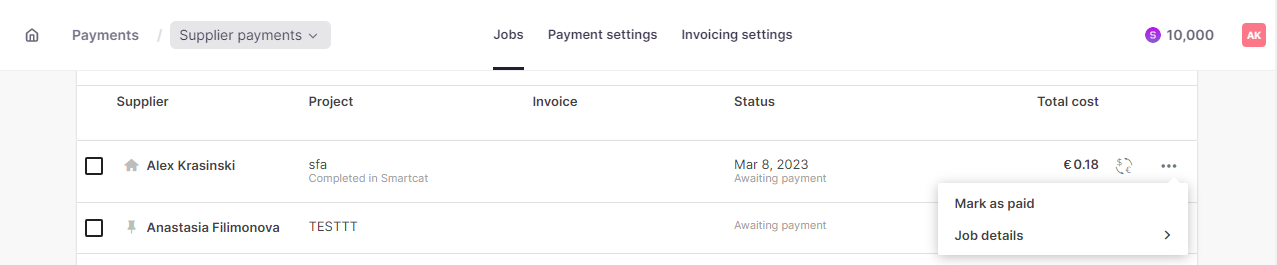
-
The task no longer appears in your payments
-
The task status in the supplier's account changes to Marked as paid outside of Smartcat
After that:
-
If you actually paid for the task outside the platform, no further action is required
-
If you want to pay for the task through the platform at a different price, create a new task with the correct price
To add a single task:
-
Go to Payments → Supplier payments → Jobs
-
Click Add supplier job, then Add Job. First make sure the supplier is added to your team so they appear in the list of possible recipients
-
Fill in the required fields with a description
The new job replaces the incorrect one at the correct price.
Scenario 2: the supplier worked outside the platform and you created the job manually
- Click the ellipsis next to the job and delete the job

- The task is deleted from your payments
After that:
-
If you paid for the task outside the platform, no further action is required
-
If you want to pay for the task through the platform at a different price, create a new task with the correct price
📌 You can delete a task only if it is not included in an invoice. If the task is already in an invoice, disband the invoice and reassemble it without this task.
“Rate not set” and $0.00 on a completed task
Sometimes a task shows Rate not set and a cost of $0.00 (or the workspace's zero equivalent), even though the freelancer has rates configured on their profile. The work is completed and counted — weighted words are tracked normally — but no payable amount is calculated.
Cause: Smartcat matches a freelancer's rate to a task by the exact language pair — source and target language, including the specific variant. A rate set for one variant of a language does not apply to a task run in a different variant of the same language. For example, a freelancer with rates set only for "English (USA)" and "English (United Kingdom)" has no matching rate for a task whose source language is set to plain "English" — Smartcat treats these as different language pairs, with no fallback between them.
This means the project's language variant matters: if the project's source or target language doesn't exactly match a variant the freelancer has priced in their profile, the rate lookup fails and the task shows "Rate not set."
How to fix it
-
Compare the freelancer's profile — the specific service (e.g., Translation, Review) and the language variant(s) they have rates for — against the project's actual source/target language.
-
Going forward, choose one:
◦ Add the missing language variant (or the neutral/plain version of the language) to the freelancer's service and rate declarations, or
◦ Create future projects using the specific language variant that matches what's already on the freelancer's profile. -
For tasks already completed: updating the freelancer's profile now will not retroactively apply a rate — a freelancer's rate, currency, and pay scheme are locked in the moment they accept the invitation. To pay for already-completed work with no rate applied, add a manual job for the amount owed via Finance and Payments → Supplier payments → Jobs → Add new job.
You found the error after paying for the task
If you discover the incorrect amount after payment, contact support right away. Send a request to the support team with the supplier name, project name, and the amount involved, because suppliers are usually paid within 1-3 days of payment being received on the invoice.
FAQs
Can I increase the amount payable to a supplier after the task is marked complete?
Yes — add a new supplier job for the difference via Payments → Supplier payments → Jobs → Add supplier job, after confirming the supplier is added to your team.
How do I reduce a payment amount for a Marketplace-sourced supplier?
Discuss and get written agreement from the supplier in chat, then contact Smartcat support with the reason for the change; support reviews and adjusts the amount. If the supplier disagrees, support still needs a detailed request with justification.
What if I already paid before noticing the amount was wrong?
Contact support immediately — suppliers found through the Marketplace are usually paid within 1–3 days of the invoice being paid, so the faster you flag it, the more likely support can intervene before the payout.
How do I handle an incorrect amount for my own external supplier who worked on the platform?
Mark the task as paid via the ellipsis menu (which removes it from Payments and marks it "Marked as paid outside of Smartcat" in the supplier's account), then create a new job at the correct price if you still want to pay through the platform.
Can I just delete a job I created manually by mistake?
Yes, but only if it hasn't already been included in an invoice. If it has, you need to disband that invoice and reassemble it without the incorrect job before you can delete it.
Want to learn more?
See how Smartcat can transform your localization workflow.
Still need help?
Our support team responds within one business day.