How segments are confirmed in the CAT editor
When you work in Smartcat's CAT editor, your content is divided into segments, typically one sentence each. After AI translation or manual editing, you need to confirm each segment to mark it as complete. This article explains what segment confirmation means, how to do it, and what happens behind the scenes.
What is segment confirmation?
Segment confirmation is the action of marking a translated segment as reviewed and ready for the next step in your workflow. Think of it as giving your approval: "This translation is correct and complete."
When you confirm a segment:
-
A green checkmark ✓ appears next to the segment
-
The segment is saved to your Translation Memory (TM) for future reuse
-
Your project progress updates automatically
-
The workflow can advance to the next stage (if applicable)
Why confirmation matters
Confirmation serves several important purposes:
-
Progress tracking: Project managers can see how much work is complete
-
Quality assurance: Confirmed segments signal that content has been reviewed
-
Translation Memory building: Your confirmed translations become reusable assets
-
Workflow automation: Confirmation can trigger the next workflow stage
💡All confirmed segments are saved in the translation memory, so you can reuse them when working on similar texts in the future.
Viewing segment status
To see which segments are confirmed:
-
In the CAT editor, locate the Filter panel (left sidebar or top toolbar)
-
View the Segment Status section
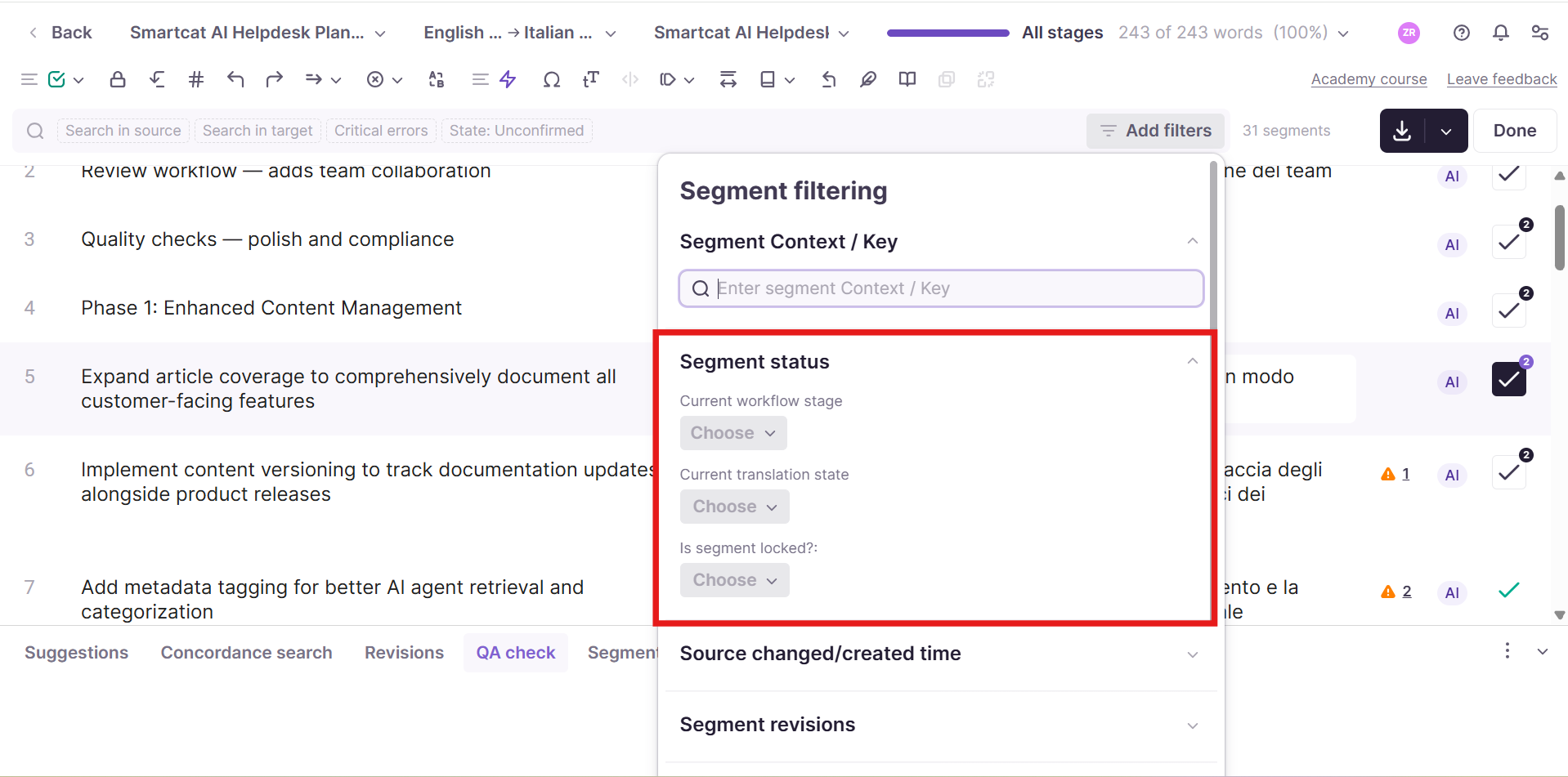
- Select Confirmed to show only confirmed segments, or Unconfirmed to show segments still needing review
Each segment row displays its status:
-
✓ Green checkmark = Confirmed
-
Black checkmark = Unconfirmed
How it works
There are several methods available to confirm a segment within the CAT editor.
Method 1 — Confirm with keyboard shortcut (recommended)
The fastest way to confirm a segment is using the keyboard shortcut:
| Operating System | Shortcut |
|---|---|
| Windows / Linux | Ctrl + Enter |
| Mac | ⌘ + Enter |
This confirms the current segment and automatically moves your cursor to the next unconfirmed segment.
Method 2 — Confirm with button
-
Click inside the segment you want to confirm
-
Click the Confirm button in the editor toolbar (checkmark icon ✓)

Method 3 — Confirm multiple segments at once
To confirm several segments in a batch:
-
Select the segments you want to confirm:
-
Hold Ctrl (Windows) or ⌘ (Mac) and click individual segments, OR
-
Hold Shift and click to select a range of segments
-
-
Click the Confirm selected button in the toolbar
📌 Batch confirmation may not be available in all accounts. Contact your administrator if you’re unable to use this method.
Unconfirming a segment
If you need to make changes to a confirmed segment:
-
Click inside the confirmed segment
-
Edit the translation text
-
The segment automatically becomes unconfirmed
-
Make your changes
-
Confirm the segment again using any method above
📌 Editing a confirmed segment removes it from the confirmed state until you confirm it again.
Workflow stages and confirmation
In multi-stage workflows (e.g., Translation → Review → Proofreading), confirmation works per stage:
-
Stage 1 (Translation): Translator confirms segments when translation is complete
-
Stage 2 (Review): Reviewer confirms segments after review
-
Stage 3 (Proofreading): Proofreader gives final confirmation
Each stage tracks confirmation separately. A segment confirmed in Stage 1 will appear as "unconfirmed" when it reaches Stage 2, allowing the reviewer to verify and confirm it independently.
Bulk-unconfirming segments to reopen an auto-confirmed workflow stage
There isn't a single "bulk unconfirm" button in Smartcat, but there is a reliable two-step workaround that gets you the same result without re-translating your file.
-
Open the file in the CAT editor
-
Select every segment by clicking the first segment, scrolling to the last segment, and shift-clicking the final segment. Alternatively, you can use select-all.
-
Click the Revert to previous stage action in the toolbar and choose Revert all. This drops the whole selection back to the workflow stage before the one you're on, and marks those segments as unconfirmed again. No text is changed and no segment comments are lost — only the confirmation status and stage assignment move.
-
Open Filters
-
Set Segment status to the stage you just reverted to plus status Unconfirmed
-
Click Confirm segments to confirm them all at once. That moves the whole batch forward to the next stage again.
⚠️If you skip steps 4-6, the file remains at the earlier stage and is not moved forward to your reviewer.
Here’s an example: You're managing a German file for the "Nordic Retail" project. The workflow has two stages — Translation, then Proofreading. All 500 segments have already been confirmed at the Proofreading stage, so the file shows as complete. But you've just realized a second proofreader needs to review the whole file before it ships, and for that to work, the segments need to show up as unconfirmed at Proofreading — otherwise they won't appear as pending work in that reviewer's queue.
Part 1 — Revert everything back one stage.
Open the file in the CAT editor and select every segment (click the first one, scroll down, shift-click the last — or use select-all). In the toolbar, use "Revert to previous stage" and choose "Revert all." This drops all 500 segments back to Translation and marks them unconfirmed there. No text changes and no comments are lost — only the stage and confirmation status move. At this point, though, the segments are sitting one stage earlier than where you actually need them — unconfirmed at Translation, not at Proofreading.
Part 2 — Push them forward again, so they land unconfirmed at Proofreading.
In Smartcat, confirming a segment at one stage is exactly what moves it forward into the next stage, landing there fresh and unconfirmed. So to get your 500 segments sitting at Proofreading as pending work, you need to confirm them at Translation first — in bulk.
Open Filters and set two conditions: Workflow stage = Translation, and Segment status = Unconfirmed. That filters the view down to exactly the 500 segments you just reverted. Click "Confirm segments." This confirms all of them at Translation simultaneously, which automatically advances all 500 into Proofreading — arriving there unconfirmed, with no memory of their earlier "confirmed" status.
The file now sits at Proofreading with all 500 segments unconfirmed, exactly the state your second reviewer needs to start fresh. The whole round trip — revert back, then confirm forward — is just the mechanism Smartcat gives you for resetting a stage's confirmation status in bulk, since there's no direct "unconfirm at current stage" button. This may impact your billing calculations for translators and suppliers.
Troubleshooting
Can't find the Confirm button
Problem: The Confirm button is missing from the editor toolbar.
Solutions:
-
Check your toolbar layout — Click the three-dot menu (⋯) in the toolbar to see if Confirm is in a dropdown menu
-
Expand the toolbar — If your screen is narrow, some buttons may be hidden. Try expanding your browser window
-
Check account permissions — Contact your project manager to verify you have editing rights for this project
-
Browser issues — Try refreshing the page or clearing your browser cache
Keyboard shortcut not working
Problem: Ctrl+Enter (or ⌘+Enter) doesn't confirm segments.
Solutions:
-
Check focus — Make sure you've clicked inside the segment text box first
-
Browser conflicts — Some browser extensions intercept keyboard shortcuts. Try disabling extensions or using an incognito window
-
Custom shortcuts — Check if your account has custom keyboard shortcuts enabled in Settings → Editor preferences
Segment won't confirm
Problem: Clicking Confirm or using the shortcut has no effect.
Possible causes:
-
Empty segment — You can't confirm a segment with no translation text
-
Read-only mode — Check if you're in view-only mode (look for a lock icon)
-
Workflow restrictions — Some workflows require previous stages to be complete first
Solutions:
-
Add translation text to empty segments
-
Contact your project manager if you should have editing access
-
Check the workflow status in the project dashboard
Confirmation not saving
Problem: Segments appear confirmed but revert to unconfirmed when you reload the page.
Solutions:
-
Check your internet connection — Poor connectivity can prevent saves
-
Wait for auto-save — Look for a "Saving..." indicator and wait for it to complete
-
Manual save — Use Ctrl+S (or ⌘+S) to force save your work
-
Contact support — If the problem persists, this may be a technical issue
Batch confirmation disabled
Problem: The batch confirmation option is not available, or the "Confirm selected" button is missing from the segment list.
Possible causes:
-
Your account subscription tier may not include batch operations
-
Your user role doesn't have batch confirmation permissions
-
The feature is disabled at the workspace level
-
You're working in a project with restricted batch operations
Solutions:
-
Check your user permissions — Contact your workspace administrator to verify your role includes batch confirmation rights
-
Verify account features — Confirm your subscription tier includes batch operations functionality
-
Review project settings — Some projects may have batch operations disabled for quality control
-
Contact support — If you believe this feature should be available, reach out to Smartcat support for assistance
📌 Batch confirmation availability varies by account type and user permissions. Individual segment confirmation is always available regardless of these settings.
Want to learn more?
See how Smartcat can transform your localization workflow.
Still need help?
Our support team responds within one business day.