Quality Assurance Coworker
Overview
The Quality Assurance Coworker (also referred to as the QA Coworker) is an AI Coworker, available on the Anticipate and Autonomous plans, that automatically assesses the quality of finished translations against your workspace's LQA profile. It checks completed segments for errors — categorized by type and severity — and calculates a quality score for the project, using the same linguistic quality assessment (LQA) mechanism available elsewhere in Smartcat.
Unlike the Reviewer Coworker, the Quality Assurance Coworker does not edit the translated text. It reviews each segment, labels any issues it finds with an error category and severity, leaves comments explaining them, then fs the segment. Combined with a Project Template's automatic confirmation rules, this lets teams route only the segments that actually need a human reviewer to someone, while everything else confirms on its own — getting an objective, auditable quality score across large volumes of content without committing a human reviewer to read every segment first.
When to use it
-
You want an automated, auditable quality score for a project instead of a subjective pass/fail impression
-
You want to combine automatic error labeling with your workflow settings — for example, automatically confirming segments with no errors, or only errors below a set severity, so human reviewers focus only on what needs attention
-
You are running high volumes of translation and want quality checks to scale without a linguist reviewing every segment first
-
You want a standard, MQM-based way to compare quality across projects or languages
How it works
Your Smartcat Support or account representative configures your Quality Assurance Coworker, including the LLM provider and LQA profile. If you are on the Anticipate or Autonomous plan, reach out to Smartcat to confirm your Quality Assurance Coworker is configured to your specifications.
The Quality Assurance Coworker can be assigned exclusively to the LQA Review step of your project workflows. You choose the LQA profile yourself, in the template's LQA automation rule or in the invitation window under Quality review settings → LQA profile. This step supports highlighting errors and leaving comments, but it does not edit the text directly.
Set blocking severities in the template if errors must reach a reviewer. Inviting the coworker adds a rule with no blocking severities. That rule confirms every segment at the next stage, including segments with Critical errors, so they never reach a person.
Build a Project Template with automatic confirmation
This is where the Quality Assurance Coworker's error labels are turned into workflow automation: segments it finds clean (or below the severity configured in your workflow settings) confirm themselves, and only the segments it flags as more serious reach a human reviewer. This is configured on a Project Template, not on an individual project.
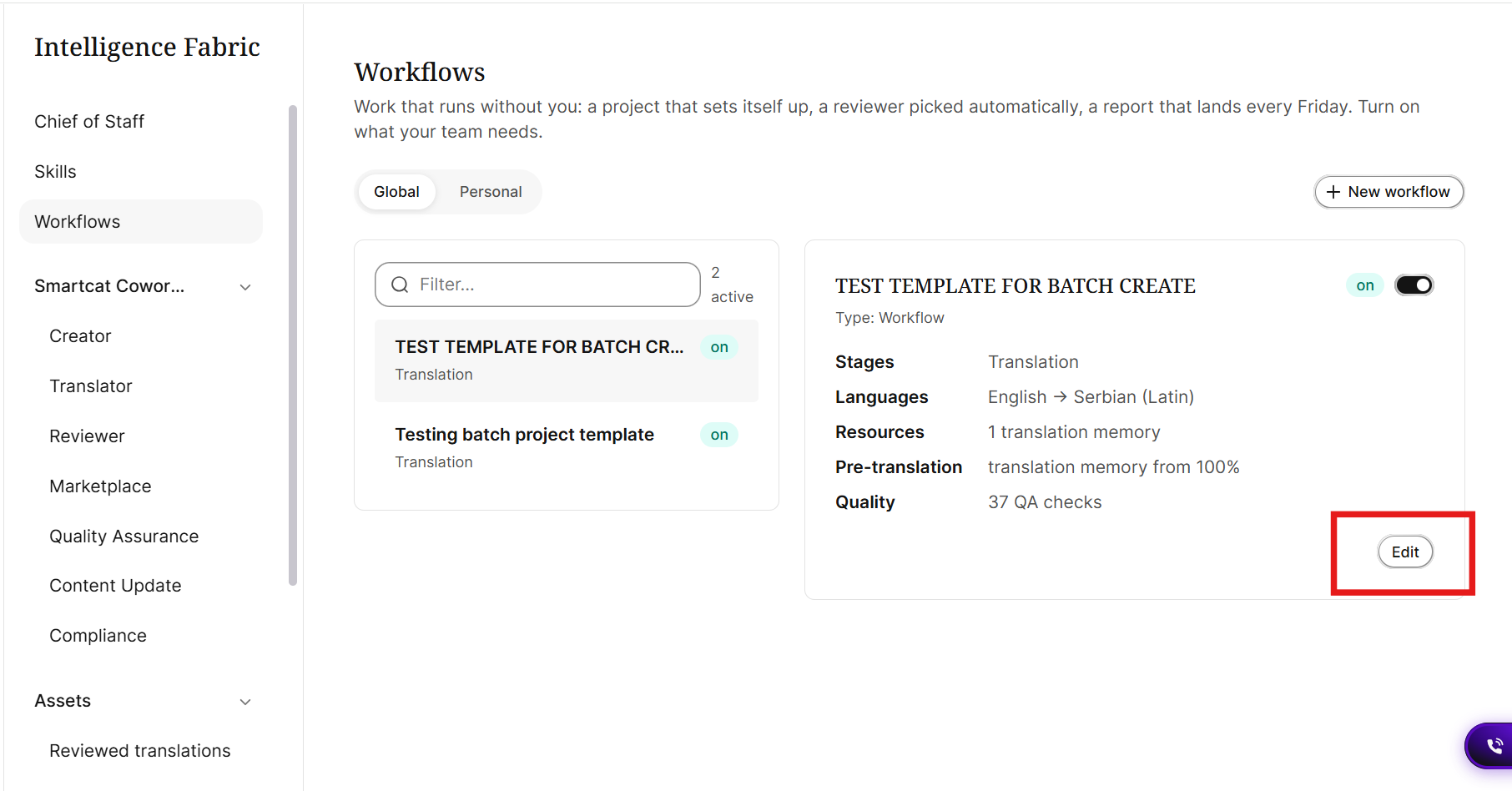
- Create a new Project Template (or edit an existing one). See Project Templates in Smartcat for the full template wizard. To edit an existing template, click Intelligence Fabric → Workflows, then select your template and click Edit.
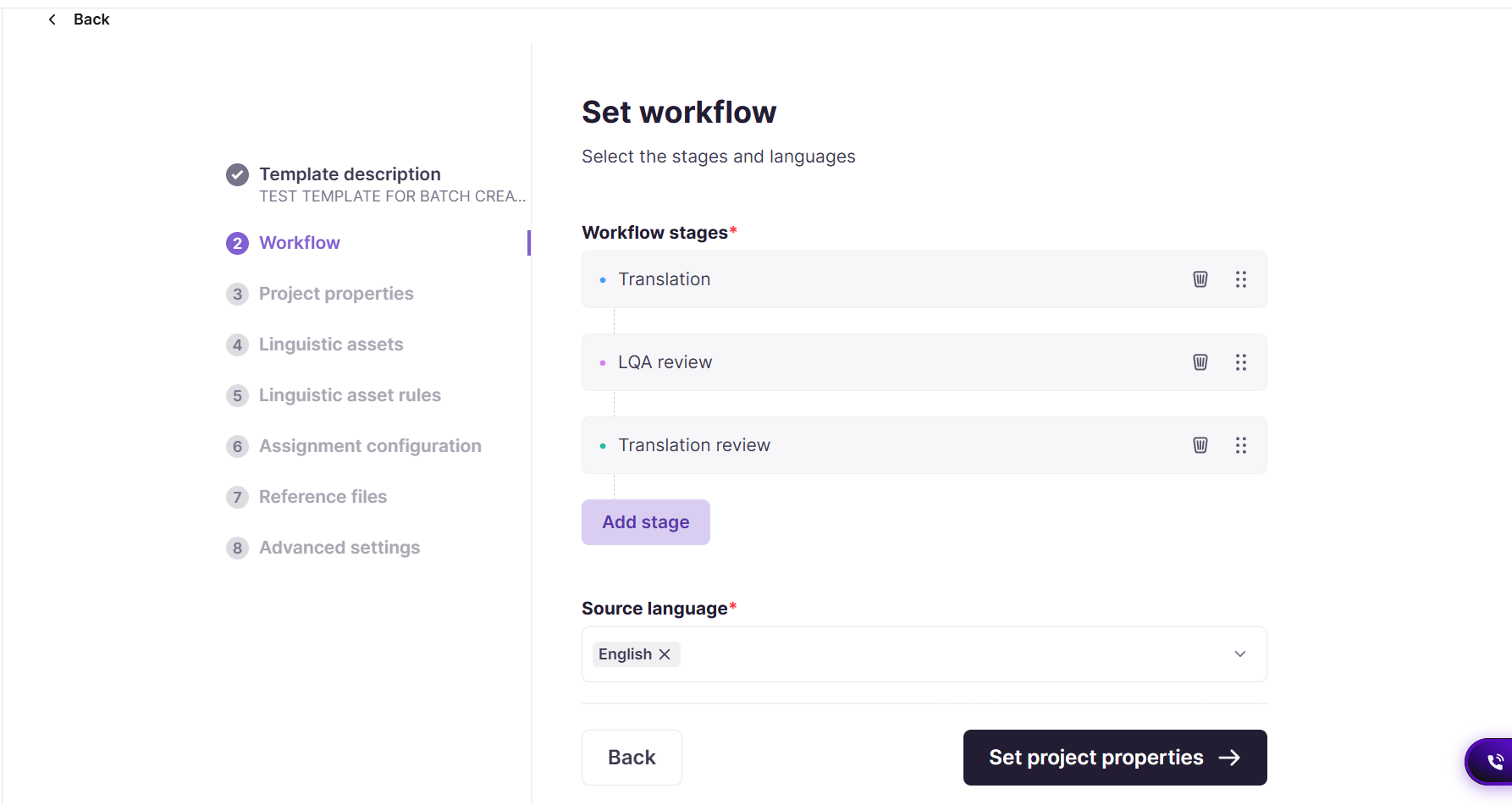
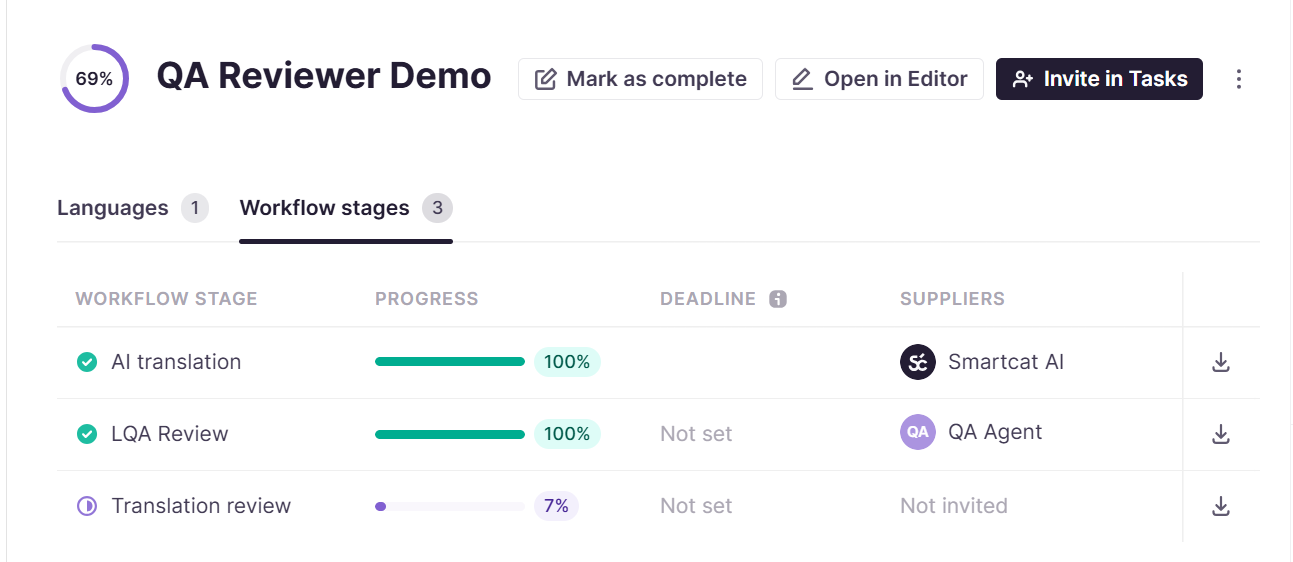
- In Set your workflow stages, add LQA review to the workflow, followed by Translation review. The Quality Assurance Coworker is assigned to the LQA review stage, and automatic confirmation is applied at the Translation review stage that follows it.
- 📌 A workflow that pairs AI Translation → LQA review → Translation review is the typical setup: AI Translation produces the draft, the Quality Assurance Coworker labels errors during LQA review, and Translation review is where the automatic-confirmation rule decides which segments still need a person.
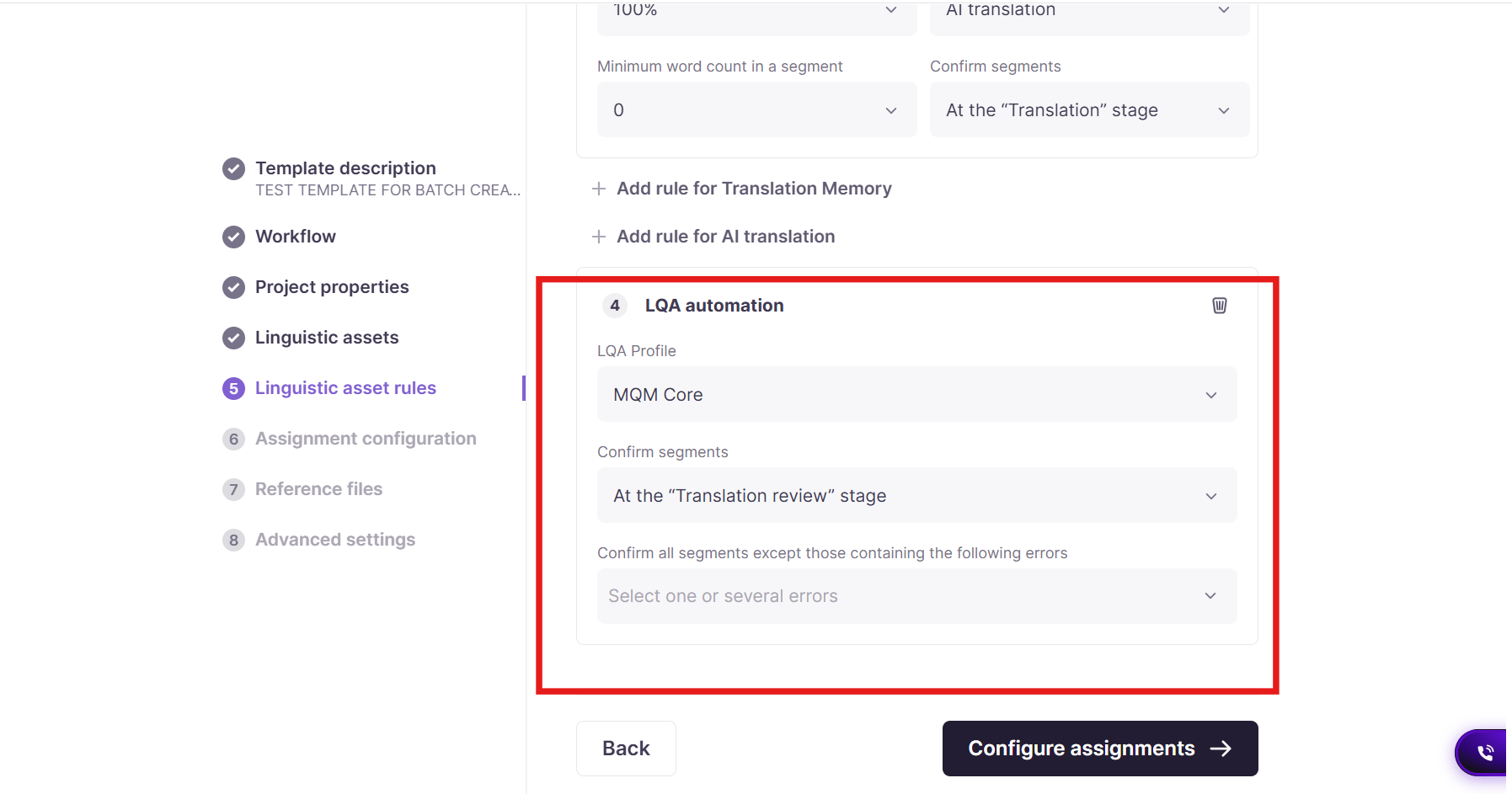
- In Set Linguistic asset rules, set your LQA profile for the template and configure automatic confirmation at the Translation review stage based on error severity: choose which severities (for example, Major and Critical) must be reviewed by a human. Segments with no errors, or only errors below that severity (for example, Minor or Neutral), confirm automatically and never reach a human reviewer.
- Continue through the remaining template steps and save the template.
Assign the Quality Assurance Coworker to a review task
-
Create a project from the template (or open an existing LQA review task)
-
Go to Tasks, open the AI agent tab, and invite the Quality Assurance Coworker you created
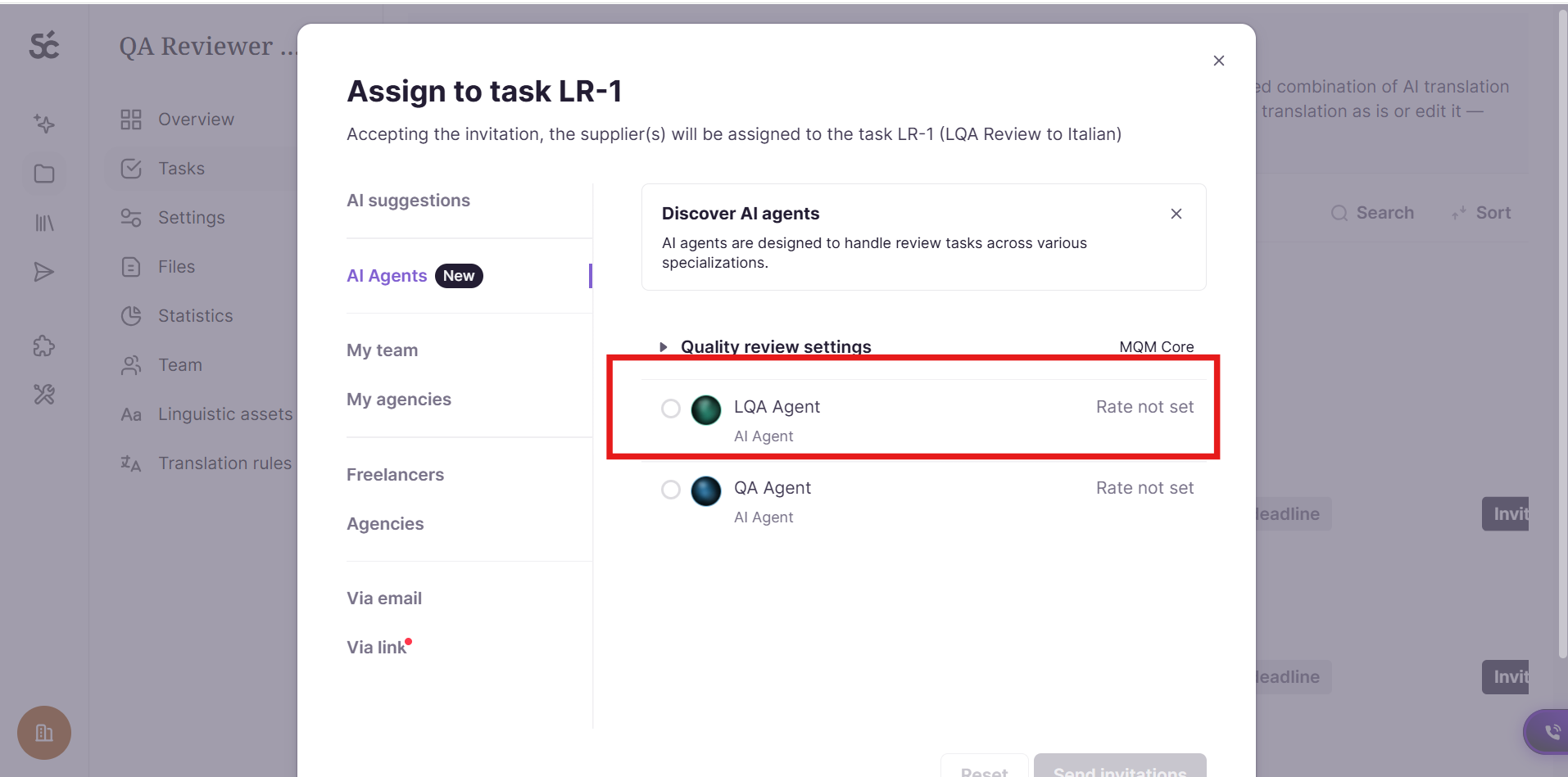
- Send the task invitation
The coworker accepts the invitation immediately (the task shows "In progress 0%"). It starts reviewing once every earlier stage is marked completed. Confirming 100% of segments isn't enough.
📌 Segments already confirmed at LQA review or later are skipped. The coworker doesn't review them, and the LQA automation rule can confirm them at the next stage.
What happens during the review
The Quality Assurance Coworker works through the document's segments and, for each one:
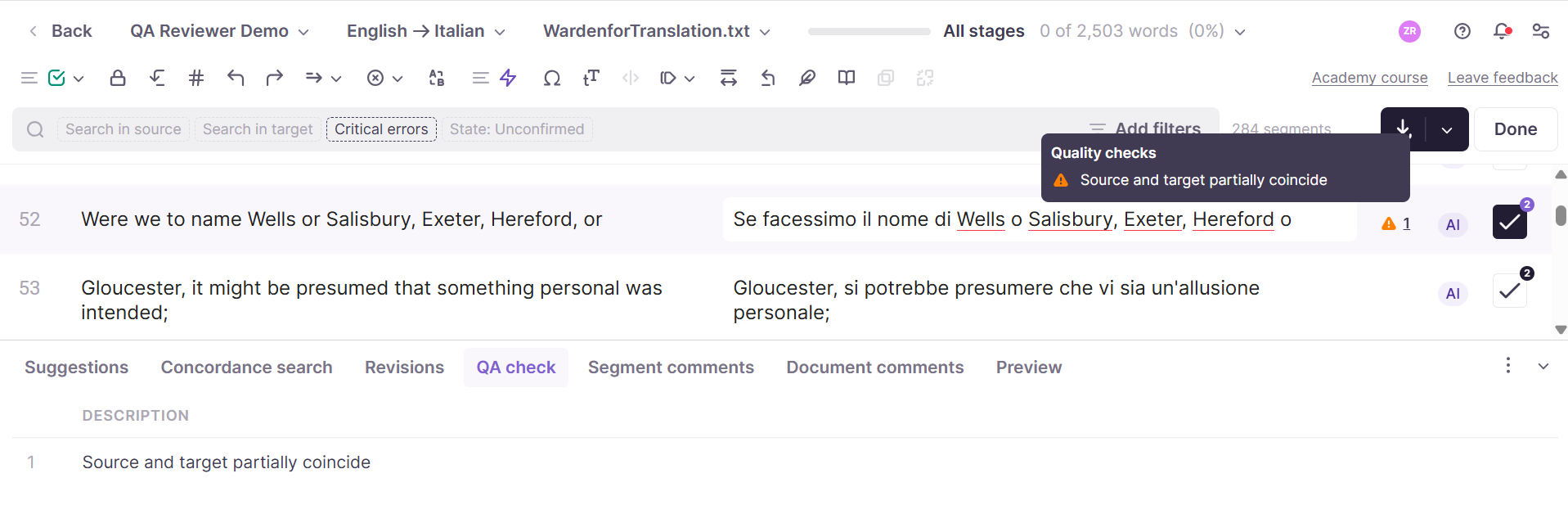
- Leaves a labeled comment identifying the error category and severity whenever it finds an issue
-
Leaves segments with no errors unchanged and unflagged
-
Confirms the segment once it has finished reviewing it, to track progress through the document
Once LQA review is complete, the workflow moves to Translation review, where the template's automatic confirmation rule applies: segments without errors, or with only errors below the severity threshold you set, are confirmed automatically. Only the segments carrying an error at or above that severity are left for a human reviewer to confirm — so a project where only a handful of segments actually need attention results in only a handful of segments reaching the Translation review task.
📌 The Quality Assurance Coworker never modifies target text. If you need an AI Co-worker that edits and corrects translations directly, use the Reviewer Coworker instead — the two are often combined in the same workflow, with the Reviewer Coworker handling the Translation Review stage and the Quality Assurance Coworker handling the LQA Review stage that precedes it.
The stage completes on its own after the last segment is confirmed. The score is calculated when you open the project's LQA report and choose the LQA profile (and optionally a target language).
Set up LQA automation on a project or template
The LQA automation rule confirms segments that pass a severity threshold and leaves the rest — typically Major and Critical errors — unconfirmed for a linguist to review. You can add this rule directly on a project, or on a Project Template so every project created from it inherits the rule automatically.
On a single project
-
Open the project and go to Translation rules.
-
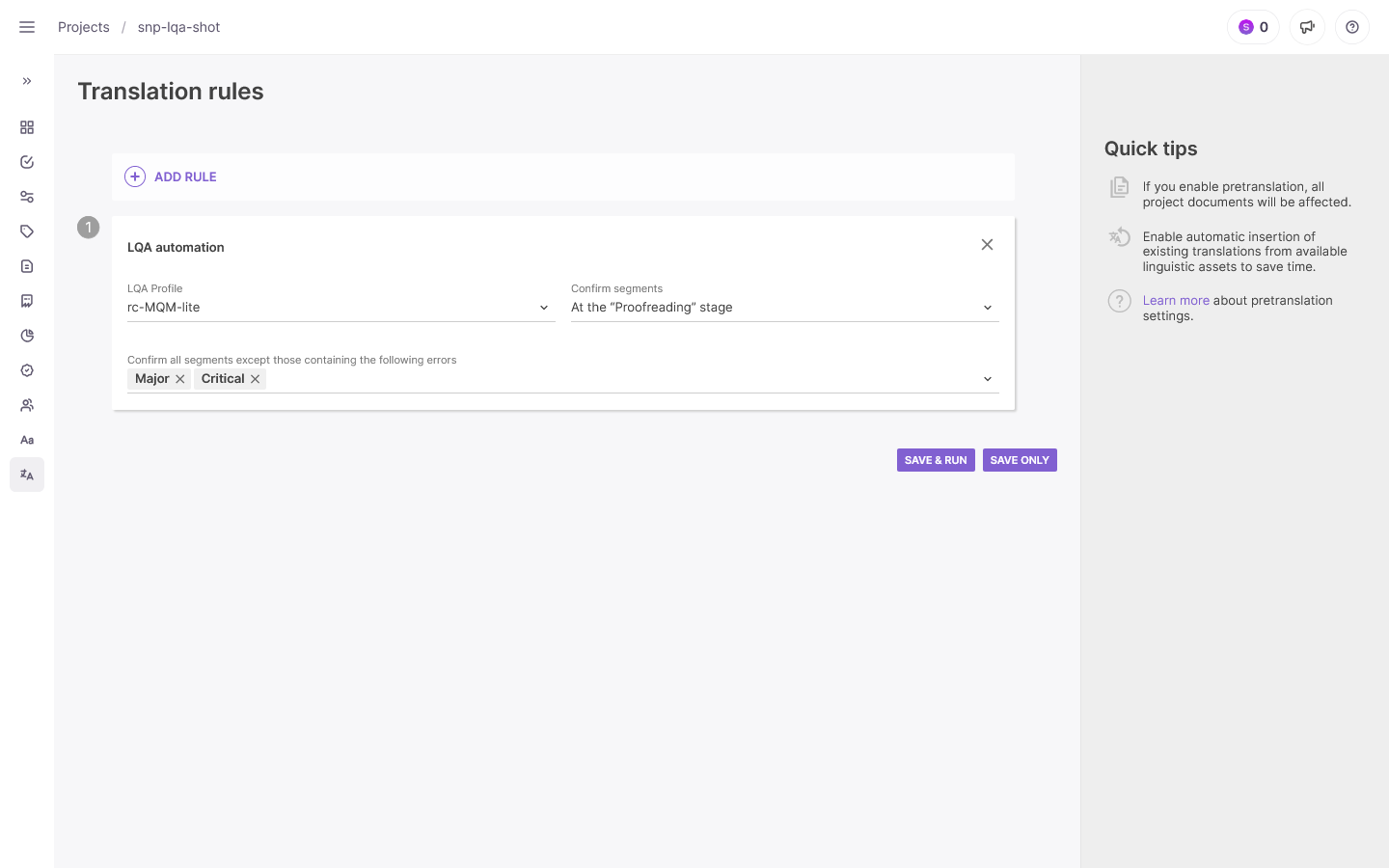
Click Add rule and choose LQA automation.
-
Set Confirm segments to the workflow stage you want segments to reach once confirmed — for example, "At the Proofreading stage."
-
In the severities field, select the severities that should stay unconfirmed and wait for a linguist (for example, Major and Critical). Segments without errors, or with only errors below those severities, confirm automatically; segments carrying a selected severity are held for review.
On a Project Template
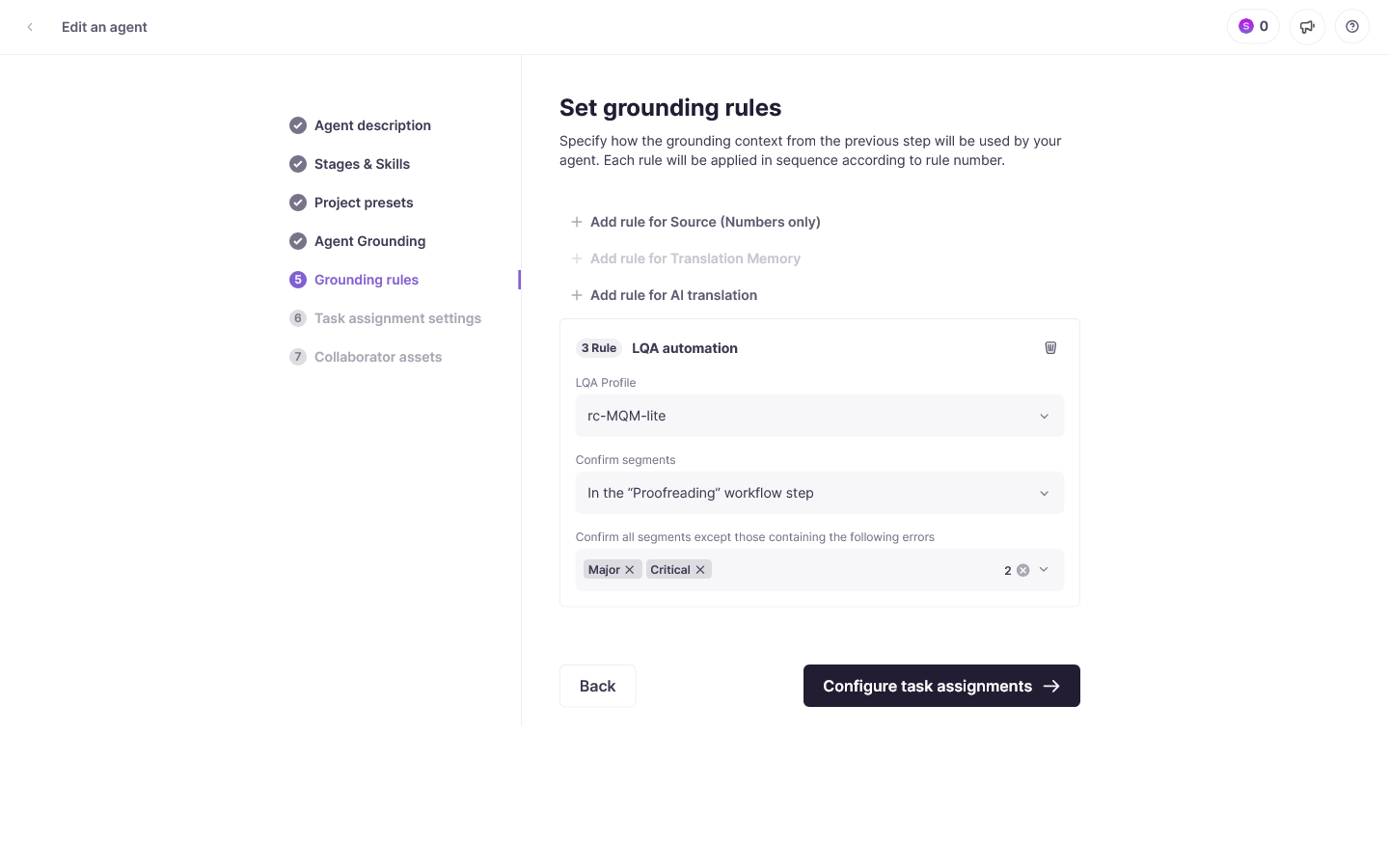
- Open the template editor (Intelligence Fabric → Workflows → select your template → Edit). In the agent-based template editor, this is step 5, Grounding rules.
-
Click Add rule for LQA automation.
-
Set Confirm segments and the blocking severities exactly as on a single project (above). The Confirm segments stage can only be a stage that comes after your LQA Review stage.
-
Workflow stages (including LQA Review and the stage you'll pick for Confirm segments) are set earlier in the wizard, under Set your workflow stages.
Because the rule lives on the template, every project created from it gets the same LQA automation rule, confirmation stage, and severity thresholds without any per-project setup.
📌 This is the same Confirm segments / blocking-severity mechanism described under Build a Project Template with automatic confirmation — adding the rule from Translation rules on a single project applies it to that project only, without going through a template.
Requirements and Limitations
-
Available on the Anticipate and Autonomous plans
-
Only begins work once the preceding workflow stage is marked completed
FAQs
Does the Quality Assurance Coworker change my translations?
No. It only labels errors by category and severity and leaves comments — it never edits the target text.
Can I automate what happens after the Quality Assurance Coworker finishes?
Yes. Set up automatic confirmation on the Project Template so segments with no errors, or only errors below a chosen severity, confirm automatically at the next stage — reducing manual rechecking to just the segments that need it.
How is the quality score calculated?
Smartcat uses the MQM (Multidimensional Quality Metrics) scoring model: each labeled error has a category, a weight, and a severity (Critical, Major, Minor, or Neutral). The algorithm combines these with the text's word count to produce a score from 0 to 100 for the project. See Configure LQA profiles for the full scoring mechanism.
Want to learn more?
See how Smartcat can transform your localization workflow.
Still need help?
Our support team responds within one business day.