How to invite multiple suppliers to a task
Overview
Smartcat lets you invite multiple suppliers to a single task simultaneously and choose how the work is distributed among them.
When to use it
-
You want to send a task to multiple suppliers and assign it to the first one who accepts
-
You want to split a task among several suppliers and have each work on a portion
-
You have already invited one supplier and need to add more
How to use it
Invite multiple suppliers
-
Go to Projects and open the relevant project
-
Go to the Tasks page and locate the task (for example, Translation or Editing)
-
Click Invite next to the task
-
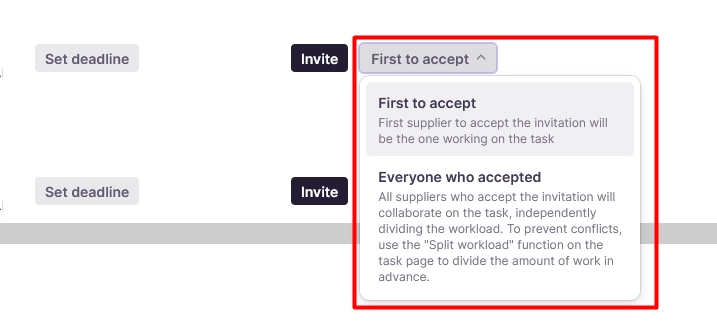
In the supplier suggestion window, select your invitation mode in the bottom left corner (see the table below). You can also select the invitation mode next to the Invite button.
-
Search for suppliers by name or email, or select from your vendor list
-
Check the boxes next to all suppliers you want to invite
-
Click Send Invitations
Each selected supplier receives an invitation notification and can accept or decline.
Choose your invitation mode
| Mode | How it works |
|---|---|
| First to accept | Multiple suppliers are invited, but the task is assigned only to the first one who accepts |
| Everyone who accepted | All suppliers who accept receive access to the task Use the Split workload function to divide the work among the suppliers in advance. |
Add more suppliers after an initial invitation
If you use the Everyone who accepted mode, you can add more suppliers by clicking Invite more.
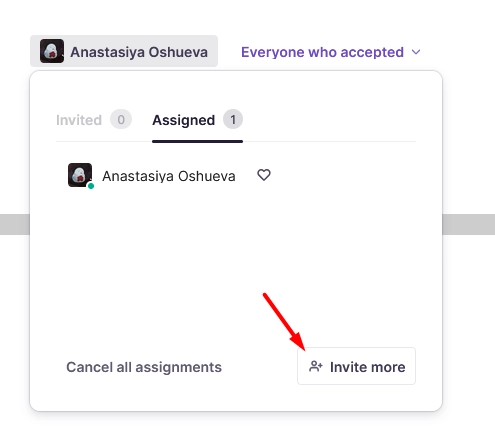
If you use the First to accept mode and you have already invited one supplier, they accepted, and want to add more, you cannot update the current assignment directly. You must cancel it and reinvite. If a supplier has not accepted yet, you can invite more suppliers.
-
Cancel the current assignment
-
Re-invite all suppliers, and select the mode appropriate to your workflow.
-
Select all suppliers and click Send Invitations
All suppliers who accept receive a portion of the task.
⚠️ Cancelling an assignment does not delete completed work. Smartcat calculates the cost of work completed to that point, and the supplier is compensated accordingly. The linguist temporarily loses access to the file and must accept the new invitation to regain access. A new cost calculation begins for remaining work once they re-accept.
Divide a file between suppliers
Hand-picking exact segment ranges for different translators is not currently available in the assignment flow. However, you can still split a task between multiple suppliers. If the task contains multiple files, you choose which files move into a new, separate task — because you're picking whole files, you can effectively control the word count per task through your file selection. If the task is a single file, Smartcat divides it into two equal halves by word count automatically, and you can't choose where that split falls.
Each resulting task can then be assigned to a different supplier. The Split workload button only works before a supplier has accepted the task; if the task already has an active assignment, cancel it first, split the workload, and then re-invite. Splitting a single file is available on paid plans.
Requirements and limitations
- You cannot add suppliers to an existing assignment in First to accept mode. You must cancel and reinvite
FAQs
Which invitation mode should I use if I only need one supplier?
Use First to accept. The task is assigned to the first supplier who responds, and remaining invitations are cancelled automatically.
Will the supplier lose their completed work if I cancel the assignment to add more people?
No. Completed work is preserved and the supplier is compensated for it. They will need to accept the new invitation to continue working.
Can I see which suppliers accepted and which declined?
If you enable Response to invitation received notifications (disabled by default), you receive notifications for suppliers who accept or decline the invite.
Want to learn more?
See how Smartcat can transform your localization workflow.
Still need help?
Our support team responds within one business day.