Accepting an invitation and joining a Smartcat workspace
Overview
When a workspace admin or organization owner invites you to join their Smartcat workspace, you receive an invitation by email or by a shared link. This article walks you through opening that invitation and joining the workspace, whether you're brand new to Smartcat or already have an account.
📌 If you're setting up your own new organization and workspace instead of joining someone else's, see Set up your Smartcat account If you're the one sending invitations, see Inviting team members and assigning roles.
When to use it
-
You received an email inviting you to join a colleague's or client's Smartcat workspace
-
You received a shared invitation link (for example, posted in a group chat or email thread) instead of a personal email invitation
-
You already have a Smartcat account and are being added to an additional workspace
-
Your organization uses single sign-on (SSO) and you're joining a workspace for the first time
How to use it
Step 1: Open your invitation
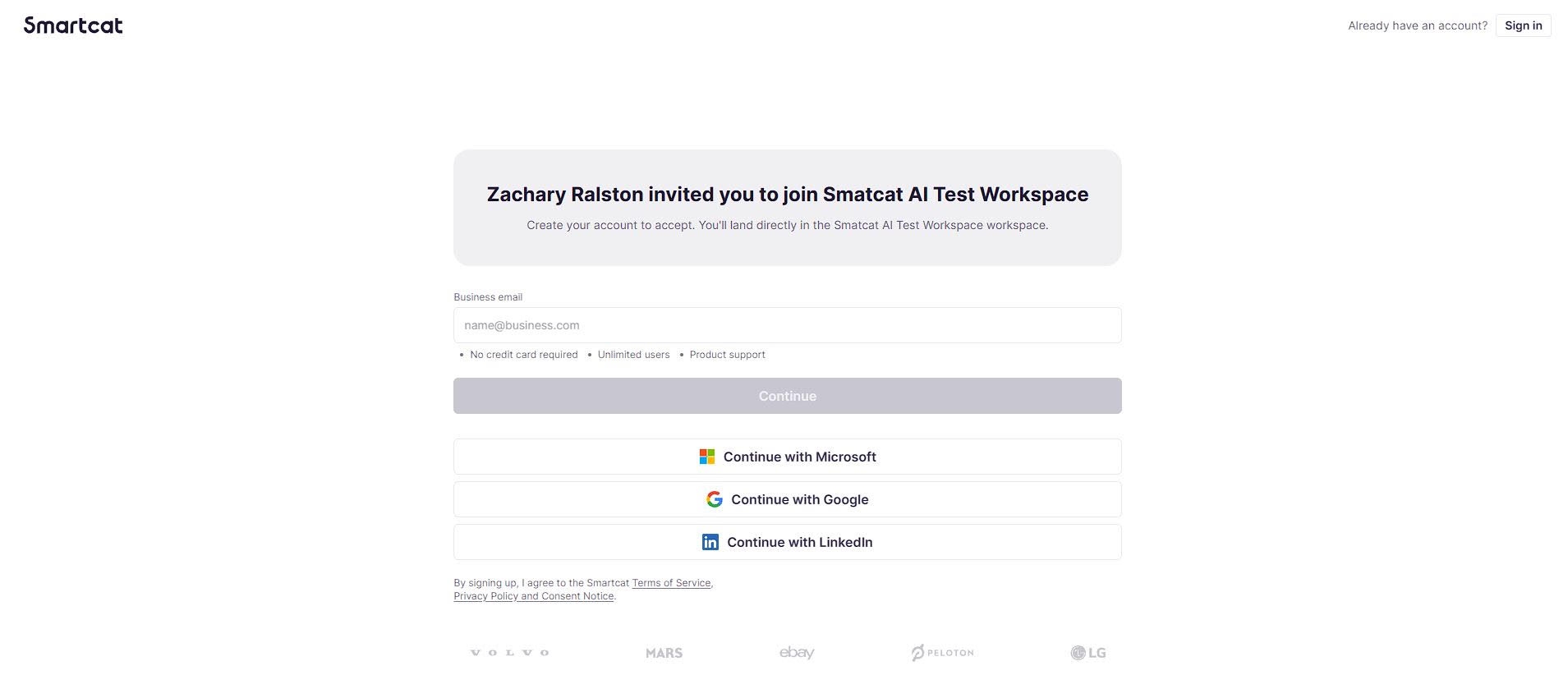
- If you were invited by email, open the invitation email and click the link inside it. This takes you directly to a sign-up form with your email address already filled in.

- If you were invited using a shared link, open the link. This takes you to a sign-up page that identifies the workspace by name.
Step 2: Sign in or create your account
-
If you don't have a Smartcat account yet, fill in your details to create one. Your account is created and linked to the workspace you were invited to.
-
If you already have a Smartcat account, sign in with the same email address the invitation was sent to. If you sign in with a different email address, Smartcat can't match your invitation and won't add you to the workspace.
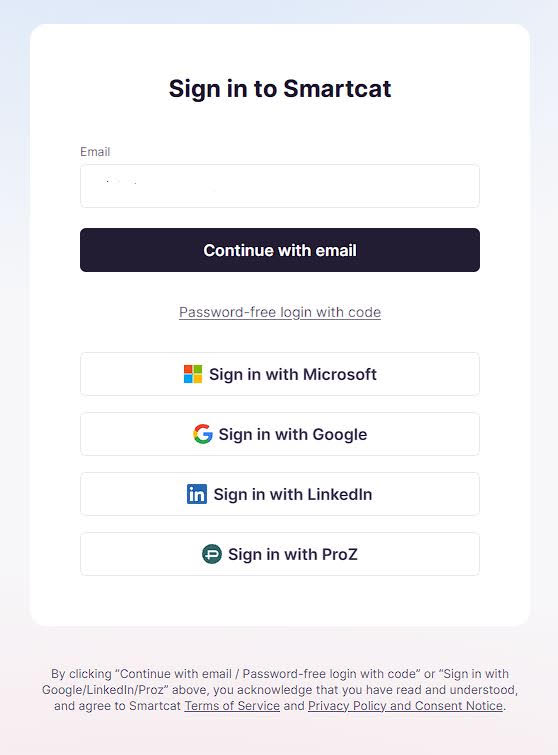
- If your organization uses SSO, you're redirected to your organization's sign-in page instead of the standard Smartcat sign-up form.
Step 3: Confirm you've joined
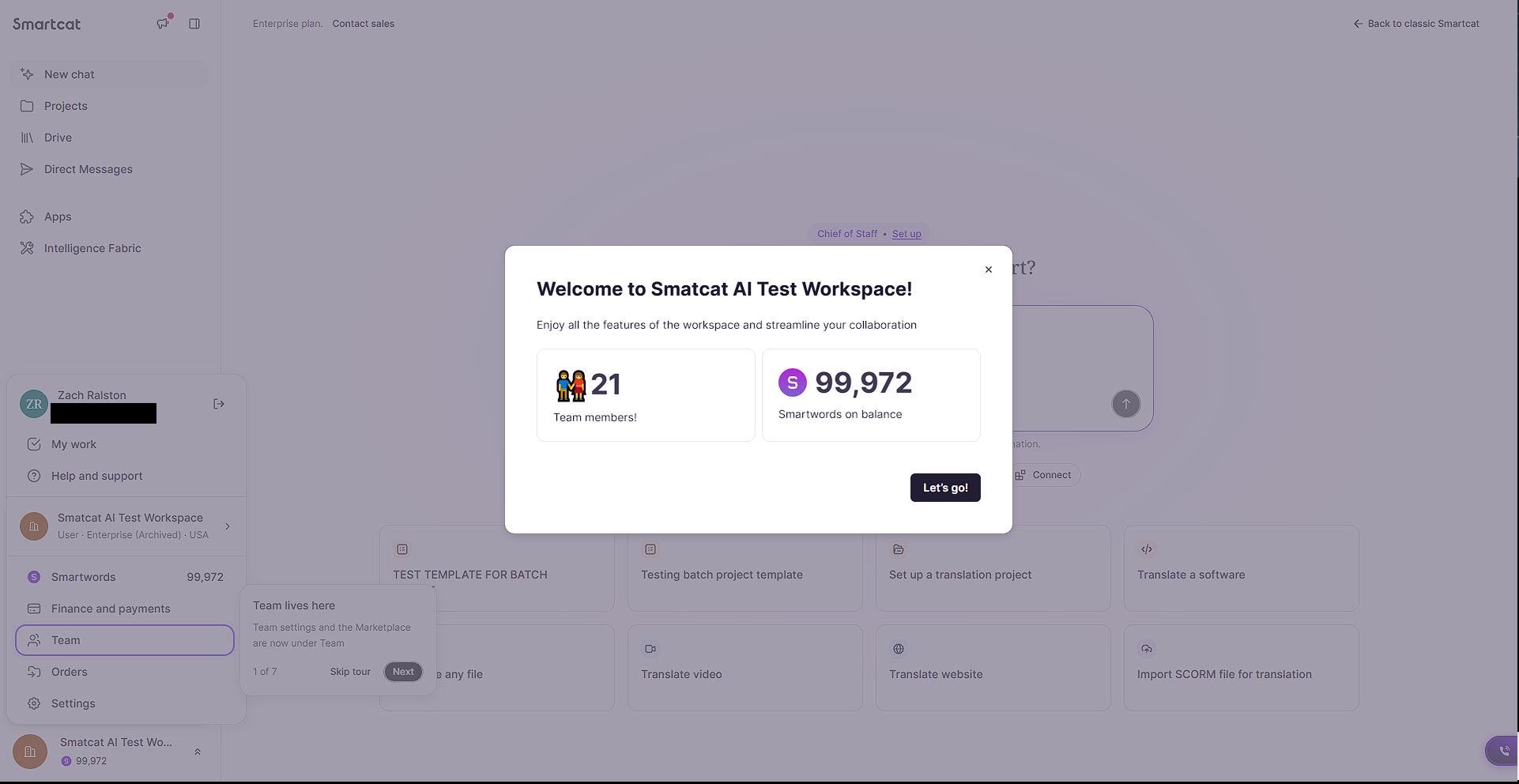
Once your email is verified and matched to the invitation, Smartcat shows a welcome screen with the workspace name and team details.
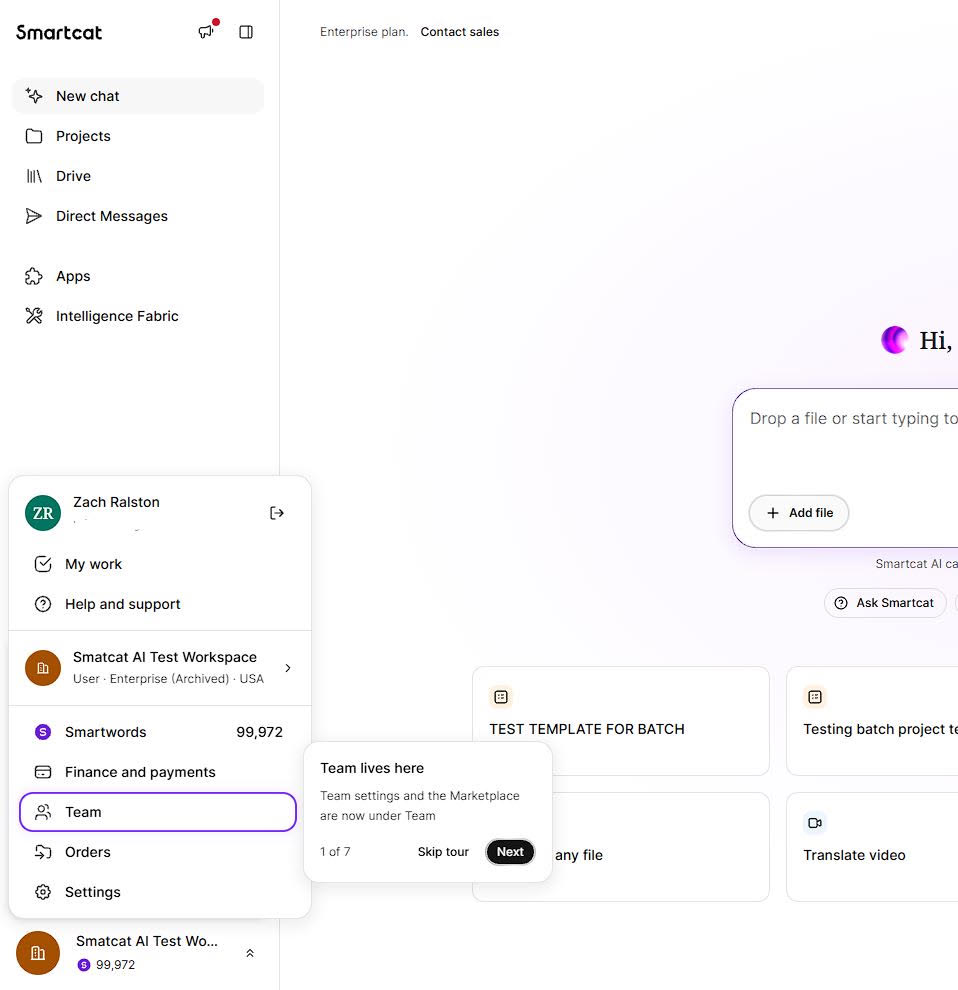
You're now a member of the workspace and can see it in your workspace list.
Requirements and Limitations
-
The email you sign in with must match the email address the invitation was sent to
-
Invitation links expire after 30 days
FAQs
My invitation link isn't working. What do I do?
Ask the person who invited you to send a new invitation. Invitation links expire after a period of time, and an expired link won't let you join.
I'm signed in to Smartcat already, but joining doesn't seem to work. Why?
Check that you're signed in with the same email address the invitation was sent to. If you're signed in with a different email, sign out and sign back in with the correct one, or ask for a new invitation sent to the email you actually use.
Why did my invitation link take me to a generic sign-up page instead of straight to the workspace?
This happens when you were invited using a shared link rather than a personal email invitation. Shared links open the standard Smartcat sign-up page. You can still create your account and join normally — just make sure to use the email address your workspace admin expects.
I already have a Smartcat account. Do I need to create a new one to join?
No. Sign in with your existing account using the email address the invitation was sent to, and you're added to the new workspace alongside any workspaces you're already part of.
Want to learn more?
See how Smartcat can transform your localization workflow.
Still need help?
Our support team responds within one business day.