Setting a writable TM in Smartcat
Overview
A writable translation memory (TM) is a TM that receives new translation units as you work. Every segment you confirm in the CAT editor is saved to the writable TM for that language pair. Smartcat allows only one writable TM per language pair in any given project.
This article covers how to manually set a TM to write mode on a project, and how Smartcat automatically selects the writable TM when an AI Translation Profile is applied.
When to use it
-
You want to control which TM captures new translations on a project
-
You have multiple TMs connected to a project and need to designate which one receives new entries
-
You are using AI Translation Profiles and want to understand or adjust which TM is set as writable
How to use it
Set a TM to write mode manually
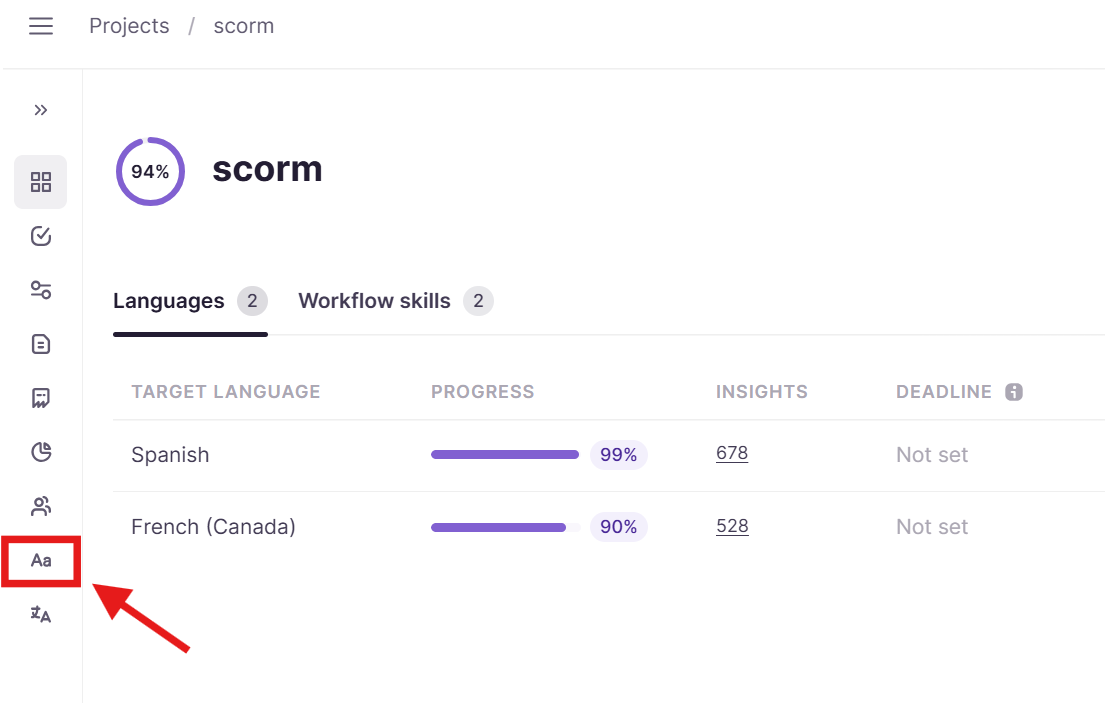
- Open your project and go to the Linguistic assets tab
-
Locate the TM you want to set as writable in the Translation memories section
-
Click Write next to the TM
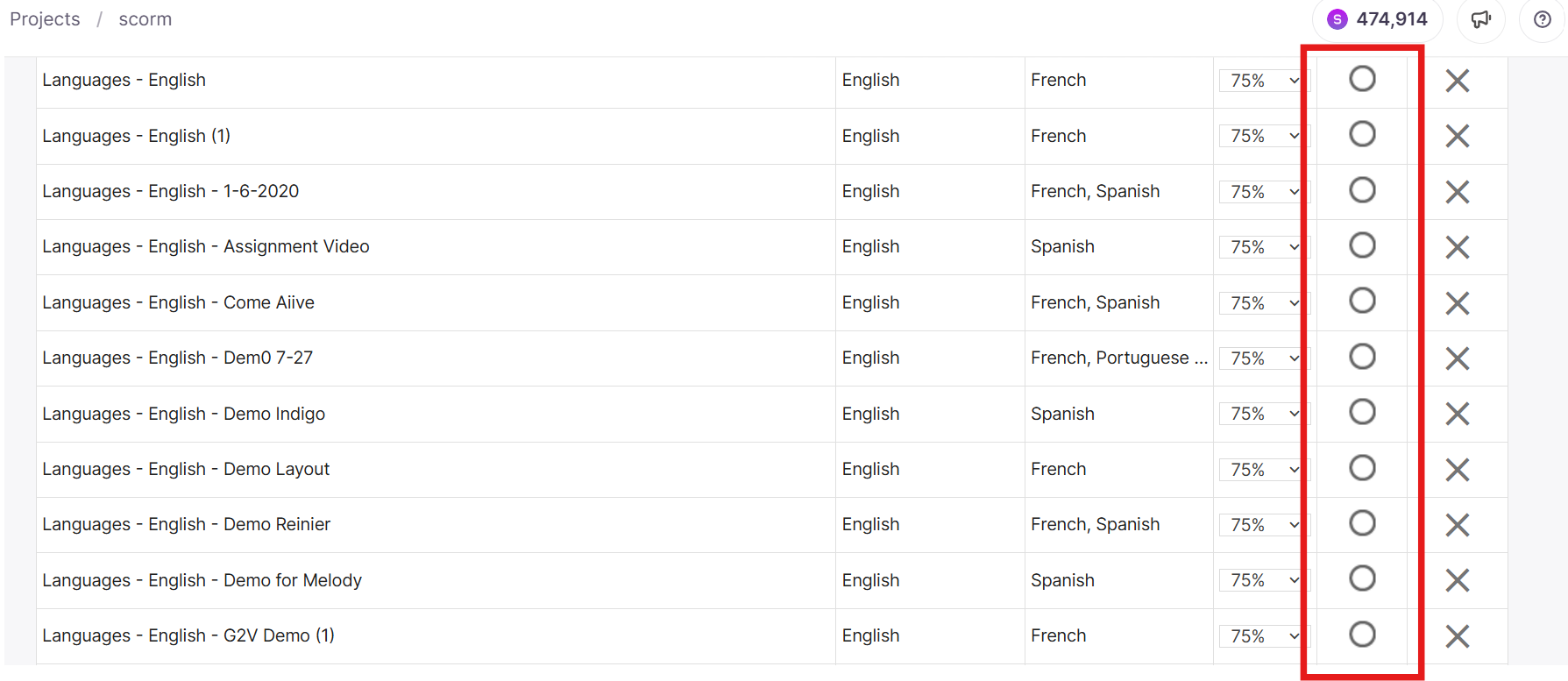
The selected TM is now writable. All confirmed segments for the matching language pair are saved to this TM. Any previously writable TM for the same language pair is automatically set to read-only.
💡 Only one TM can be writable per language pair. Setting a new TM to write mode automatically removes write access from the previous one.
Writable TM selection in AI Translation Profiles
When you apply an AI Translation Profile to a project, Smartcat automatically determines which TM becomes writable for each language pair. The selection follows this order:
-
Filter by language compatibility: Only TMs whose source and target languages match the project's language pairs are considered.
-
Select the first writable TM in the profile: For each language pair, Smartcat sets the first TM marked as writable in the profile as the writable TM on the project. If the profile contains multiple writable TMs for the same language pair, only the first one is used.
-
Fallback to project defaults: If no TMs in the profile are marked as writable, Smartcat selects or creates a writable TM automatically, using the same logic as a project created without an AI Translation Profile.
Best practices for AI Translation Profiles
-
Designate one writable TM per language pair in your AI Translation Profile to ensure predictable behavior.
-
Order matters. If you have multiple TMs marked as writable for the same language pair in a profile, the one listed first takes precedence. Review the order of your TMs in the profile before applying it to a project.
Requirements and limitations
-
Setting a TM to write mode automatically sets all other TMs for that language pair to read-only
-
Changes to write mode take effect immediately — segments confirmed after the change are saved to the newly writable TM
-
Segments confirmed before the change are not moved between TMs retroactively
FAQs
Can I have different writable TMs for different language pairs in the same project?
Yes. The one-writable-TM rule applies per language pair, not per project. A project with English → German and English → French can have a separate writable TM for each language pair.
What happens to translations already saved to a TM if I change the writable TM mid-project?
Nothing — existing TM entries are not affected. Changing the writable TM only determines where future confirmed segments are saved. Previously confirmed segments remain in the original TM.
Why isn't my AI Translation Profile setting the right writable TM?
Check the order of TMs in your profile. If multiple TMs are marked as writable for the same language pair, Smartcat uses the first one listed. Reorder your TMs so the correct one appears first, or remove the writable flag from TMs you don't want used.
If no TMs in my profile are marked as writable, what happens?
Smartcat falls back to its default behaviour: it selects an existing TM with matching parameters (language pair, client, subject) or creates a new one. The new TM takes write permissions automatically.
Want to learn more?
See how Smartcat can transform your localization workflow.
Still need help?
Our support team responds within one business day.