Understand project statistics
Overview
Word count statistics can be a confusing topic, since different CAT tools take different approaches to calculating it. This article explains how Smartcat handles project statistics for word, character, and page counts, and how you use them for pricing.
Personal workspace statistics for your own projects
Word count statistics let you view the number of words and characters in the original text and estimate the amount of work required, taking into account repetitions and matches with the Translation Memory (TM).
To calculate and view statistics, go to the project page and open the Statistics tab.
The calculation may take some time, depending on the number of documents, their volume, and the sizes of the translation memories connected to the project.
For projects you have created, you can reconfigure the set of documents or translation memories used to calculate the statistics. You can download the statistics in the following formats:
-
Trados XML — compatible with SDL Trados
-
Smartcat XLSX — for MS Excel or any other spreadsheet software
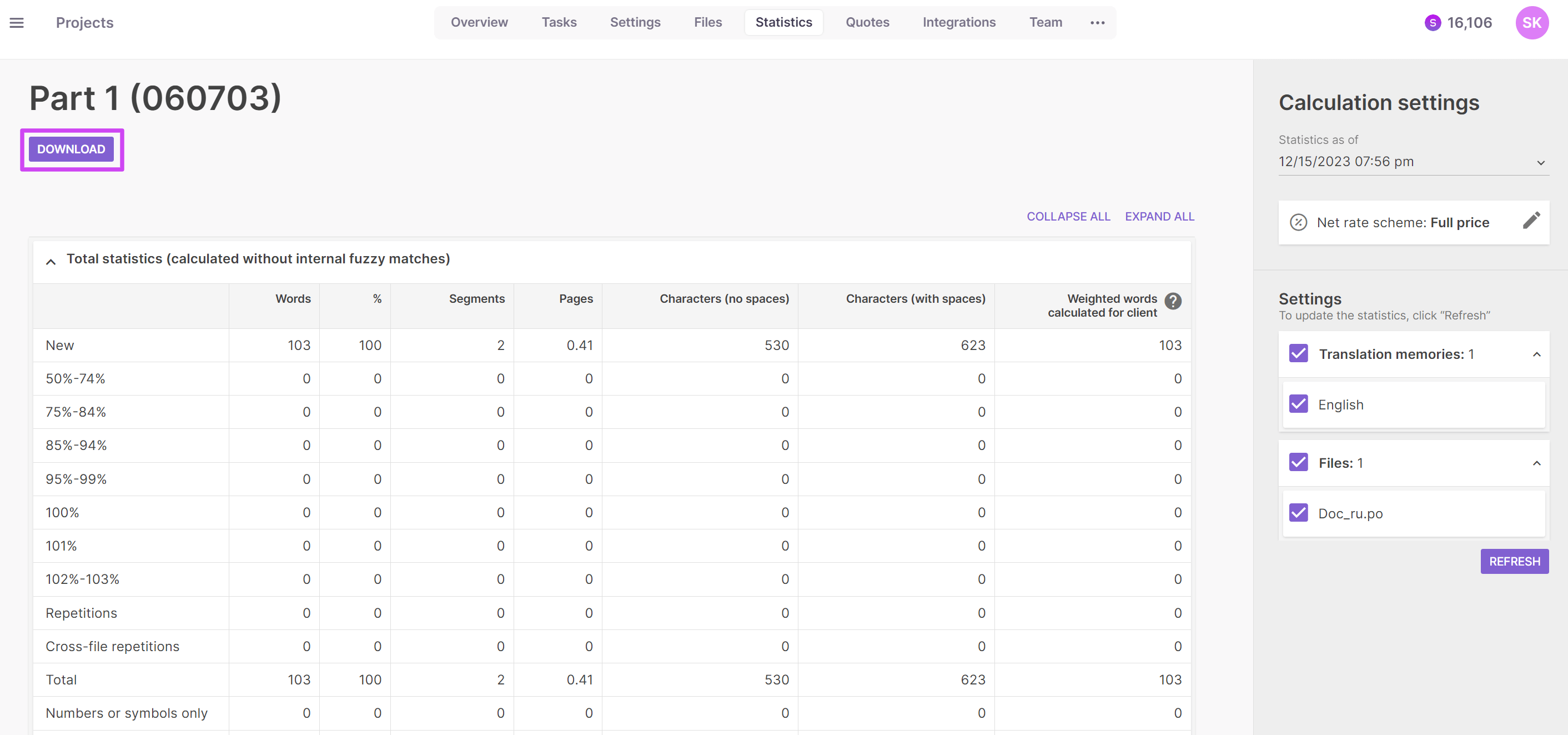
Clicking the Refresh button recalculates the statistics taking into account the current progress. Technically, this reflects the updated translation memory entries.
In this case, all segments that have already been translated are counted as 102% matches in the new snapshot, as at a certain time and for the specified documents. This approach lets you remember how many words there were at the very beginning, before you started work on the project. If you forgot to calculate statistics at the start, you can uncheck the translation memory that new entries were written to and refresh the statistics.
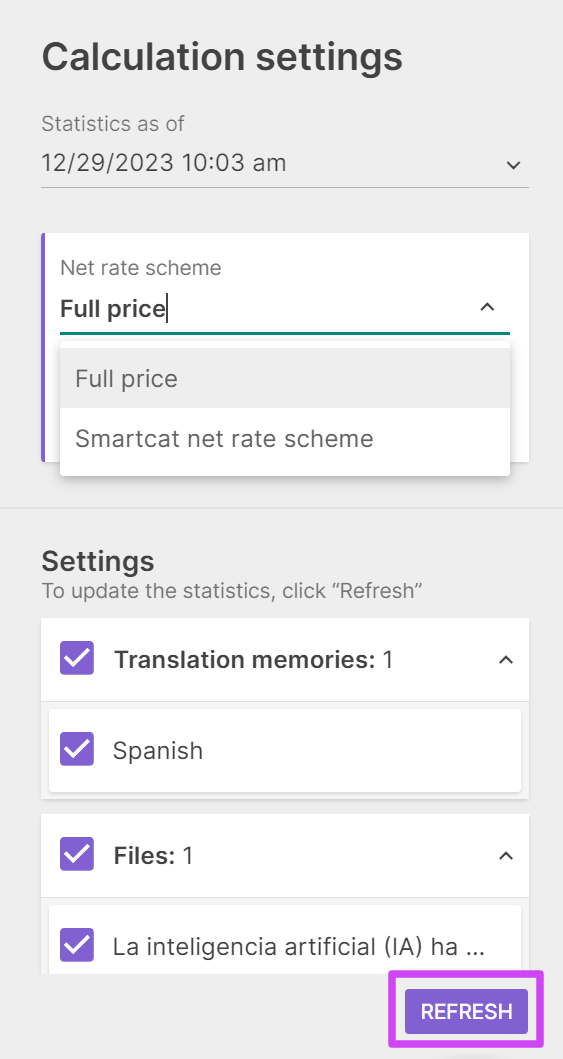
Smartcat supports the following statistics:
-
Words
-
Asian characters
-
Pages, where 1 page = 250 words/Asian characters
-
Characters with spaces
-
Characters without spaces
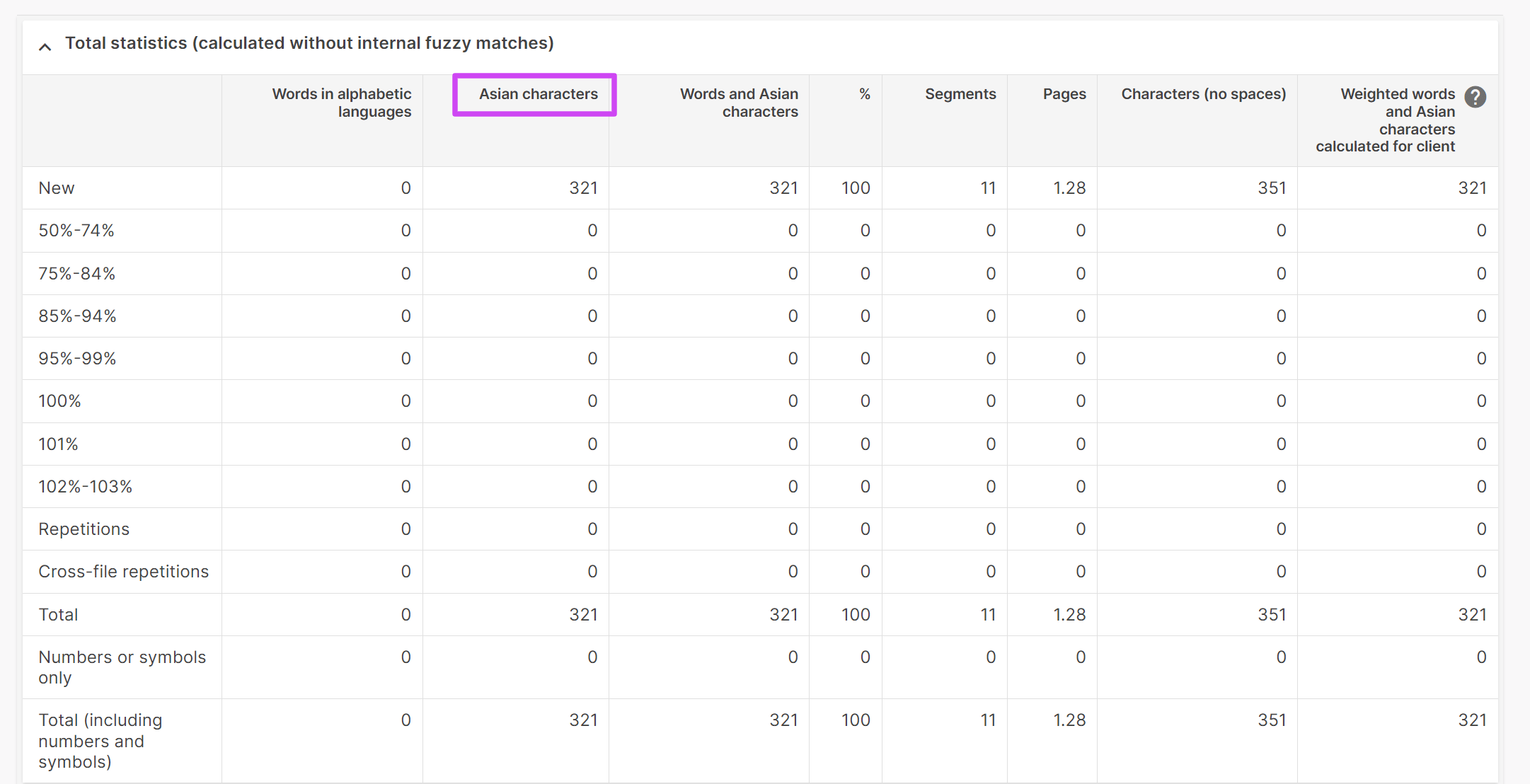
For logographic languages, Smartcat shows three columns instead of one:
-
Asian characters
-
Words in alphabetic languages
-
Words and Asian characters combined
Personal workspace statistics for assigned projects
If you have been invited to a project via the Smartcat Marketplace, you do not see the entire statistics described in the previous section. Instead, you see the summary calculation for all your assigned tasks and workflow stages, for example Translation.
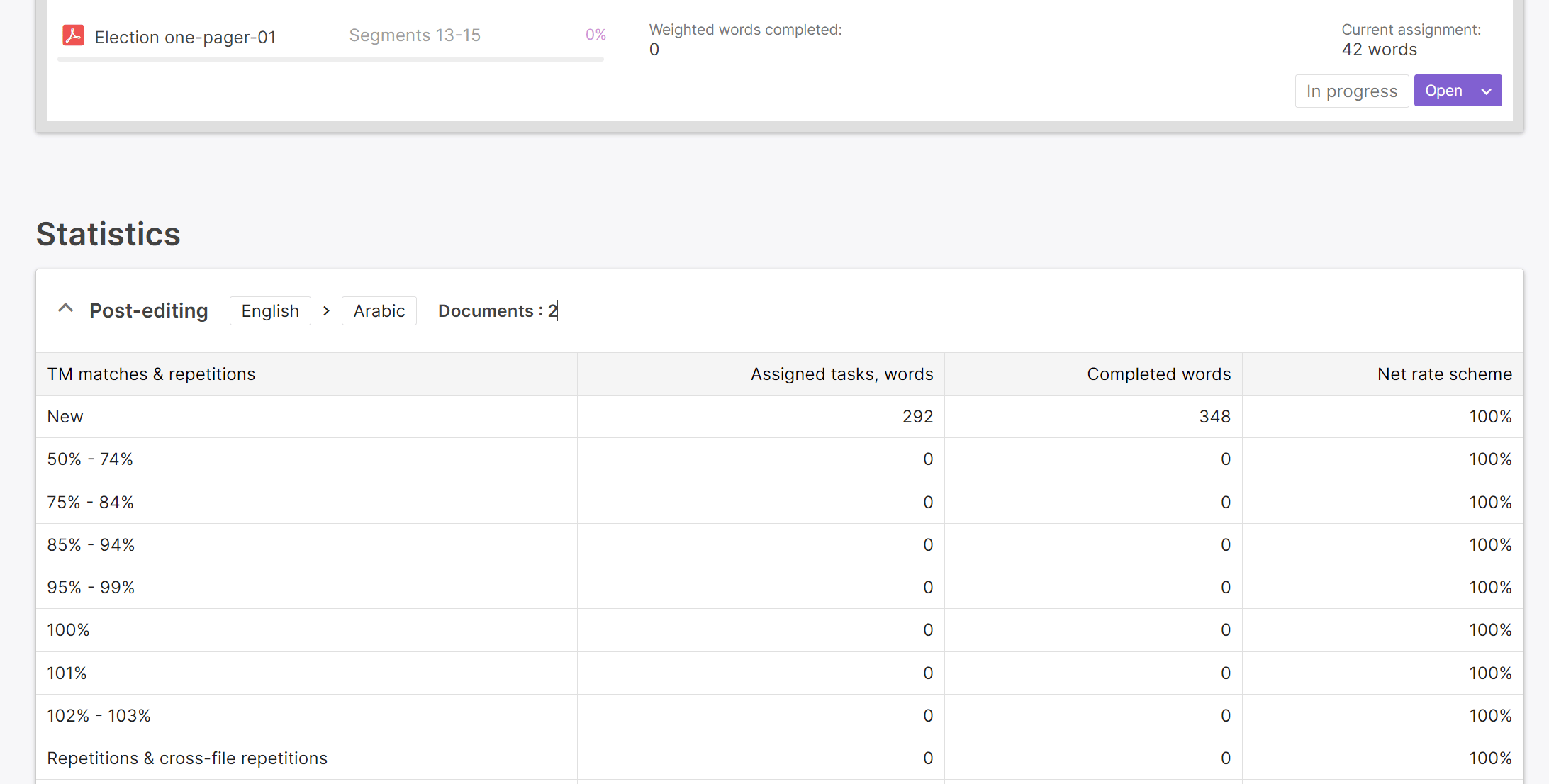
Here are a few things worth noting.
The My tasks column shows a preliminary calculation of the price and volume of assigned work. You can see how many total words were assigned, the number of repetitions, and, most importantly, the number of effective words.
Effective words represent the number of words to be paid, factored according to the customer's settings of discounts for translation memory matches and repetitions.
Completed words are words you actually translated or edited. Smartcat calculates completed words in real time, so you can always see how much you have earned.
The Net rate scheme column shows the customer's settings for discounts for repetitions and TM matches. The settings differ for different workflow stages, for example Translation.
The TM match rate represents how similar a segment's text is to the one stored in the translation memory. The minimum match threshold is 50%. Matches below this threshold are considered new segments.
📌 The final cost calculation may differ from the preliminary one, because Smartcat does not currently identify partial matches between segments that have not yet been recorded in the translation memory at the time of the preliminary cost calculation.
📌 In Smartcat, the cost calculation is always based on the number of words or Asian characters in the source text, not the translation.
Corporate workspace statistics
The basic principles of building statistics in the corporate workspace are no different from those in the personal workspace.
For each project, you can view the number of words or characters in documents and estimate the amount of work, taking into account repetitions and matches with the translation memory.
The statistics show the total number of words, segments, pages, and characters; the number of unique segments and matches with the connected TMs; the number of repetitions inside each file; and cross-file repetitions.
The corporate workspace provides more functionality and lets you download statistics for each of the assigned contributors.
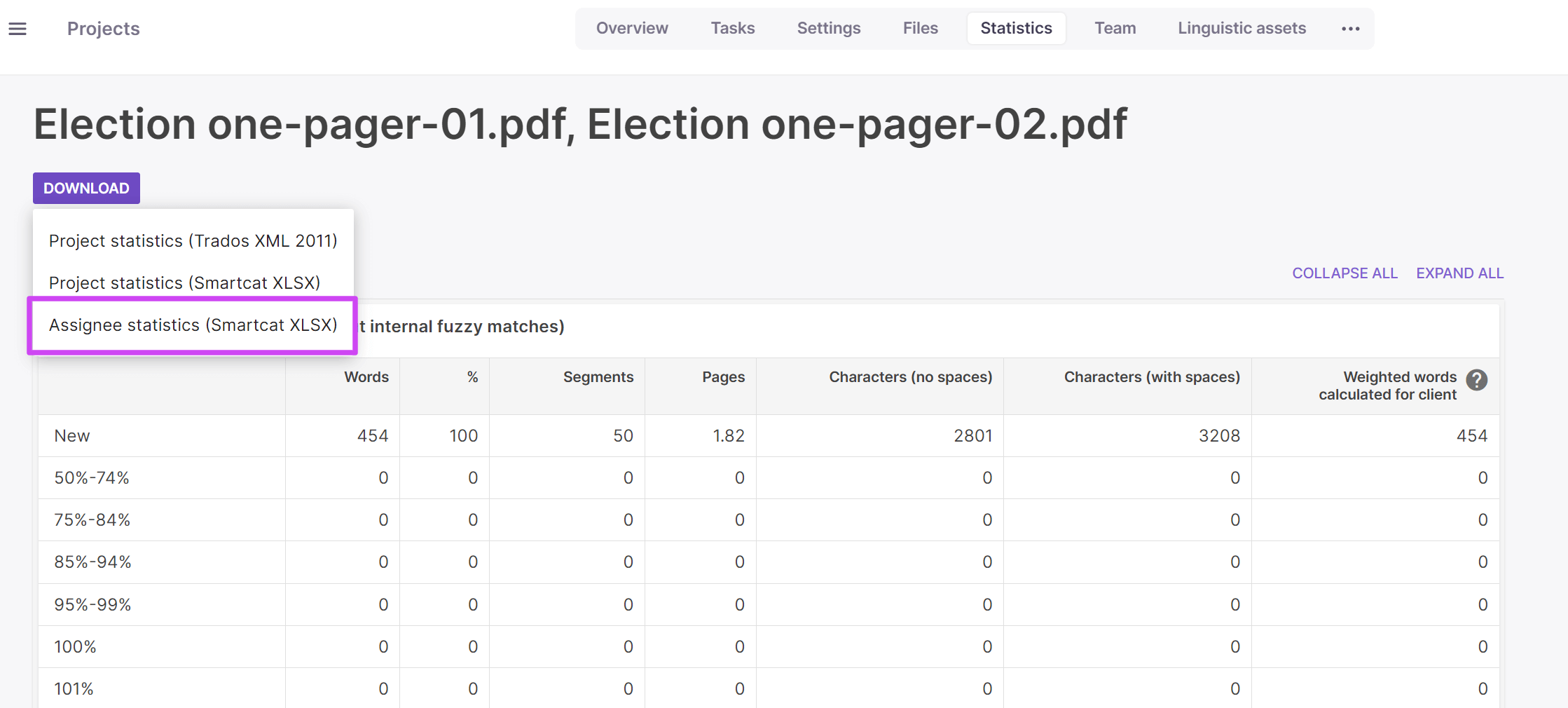
The statistics report contains the amount of work assigned to and completed by each contributor.
Statistics are downloaded in the XLSX format. A separate file is generated for each contributor. Each file contains data for a single language pair and a single task. If there are several stages or language pairs, a separate report is generated for each pair, that is, each combination of a stage and a target language.
Statistics per assignee are generated after the assignment. Even though such statistics cannot be recalculated manually, they change automatically depending on the assignee's progress.
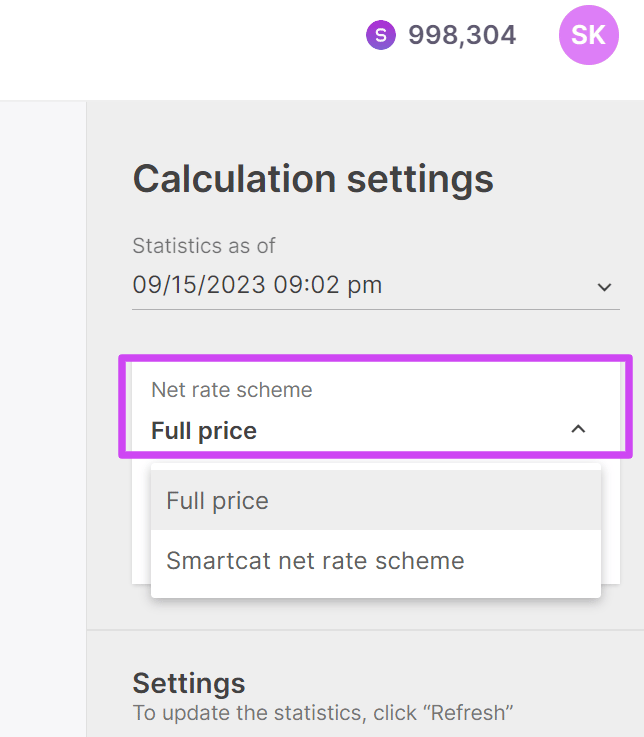
You can also calculate the statistics using a different TM net rate, for example if you need to provide different pricing to your customer. You can set the TM net rate here.
Calculating project statistics with internal fuzzy matches
The ability to calculate internal fuzzy matches is controlled, per project, by a checkbox in the project’s Statistics tab in the Calculation settings panel.
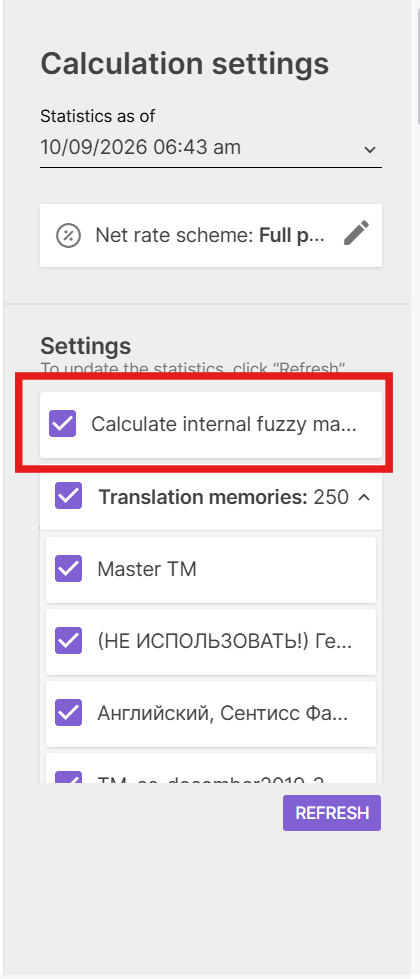
This setting is hidden by default. To enable it, contact Smartcat Support and tell them which workspace(s) you want to enable it for. Once enabled:
-
Open the project’s Statistics tab
-
Select Calculate internal fuzzy matches
-
Click Refresh
Clicking refresh recalculates the project so segments resembling each other within the project’s own files (which normally count as New) move into match-percentage tiers, and the report heading changes to Total statistics (calculated with internal fuzzy matches).
The setting is per-project, so other projects in the same workspace keep using the standard calculation until you enable and refresh them individually. There is also a project-level API path (PUT /api/integration/v1/project/{projectId}/fuzzyRepetitions, then POST .../statistics/build) if you need to automate this without the UI.
Want to learn more?
See how Smartcat can transform your localization workflow.
Still need help?
Our support team responds within one business day.