Process multilingual Excel files
Overview
If you want both the source text and its translations into multiple languages in one Excel spreadsheet, you can do it with Smartcat.
Smartcat lets you translate these files without copying and pasting the translations into the specified columns manually. Smartcat automatically detects the specified columns from your Excel file and configures the settings for you to get the file ready for translation.
Where to find the feature
First, upload your Excel file.
-
Go to your Smartcat account
-
Open your workspace
-
Go to Projects
-
Create an empty project
-
Open that project and upload your Excel file(s)
After that, choose the MultilingualExcel_v2 parsing method in the settings panel on the right.
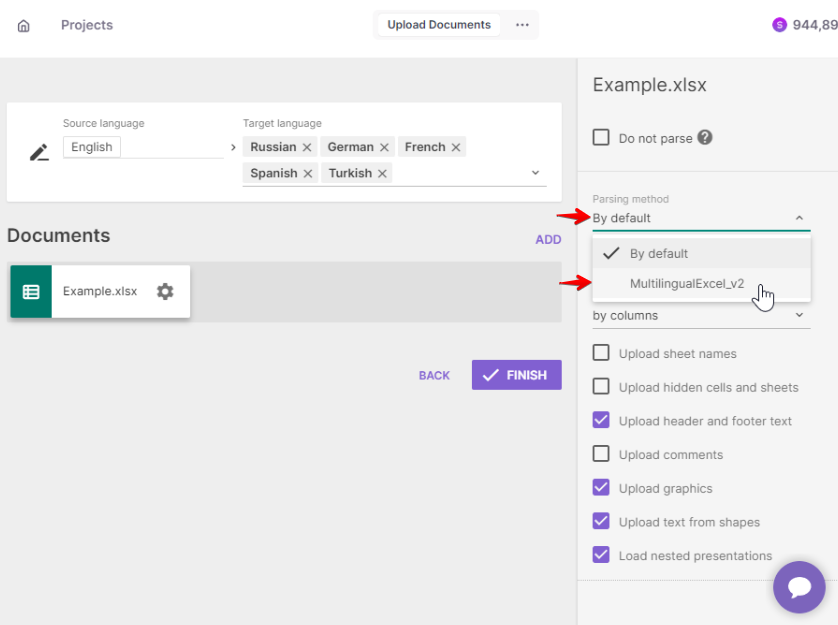
Your Excel file is now ready to be configured for translation.
How multilingual Excel works
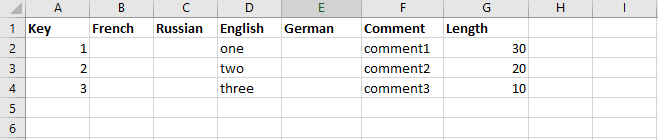
Imagine you have an Excel file that looks like this:
-
Column A (Key) contains the IDs of your translation lines
-
Columns B, C, E represent the target languages you want to translate into
-
Column D (English) is your source language
-
Column F (Comment) holds comments for each row
-
Column G (Length) holds length restrictions
-
Columns H, I are for languages you might add in the future, whose specific identities are yet to be determined
Upload your file and choose the MultilingualExcel_v2 parsing method.
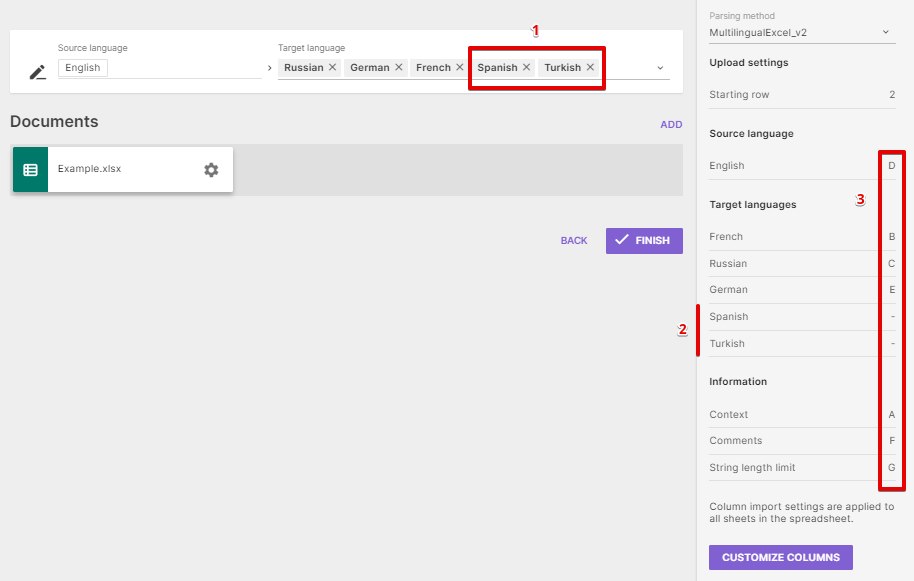
All the columns are automatically detected (highlighted in box 3).
Since two more languages, Spanish and Turkish, are selected in the project (highlighted as number 1), you have these options in settings (highlighted as number 2), which you can specify manually with the Customize Columns button or leave as is.
Alternatively, you can delete target languages you don't need for the specific document by clicking the x next to the corresponding languages in section 1. A deleted language disappears from settings (2) automatically.
Customize Columns window
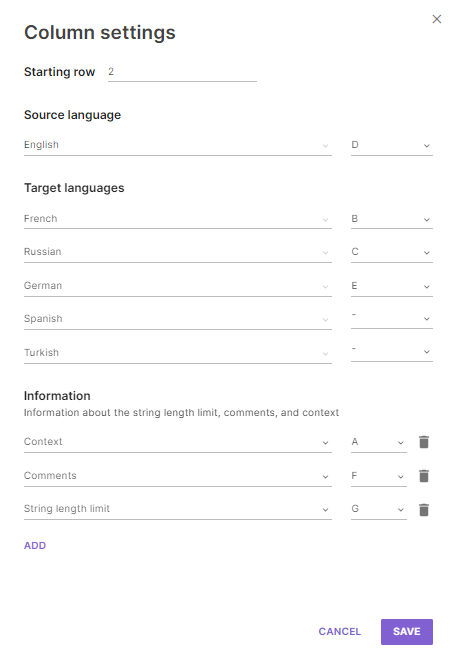
You can manually map any column to any language with the column dropdown.
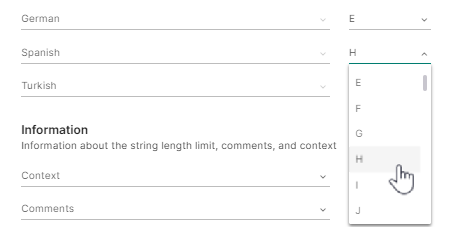
In this example, choose column H for the Spanish target language.
You can also specify comments with context or other useful information with the Add button (1).
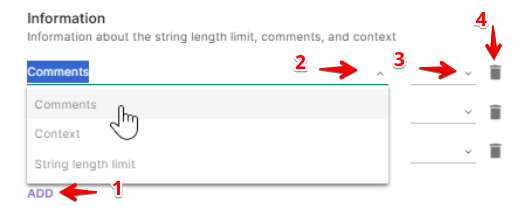
-
Choose the column type (2)
-
Select the column itself (3)
-
Remove any information columns you don't need (4)
📌 Remember to click Save.
If the document already contains a translation, you can choose whether to keep it, and if so, whether linguists can edit it:
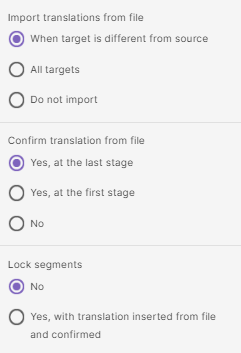
Click Finish and wait for the result:
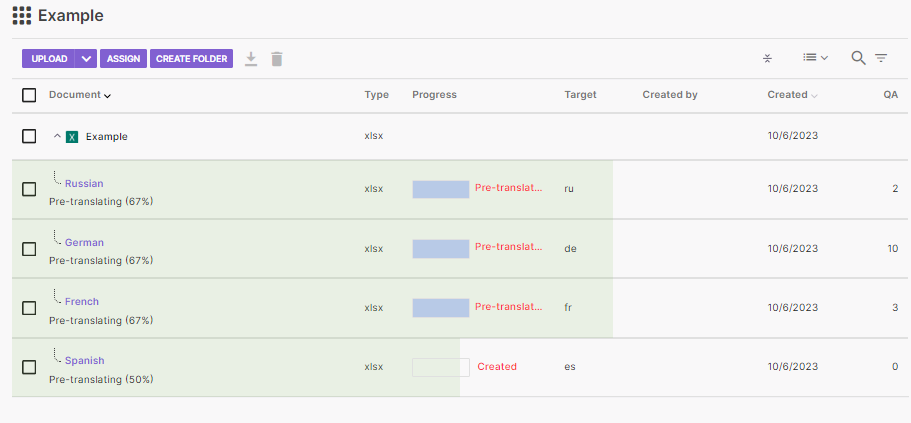
You can now assign linguists to the project, and after the translation is completed you'll have the resulting file with all translations in place.
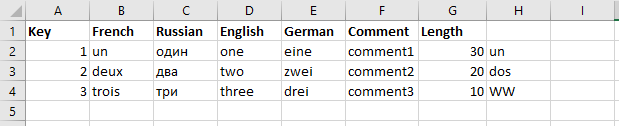
📌 There is also a Spanish translation in column H, which was manually specified in the Customize Columns window in this example.
How column auto-detection works
Automatic detection follows these rules:
-
Detection is case-insensitive
-
Only the first line of the Excel file is scanned to detect languages or the information column
-
All symbols apart from a-z are truncated and replaced with a single - for matching, unless there is a full match with the language name
💡 For example:
string length becomes string-length (space replaced with
-)en####us becomes en-us (
####symbols replaced with a single-)en_gb becomes en-gb (
_replaced with-)chinese (simplified) is matched with the language name and stays as is
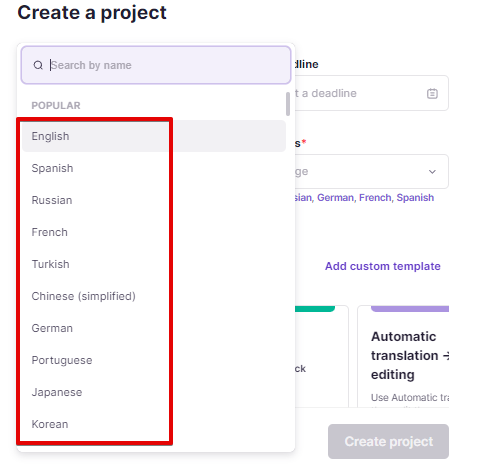
- The Target and Source column can contain:
- The language name in English, as named in Smartcat
-
Or the language tag in the ISO-639 standard
-
The Context column can contain values such as key, id, or context
-
The Comment column can be labeled comment or comments
-
The String length limit column can have labels like length-limit, string-length, length, or limit
💡 For example: Length limit, string_length, and similar.
FAQs
What is the MultilingualExcel_v2 parsing method for?
It's the parsing option you select after uploading an Excel file that already contains multiple language columns in one spreadsheet. It automatically detects the source and target language columns so you don't have to manually copy translations between columns.
Does Smartcat always detect my columns correctly?
In most cases, yes — detection is case-insensitive and normalizes headers (for example, "engb" and "enus" are both matched to language codes), and it also recognizes full language names as used in Smartcat. If a column is mislabeled or ambiguous, you can review and adjust the mapping manually.
Can I manually reassign a column to a different language?
Yes. Open the Customize Columns window and use the column dropdown to map any column to any target language, or add an information column (like context or comments) as needed. Remember to click Save after making changes.
What if my Excel file already has translations in it?
You can choose whether to keep existing translations, and if you keep them, whether linguists are allowed to edit them further.
Can I exclude a target language from a specific Excel file?
Yes — click the "x" next to a language in the target language list, and it's removed from the column settings for that file automatically.
Want to learn more?
See how Smartcat can transform your localization workflow.
Still need help?
Our support team responds within one business day.