User Roles & Access Rights (Preset Roles)
Overview
Smartcat uses preset user roles to control what each person can see and do in your workspace. When you add someone to your corporate account, you assign them a role and each role comes with a defined level of access rights.
Most workspaces use the roles Administrator, Teammate, and Linguist. Older workspaces may still use an earlier, expanded role set which is described in the Legacy roles section at the end of this article.
If preset roles don't match your team structure, Administrators can also create custom access levels with granular, scoped permissions.
When to use it
-
Assign the right access level to new team members based on their responsibilities
-
Control who can manage projects, resources, and workspace settings
-
Restrict sensitive operations (user management, billing, vendors) to authorized people
-
Give external freelancers and vendors task-only access via the Linguist role
-
Create custom roles when the preset roles don't fit your needs
Preset roles
Most workspaces use three preset roles. Teammate is the default role assigned to new members.
Administrator — Full access to everything in the workspace. Only Administrators can:
-
Manage users, roles, and access levels
-
Manage billing, subscription, and paid services
-
Manage vendors and clients
-
Create and manage projects and project resources
-
Manage translation memories (TMs) and glossaries — add, edit, approve, import, export terms
-
View reports and manage project/service templates
-
Invite contributors
Teammate — The default role for new members. Teammates can:
-
Manage clients
-
Create projects and work with all projects in the account
-
Manage project resources (settings, files, assignments)
-
Manage TMs and glossaries — add, edit, approve, import, export terms
-
View reports and manage project templates
-
Manage work orders and invite contributors
They cannot manage users, roles, billing, vendors, or workspace-level settings — those remain Administrator-only.
Linguist — The most limited role, intended for translators and external suppliers. Linguists:
-
Can only view and work on the projects and documents for tasks assigned to them
-
Cannot create, add, or delete projects
-
Cannot edit project resources
-
Can suggest glossary terms, but those terms must be confirmed by someone with glossary-management rights
-
Do not have Drive access
Quick permission comparison
| Capability | Administrator | Teammate | Linguist |
|---|---|---|---|
| Work on assigned tasks | Yes | Yes | Yes |
| Manage TMs & glossaries | Yes | Yes | Suggest only |
| Create & manage all projects | Yes | Yes | No |
| Manage project resources & templates | Yes | Yes | No |
| View reports | Yes | Yes | No |
| Manage clients & domains | Yes | Yes | No |
| Invite contributors | Yes | Yes | No |
| Manage users & roles | Yes | No | No |
| Manage billing, vendors, paid services | Yes | No | No |
How to use it
Assign a preset role to a team member
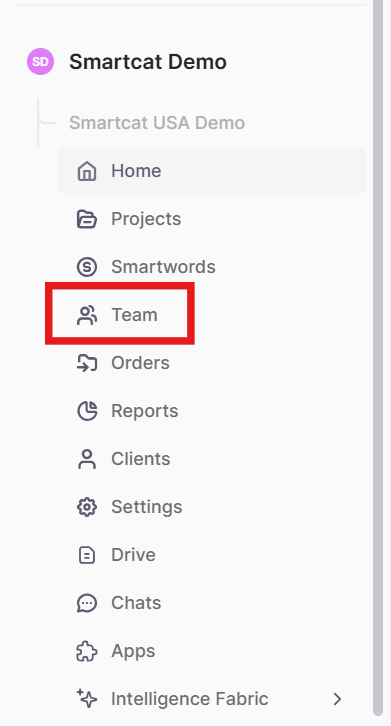
- In the left sidebar, click Team
-
Find the team member in the list
-
Click the role dropdown next to their name
-
Select the new role from the available preset options
-
Click Save
The team member's permissions update immediately.
Create a custom access level
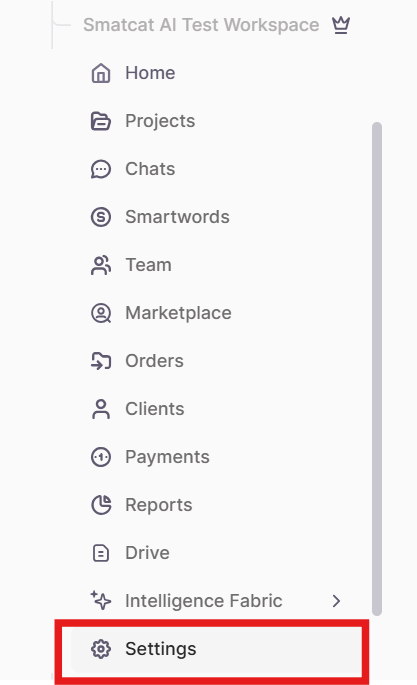
- In the left navigation sidebar, click Settings
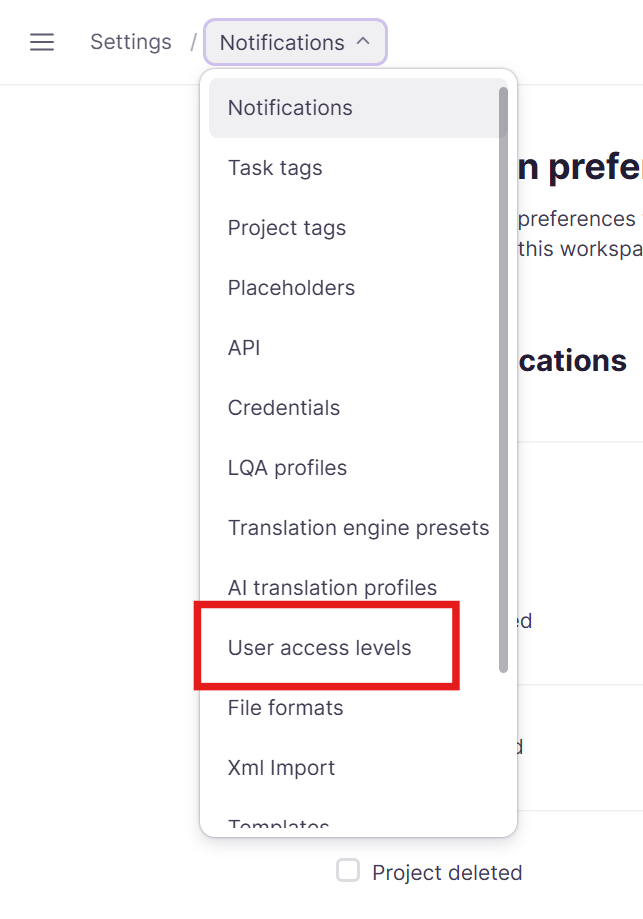
- Select User Access Levels from the dropdown at the top left corner
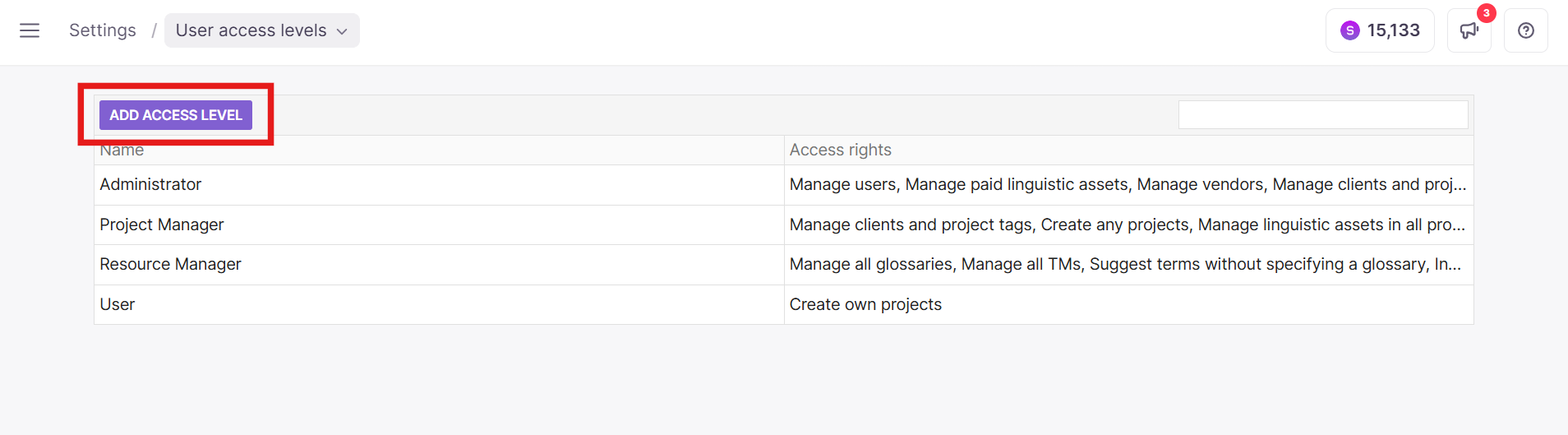
- Click Add Access Level
- Enter a name for the custom role
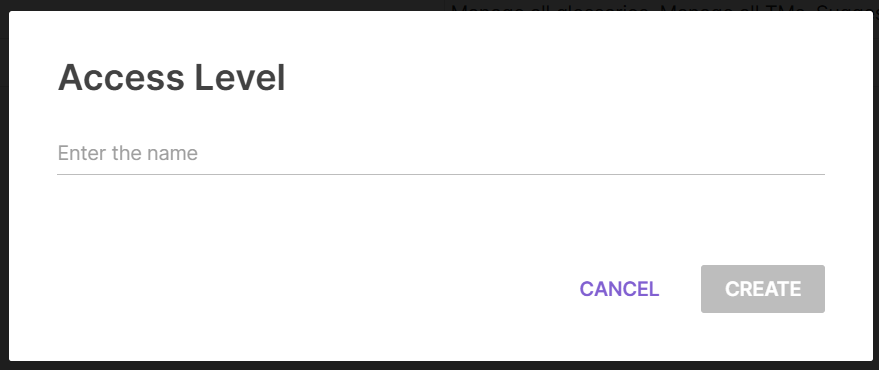
- Click Create
Configure custom access rights
- Select your custom access level and click Edit

-
Click Add Access Right to select permissions
-
Select a right from the available list and click Next
-
Define the scope of the right (specific glossaries, particular clients, certain languages, etc.)
-
Click Add to confirm the permission
-
Repeat for additional rights as needed
-
Click Save to apply changes
Remove access rights from a custom role
-
Select the custom access level and click Edit
-
Click the X next to any right you want to remove
-
Click Save
Delete a custom access level
-
Select the access level in the list
-
Click Delete
-
Confirm the deletion
⚠️ Users assigned to a deleted access level lose those permissions immediately. Reassign them to another role first.
Legacy roles
Some older workspaces still use an earlier, expanded role set. Instead of the single Teammate role, the middle tier is split into two separate roles: Project Manager and Resource Manager. In this set, Administrator and Linguist behave the same as in the current set (see above), and Project Manager is the default role for new members.
If your workspace uses these legacy roles and you'd like to move to the current simplified set (or vice versa), contact your Smartcat Customer Success Manager or Support.
Project Manager — The default role in the legacy set. Project Managers can:
-
Manage clients and domains
-
Create projects and work with all projects in the account, regardless of who created them
-
Edit project settings and manage project resources
-
Manage TMs and glossaries — add, edit, approve, import, export terms
-
View reports and manage project templates
-
Manage work orders and invite contributors
They cannot manage users, roles, billing, or vendors. (This role has the same permissions as the current Teammate role.)
Resource Manager — A narrower role focused on shared linguistic assets. Resource Managers can:
-
Manage TMs and glossaries — add, edit, approve, import, export terms
-
Invite contributors
They cannot create projects, manage project settings, view reports, or manage users, billing, or vendors. Like Linguists, they only see the projects assigned to them.
Legacy roles — quick permission comparison
| Capability | Administrator | Project Manager | Resource Manager | Linguist |
|---|---|---|---|---|
| Work on assigned tasks | Yes | Yes | Yes | Yes |
| Manage TMs & glossaries | Yes | Yes | Yes | Suggest only |
| Create & manage all projects | Yes | Yes | No | No |
| Manage project resources & templates | Yes | Yes | No | No |
| View reports | Yes | Yes | No | No |
| Manage clients & domains | Yes | Yes | No | No |
| Invite contributors | Yes | Yes | Yes | No |
| Manage users & roles | Yes | No | No | No |
| Manage billing, vendors, paid services | Yes | No | No | No |
Note: "Language Lead" is not a preset account role. It appeared in older documentation but has been deprecated. It now refers only to a contextual role inside the translation editor (a user who can edit content for assigned languages without managing the document) — it is not an assignable workspace role.
FAQs
Q: Can I modify a preset role?
A: No — preset roles have fixed permissions. Create a custom access level instead.
Want to learn more?
See how Smartcat can transform your localization workflow.
Still need help?
Our support team responds within one business day.