Insert special characters in the CAT editor
Overview
When you need a character that is not on your keyboard, you can insert special characters directly in the Smartcat CAT editor. You can also save the characters you use most often for quick access.
Insert a special character
-
Click the translation text where you want the character
-
Press Ω, or use the shortcut Ctrl+Shift+I
-
In the window that opens, select a character
-
Click Insert
The selected character is added to your translation.
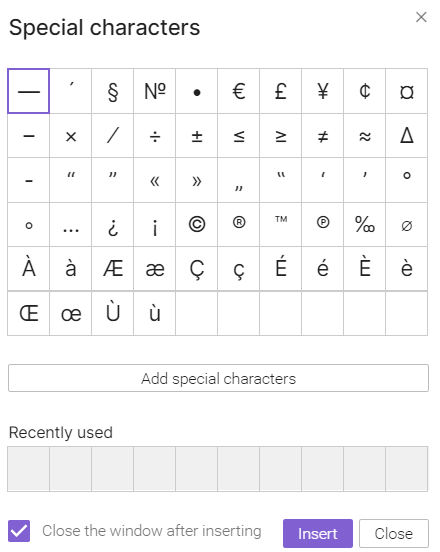
💡 The characters shown in bold can be inserted using hotkeys, so you do not have to open the menu. Hover the pointer over a character to find out its key combination.
Custom special characters
You can add up to 40 of your most frequently used characters to the window for quick access.
-
Click the large Add special characters button
-
Copy the characters you want to add to your clipboard
-
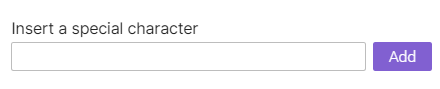
Paste them into the corresponding field, one by one or as a sequence
-
Click Add
Your custom characters are now available in the special characters window.
📌 You can find more special characters at this website.
FAQs
Does Smartcat support special characters for Serbian, Slovenian, and Croatian?
Yes. Smartcat is Unicode-based, so it fully supports the special characters used in Serbian, Slovenian, and Croatian — including š, đ, č, ć, ž, and the digraphs dž, lj, and nj — in the CAT editor, translation memory, and exported files. The built-in special characters window above does not include preset entries for these characters, so type them using your keyboard's language input method, or copy them into your own custom list of quick-access characters.
Want to learn more?
See how Smartcat can transform your localization workflow.
Still need help?
Our support team responds within one business day.