Getting Started with Chief of Staff and Smartcat AI Coworkers
Overview
Your chief of staff is your personal AI agent in Smartcat that coordinates the rest of Smartcat's AI coworkers across your workspace. It is included in every plan and it becomes the primary AI interface in Smartcat. It learns your role, domain, and preferences, so each session asks less of you than the last.
This guide covers what your chief of staff does, how AI coworkers and skills work together, how to create your first skill, and the limits per plan.
Take a quick tour of the Smartcat experience with your Chief of Staff.
Key concepts and terminology
Chief of Staff — Included in every plan, your chief of staff is the single entry point to Smartcat’s workflow and translation functionality. It calls in other AI coworkers when there is a relevant task (for example, the translation coworker), holds your personal skills, and coordinates work. Your chief of staff grows more capable as you add coworkers and skills. You can personalize your chief of staff with a name and avatar. You can also request that your chief of staff communicate with you in another language by using plain speech, in either the current language or the desired language.
AI Coworkers — Smartcat's specialized AI agents. Your chief of staff coordinates them, putting each to work on the step it handles. The AI coworkers available to you and your chief of staff depends on which plan you are on. Each plan contains the listed coworker, in addition to the coworkers available to lower tier plans.
| Plan | Available Coworkers |
|---|---|
| Adapt (formerly Basic) | Chief of Staff, Content Translator, Content Writer |
| Accelerate (formerly Team) | Reviewer, Marketplace Experts |
| Anticipate (formerly Enterprise) | Content Update, Quality Reviewer |
Skill — A repeatable procedure your chief of staff follows to complete a task. It specifies the steps, the inputs it needs, the tools it uses, and how it validates its work. A skill is not a one-off prompt and it is not a permission; it is a reusable procedure your chief of staff follows the same way every time. Your chief of staff works with three types of skills:
-
System skills — The Smartcat’s built-in capabilities, available to every user on every plan. These are the building blocks (for example, list a project, export a document, search a glossary) that other skills combine into larger workflows. You do not turn system skills on or off, and they do not count toward your plan's skill limits.
-
Global skills — Ready-made workflows shared across your organization and governed centrally by users with administrator roles. A global skill can combine several system skills and may also call additional agents or connected third-party tools. Global skills count toward your plan's global-skill limit.
-
Personal skills — Skills you create for yourself. A personal skill is private to you and only you can use it. Personal skills count toward your plan's personal-skill limit.
💡 Promoting a personal skill — If you create a personal skill that would be useful to others, Smartcat Support may be able to promote it to the workspace so anyone in your organization an use it. Once promoted, it becomes a global skill and counts toward your organization's global-skill limit.
Chief of Staff Homepage
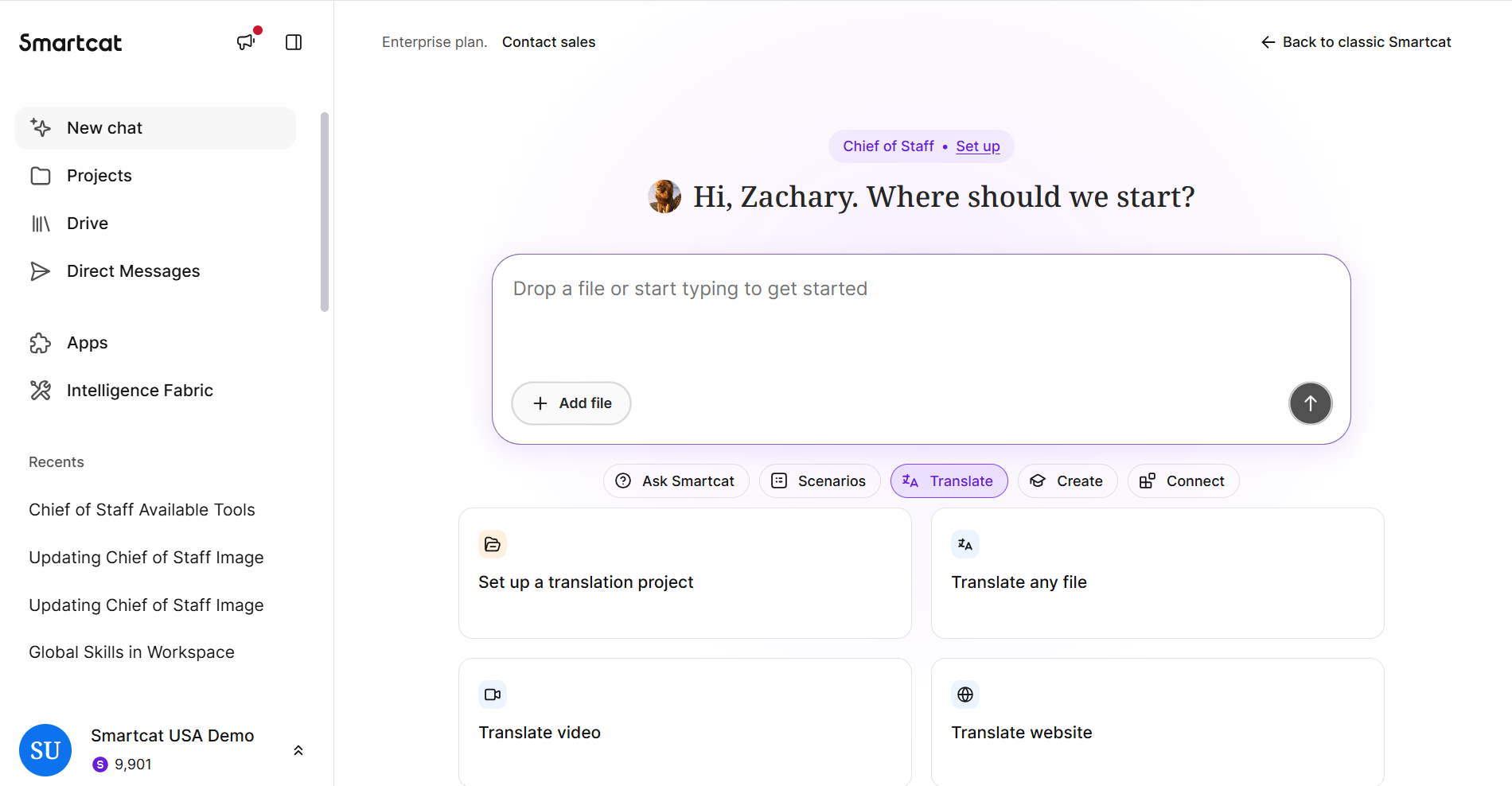
The chief of staff homepage provides you a new chat window, shortcuts to projects and templates, and prompts to help you start conversations with your chief of staff. This is the first page that appears when you sign in, and you can click New chat in the left navigation sidebar from any page in Smartcat to return to your home page.

The homepage provides you categories of actions and workflows in Smartcat. Selecting one of these provides additional options.

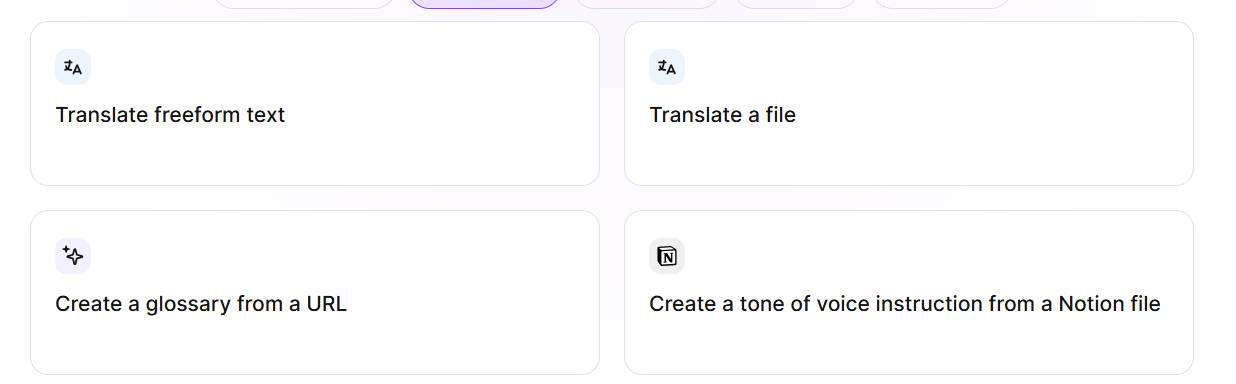
Within the additional option cards, click the action you’d like to take to open a new chat window with a prompt for your chief of staff. The chief of staff then walks you through the process of completing the task. Assignment templates, service templates, and project templates you create in your workspace also appear as cards in this section.
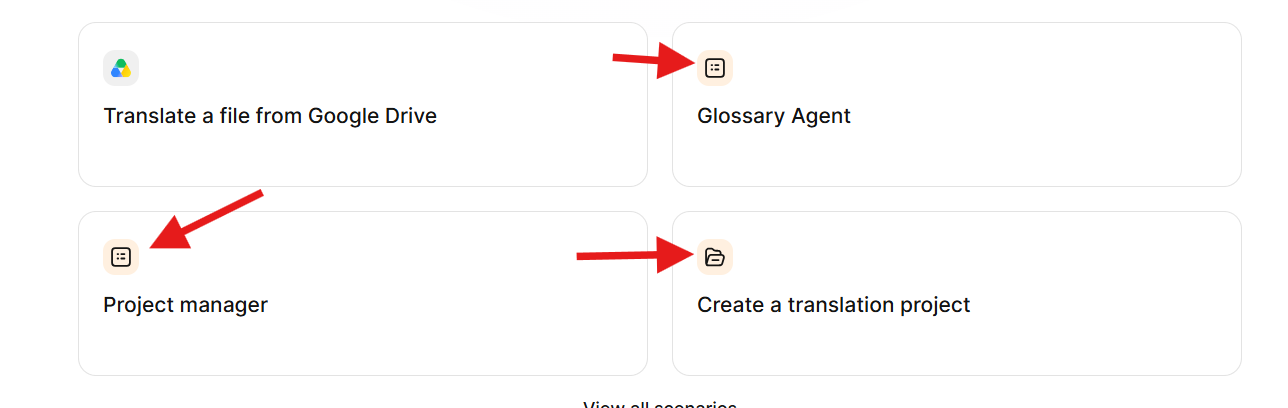
Clicking a card with a yellow icon takes you to a new page within Smartcat where you can complete the task. For example, the Project manager or Create a translation project cards.
What your chief of staff can do
Your chief of staff works across your content pipeline from a single chat (in Smartcat or in the Microsoft Teams and Slack apps). It remembers your preferences, connects to external services so you do not have to upload content manually, creates instructions for linguists, helps set the tone of voice for your translations, and more.
How to use your chief of staff
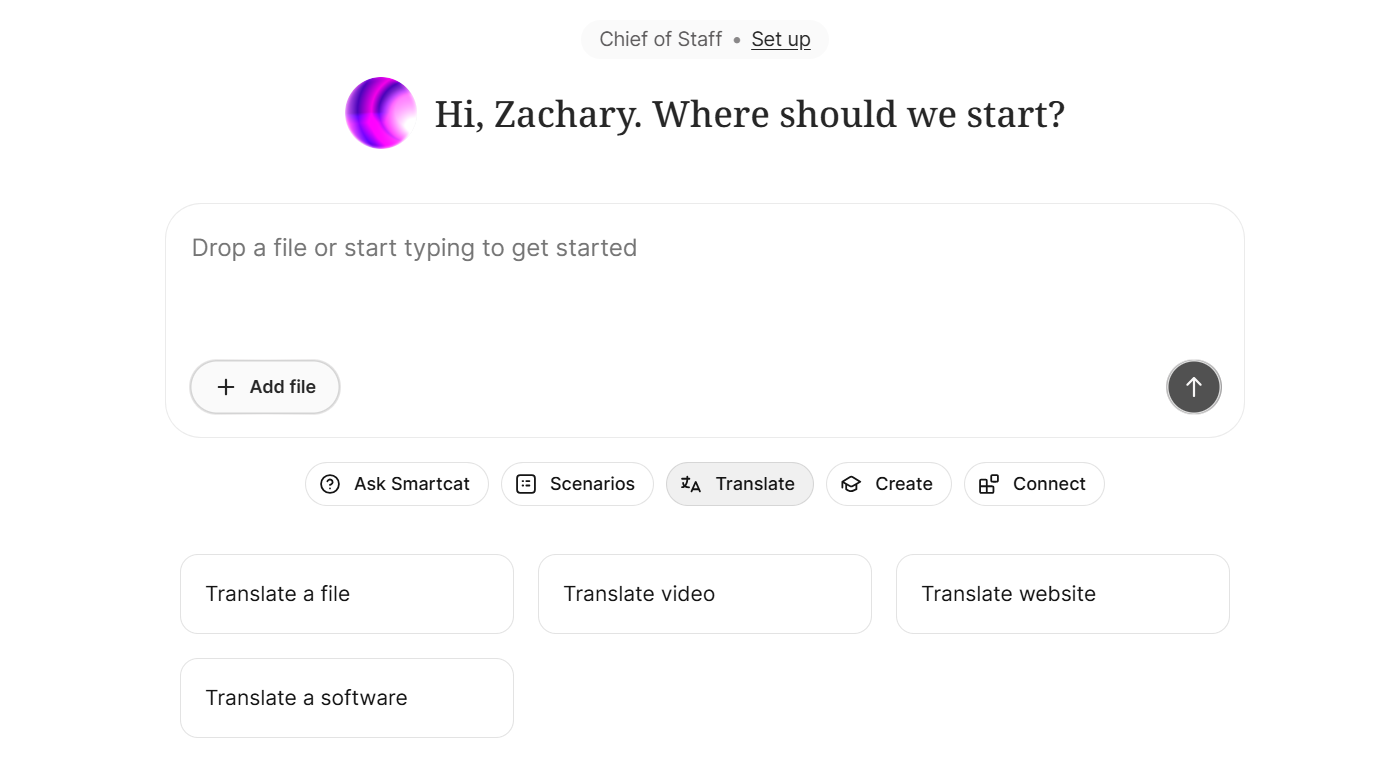
Click Chief of Staff - Set Up to customize your chief of staff. When you’re ready, kick off a workflow by dropping in a file or sharing a link. Your chief of staff takes it from there.
Interactive workspace setup
Your chief of staff configures linguistic assets, including glossaries, custom prompts, and translation settings, in the context of your real work, during your first session rather than as a separate onboarding project.
Translation with your institutional knowledge
Your chief of staff translates using the translation memories, glossaries, and style assets you already have. Nothing you have built goes away; your existing TMs, glossaries, and projects are used automatically.
Automated quality checks
Your chief of staff runs quality checks on every pass, with before-and-after quality scoring, and can iterate to improve a translation so output is consistent and on-brand from the first project.
Output routing
When a step is done, your chief of staff routes the output to the next step in your pipeline or to your publishing destination.
Coordinating the other AI Coworkers
Your chief of staff coordinates the other Smartcat AI Coworkers across the pipeline, handing each step to the Coworker that handles it, so you manage the outcome rather than the individual steps.
Your Smartcat plan determines which coworkers are available. Higher-tier plans include the coworkers of the lower-tier plans. The AI coworkers currently available in addition to the chief of staff are:
-
Translation coworker - Translates any type of content and holds translation profiles, the settings that determine exactly how to translate in each situation. The profiles determine which translation engine to use, how to handle length control, and how to work with specific file formats. The coworker draws on resources shared across the whole workspace, including terminology, previously approved translations, accumulated observations about language and audience, and connected translation engines. This coworker is available on every plan.
-
Review coworker - Reviews the final check of a translation, including editing, proofreading, and post-editing, before the translation is exported or goes live. You can assign this coworker to these task types on a project. This coworker is available for users on the Accelerate, Anticipate, and Autonomous plans.
-
QA coworker - Runs finished translations through your workspace’s quality profile, which includes error categories, their severity, and the threshold below which a translation can’t be accepted. It relies on the same linguistic quality assessment (LQA) mechanism that Smartcat already uses. Combine this coworker with your workflow settings to drive automation. For example, you can configure segments with no errors, or only errors below a set severity, to confirm automatically at the next stage, reducing the amount of manual rechecking. This coworker is available for users on the Anticipate and Autonomous plans.
-
Content update coworker - Watches for changes in source content and updates already completed translations across every language the moment the source changes. This coworker is not tied to a single content type. This coworker is available on the Anticipate and 8plans.
Q&A, analytics, and research
Ask your chief of staff questions about the platform, your usage analytics, and research topics, all in the same conversation.
Memory and personalization
Your chief of staff remembers your setup and preferences across sessions, at both the workspace level and your personal level, so the more your team uses it, the less you repeat yourself and the more of the pipeline it handles on your behalf.
Chief of Staff canvas
When you ask your chief of staff a question about your workspace, for example, about a specific project, your chief of staff can open the page in Smartcat in a new canvas.
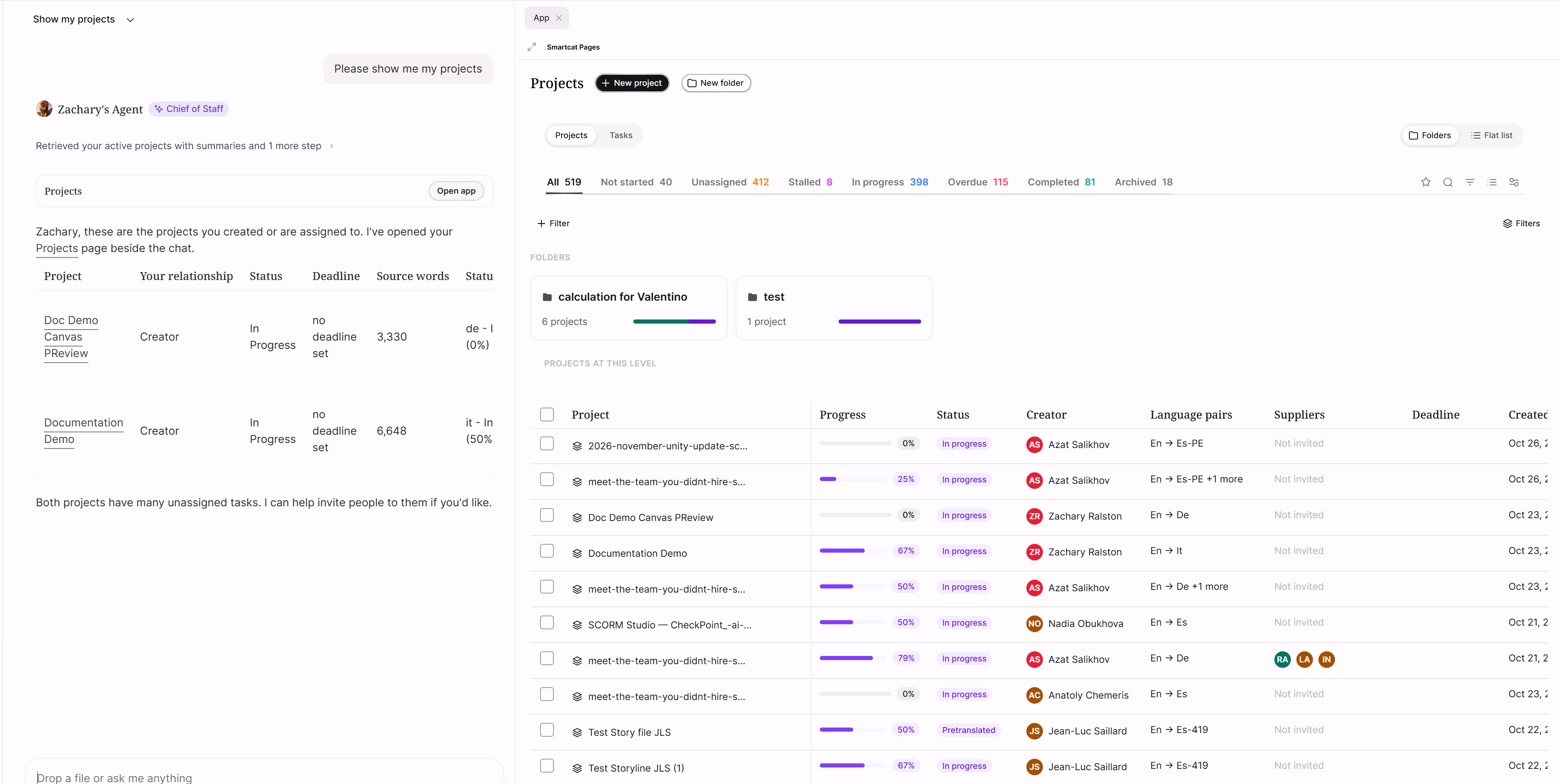
Your chief of staff can see information displayed in the canvas, and you can ask it about what you see there.
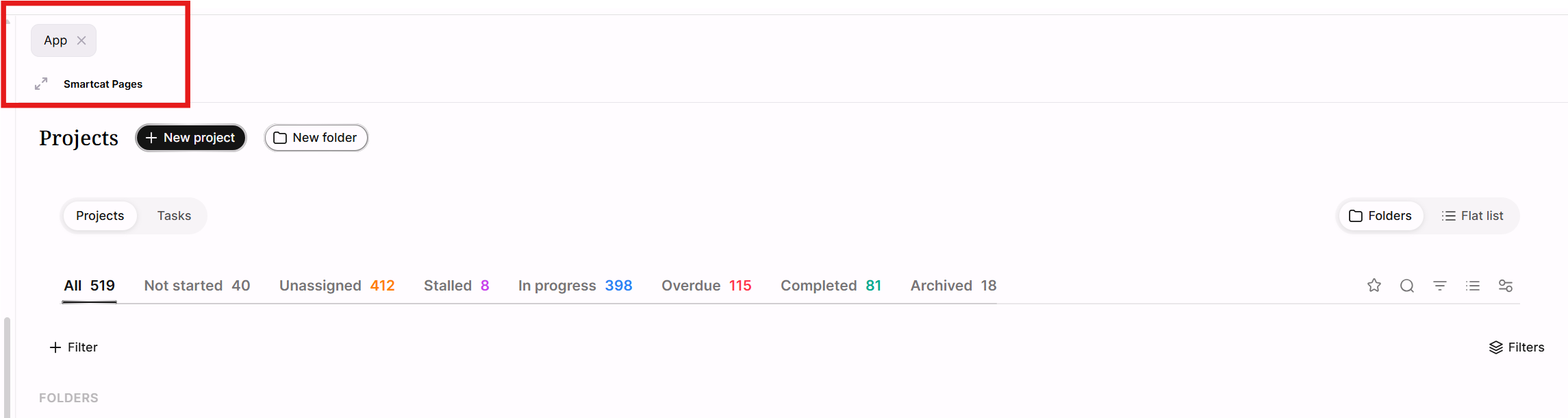
Click the X next to the name of the page in the top left corner of the canvas to close the canvas and expand the chat. Click the Expand canvas icon to expand the canvas and hide your chat window.
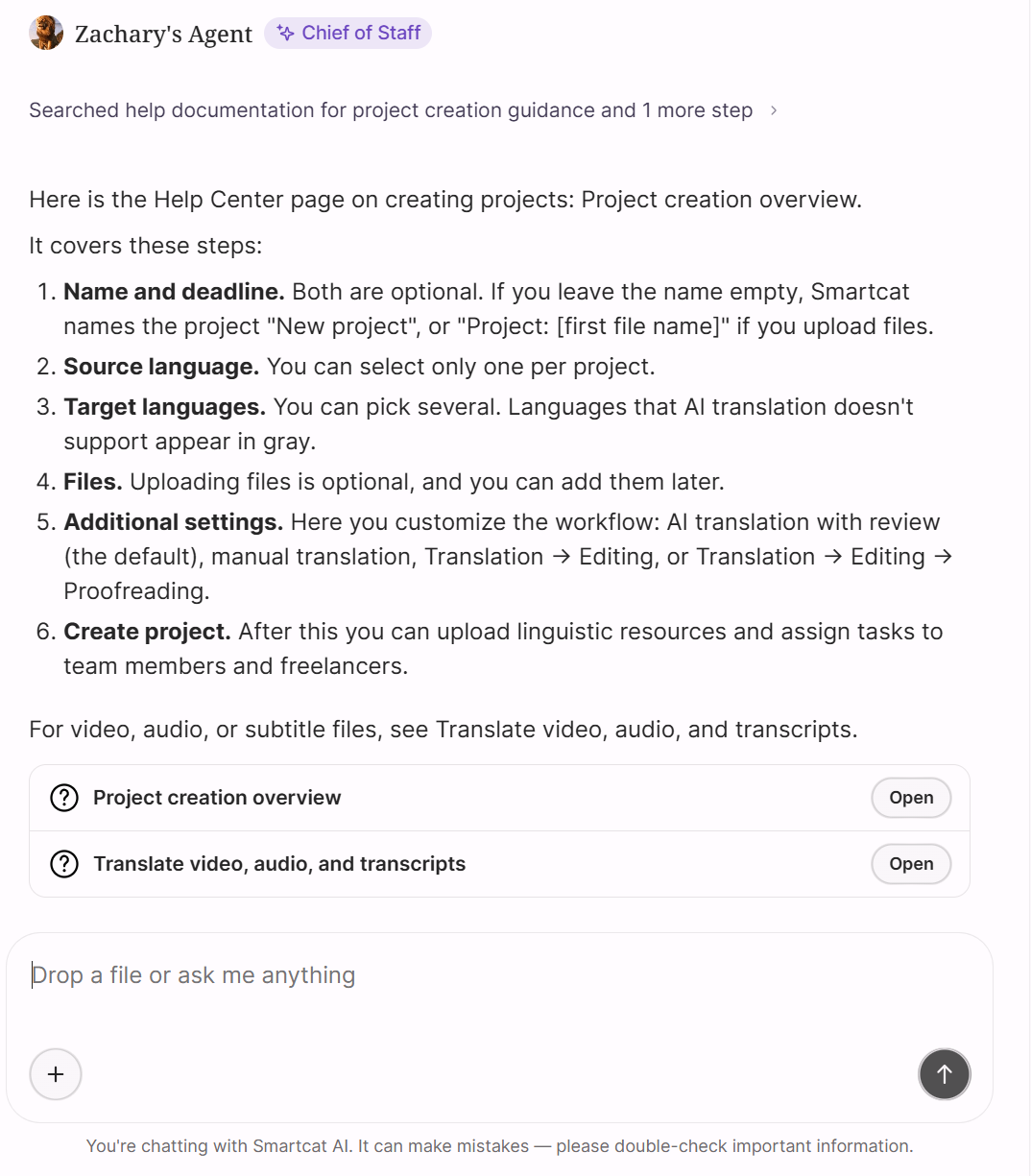
The chief of staff also displays relevant Smartcat help center articles when you ask it a question about how Smartcat works. Click Open to open the help center article directly in the canvas.
Personal skills and global skills
Personal skills layer on top of the global skill baseline. Your personal change never overrides the organizational standard and never affects anyone else's AI coworkers.
-
Personal skills are created by you and are private to you.
-
Global skills are org-shared and governed centrally. Other users can copy and customize a global skill into their own personal version, but the shared global itself can only be edited by its owner. When a global skill is updated by its owner, the change propagates automatically to every AI coworker using it.
-
System skills are available to everyone and do not count toward either personal or global skill limits.
📌Anticipate and Autonomous plans provide multiple workspaces. Global skills exist across all workspaces on a plan, so creating a global skill in one workspace automatically makes it available in all other workspaces on that plan.
Creating your first skill
The easiest way to create a skill is to ask your chief of staff directly. Tell it what you want a skill to do — for example, "I would like a skill that takes this link, composes a list of changes that need to be made, and updates the content on the platform" — and your chief of staff guides you through building it. It proposes a ready skill body for you to review. When it looks right, confirm in the chat and the skill is saved to your personal skills library.
Your chief of staff also knows what resources you have access to in Smartcat. When a plan limit applies, it can tell you how many skills you currently have active, that you can swap them in your admin panel, and that upgrading your subscription raises the number of skills available at once.
How to write a skill that works reliably
Skills behave more predictably when they cover the following factors. :
-
When to use — The specific trigger that should invoke the skill, plus a negative boundary stating when not to use it.
-
Preconditions — The user input, runtime context, and tool attachments or permissions the skill requires.
-
Procedure — The numbered steps the coworker follows.
-
Step contracts — For each step, a mapping of the output it needs, the tool it uses, the required inputs, where those inputs come from, what consumes the output, and how the result is validated.
-
Failure handling — What the coworker should do on missing input, missing output, a permission failure, or an ambiguous tool choice.
A guiding rule: the description is a trigger. Before calling any tool, the chief of staff validates the full chain — user goal, needed output, tool, inputs, sources, expected output, and validation — and never invents missing IDs, dates, or defaults.
Example Skill: Auto-Assign Reviewer on Segment Confirmation
When to use it
Use this skill when a translator confirms a segment in the CAT editor on a project where the workflow includes a review step, and no reviewer has yet been assigned to that segment's language pair. It ensures reviewed work doesn't sit idle waiting for manual assignment.
Preconditions
• Project workflow includes an active "Review" stage (not translation-only).
• The confirmed segment's language pair has at least one reviewer with availability in the project team.
• The segment is not already assigned to a reviewer.
• The project is not paused, archived, or in a "translation frozen" state.
Procedure
-
Detect the segment-confirmed event from the CAT editor.
-
Check the project's workflow config for an active Review stage.
-
Query the project team for reviewers matching the segment's target language.
-
Filter to reviewers with open capacity (below their max concurrent word/segment threshold).
-
Assign the segment to the reviewer with the lowest current load; if tied, use round-robin by last-assigned timestamp.
-
Update the segment's status to "Pending Review" and notify the assigned reviewer.
Step contracts
• Input: segment_id, project_id, target_language, confirmed_by_user_id.
• Output: reviewer_id assigned, segment status = pending_review, or no_action if preconditions fail.
• Guarantee: Never assigns a segment to more than one reviewer at a time; never overwrites an existing assignment.
• Idempotency: Re-running on an already-assigned segment is a no-op, not a re-assignment.
Failure handling
• No eligible reviewer found → leave segment unassigned, flag project owner via notification, log reviewer_gap event.
• Reviewer capacity data unavailable → default to round-robin without load-balancing, log a degraded_mode warning.
• Assignment write fails (e.g. concurrent edit conflict) → retry once; if it fails again, leave segment in prior state and alert the PM — never leave it in a partial/ambiguous status.
Available tools for your agent
⚠️ There is no semantic tool search yet, so exact names matter. When the name is misspelled, your Chief of Staff saves the skill correctly but it cannot call the tool. As a best practice, copy-paste the name of the tool into your skill rather than re-typing it.
When writing a skill, you attach the specific tools it may call by name. Here are example tools available to your chief of staff.
-
project — project lifecycle: list, get, overview, create, update, create-from-template, and list templates.
-
document — project documents and asynchronous export: list, get, upload, and the request → status → result export flow.
-
segments and editor actions — segment-level read, edit, filter, and translate: list, get, filter untranslated / pending review, update and confirm targets.
-
tm (translation memory) — list and fetch TMs, search TM segments, add TM units.
-
glossary — list and fetch glossaries, search terms, batch-add concepts.
-
mt (machine and smart translation) — list smart-translation profiles, fetch an MT preset.
-
quality — Translation Quality Scores (TQS) and segment comment threads.
-
account — account, workspace settings, access rights, Smartwords balance, and profile.
-
drive — SmartcatDrive file operations: search, get, download/upload, copy, move, delete files and folders.
For a complete list of tools and their exact names, ask your chief of staff for the specific names of all tools available. Copy the exact tool name (for example, document_export_request, segment_target_update, or glossary_term_search) from the response when defining a skill's tool attachments and step contracts.
Example project requests
Below are examples of requests you can make of your chief of staff regarding projects. You can make similar requests using other tools, such as documents, segments, or the Smartcat drive.
Project navigation and listing
-
List all projects — For example, "Show my latest 20 projects." Returns the list with links to each project.
-
Check whether a project already has source files — Confirms whether a given project already contains source documents. For example, “Does project X contain source documents?”
Project status and monitoring
-
Get a project status overview — Returns a table of overdue projects with their deadlines.
-
Check projects with no or low progress — For example, "Show projects with low progress."
-
Check projects close to deadline — Surfaces projects approaching their deadlines.
Project creation
-
Create an empty project — Creates a new project with no documents attached, so you can add files later.
-
Create a project with details — For example, "Create a project from English to Russian and German." Sets up the project with the name, source language, target languages, and deadline you provide.
Project updates
-
Update a project name — For example, "Rename project X."
-
Change a deadline — For example, “Update the deadline on project X to this date.”
Schedule recurring status requests
Available on the Anticipate and Autonomous plans, your chief of staff can plan tasks that run automatically on a schedule.
-
Ask your chief of staff to schedule a task — for example, "Send me project status every day at 9am" or "Send me the status in half an hour."
-
Your chief of staff registers the recurring or one-off task.
-
Each time the task runs, the result is delivered into a new dedicated chat, using the same tools as a regular chat. Creating a new chat keeps your working conversation clean and each run self-contained, so there is no confusion between different tasks.
If you need to review what tasks are scheduled for your workspace, you can ask the chief of staff to list what automated tasks are scheduled. You can also ask your chief of staff to cancel or change any of the automated tasks and it carries out the request.
Limits by Plan
The number of skills you can create depends on your plan. System skills are available on all plans and do not count toward these limits. Global skills exist across all workspaces on a plan, so, on an Anticipate or Autonomous account, creating a global skill in one workspace automatically makes it available in all other workspaces on that plan.
| Plan | Personal skills | Global skills | Workspaces |
|---|---|---|---|
| Adapt (formerly Basic) | 3 | 5 | 1 |
| Accelerate (formerly Team) | 7 | 8 | 1 |
| Anticipate (formerly Enterprise) | 15 | 20 | 2 |
| Autonomous | 25 | 100 | 7 |
FAQs
Do I need a specific plan to use Chief of Staff?
No — Chief of Staff is included in every plan and is the primary AI interface in Smartcat. Which additional AI Coworkers it can call on (Review, QA, Content Update, etc.) does depend on your plan tier.
What's the difference between Chief of Staff and the other AI Coworkers, like the Translation or Review coworker?
Chief of Staff is your single entry point that coordinates the specialized coworkers, handing each step of a task to the coworker that handles it (e.g., Translation coworker translates, Review coworker checks the final output). You manage the outcome; Chief of Staff manages the individual steps.
Can I schedule Chief of Staff to send me recurring updates?
Yes, on Anticipate and Autonomous plans — for example, "Send me project status every day at 9am." Each run delivers its result into a new dedicated chat.
What happens if I misspell a tool name when writing a skill?
Chief of Staff still saves the skill, but it won't be able to call the tool since there's no semantic tool search yet — exact names matter. Best practice is to copy-paste the tool name rather than retype it.
Does my personal skill override my organization's global skill with the same idea?
No — a personal skill layers on top of the global baseline and never overrides the organizational standard or affects anyone else's AI coworkers.
Want to learn more?
See how Smartcat can transform your localization workflow.
Still need help?
Our support team responds within one business day.