Understanding Translation Review Reports
Translation Review Reports help you track the quality of your AI translations and see how much human reviewers need to edit them. Use these reports to optimize your translation workflow and demonstrate quality improvements over time.
📌 The availability of this report in your workspace is determined by your subscription tier. Contact Smartcat Support with questions.
When to use it
-
When you want to measure translation quality and approval rates
-
When optimizing your review agent settings
-
When tracking reviewer efficiency and workload
-
When demonstrating translation quality to stakeholders
-
When identifying language pairs that may need attention
📌For AI-powered translation accuracy information, see the Translation Quality Score.
Where to find it
Go to Apps in the left sidebar navigation in your workspace, then click the Translation Review Report tile to open it.
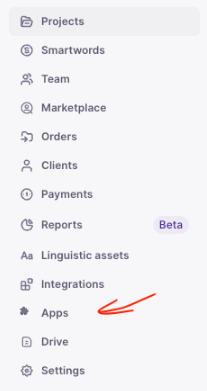
📌 The Apps section appears only when one or more custom apps are enabled in your workspace. Custom apps are currently in Beta.
Three types of reports
The translation review report lets you review specific documents to see exactly what changed between revisions, such as:
-
AI translation vs. review agent edits
-
Review agent edits vs. human reviewer changes
-
Side-by-side comparisons with explanations for each edit
Translation Review Report
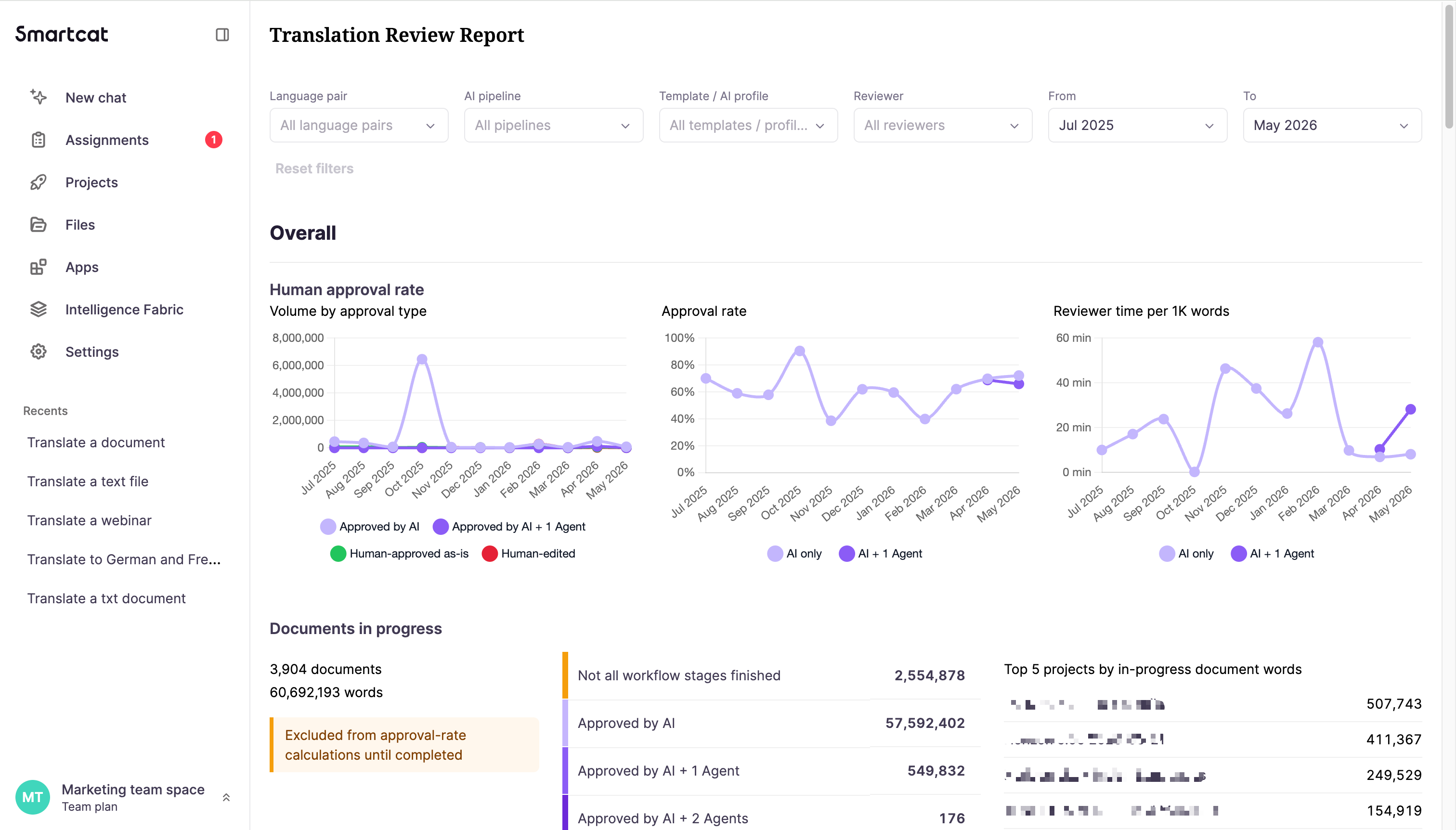
The Translation Review Report shows aggregated trends across your entire workspace: approval rates, reviewer time, language pair performance, and project/document tables. Use it to track quality over time and identify areas for improvement.
Project Report
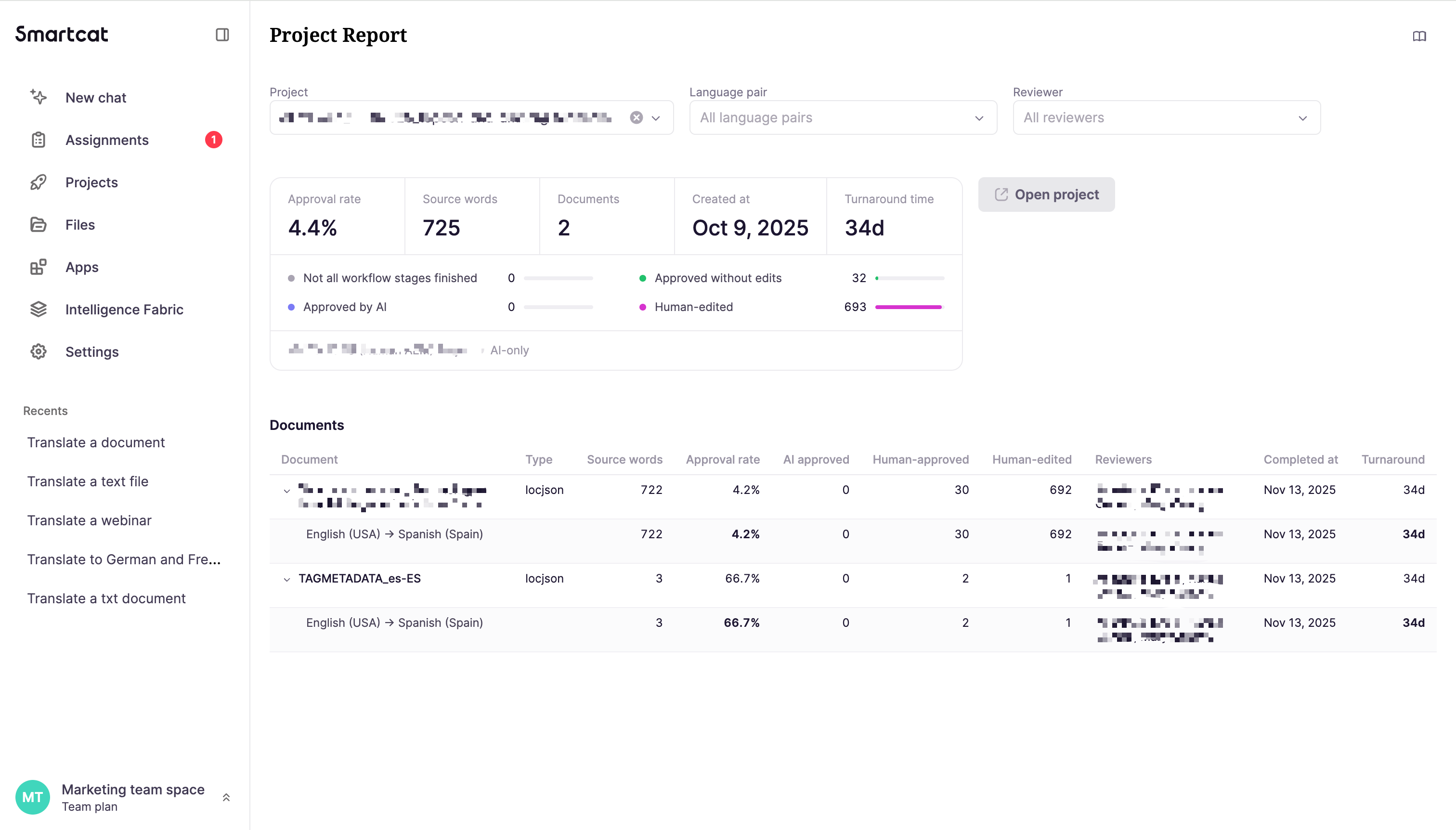
The Project Report drills into a single project's review results. It shows the project's overall approval rate, source words, document count, and turnaround time, along with a document table you can expand by language pair. Open it from the Projects section of the Translation Review Report, or stand-alone by selecting a project manually.
Document Edit Report
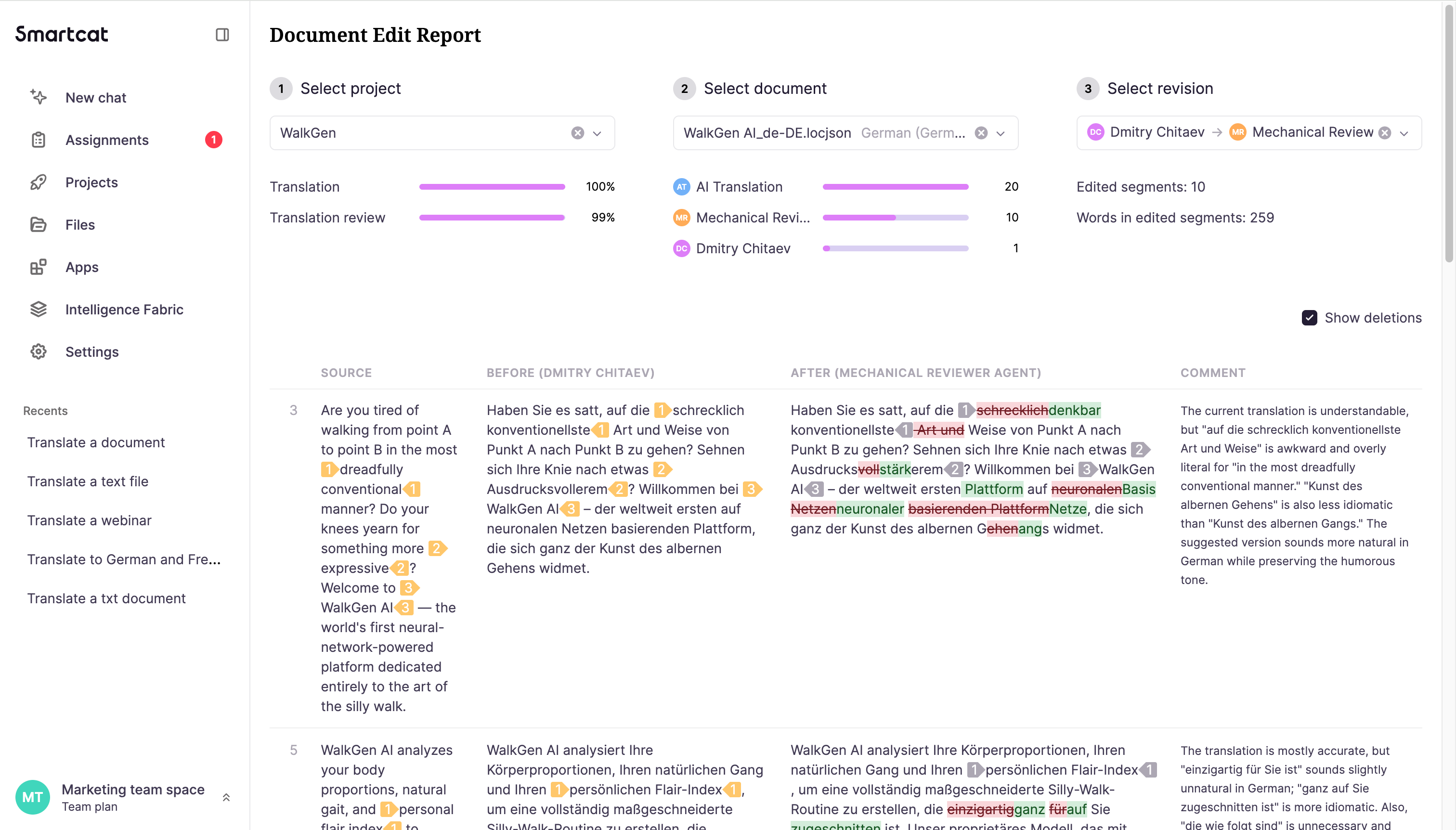
The Document Edit Report shows exactly what changed between two revisions in a single document. For example, the AI translation vs. a review agent's edits, or a review agent's edits vs. a human reviewer's final pass.
Understanding approval rates
Approval rate measures how often human reviewers accept AI translations without making any changes.
What counts toward approval rate
Only segments that were intended for human review are included in this calculation. Documents that are fully automated (translated and finalized by AI and agents without human involvement) are not counted.
Auto-approved jobs
If you don't manually approve every job, some are automatically verified after a set period (typically 2 weeks). By default, these auto-approved jobs are excluded from approval rate calculations so the metric reflects real human reviewer behavior.
How the review process works
Your translation workflow typically follows this sequence:
-
AI translation creates the initial translation
-
Review agents (0-3 agents) may edit the translation automatically
-
Human reviewers either approve the final result or make additional edits
The reports track how much each stage contributes to the final translation.
Using the Translation Review Report
Key metrics
Volume charts show:
-
Documents completed
-
Total segments processed
-
Number of active projects
Edit breakdown shows the percentage of segments in each category:
-
Approved without edits (AI translation accepted as-is)
-
Agent-only edits (review agent made changes, human approved)
-
Human edits (human reviewer made changes)
Approval rate by pipeline compares performance across different configurations:
-
AI only (no review agents)
-
AI + 1 review agent
-
AI + 2 review agents
-
AI + 3 review agents
Language pair analysis
The translation review report highlights your top language pairs by volume and flags any that are performing unusually well (green) or poorly (red) compared to their normal range.
Available filters
-
Language pair — Focus on specific language combinations
-
Date period — Choose your time range (default: last 6 months)
-
AI pipeline — Compare different agent configurations
-
Reviewer — Filter by specific human reviewers or agents
Using the Document Report
Three-step navigation
-
Select project — Choose which project to analyze
-
Select document — Pick a specific document within that project
-
Select revision — Choose which before/after comparison to view
Reading the side-by-side view
The document edit report shows four columns:
-
Source — The original text to be translated
-
Before — The translation from the earlier stage
-
After — The translation from the later stage, with changes highlighted
-
Comment — Explanation of why each change was made
Green text shows additions, red strikethrough text shows deletions. Use the Show deletions checkbox to hide the strikethrough formatting and see only the final text.
Understanding the comments
-
Review agents automatically explain every edit they make
-
Human reviewers can optionally add comments to explain their changes or flag questions
Exporting reports
To save or print your Translation Review Reports:
-
Click the book icon in the top right corner to enter presentation mode
-
Click the PDF button, or press Cmd+P (Mac) or Ctrl+P (Windows)
-
Save as PDF or send to your printer
Tips for optimization
Improving approval rates
-
Review which agents are making the most edits and consider adjusting their settings
-
Look for patterns in human edits to identify areas where agents could be improved
-
Check if certain content types or language pairs consistently need more editing
Reducing reviewer workload
-
Use the reviewer time metrics to identify bottlenecks
-
Consider enabling more review agents for language pairs with high edit rates
-
Look for reviewers who are consistently faster while maintaining quality
FAQs
Why is my approval rate lower than expected?
Check if you have review agents enabled that might be making unnecessary edits. Look at the agent efficiency table to see which agents are editing the most segments. You may want to adjust their settings or disable agents that aren't adding value.
Why do approval rates vary between similar language pairs?
This could indicate differences in:
-
Content types being translated
-
Review agent configurations for different pairs
-
Individual reviewer preferences or expertise levels
Use the outlier highlighting and drill down to specific documents to investigate.
What does "N/A" mean in the monthly breakdown?
N/A appears when there were no human-reviewed segments for that language pair in that month. This usually happens when:
-
The language pair was added partway through the period
-
All jobs for that pair were auto-verified rather than manually reviewed
Why is reviewer time missing for some months?
Reviewer time per 1,000 words shows as N/A when:
-
There were no human-reviewed segments that month
-
The volume was too small to calculate a reliable average
-
Most jobs were auto-verified instead of manually reviewed
Can I compare any two revisions in the document edit report?
No, you can only compare sequential stages in your workflow. For example, if your workflow is AI → Review Agent → Human Reviewer, you can compare:
-
AI translation vs. Review Agent edits
-
Review Agent vs. Human Reviewer edits
But you cannot skip stages and compare AI translation directly to Human Reviewer edits.
Who can access these reports?
Translation Review Reports are available to workspace administrators.
Want to learn more?
See how Smartcat can transform your localization workflow.
Still need help?
Our support team responds within one business day.