Configure invoicing and payment settings
Overview
When you hire or pay freelancers, Smartcat issues the invoice by default right after you approve the completed project, and payment is due after 30 calendar days. You can customize this invoicing and payment process to fit your needs.
📌 Changes to these settings apply only when post-payment applies to the job. If prepayment applies, the approximate cost is withdrawn from your balance or paid by card when the job is sent to the freelancer — see pre-payment to freelancers.
Invoicing and payment options
Invoicing frequency
Choose when Smartcat generates invoices:
-
After compilation of a project
-
After compilation of a file
-
Every week
-
Every two weeks
-
Once a month
-
Manually
⚠️ With Manually, you must generate invoices yourself no later than 20 days after the project ends. Avoid this option unless you have a specific reason, to prevent human error and payment delays.
Payment terms
You can set any number of days you need to pay for the translation. The due date is counted from the invoice generation date; after that period the invoice is considered overdue.
💡 Payment terms are visible to suppliers. If you set invoicing and payment periods that are longer than average, some candidates may opt for more favorable conditions.
How to change invoicing and payment settings
When you invite a supplier to your project, Smartcat prompts you to customize the payment terms.
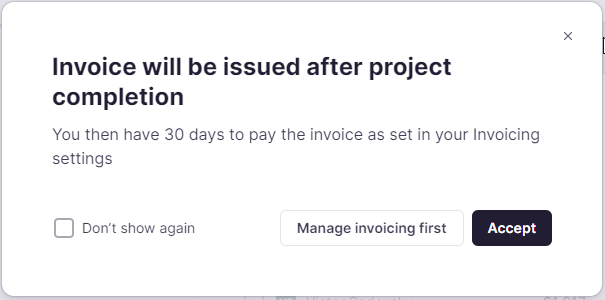
You can also change the payment terms at any time:
-
In the lower left corner, click your Workspace icon → Finance and payments → Invoicing settings
-
Select one of the options from the respective dropdown menu

-
Click Apply settings

Your invoicing frequency and payment terms are now updated.
Set billing details, invoices by property, and manual jobs
In the Invoicing settings section you can also specify billing details, create separate invoices by property, and add manually created jobs to invoices.
-
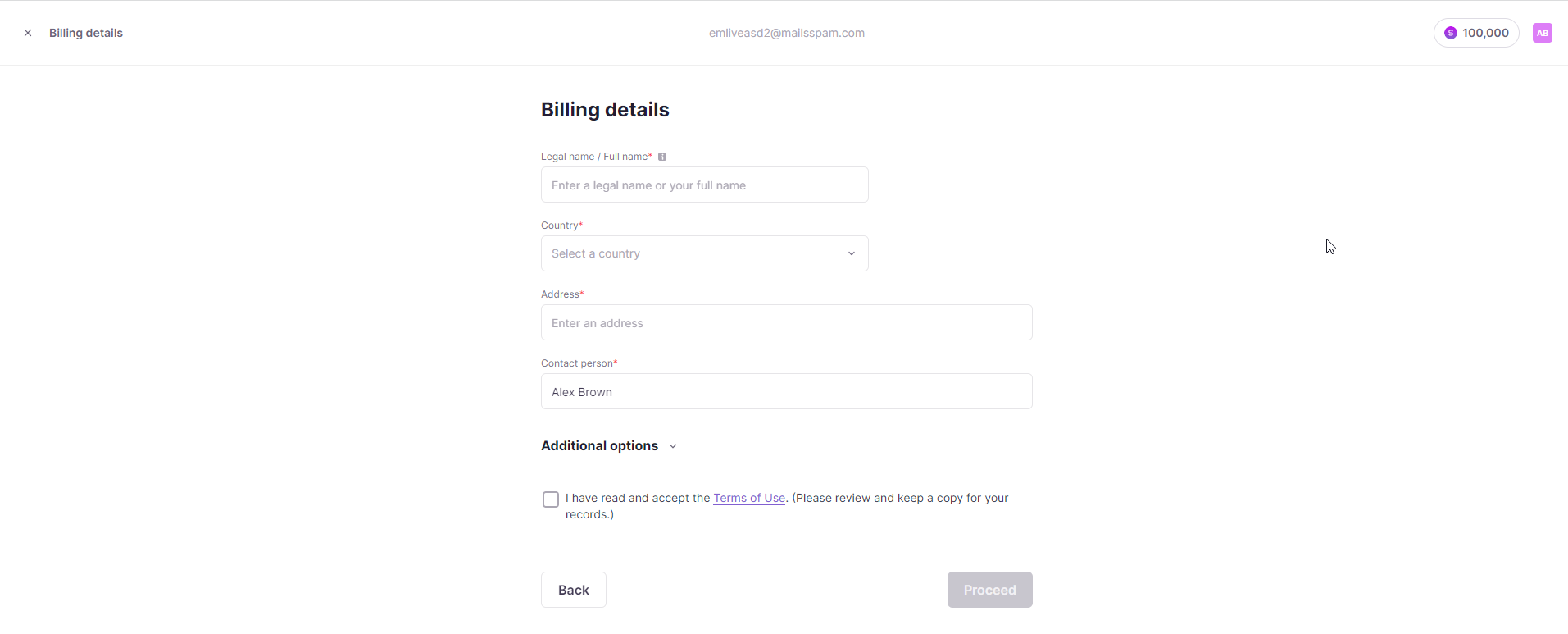
To add billing details, click the billing details button and fill in the form that opens
-
To create invoices by property, turn on the toggle and choose the property from the dropdown menu — Smartcat then creates a separate invoice for each property
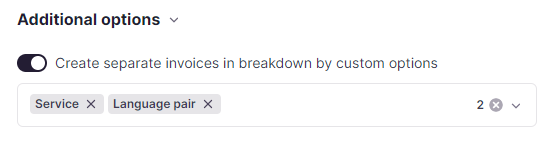
📌 Creating invoices by property is available for all invoicing options except manual invoice generation.
-
To add manually created jobs, turn on the toggle — jobs you created manually in Supplier payments with the Add supplier job button are then added to your invoices

-
Click Apply settings to save your choices
Your invoicing and payment settings are now saved.
💡 For more help, see the Payment Automation section of the Help Center.
Want to learn more?
See how Smartcat can transform your localization workflow.
Still need help?
Our support team responds within one business day.