How to create a project without a translation memory
Overview
This article explains how to create a project without any translation memories attached. This is useful when you want to start fresh without leveraging previous translations, or when working on content that shouldn't be influenced by existing TM matches.
When to use it
-
Starting a new project where previous translations aren't relevant
-
Working with content that requires completely fresh translations
-
Testing or training scenarios where TM matches would interfere
-
Projects where you want full control over translation consistency from scratch
How it works
Creating a project without translation memories requires two steps: first create an AI Translation Profile with no TMs, then use that profile when creating your project.
Step 1 — Create an AI Translation Profile with no translation memories
- Click Intelligence Fabric → Smartcat Coworkers → Translator
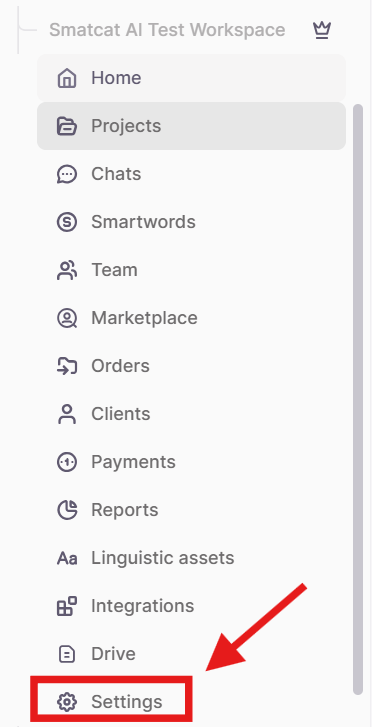
- On the Translator Coworker overview, click Translation Profiles
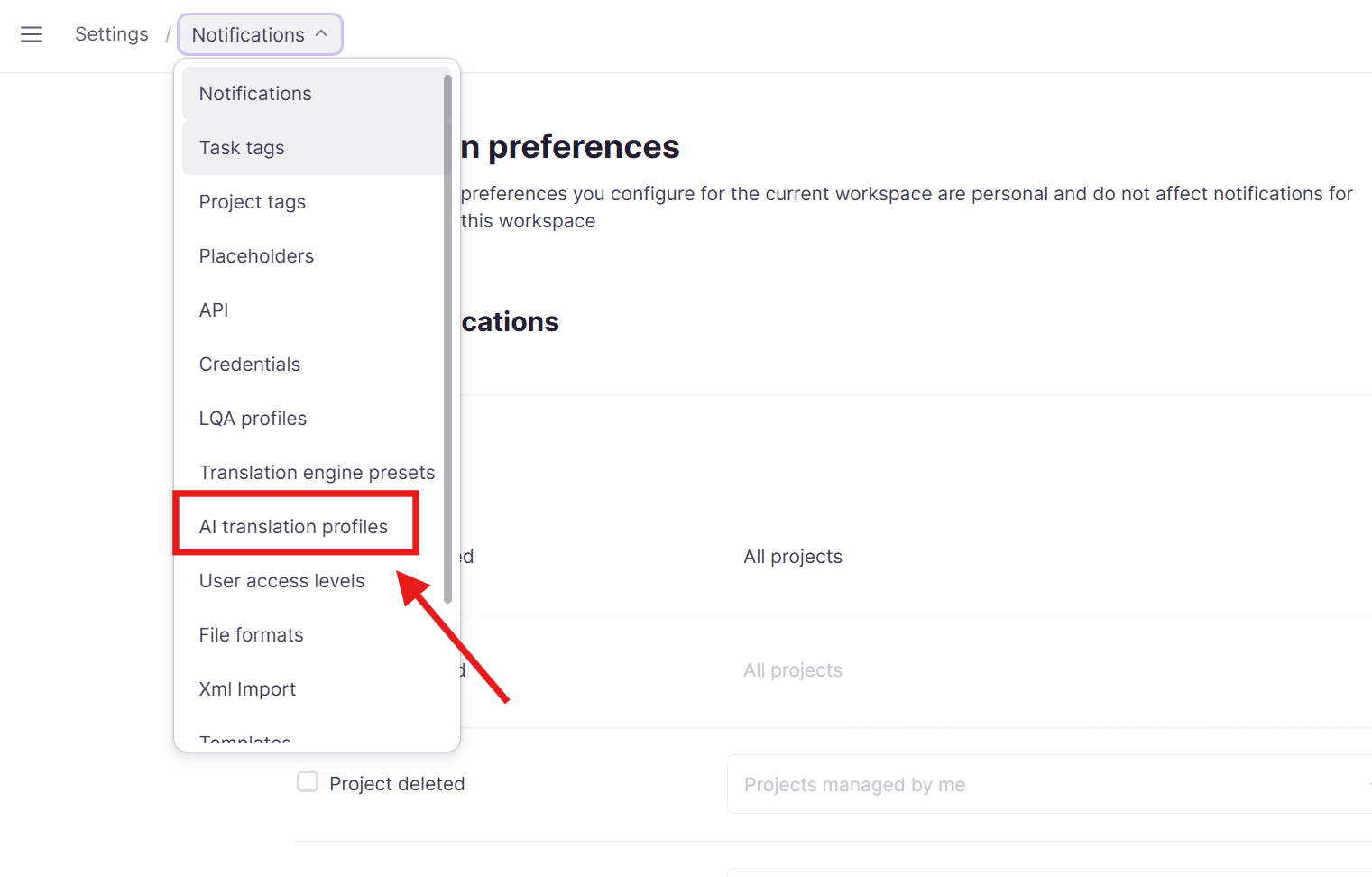
-
Click + Create Profile
-
Name the profile No TM Profile (or any descriptive name)
-
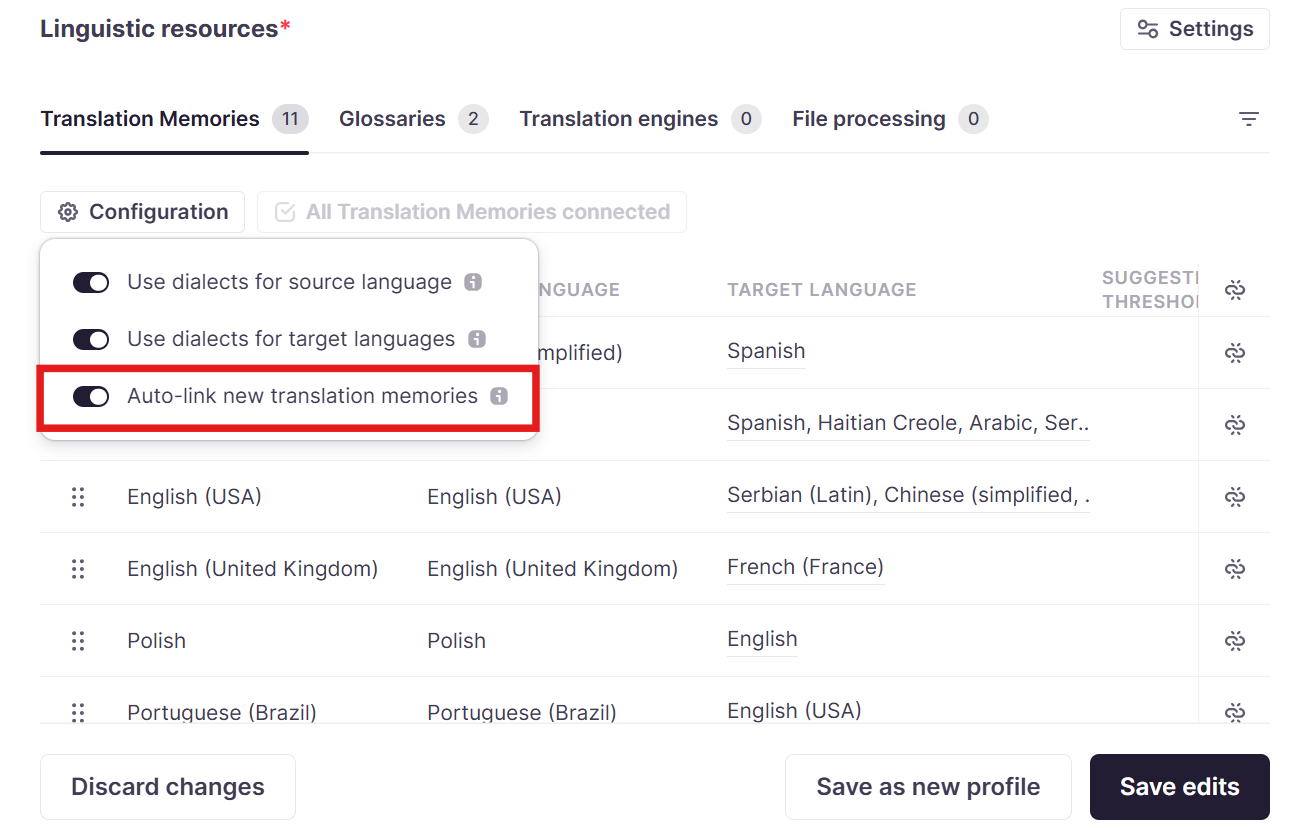
Under Linguistic Resources > Translation Memories > Configuration, disable Auto-link new translation memories
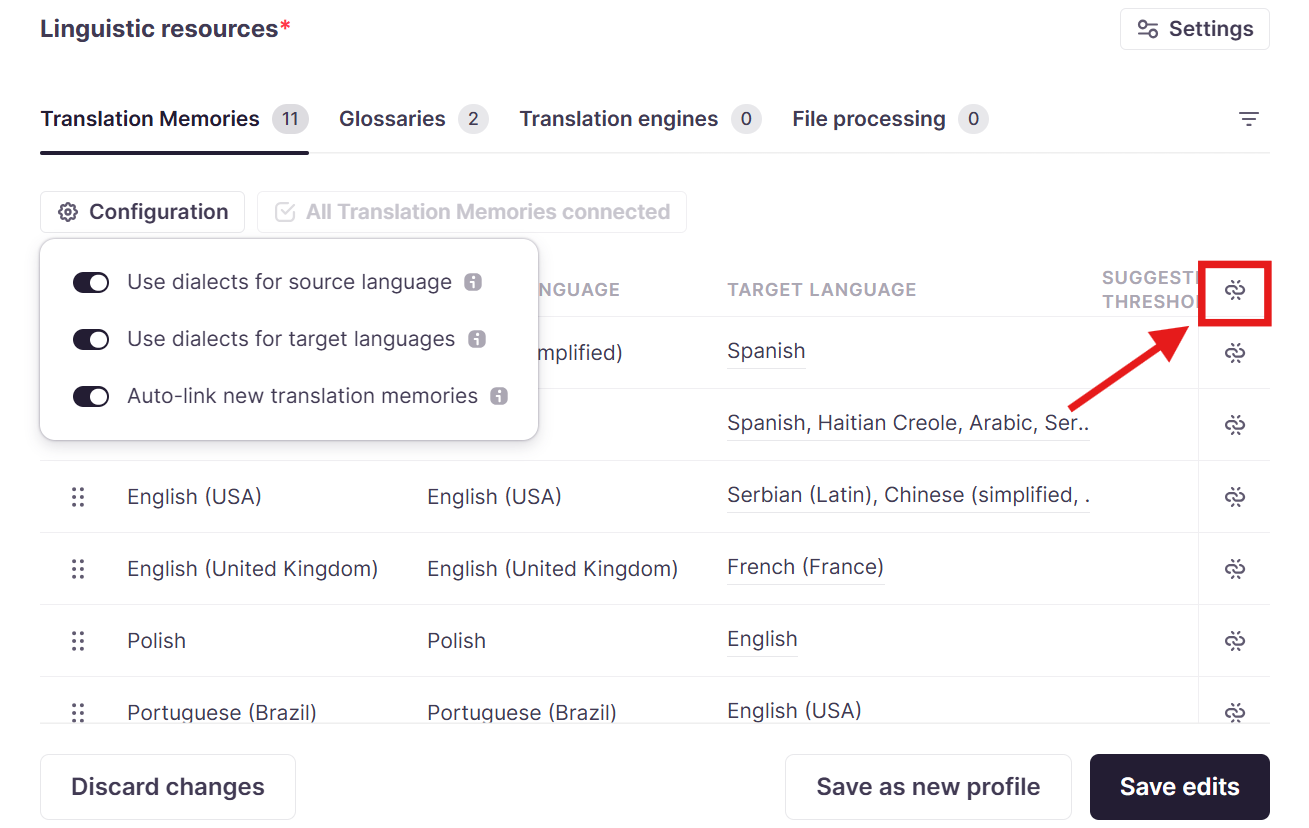
- Click the top Unlink button to disconnect all translation memories from the profile
- Click Save as new profile to create the new profile
Step 2 — Create a project using that translation profile
-
Navigate to Projects in the left navigation sidebar
-
Click + New Project
-
When you configure the project, click AI translation profile and select the No TM Profile
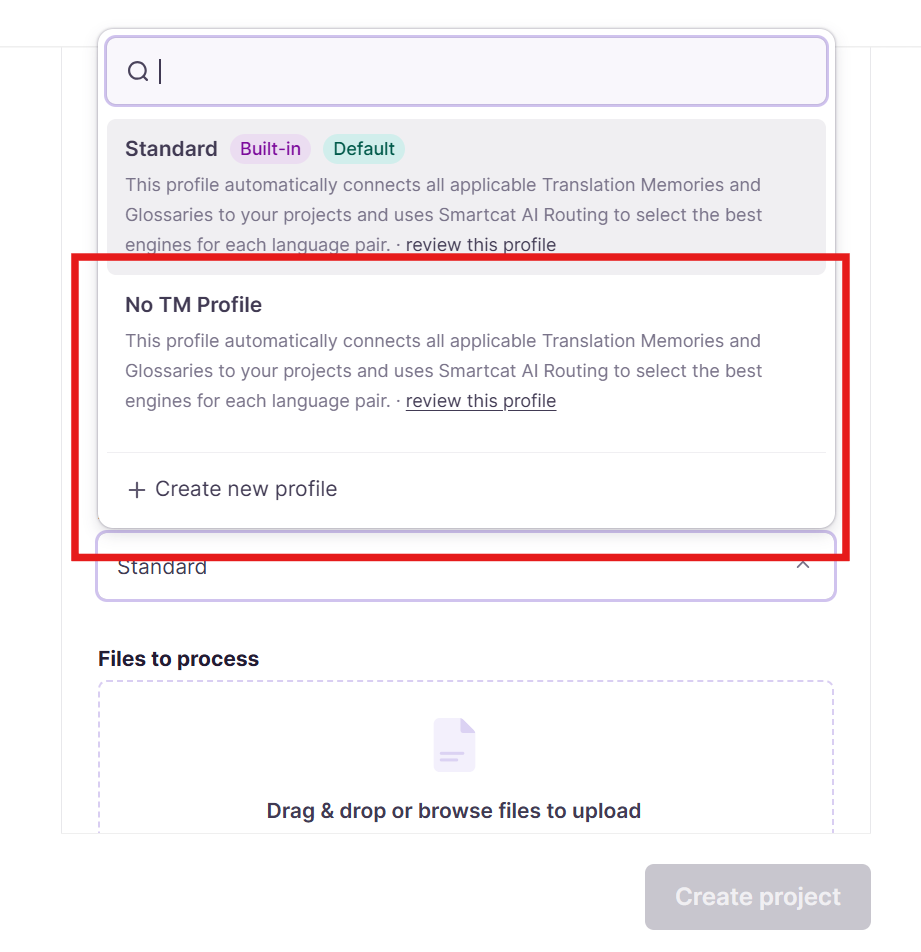
-
Finish configuring the project (name, languages, deadline, etc.)
-
Click Create Project
Your project will now be created without any attached translation memories.
Adding a translation memory later
If you decide to add a translation memory after creating the project:
-
Go to your project's Overview page
-
Click on Linguistic Assets in the left side bar
-
Click Add and select how you want to add a translation memory:
-
Create new: Create a fresh TM for this project
-
Select existing: Choose from available TMs matching your language pair
-
Upload: Import a TM from a TMX, SDLTM, or XLSX file
-
-
Configure TM permissions (read-only or writable)
⚠️ Adding a TM after translation work has begun won't automatically save previous translations to that TM. Only new translations will be stored.
FAQs
Can I just skip attaching a TM when creating a project?
Not directly in the project creation flow — you first need to create an AI Translation Profile with no TMs linked (and "Auto-link new translation memories" disabled), then select that profile when creating the project.
Why would I want a project with no TM at all?
Useful when starting fresh content that shouldn't be influenced by prior TM matches, for testing/training scenarios, or when you want full manual control over translation consistency from the start.
Can I add a TM to the project later if I change my mind?
Yes — go to the project's Linguistic Assets tab and click Add to create a new TM, select an existing one, or upload one. Note that adding a TM after work has begun does not retroactively save earlier translations into it — only new translations are stored going forward.
Does using a "No TM" profile also disable AI/machine translation?
No — a No TM profile only removes translation memory matching. AI translation engines can still run on segments unless you separately disable translation engines in that profile.
Want to learn more?
See how Smartcat can transform your localization workflow.
Still need help?
Our support team responds within one business day.