Using the Smartcat AI Microsoft Teams app
Overview
The Smartcat AI Microsoft Teams app lets you talk to your Chief of Staff — your personal Smartcat AI co-worker — directly from Microsoft Teams without switching to the Smartcat web app. Once you install the Smartcat AI app in your Teams tenant, you can message it to run the same operations you would normally perform through Smartcat's built-in chat: ask questions, research information, create content, build automations, and manage your work — all from a Teams conversation.
Your Chief of Staff responds only to you, remembers your preferences and context across conversations, and keeps your conversation history private.
Smartcat is built for enterprise-grade security. Customer data is encrypted, isolated to each tenant, and never used to train AI models - and the Teams agent operates only within your organization's Smartcat workspace.
Requirements and limitations
-
The Smartcat AI app must be installed in your Microsoft Teams tenant by an admin, or added by you if your organization's app policies allow it
-
Some actions open Smartcat in the browser. A small set of actions can't complete inside Teams app because the it can't perform browser actions. For those, your Chief of Staff shows a card with a link. Click the link to open Smartcat and complete the action there
-
Replies in group chats and channels are not streamed. In a personal chat, responses appear as they are typed out. In a group chat or channel, the reply arrives as one finished message. If a response seems to be taking a moment, it is generating — it is not stuck
-
Workspace binding in Teams. If the workspace you are using in Teams differs from the one you last used in the Smartcat web app, the bot prompts you to switch, lets you pick from your workspaces, and lets you opt out of the prompt
How to use it
Step 1 — Install the Smartcat AI app in Microsoft Teams
📌 Installing the app makes it available in your Teams tenant, but each individual must still sign in with their own Smartcat account (Step 2). Individuals only ever see their own data.
If you are a Teams admin:
-
Open the Microsoft Teams app store or the Microsoft AppSource marketplace and search for Smartcat AI
-
Select the app and click Add
-
Review the permissions screen and confirm
Smartcat AI is now available to members of your tenant according to your organization's app policies. Admins control availability under Teams admin center → Teams apps → Manage apps, where they can allow or pre-approve Smartcat AI so members can add it without a request.
If you are a member and your organization's policies allow self-install:
-
In Teams, select Apps in the sidebar
-
Search for Smartcat AI and select it
-
Click Add
If your organization requires admin approval, add a note about why you need the app and submit the request. Your admins are notified, and you are notified once they review it.
You can install the app as a personal app (available in your personal chat with the bot) or added to a team or channel (available in that team's group chats and channels).
📌 When you add Smartcat AI Teams app, the bot sends you a welcome card in your personal chat. This is your starting point — select the sign-in option in the card or type login to connect your account.
Step 2 — Sign in to your Smartcat account
Type login in the chat, or select the sign-in option from the welcome card. A sign-in dialog opens inside Teams.
-
If you already have a Smartcat account, sign in with your credentials
-
If you do not have a Smartcat account yet, you can create one from the sign-in dialog
To sign out, type logout. To check which account is connected and what services are available, type status.
Your Chief of Staff is now connected to your Smartcat account and ready to use.
Step 3 — Start a conversation
Type your request in the personal chat with the Teams app.
📌 Teams has no conversation threads. Your personal chat is one continuous conversation. There is no way to start a fresh conversation by opening a new message. To reset the context and start fresh, type clear, reset, or new conversation.
💡 For best results, start a fresh conversation when switching to an unrelated topic. This prevents context from earlier exchanges from affecting new requests.
You can also use Smartcat AI in group chats and channels where the app has been added. In those contexts, your Chief of Staff responds to your messages, but the reply arrives as one complete message rather than streaming live.
Step 4 — Ask or delegate
Type your request in plain language. For example:
-
Ask a question or research something across your connected systems
-
Create content in Smartcat (translations, reports, summaries)
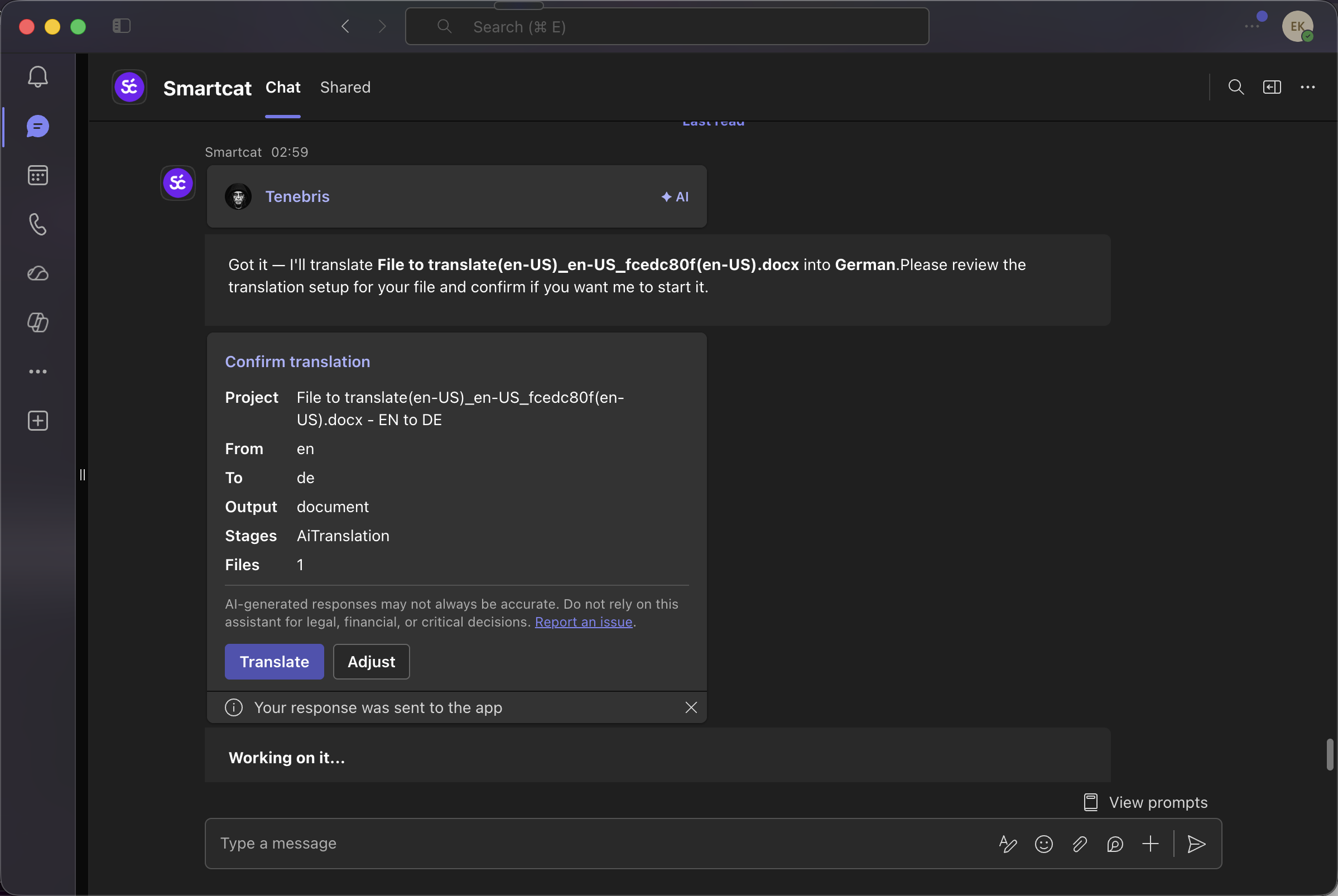
-
Set up or manage an automation for your Chief of Staff or Smartcat AI co-workers
-
Paste a link to a Notion page and ask for a translation
-
Ask for the status of your projects
-
Request an ROI report or another report from Smartcat
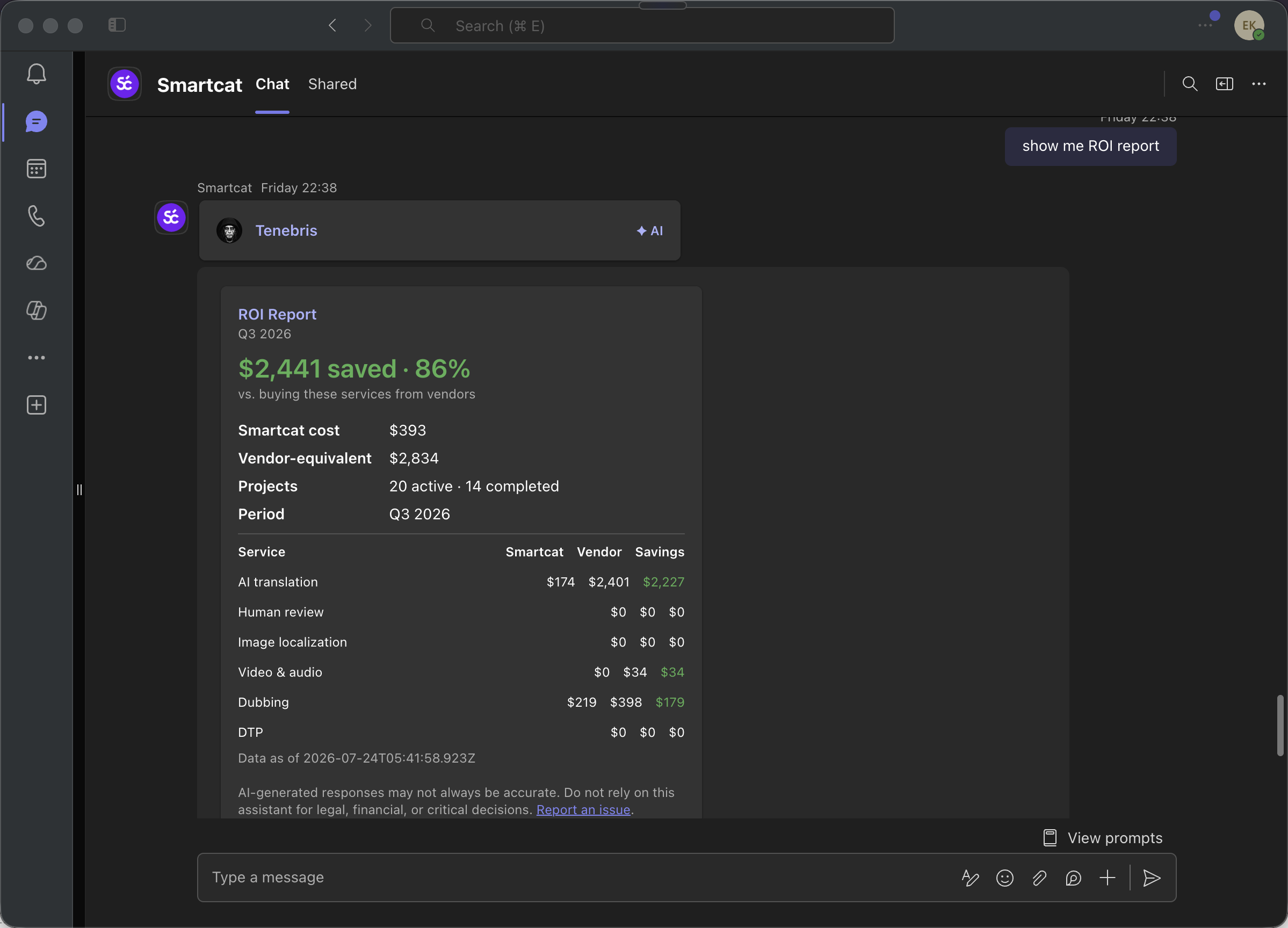
If a request needs an action the Teams bot cannot complete directly, your Chief of Staff shows a card with a link — click it to open Smartcat and finish the action there.
Step 5 — Get your reply
Your Chief of Staff responds in the same Teams conversation. Long-running work such as translations completes in Smartcat; a completion notification arrives in the conversation when it is done, along with a link to your results.
To give feedback on a response, use the thumbs up or thumbs down controls on the message. Responses are labeled AI generated.
Your Chief of Staff has replied in Teams, and your conversation is saved in Smartcat, where you can continue it in the web app.
FAQs
Can everyone on my team use it?
Each person interacts with their own personal Chief of Staff. The bot must be installed in the Teams tenant, and each user must sign in with their own Smartcat account. Individuals only ever see their own data.
What is the file attachment limit?
50 MB per attachment.
Want to learn more?
See how Smartcat can transform your localization workflow.
Still need help?
Our support team responds within one business day.