Collaborate with other freelancers on a document
Overview
In the corporate version of Smartcat, several users assigned to the same or different workflow stages can work with one document at the same time. This lets you see the document and its translation, and exchange comments on the document or about specific segments.
Assignees can work sequentially or simultaneously. Your access to segments depends on the type of assignment.
Collaboration of assignees at the same stage
When a large document needs to be processed quickly, a manager can assign several translators to the various stages. The manager can distribute the text into separate segment ranges, or give all assignees equal access to the entire document and make an arrangement outside Smartcat that defines who translates which part.
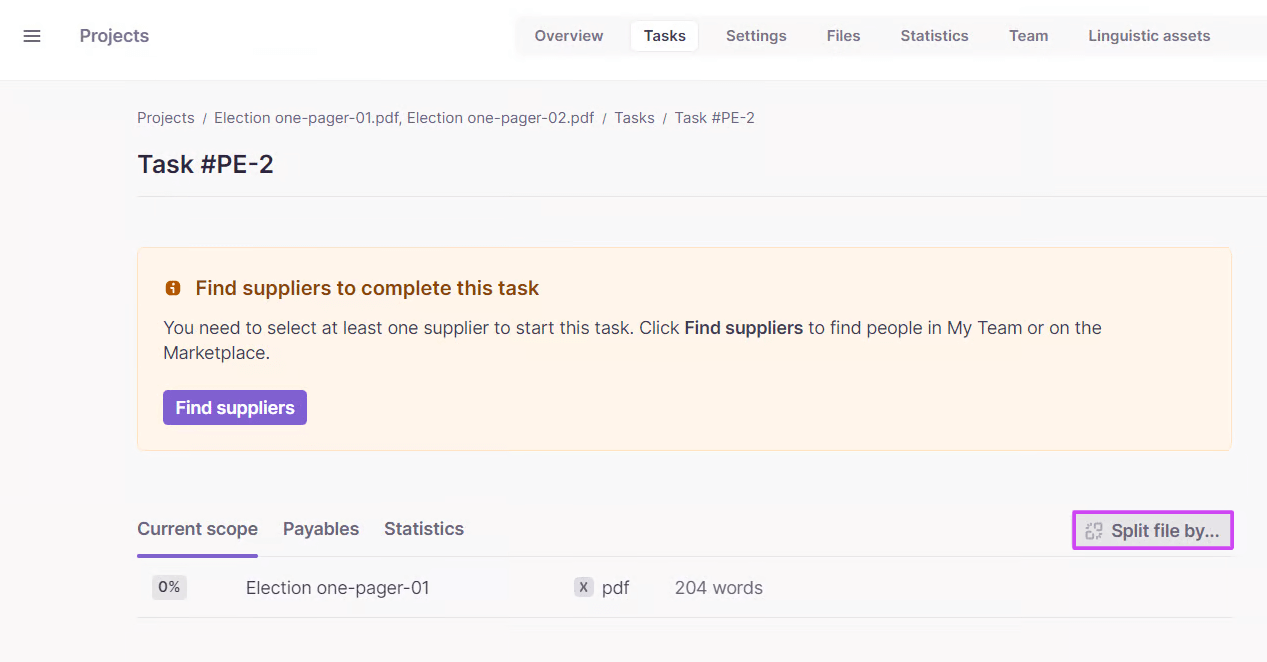
Giving assignees equal access can speed up the assignment process, but it requires the project manager to communicate clearly with the team to prevent translators from duplicating work that will not be included in their fees.
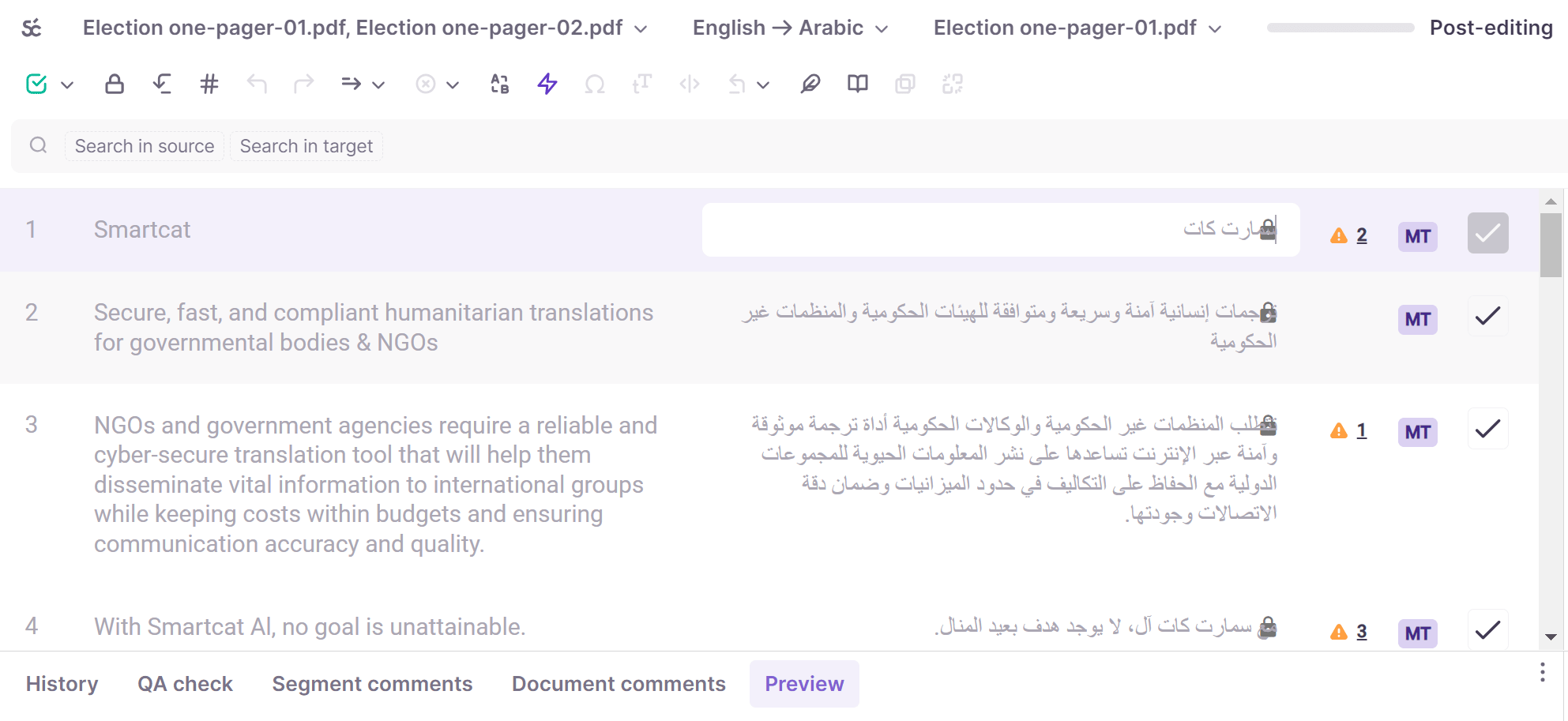
Even though you cannot edit a locked segment, you can still view the work being done by the other assignee and add comments to these segments. Repetitions beyond the assigned range are counted for an assignee who has confirmed a repetition that triggered confirmation for segments outside that assignee's range.
If a manager has assigned a group of users without dividing the segments among them, the assignees have equal access to all segments in a document. In such cases, Smartcat prevents different users from editing the same segment simultaneously and interfering with each other's work. Once a user clicks the Target field in a segment, other users are blocked from accessing that segment and the segments adjacent to it.
When the first user finishes translating the segment, it becomes available to other users, and the lock icon disappears.
📌 Once a segment has been marked as Done for a specific stage, changes to this segment made by other assignees are not recorded as paid words. Only the first assignee gets credit for the work done.
Collaboration of assignees at different stages
Managers may opt to include the editing and proofreading stages in the translation process, especially if the aim is to ensure a high-quality translation (which is especially important for texts with complicated terminology, as well as for marketing materials or publications).
If this is the case, each segment in the document must pass through every stage. Until this is done, the project is not completed.
As soon as the translator confirms a segment, it becomes available to the editor, even if the translator is still working with other segments. As soon as the editor confirms the segment, the translator is blocked from accessing it. In this way, each segment passes through all the stages included in a project.
If a segment is locked, it is marked by a lock symbol.
Users assigned to different tasks can work with a document simultaneously without disturbing each other.
Reverting a segment to the previous stage
If necessary, an editor can return a segment to the previous stage by selecting a segment and pressing the revert button in the toolbar.
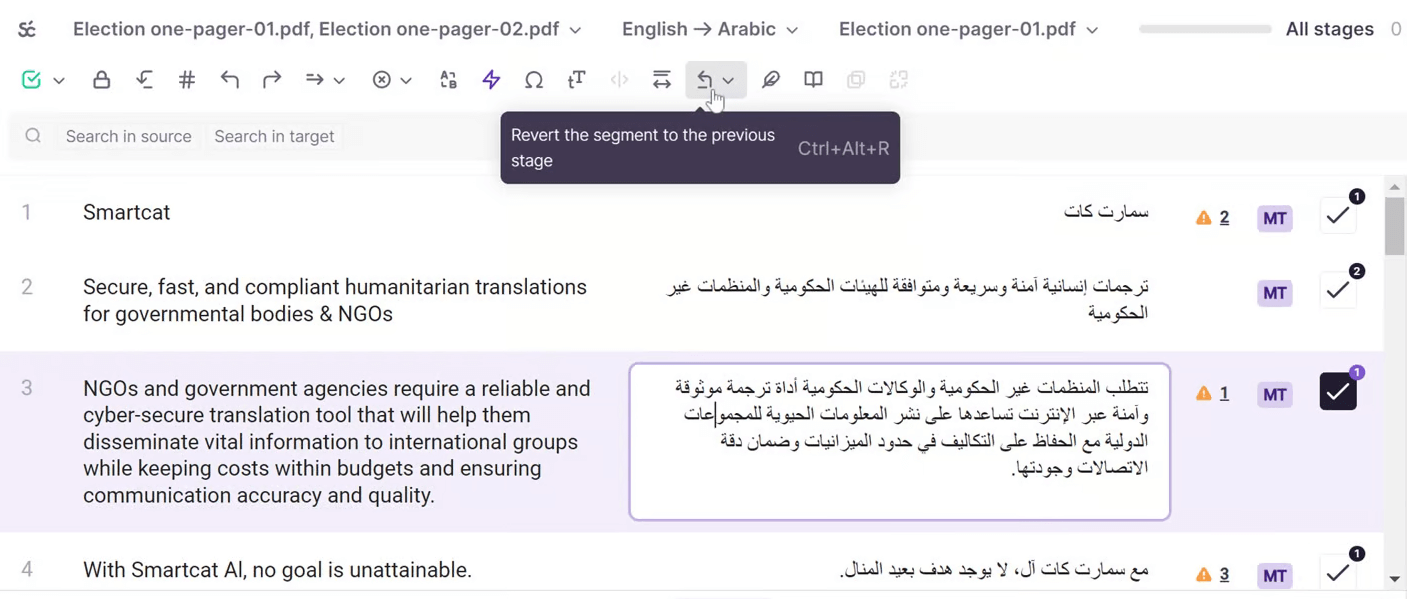
The segment status changes to Translation and a lock symbol appears. This means the segment has reverted to the translation stage and the editor is blocked from accessing it.
In the same way, a proofreader can return a segment to the previous stage.
📌 Project managers can revert to any stage at any time.
Want to learn more?
See how Smartcat can transform your localization workflow.
Still need help?
Our support team responds within one business day.