Extracting Linguistic Assets with Intelligence Fabric
Overview
Intelligence Fabric is Smartcat's workspace for building and refining the linguistic data that powers your AI translation. Two tools let you extract that data directly from content you already own: Upload Files and Scan Website. Both feed the same output — reviewed translations (translation memories), terminology (glossaries), and language insights — which you can then apply to your AI translation configuration.
If you have years of translated content sitting in separate source and target files, Smartcat can't reuse it automatically until it's converted into Translation Memory (TM) units. Upload Files does this conversion for you, turning existing, approved translations into a reusable asset instead of starting every new project from scratch.
When to use it
-
You're migrating from another CAT tool and have translated content stuck in a format you can't reuse in Smartcat
-
You have a large legacy document that was translated without ever being captured in a TM
-
You're aligning technical documentation sets (e.g., DITA/XML) to unlock reuse across future versions
-
You have monolingual document pairs (e.g., last year's report in two languages) you want auto-aligned into a TM
-
You're importing bilingual content exported from an external system (e.g., a PIM)
-
You're starting from scratch, migrating platforms, or want your translation engine to reflect your organization's real-world language rather than generic defaults
Requirements and Limitations
-
Supported formats include Word, Excel, PowerPoint, PDF, XLIFF, and images.
-
PDF caution: OCR or layout extraction from PDFs can produce lower-quality segmentation. Use an editable file format when possible for best alignment results.
-
Multilingual sites are not currently supported in Scan Website. Analyze each language version separately by running the tool on each URL individually.
-
Processing time varies based on file size or website depth. Large documents and sites with many pages take longer to analyze.
-
Results must be reviewed and imported manually. Extracted data is not automatically applied to your workspace.
-
Alignment does not work well when:
-
Content has been transcreated or heavily restructured, so source and target no longer correspond 1:1 (a human needs to re-align manually first)
-
Source and target have non-matching segment or cue counts (e.g., subtitle/VTT pairs where cue counts differ)
-
Source and translated files use different tag or markup structures
-
Two ways to give Smartcat reference material
Smartcat has two separate mechanisms that both involve uploading "reference" material, and they do very different things:
| Part A: Intelligence Fabric (Upload Files / Scan Website) | Part B: Reference Files | |
|---|---|---|
| What it does | Extracts a Translation Memory, Glossary terms, and style/tone Insights from your material, which you then apply to AI translation | Attaches files to a project purely for human visibility — nothing is extracted, processed, or translated |
| Who sees the output | The AI Translation Profile (and, once imported, your TM/Glossary) | Linguists and reviewers working the project, in the CAT editor or project file list |
| Does it get translated or billed as translation? | No — files here are analyzed for terminology/style extraction, not translated | No — files here are never translated; they exist only as context |
| Typical use case | "Make the AI sound like our brand voice and use our terminology automatically" | "Here's the source video for these subtitles" / "Here's our style guide so the linguist understands context the source text alone doesn't convey" |
⚠️ Using the wrong upload path for what you actually want can cause real confusion (uploading a file expecting it to just be background reading, when it's actually being parsed for terminology extraction — or vice versa). If you're not sure which one you want, use the table above.
Upload Files
Use Upload Files to extract translation memories, glossaries, and language insights from documents you already own — such as previously translated reports, manuals, or bilingual reference files.
How it works
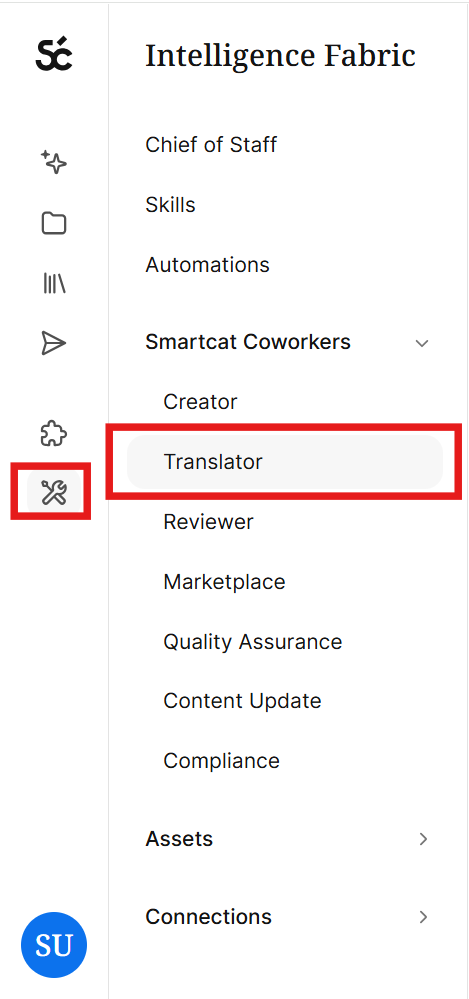
- In the left navigation sidebar, click Intelligence Fabric → Smartcat Coworkers → Translator.
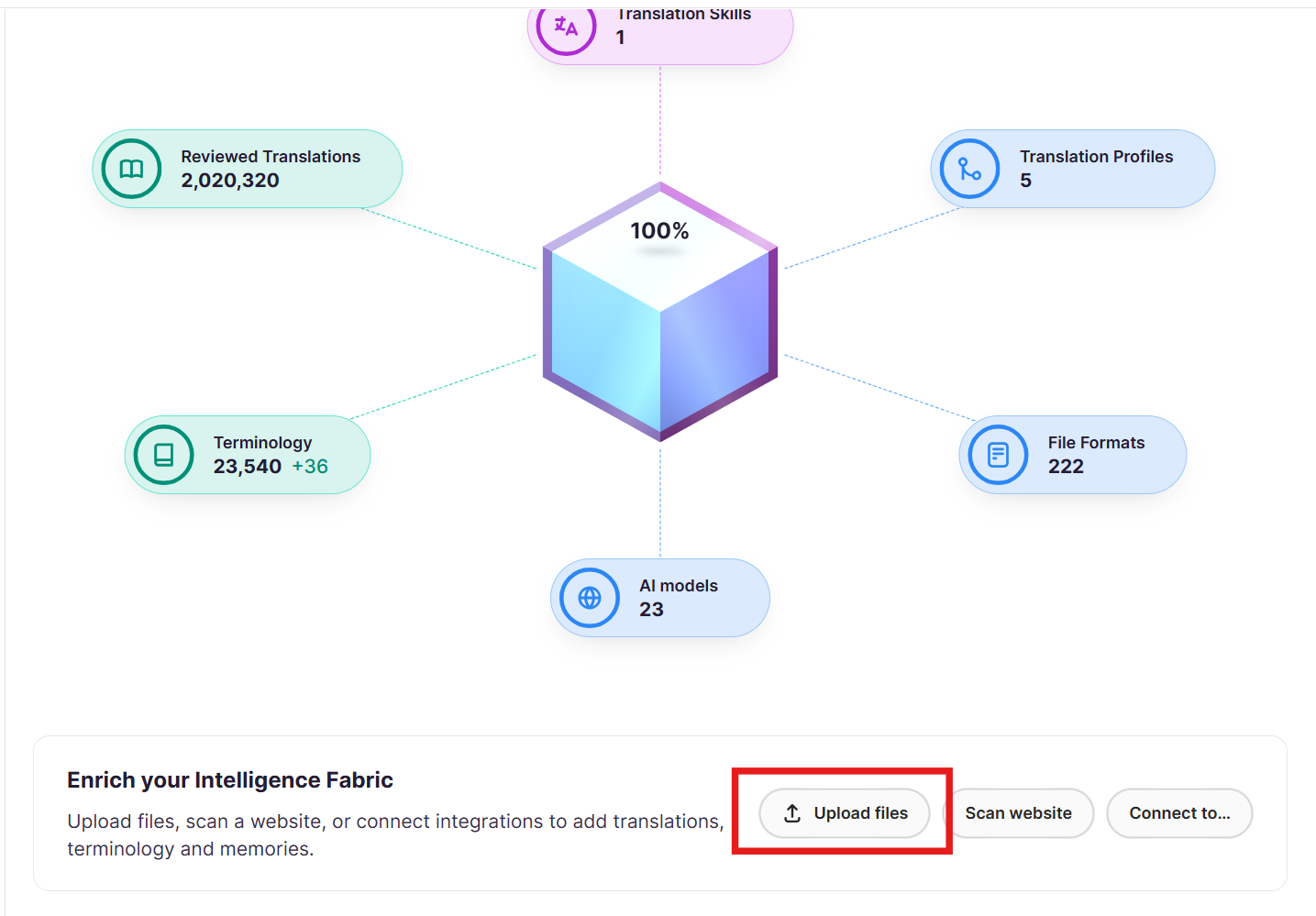
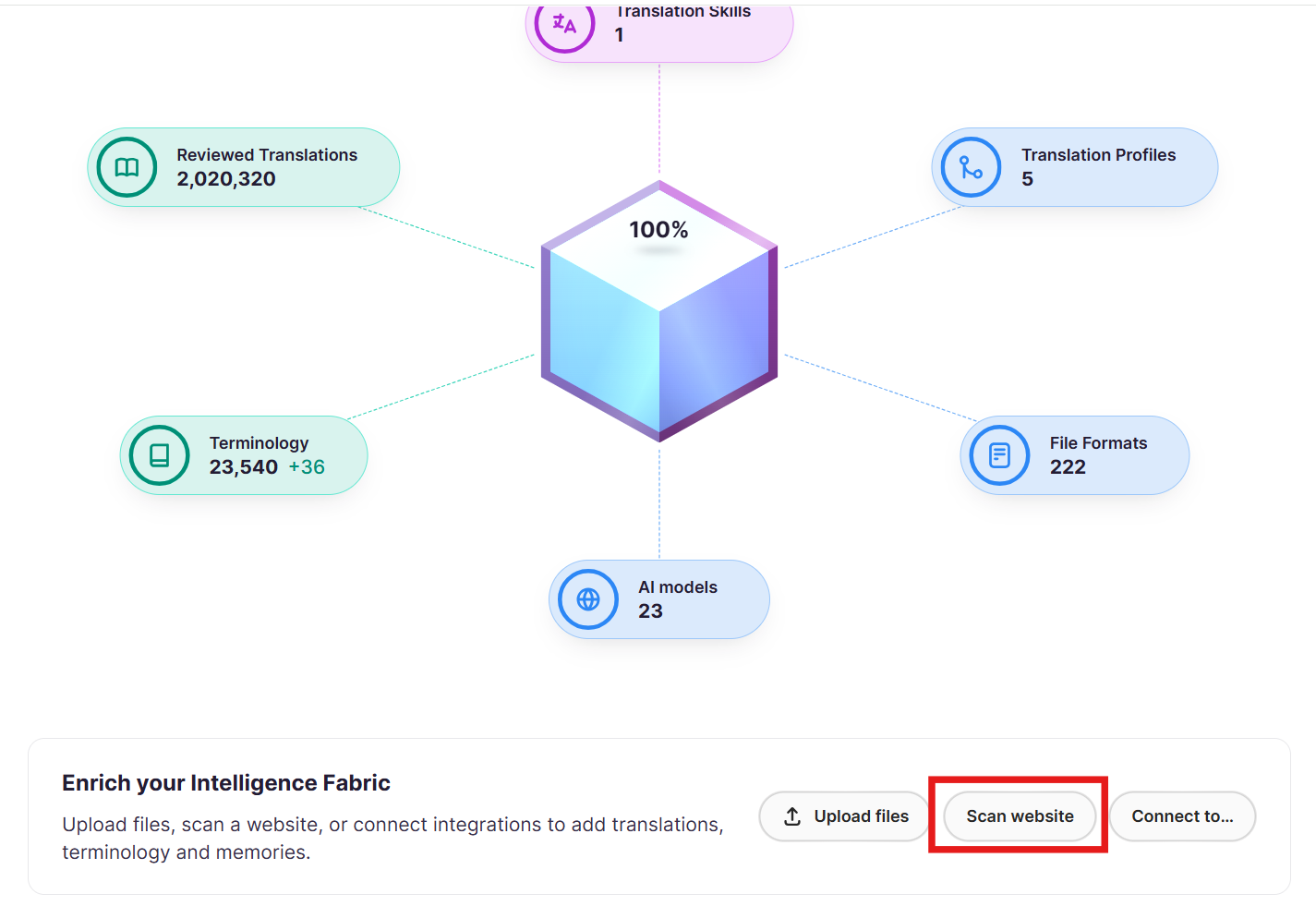
- At the bottom of the Dashboard, click Upload files.
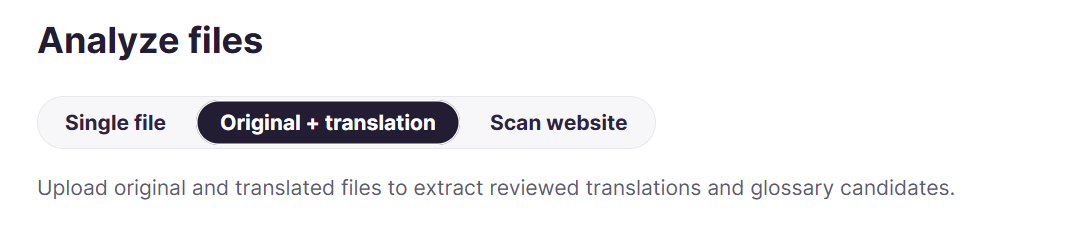
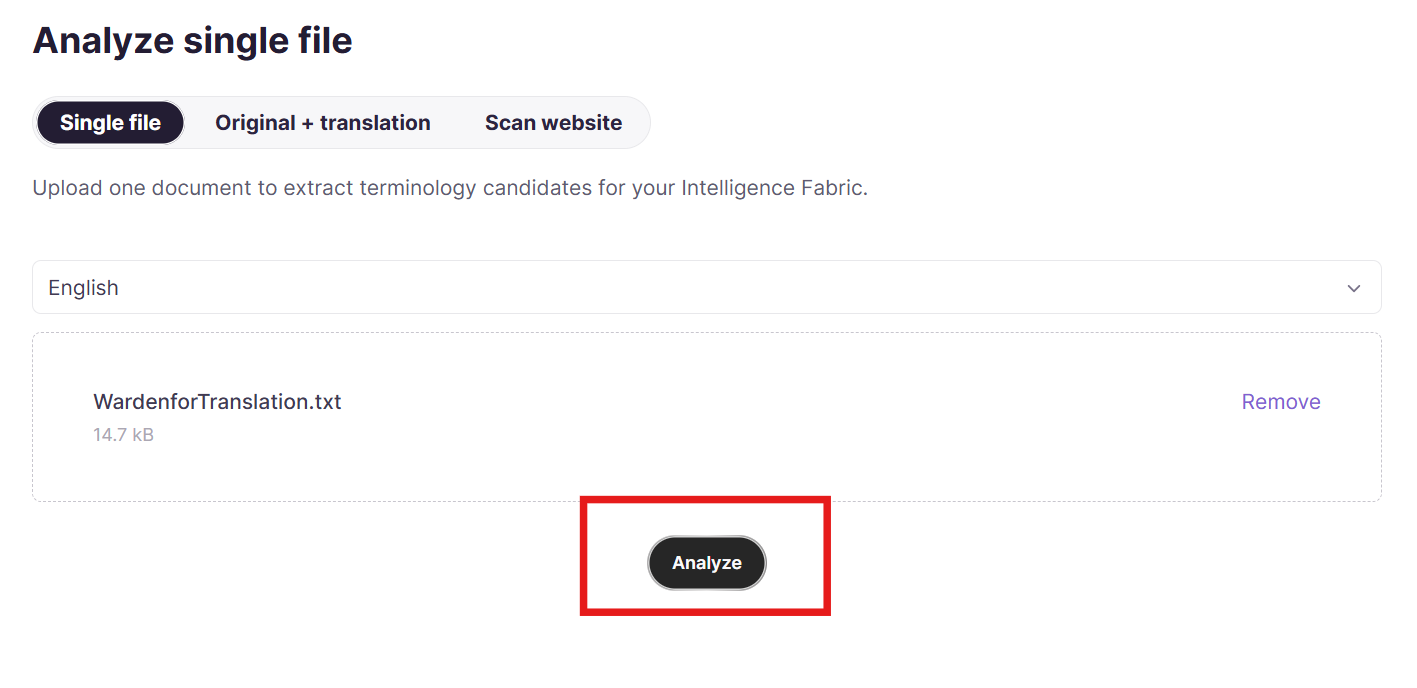
- Select one of two modes based on the content you have. Single file analyzes one document to extract terminology candidates. Original + translation requires a source file and a translated file and produces the richest output.
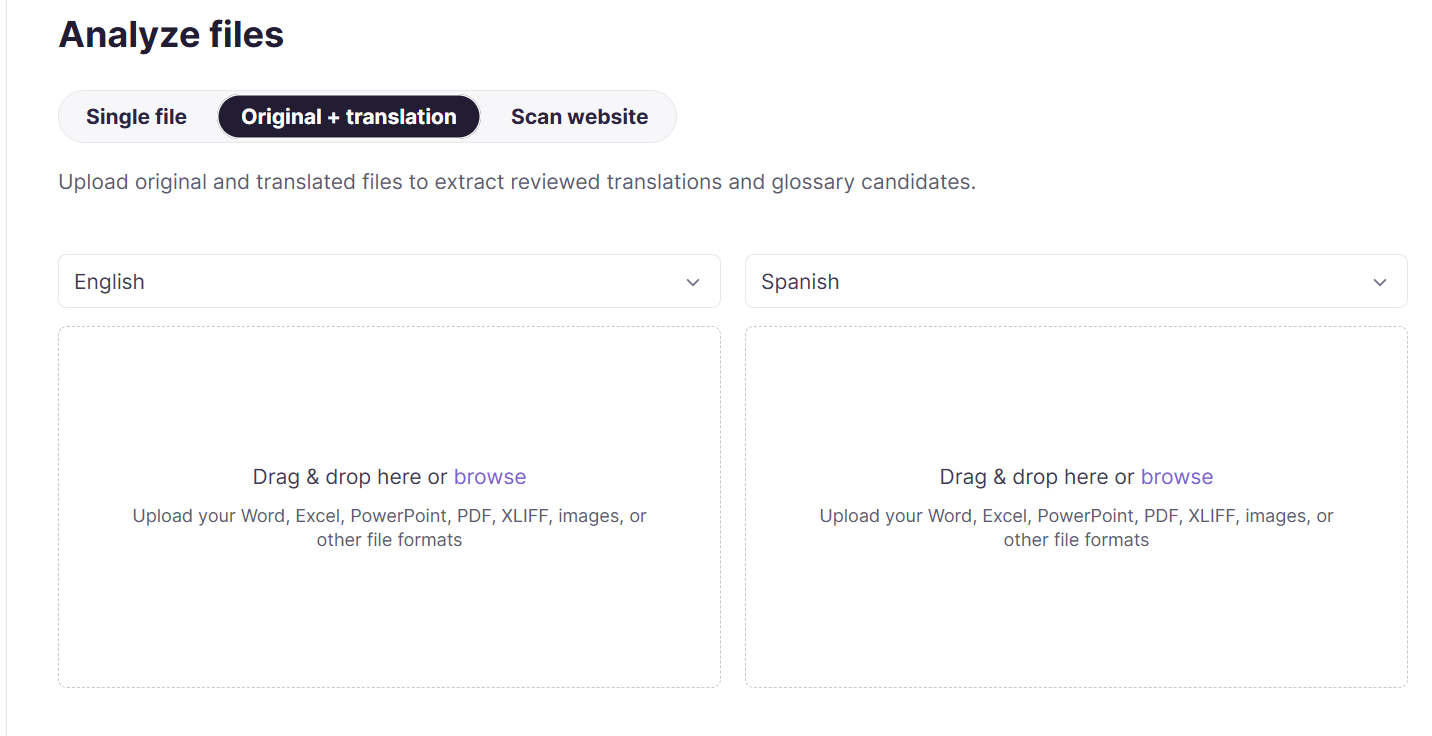
- Select the language for each file, then drag and drop your files or click Browse. In the dropdown, select the language for each file.
- Click Analyze. Processing takes a few seconds to a couple of minutes depending on file size.
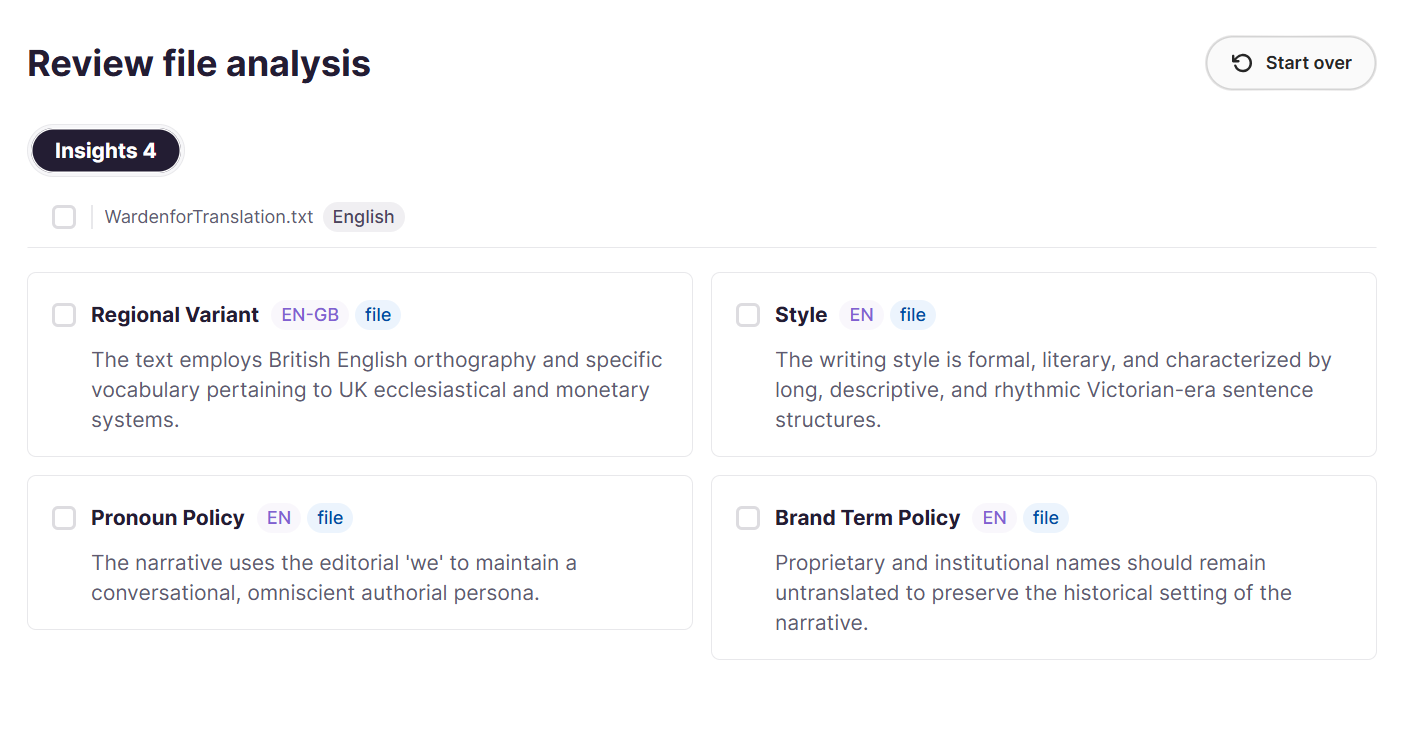
- Review extracted data in the Reviewed Translations, Terminology, and Insights tabs. Select the entries you want to keep, then click Import to add them to your linguistic assets. To discard the results and start over, click Start over.
Scan Website
Use Scan Website to crawl a published URL and extract language insights from your live website content. This is useful when you do not have bilingual documents but want your translation engine to reflect the tone and style your content team has already established.
How it works
-
In the left navigation sidebar, click Intelligence Fabric → Smartcat Coworkers → Translator.
-
At the bottom of the Dashboard, click Scan website.
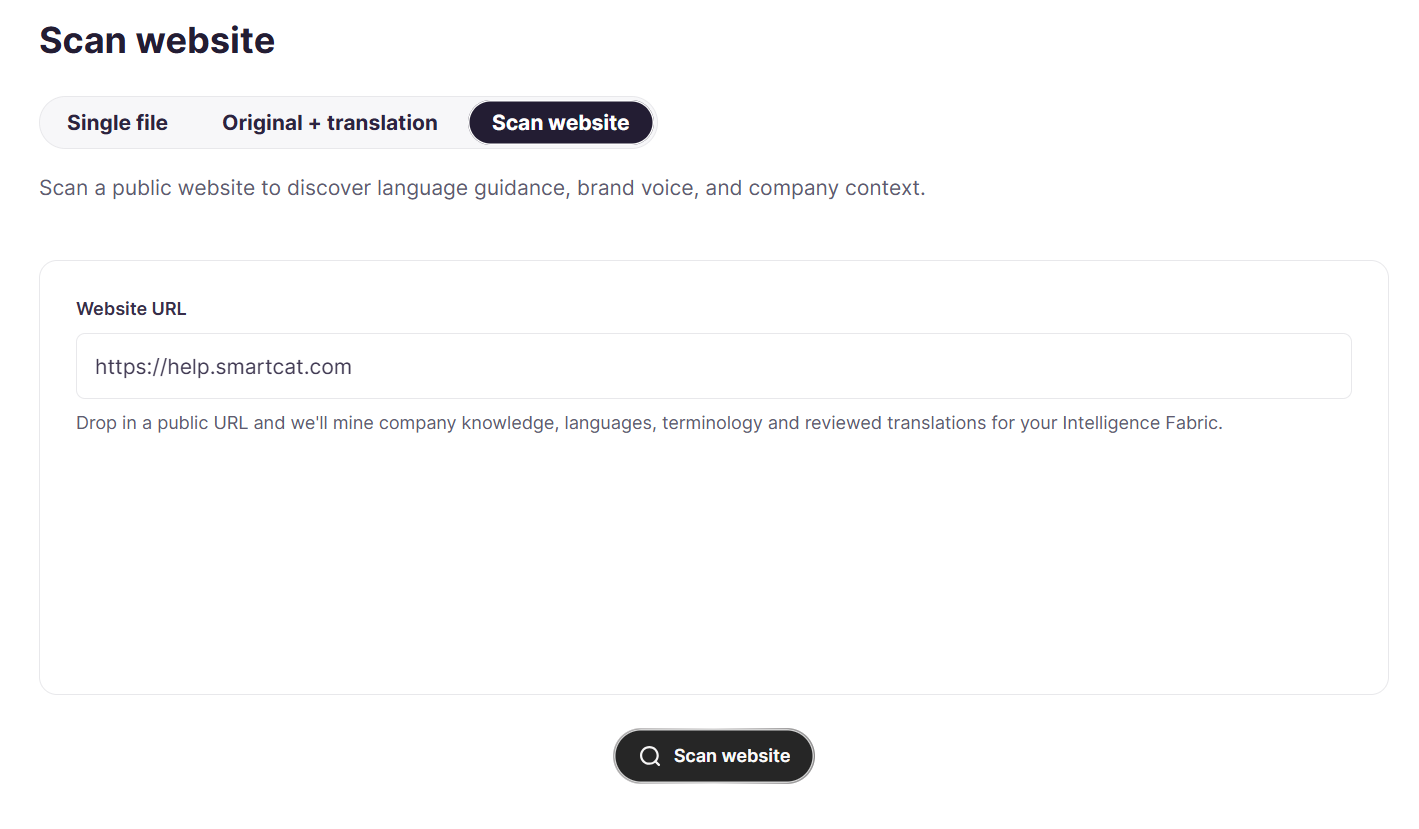
- Paste the URL of the website you want to analyze.
-
Click Scan website. Smartcat crawls the content and processes it for language patterns.
-
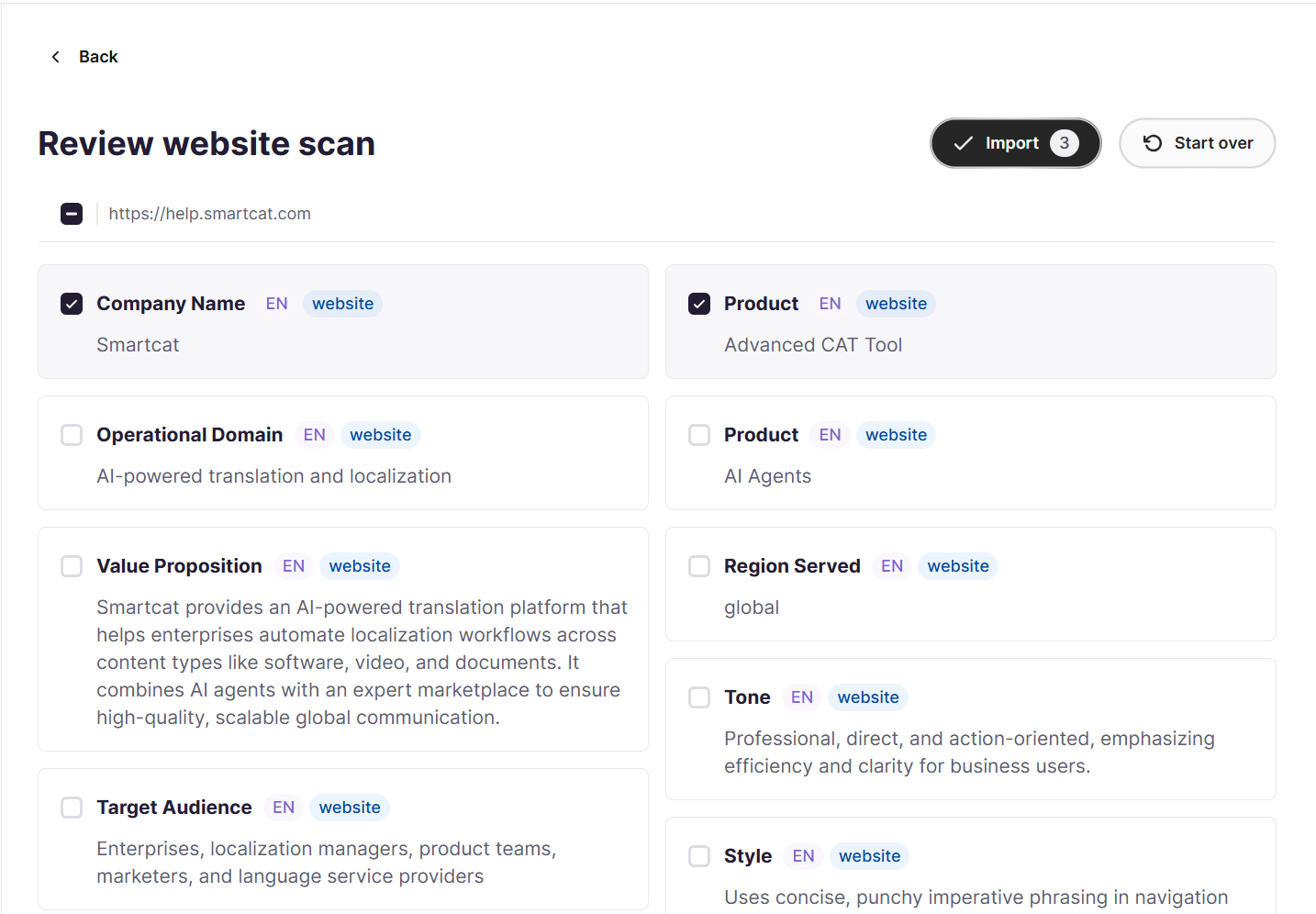
Review the extracted insights in the results tabs. Select the entries you want and click Import to save them as linguistic assets.
Tips
-
The more consistent and content-rich your website, the more useful the extracted insights.
-
Extracted insights from Scan Website complement manually uploaded documents. You can combine both sources to build a more complete linguistic profile.
Want to learn more?
See how Smartcat can transform your localization workflow.
Still need help?
Our support team responds within one business day.