Perform quality assurance
Overview
Smartcat provides automated quality assurance, checking various errors, including spelling, punctuation, terminology, formatting, and consistency with the translation memory while translators are working in the Editor. If an error is detected, the system displays a warning with the error description. Project managers can view or download a QA report.
Types of Quality Assurance
There are 3 levels of error criticality. They are:
-
Ignore errors
-
Notify me about errors
-
Require error correction
The default option (Notify me about errors) displays a warning (yellow triangle) in the Editor when the system detects an error in the translation.
If certain kinds of error warnings distract you or do not apply to your project, you can disable them by selecting the Ignore errors option.
And if you want to specify that a certain kind of error is critical, opt for Require error correction. When the kind of error specified is detected in the translation, the system displays the critical error symbol (red triangle) and does not allow the segment to be confirmed until the error is corrected.
Setting Up Quality Assurance
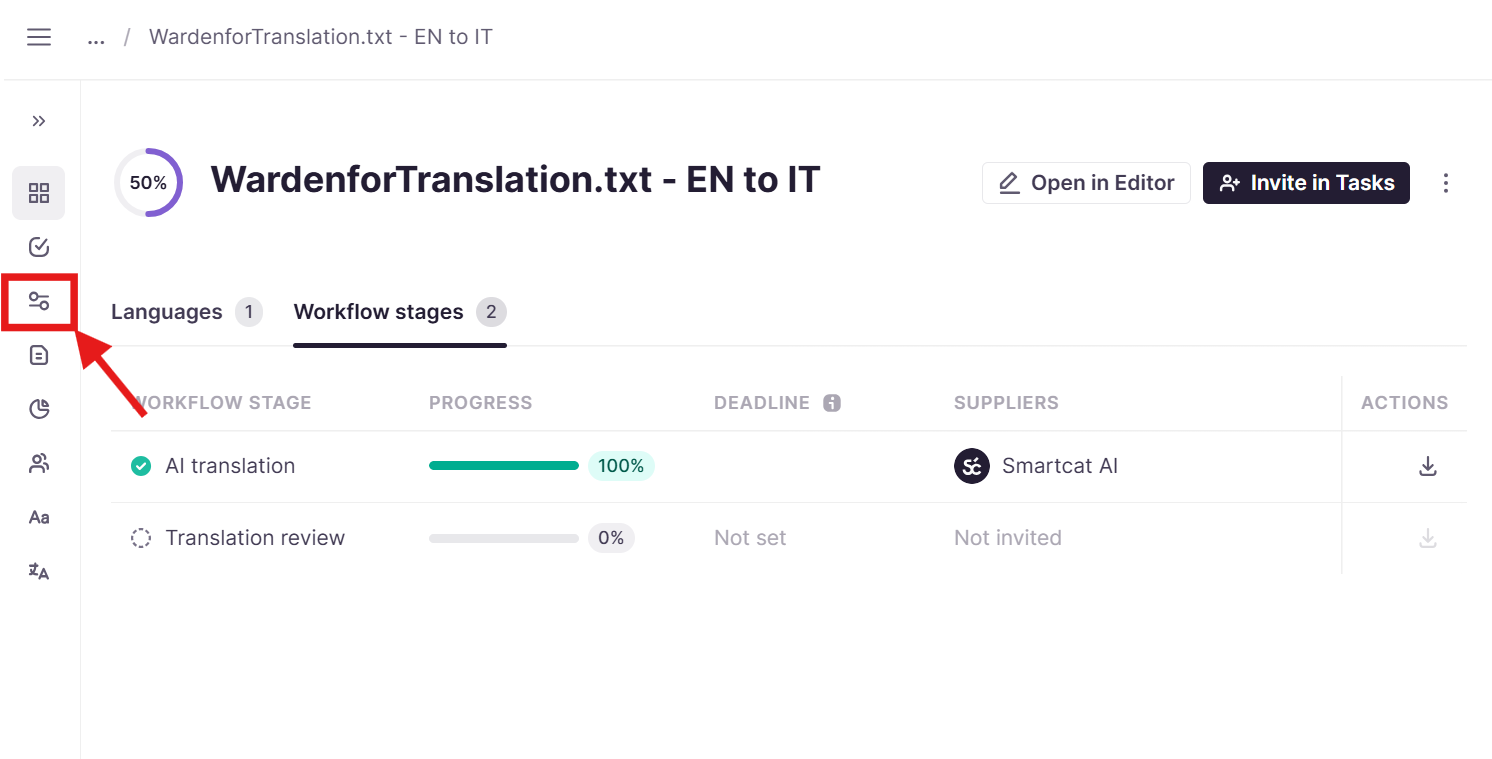
- When the project has been created, open the project page click the Settings icon.
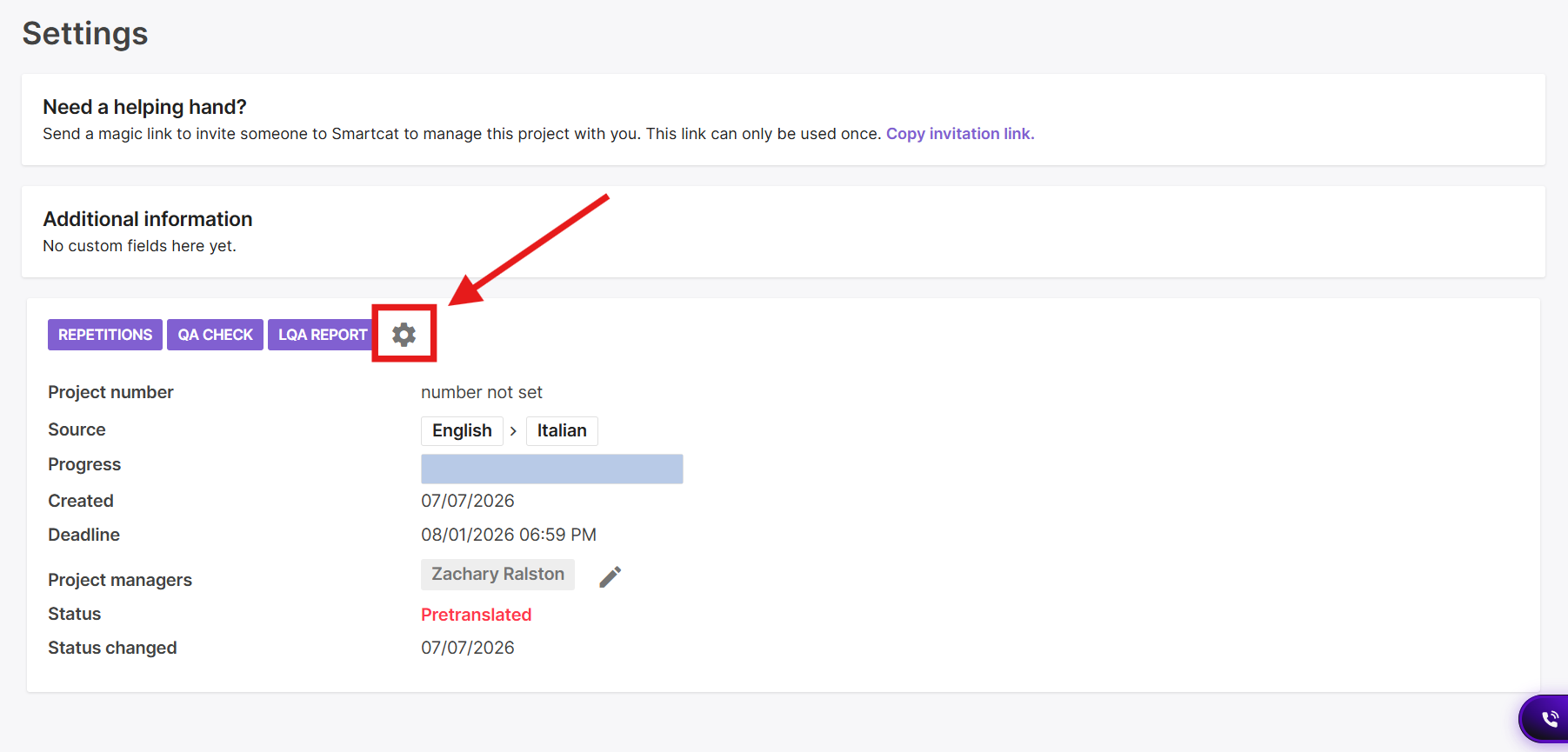
- Click the Project Settings icon (gear) on the settings page.
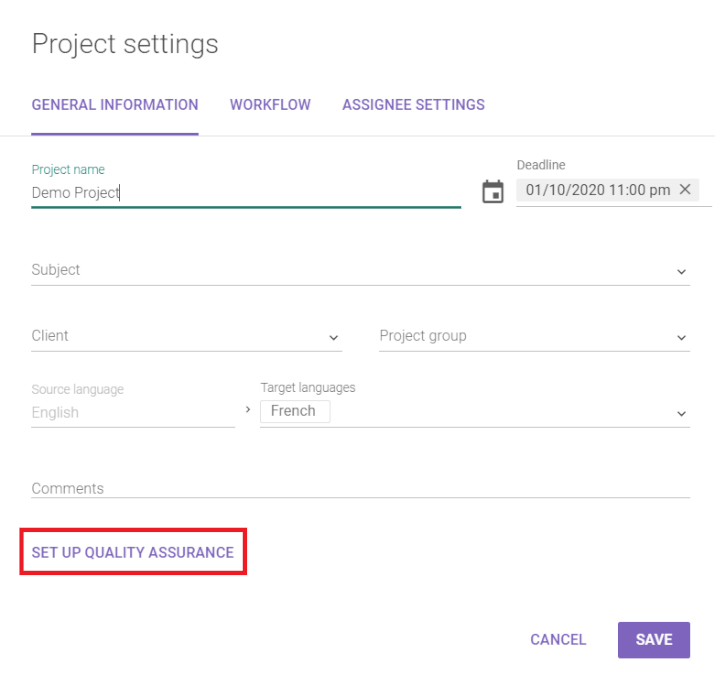
- Select Set Up Quality Assurance in the General Information tab.
- In the new window, change the QA settings by marking or unmarking checkboxes next to the error type that you want to attune. You can mark errors as critical by marking the checkbox on the far right. To perform a QA check based on the new options, use the switch Check all project documents for errors after the new settings are applied at the bottom. Click Apply.
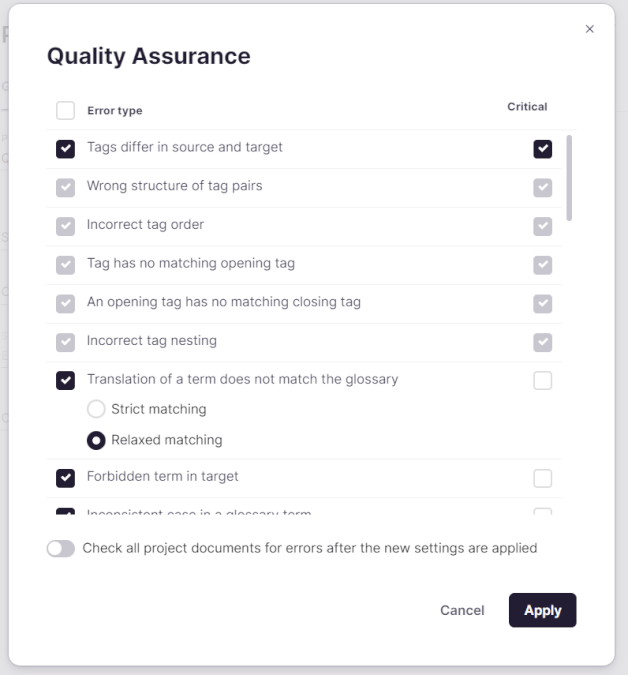
The error type Target exceeds the character length limit and all errors related to tags are critical by default and cannot be disabled.
Using Quality Assurance When Working with a Text
If a non-critical error is detected in a segment, a yellow icon appears in the status column (on the right) for that segment. To see what errors were found in the current segment, click the icon to open the QA Check tab under the editing space.
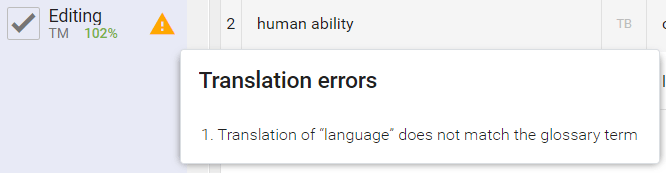
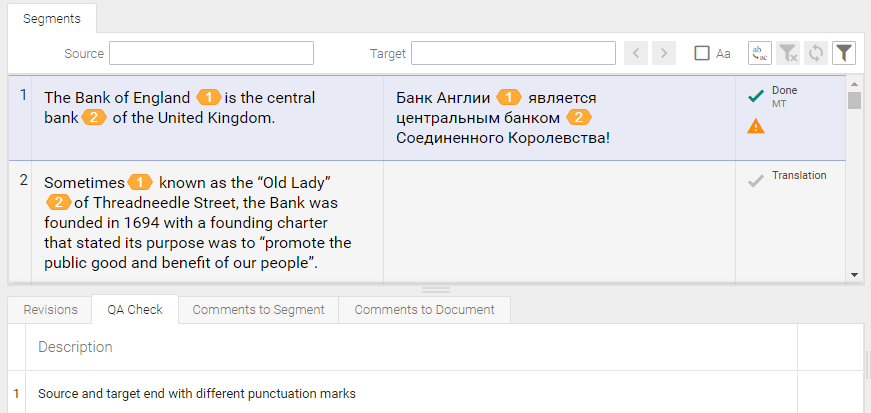
The checks run automatically, so some errors may turn out to be false positives. In such cases, you can check the Ignore box next to the error description in the QA Check tab to hide the yellow warning icon, or simply pay no attention to the warning icon.

📌 The option to ignore a QA error is only available to the project participants who have been assigned a translation task. Project managers cannot select that option.
💡 It is good practice to ask the translators to clear all the warnings in a file by either correcting the errors or ignoring false positives before they mark the task as done. Very often, the project manager doesn't speak the target language and isn't able to determine whether warnings relate to real errors.
If a spelling error is detected in the translation, it is immediately underlined. Right-click the misspelled word to select a replacement, or add an exception to the spellcheck dictionary.
You can add, edit, and remove exceptions using the button in the toolbar displayed with an A and a tick.
Smartcat also checks terms using the associated terminology database but takes morphology into account. This means that terms translated correctly but using a word form other than in the glossary (for example, a different tense or number) are not be regarded as errors.
Project Quality Reports
To run a QA check or create a QA report for a project:
-
Go to the project page and in the left navigation side bar click Settings.
-
On the project page, select the QA Check button located in the Settings tab.
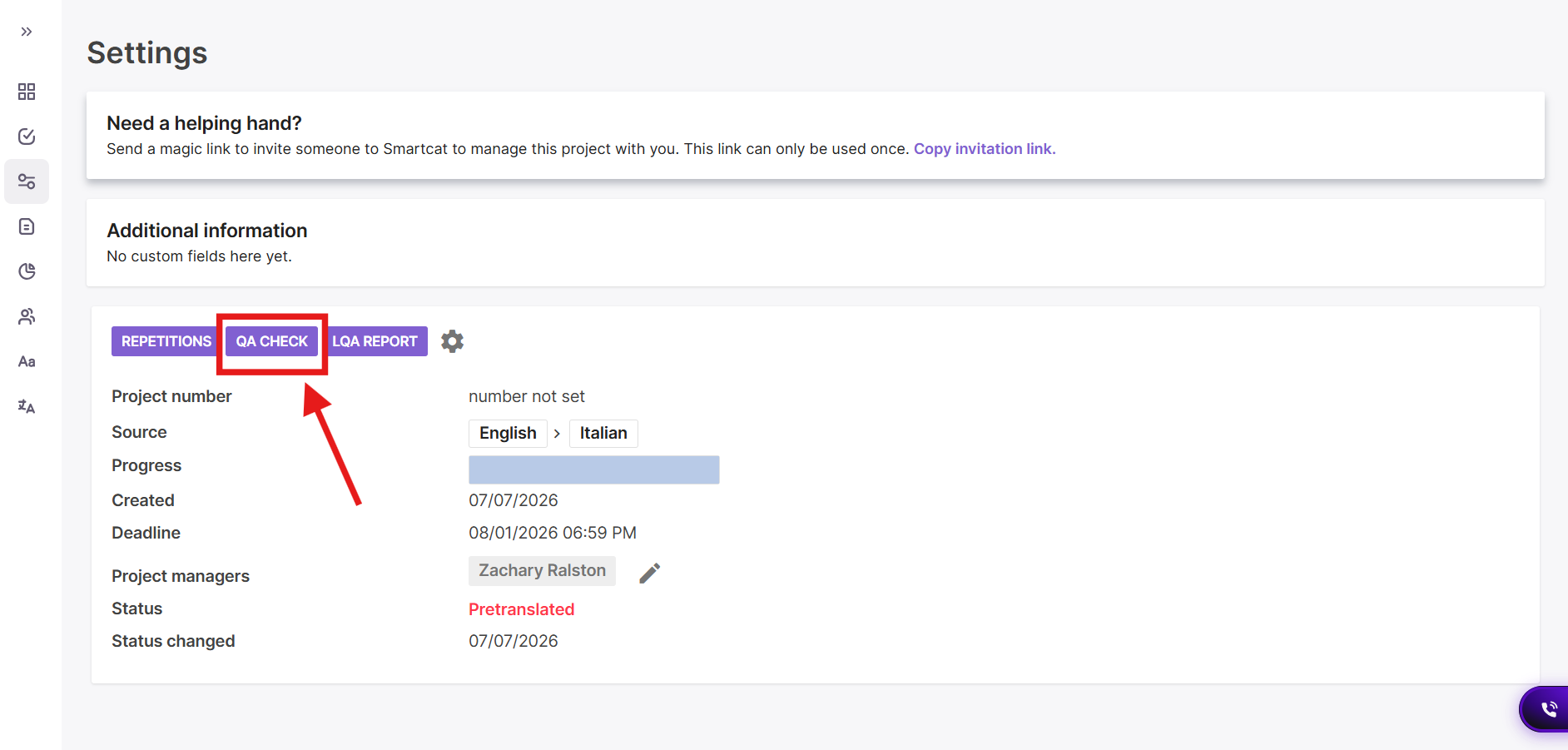
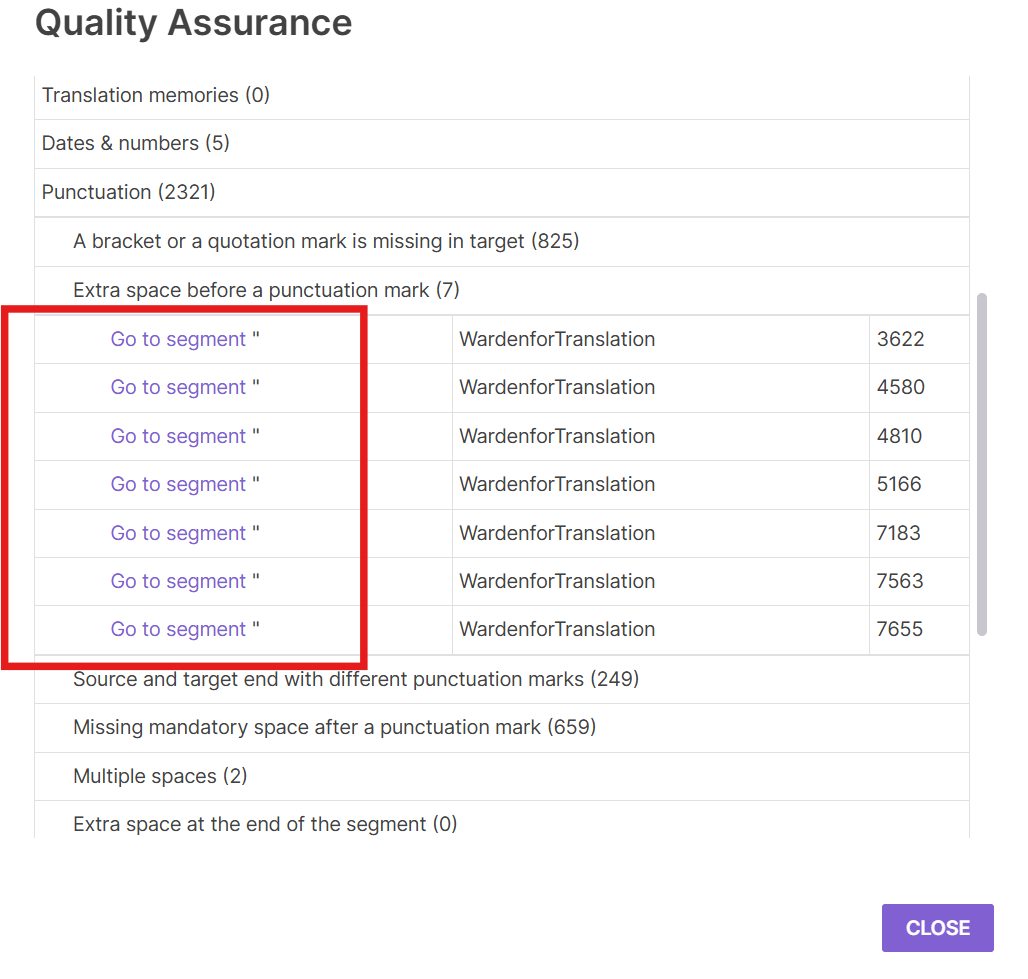
- In the next window, you will see the list of all errors detected in the project. If you wish to check only some specific documents, check the boxes next to their names.
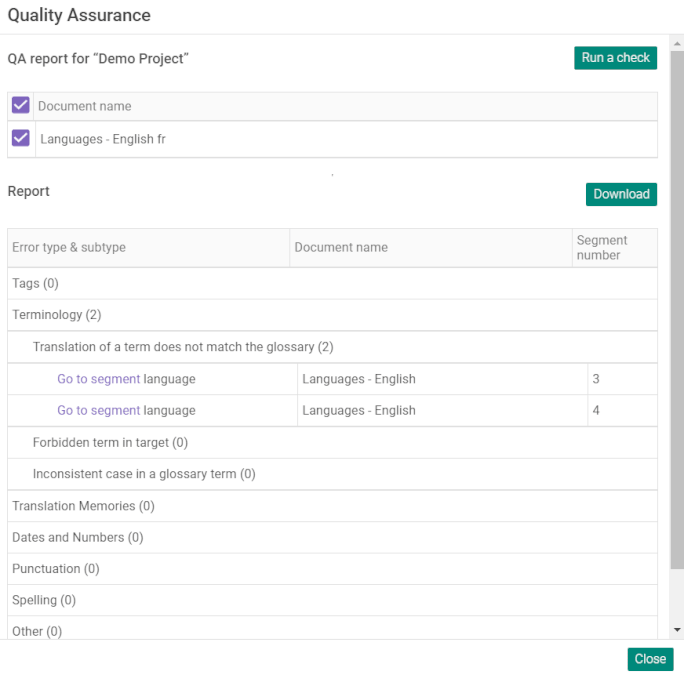
The errors are grouped by type, so you examine each error type to display sub-types and the segments where these errors occur.
- To correct an error, follow the Go to segment link to open the file in the editor and place the cursor in the segment to be corrected or find the segment by the number specified in the report to the right of the error.
-
To rerun the check, press the Run a check button.
-
If you need to save a copy of the error report to your computer, select Download. Smartcat generates an Excel spreadsheet with information about the errors found in the file and a link to open the editor from within Excel to speed up corrections.
FAQs
What are the three levels of QA error criticality, and what do they do?
"Ignore errors" disables the warning entirely, "Notify me about errors" (the default) shows a yellow warning triangle without blocking confirmation, and "Require error correction" shows a red critical-error symbol and blocks segment confirmation until it's fixed.
Are any QA error types always critical, regardless of my settings?
Yes — "Target exceeds the character length limit" and all tag-related errors are critical by default and cannot be disabled.
Can a translator dismiss a QA warning if they believe it's a false positive?
Yes, but only project participants assigned a translation task can check "Ignore" on a specific error — project managers cannot use that option themselves.
Does the glossary-based QA check flag correct translations that just use a different word form?
No — Smartcat's terminology check takes morphology into account, so a term translated correctly but in a different tense or number than the glossary entry is not flagged as an error.
How do I generate a full QA report covering the whole project, not just one segment?
Go to the project's Settings tab, click QA Check, then optionally select specific documents to check; you can download the resulting report as an Excel spreadsheet with links back into the editor for each error.
Can I run the QA check again after changing the error settings?
Yes — when applying new QA settings, you can enable "Check all project documents for errors after the new settings are applied," or manually click "Run a check" later from the QA report screen.
Should I rely on the built-in spellchecker, or use an AI Coworker instead?
The built-in spellchecker uses a third-party dictionary library with limited language coverage, and it doesn't take your glossary into account — so it can produce false positives on correct, glossary-matched terms. If you're seeing this, you can turn off the "spelling" error type in the project's QA settings (set it to Ignore errors) and rely on an AI Coworker instead: assign a QA Coworker to flag spelling issues for review, or a Reviewer Coworker to catch and correct them automatically during the review stage. This is generally a more accurate and less manual way to handle spelling than the built-in dictionary check.
How do I get a translation accuracy certificate?
Smartcat does not have an automated way to provide translation accuracy certificates. If you need a certificate, contact Smartcat Support or your Smartcat account manager to determine if you can receive a certificate for a project.
Want to learn more?
See how Smartcat can transform your localization workflow.
Still need help?
Our support team responds within one business day.