Set up your translation company profile on the Marketplace
Overview
Setting up your translation agency profile makes a big difference to your company's presence on the Smartcat Marketplace. This guide walks you through the key profile sections to complete: your logo, the services you offer, and your contact information.
📌 Only a translation agency account can set up a corporate profile. An end customer cannot, since an end customer offers no translation services and does not need to appear on the Smartcat Marketplace.
Open your corporate profile
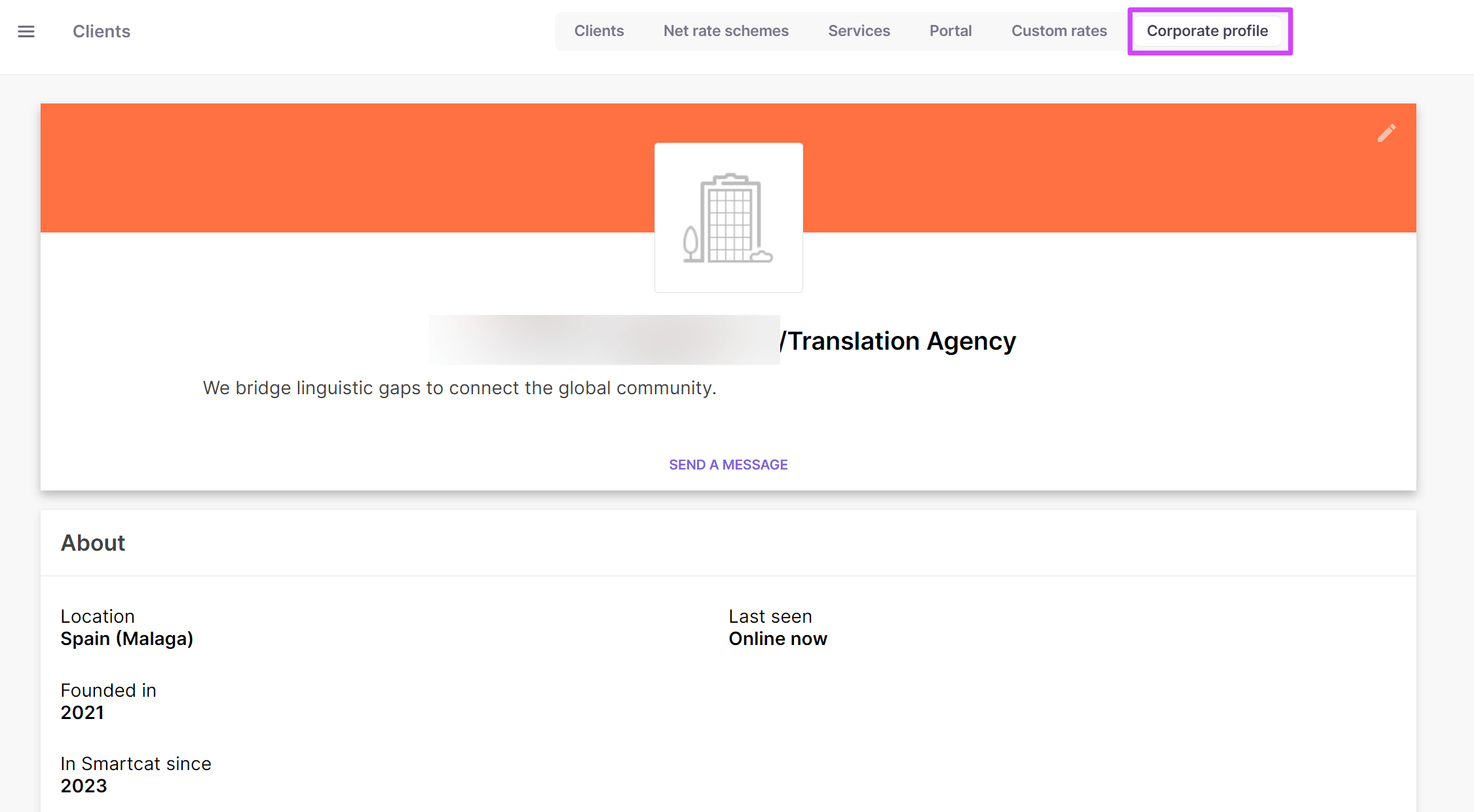
To set up your profile, go to the Clients section and then click the Corporate Profile tab.
To update a section of your profile, hover over the section you want to edit and then click the pencil in the top right corner.
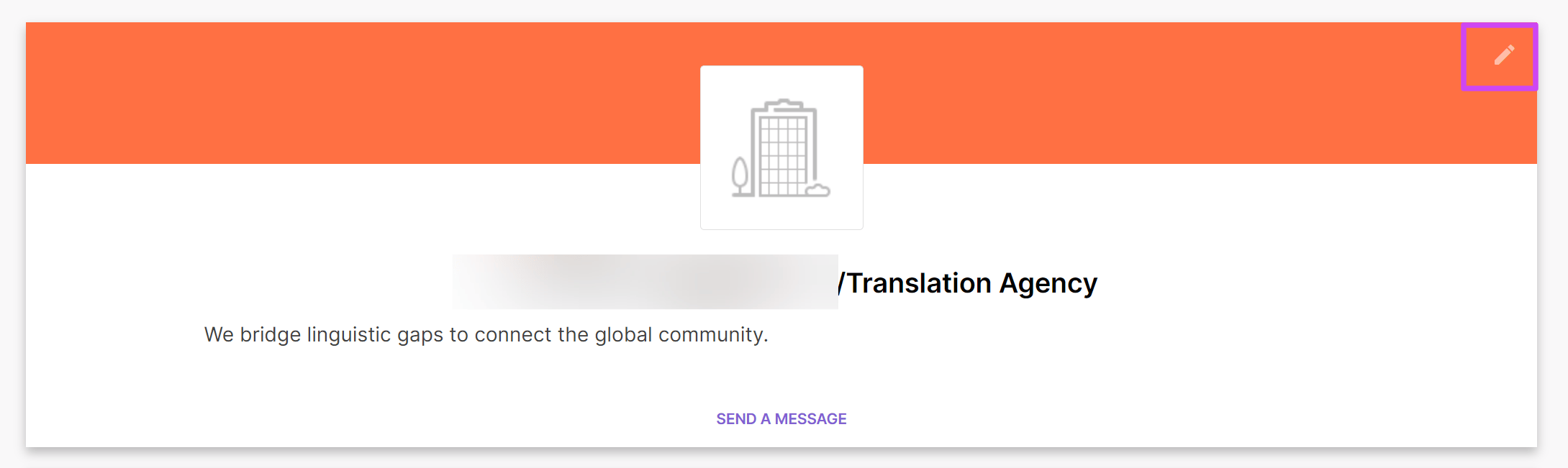
Edit the main profile section
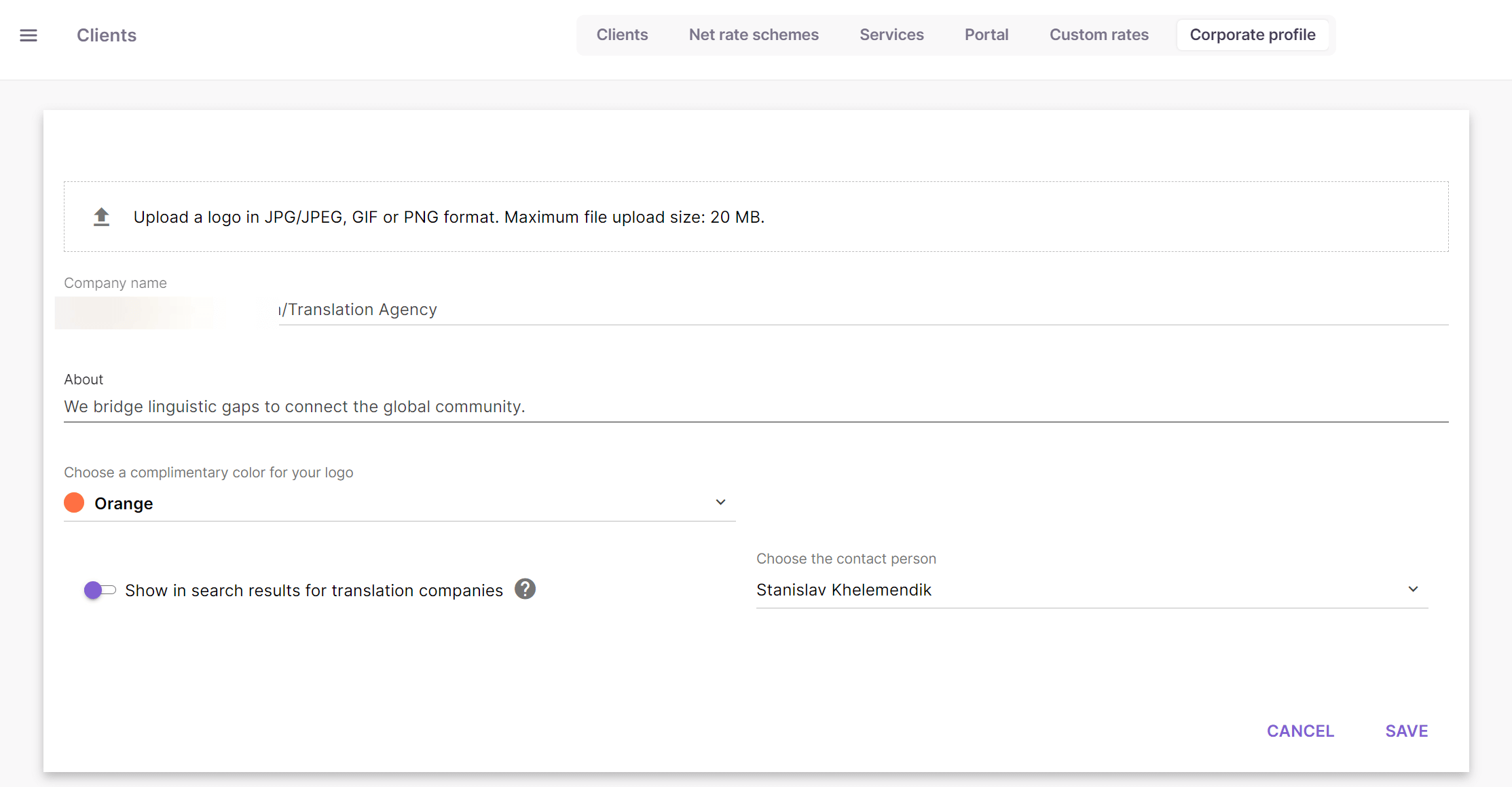
In the first section, you can:
-
Add a logo
-
Change your company's display name
-
Add a description of your company (limited to 500 characters)
-
Change the banner color to match the colors of your logo
-
Set whether you want the profile to be shown in the Smartcat vendor search
Edit the About section
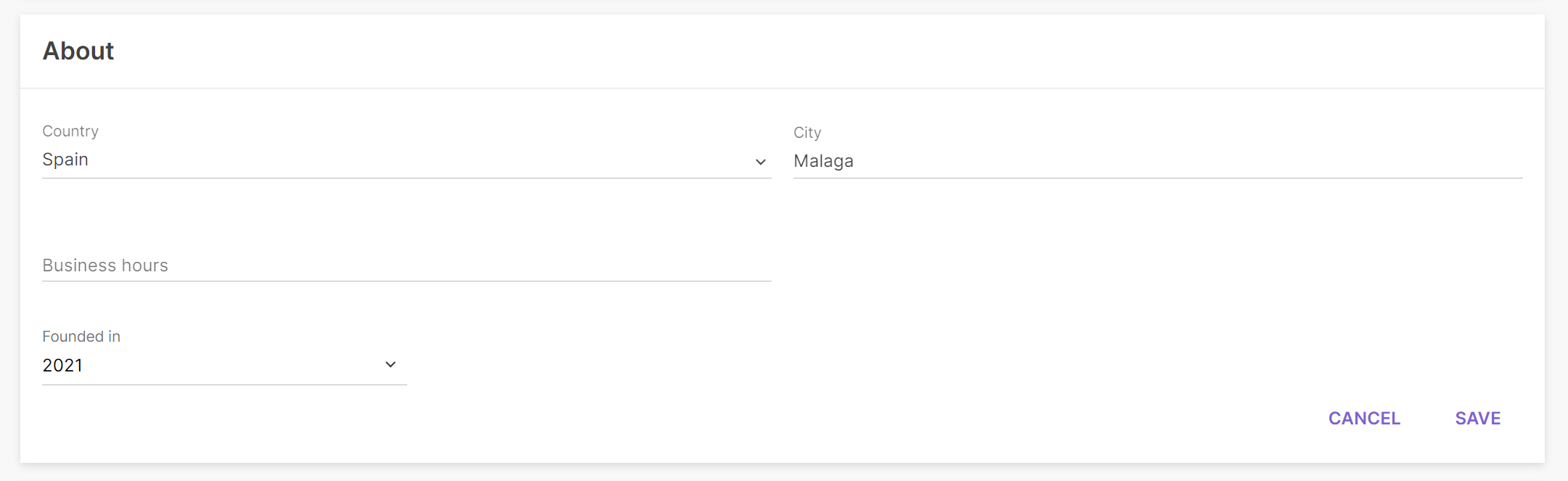
In the About section, you can select your country, business hours, and the year the company was founded. Some information is added automatically, such as how long your account has been active on Smartcat and when you last logged in. Once you add information about the services you provide, your most popular services also appear here.
Add reviews and success stories
In the Reviews and Success Stories section, you can add a portfolio to highlight successful projects that you have completed for major clients.
Review your services
The Services section is important and is explained in a separate article. Services that you set in the Clients section for All clients are shown here.
Add your contact information
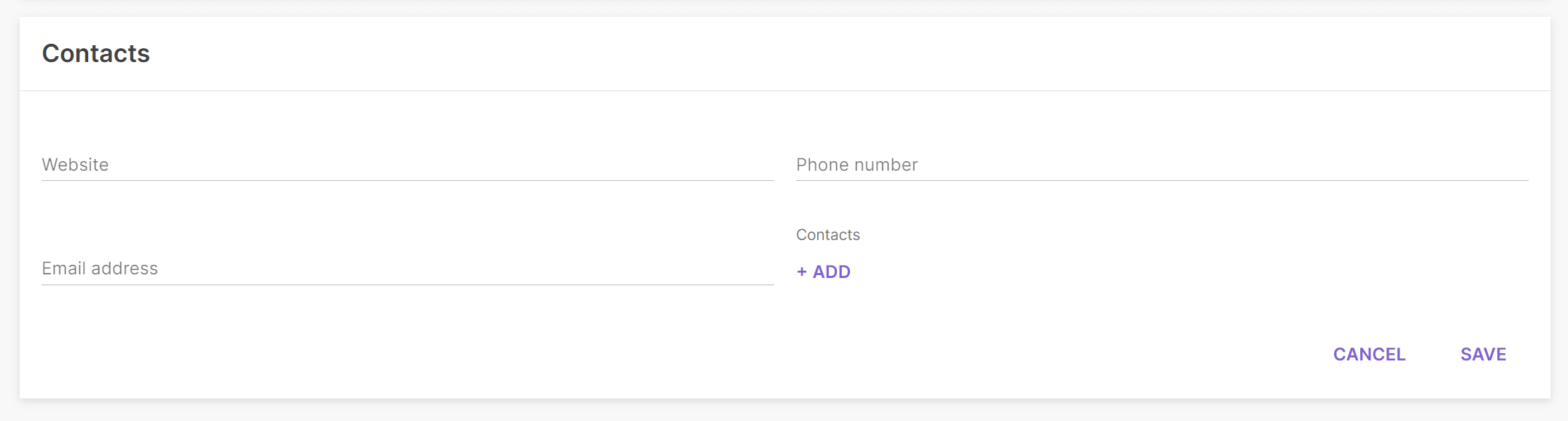
Fill out your contact information next. The main details to add are your website, your phone number, and an email address.
Once your profile is created, continue setting up your account. The next step is to add information about your clients, which is used to organize your data.
Want to learn more?
See how Smartcat can transform your localization workflow.
Still need help?
Our support team responds within one business day.