Choosing the Right PDF Translation Workflow in Smartcat
Smartcat offers three distinct PDF translation workflows, each optimized for different document types and use cases. This guide helps you choose the best workflow for your specific PDF translation needs.
When to use this guide
Use this guide when you need to translate PDF documents and want to understand which of Smartcat's three workflows will deliver the best results for your content type. Each workflow uses different technologies and offers different levels of automation, layout preservation, and editing control.
The three PDF translation workflows
AI PDF Translation (Text-Based PDFs)
Best for: Text-based PDFs created from word processors, design software, or other applications, including marketing materials, reports, product documentation, and business documents.
How it works: Uses advanced AI to analyze your document page by page, extracting text while preserving the original layout, formatting, and design. The AI recreates your document in the target language with text boxes, columns, images, and design elements in their original positions.
Key benefits:
-
Layout preservation — translated document keeps the same design as the original
-
Real-time preview — watch each page as it's translated
-
Glossary and TM support — applies your workspace glossary and translation memory
-
Multi-page support — translate documents of any length
-
Images and logos remain in place
Limitations:
-
Does not support scanned PDFs (documents that are images of text)
-
Does not support handwritten content
-
Complex interactive elements (form fields, buttons) may not be preserved
-
Some complex RTL layouts may require manual adjustment
-
Consumes 1000 Smartwords per page, multiplied by the number of target languages
-
Processing time: 15-45 minutes for typical 10-20 page documents
How to use this workflow:
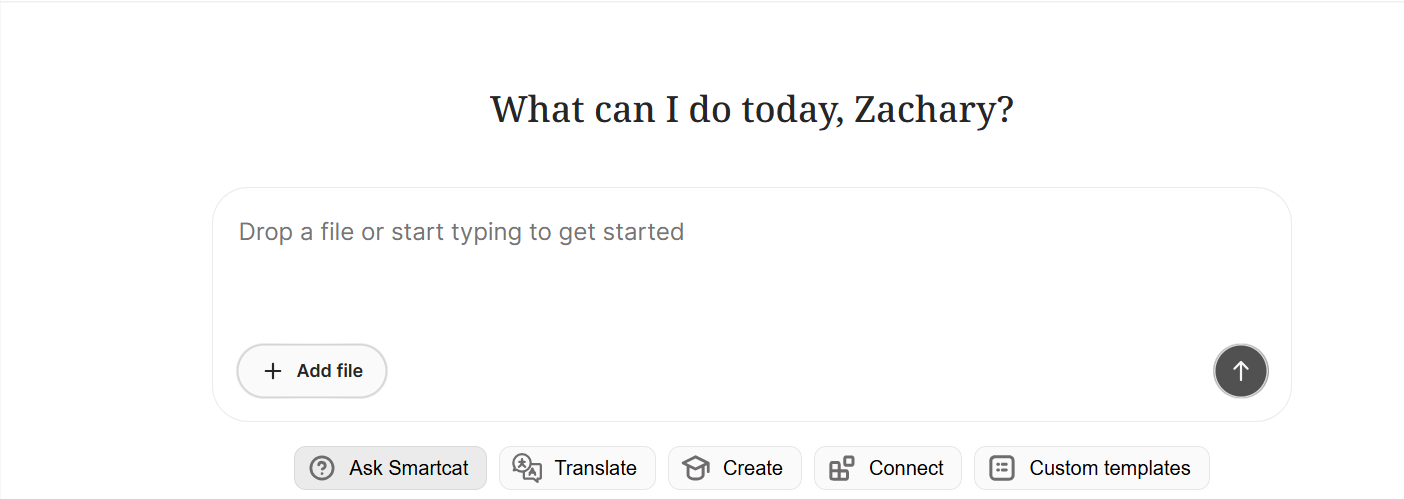
- Upload your PDF to Smartcat AI chat or create a new project

-
Select your target language
-
Click Translate and watch the real-time preview
-
Download your translated PDF when complete
Choose this when: You have text-based PDFs (with selectable text) such as marketing brochures, reports, whitepapers, user manuals, or business documents where preserving the original design is important.
PDF via Image Pipeline (PdfImageOnly)
Best for: Scanned PDFs, legal documents, forms, handwritten content, and any PDF where the standard OCR/Word pipeline produces poor results.
How it works: Treats each PDF page as an image and processes it through Smartcat's image translation pipeline. This approach often produces significantly better layout preservation than the traditional OCR-to-Word conversion, especially for scanned documents.
Key benefits:
-
Superior results for scanned documents compared to standard OCR
-
Better layout preservation for complex page designs
-
Supports handwritten content (via OCR)
-
Full manual editing capabilities in the editor
-
Minimal post-editing required for many document types
Limitations:
-
Requires manual project setup (see instructions below)
-
Processing is page-by-page
-
Consumes 1000 Smartwords per page, multiplied by the number of target languages
How to use this workflow:
- Create a new project

- Complete the project wizard but do not add a file to the project
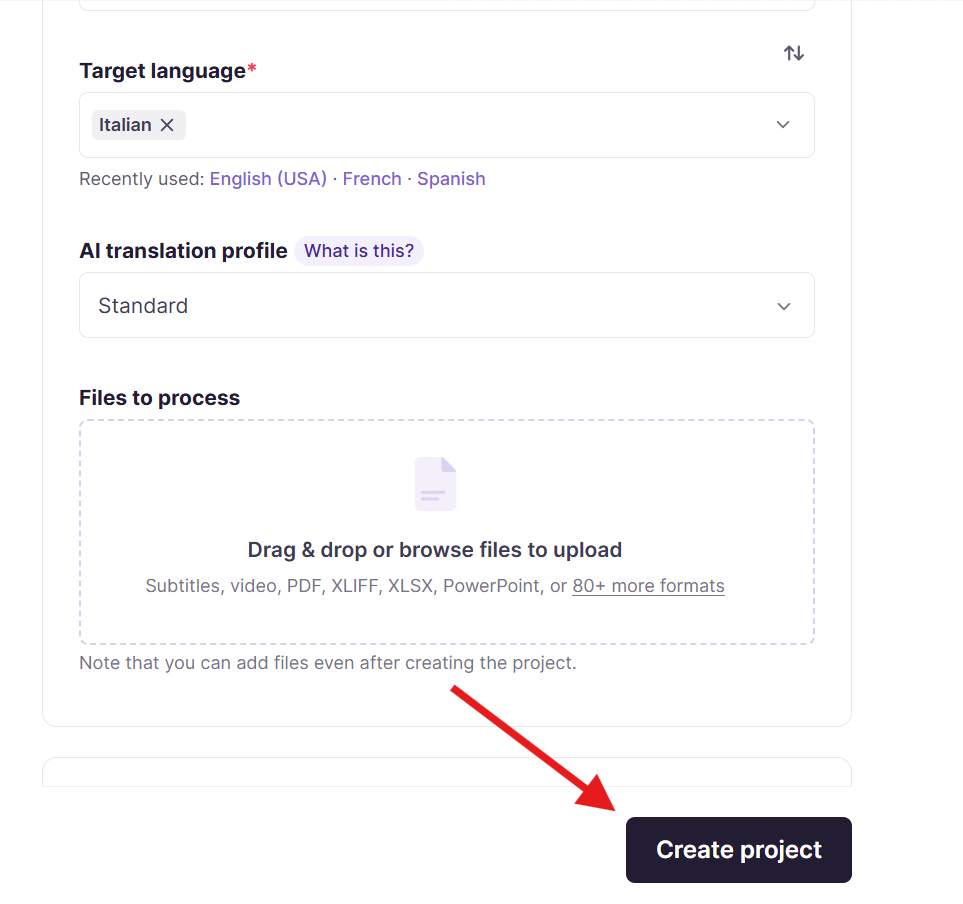
- After the project is created, upload your PDF file
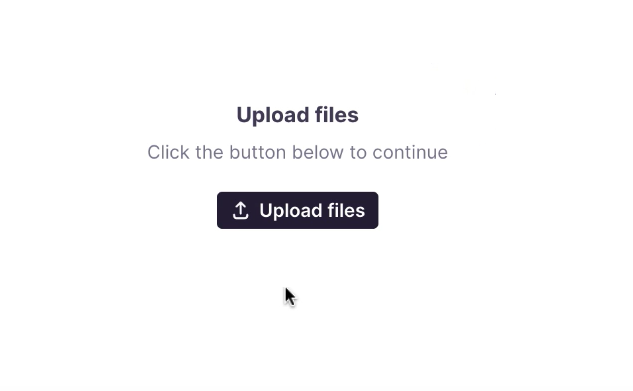
- In the file upload dialog, on the right side of the screen, choose pdfimageonly as the parsing method
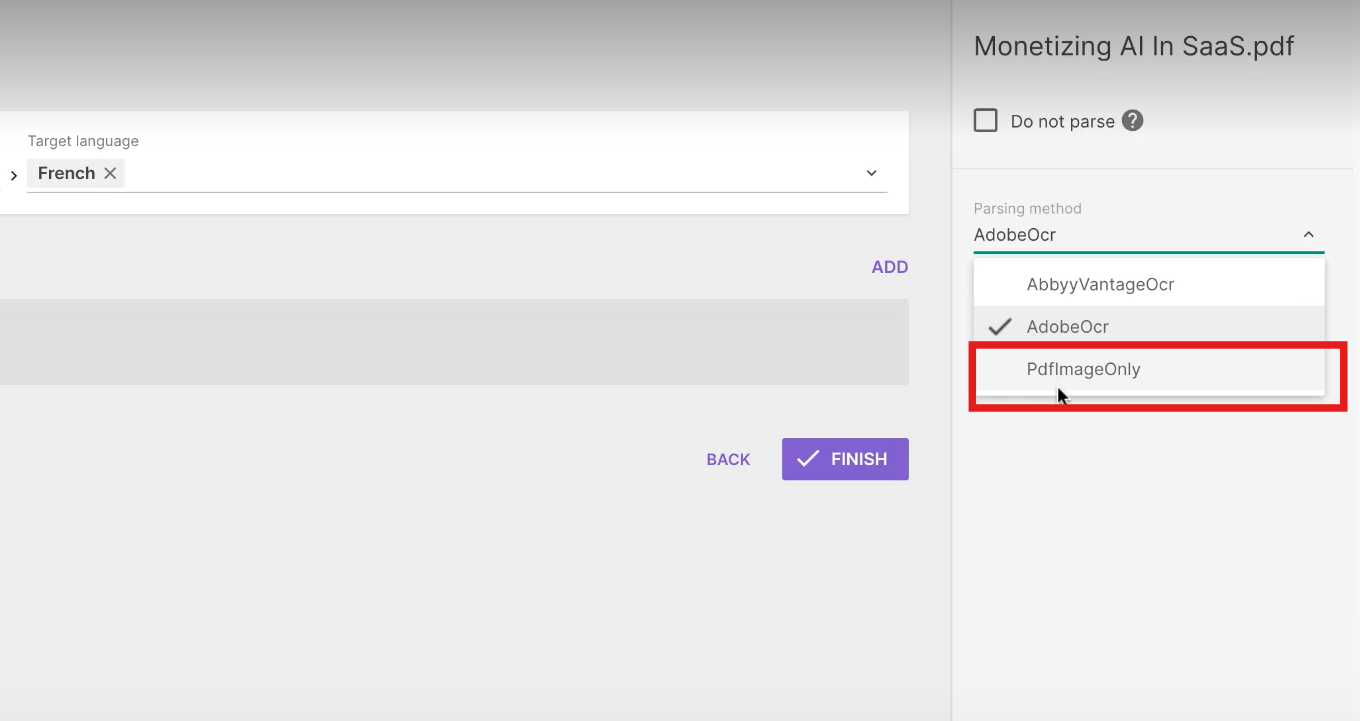
- The PDF is processed through the image translation pipeline
Choose this when: You have scanned PDFs, legal documents, forms with complex layouts, or any PDF where the standard pipeline (OCR → Word) produces poor results. This workflow is particularly effective when you need better layout preservation than traditional OCR provides.
Standard PDF Translation (OCR → Word)
Best for: Simple text-heavy PDFs where layout preservation is less critical, or when you need the translated content in an editable Word format.
How it works: Uses Optical Character Recognition (OCR) to extract text from the PDF, converts it to a Word document for translation, then exports back to PDF. This is the traditional PDF translation approach.
Key benefits:
-
Produces editable Word document as intermediate format
-
Full CAT editor capabilities for translation and review
-
Standard Smartwords pricing
-
Works with most PDF types
-
Faster processing for simple documents
Limitations:
-
Layout preservation is approximate and complex designs may not translate well
-
Font matching is approximate
-
May require significant manual formatting adjustments
-
Tables and multi-column layouts often need rework
-
Not ideal for marketing materials or branded content
How to use this workflow:
-
Upload your PDF to a standard translation project
-
Smartcat will OCR the document and convert to Word format
-
Translate the Word document using the CAT editor
-
Export the completed translation as PDF
Choose this when: You have simple, text-heavy PDFs where the exact layout is not critical, or when you specifically need the output in an editable Word format for further editing.
Decision flowchart
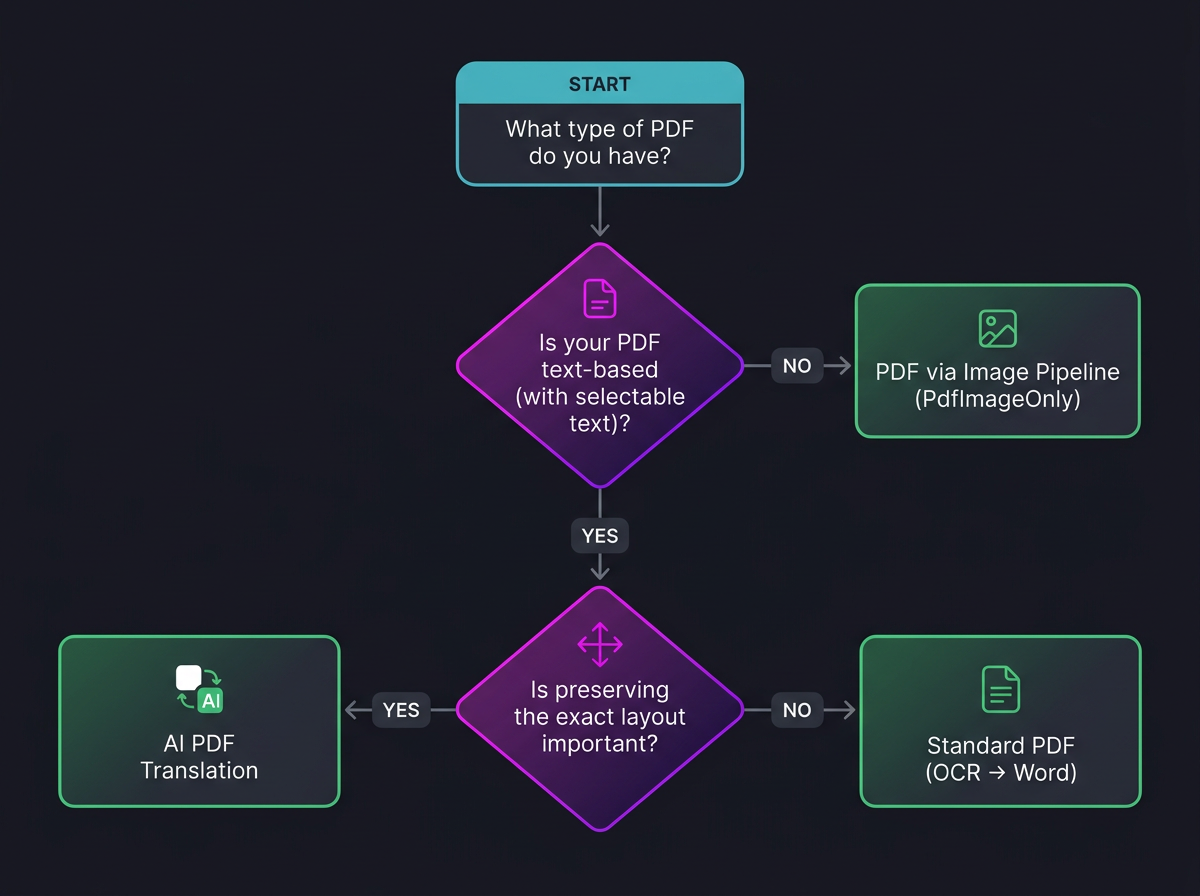
Start here: What type of PDF do you have?
Is your PDF text-based (with selectable text)?
-
YES → Is preserving the exact layout important?
-
YES → Use AI PDF Translation
-
NO → Use Standard PDF (OCR → Word)
-
NO (scanned/image-based) → Use PDF via Image Pipeline (PdfImageOnly)
Additional decision factors:
-
Is it a scanned document or form? → PDF via Image Pipeline
-
Is it a marketing brochure with branded design? → AI PDF Translation
-
Do you need the output as an editable Word file? → Standard PDF (OCR → Word)
-
Did the standard pipeline produce poor results? → Try PDF via Image Pipeline
-
Is it a simple text document where layout does not matter? → Standard PDF (OCR → Word)
Workflow comparison
| Feature | AI PDF Translation | PDF via Image Pipeline | Standard (OCR → Word) |
|---|---|---|---|
| Best for | Text-based PDFs, marketing materials | Scanned PDFs, forms, legal docs | Simple text-heavy PDFs |
| Layout preservation | Excellent | Very good | Approximate |
| Scanned PDF support | No | Yes | Limited |
| Handwritten text support | No | Yes (via OCR) | Limited |
| Manual editing | Limited (final output) | Full control | Full control |
| Processing speed | 15-45 min (10-20 pages) | Varies by page count | Faster for simple docs |
| Output format | Word → PDF | ||
| Glossary/TM support | Yes | Yes | Yes |
| Setup complexity | Simple (upload and translate) | Manual (requires template selection) | Simple |
| Estimated cost | Standard Smartwords | 1000 Smartwords/page | Standard Smartwords |
FAQs
Which PDF workflow should I use for a scanned document?
Use PDF via Image Pipeline (PdfImageOnly). It treats each page as an image, which typically produces much better layout preservation for scanned documents than the standard OCR-to-Word pipeline, and it supports handwritten content via OCR.
Can AI PDF Translation handle scanned PDFs or handwritten content?
No. AI PDF Translation only supports text-based PDFs with selectable text — it does not support scanned PDFs or handwritten content. For those, use PDF via Image Pipeline instead.
Why would I choose Standard PDF Translation (OCR → Word) over AI PDF Translation?
Choose Standard PDF Translation when you need the output as an editable Word document, when your PDF is simple and text-heavy, or when preserving the exact original layout isn't critical — it gives you full CAT editor capabilities but layout preservation is only approximate.
How much does the PDF via Image Pipeline workflow cost compared to the others?
It's estimated at roughly 100 Smartwords per page, while AI PDF Translation and Standard PDF Translation use standard Smartwords pricing.
How long does AI PDF Translation typically take?
For a typical 10–20 page document, processing takes about 15–45 minutes.
Do all three PDF workflows support glossary and translation memory?
Yes — glossary and TM support is available across all three workflows: AI PDF Translation, PDF via Image Pipeline, and Standard PDF Translation.
What is the best way to translate a batch of PDFs at one time?
-
Sort your PDFs into digital native and scanned “piles,” since these are best translated separately
-
Create one project
-
Upload the digital-native pile as-is, using the AI PDF Translation default
-
Upload the scanned pile, selecting PDF Image Only for those files
-
Attach your linguistic assets to the project
-
Since there’s no bulk-approve/bulk-complete action, budget enough time for a file-by-file review and completion step.
Want to learn more?
See how Smartcat can transform your localization workflow.
Still need help?
Our support team responds within one business day.