Setting Up SharePoint Site Integration
Smartcat’s SharePoint integration connects your Microsoft SharePoint sites with Smartcat, enabling you to translate intranet pages, leadership communications, onboarding materials, and knowledge base content directly within your existing SharePoint workflows.
⚠️ This integration is not available through the integrations page in the Smartcat UI, so use the direct link provided by your Smartcat representative.
Overview
SharePoint is Microsoft's collaboration and document management platform that organizations use to create internal websites (intranets), securely store and share files, and manage workflows. The Smartcat SharePoint integration allows you to:
-
Centralize multilingual content — Make translated intranet content instantly accessible across all regions
-
Streamline content workflows — Send SharePoint pages directly to Smartcat for translation without manual export/import
-
Maintain consistent messaging — Keep leadership communications, policies, and training materials aligned across all languages
-
Preserve governance — SharePoint's existing permissions carry over, maintaining control of who can access and publish localized content
Key concepts and terminology
| Term | Definition |
|---|---|
| Site | A workspace in SharePoint where teams create, share, and manage content (e.g., department sites, project sites, communication sites) |
| Library | A collection of documents or files organized within a site |
| Site Pages | Content pages within a SharePoint site that can be translated |
| Language copy | A draft version of a page created in a target language for translation |
| Default locale | The source language of your SharePoint site content |
Prerequisites
Smartcat side:
-
Workspace admin permissions
-
Access to the SharePoint Pages integration, which is available via direct link
SharePoint side:
-
Microsoft 365 account with access to the SharePoint site
-
Site owner or admin permissions on the SharePoint site you want to connect
-
Multilingual feature enabled on your SharePoint site
⚠️ Enable multilingual support first: Before connecting to Smartcat, you must enable the multilingual feature in SharePoint. Go to Settings (⚙️) → Site information → View all site settings → Language settings and check the target languages you want to translate into with Smartcat.
How to connect
Step 1 — Access the SharePoint integration
Navigate to the SharePoint Pages integration setup page in Smartcat. This integration is not available through the integrations page in the Smartcat UI, so use the direct link provided by your Smartcat representative.
Step 2 — Enter your SharePoint site details
-
In the integration setup form, enter your Site URL. This is the full URL of your SharePoint site (e.g.,
https://yourcompany.sharepoint.com/sites/YourSiteName) -
Set the Default locale to your source language (the language your SharePoint content is currently written in)
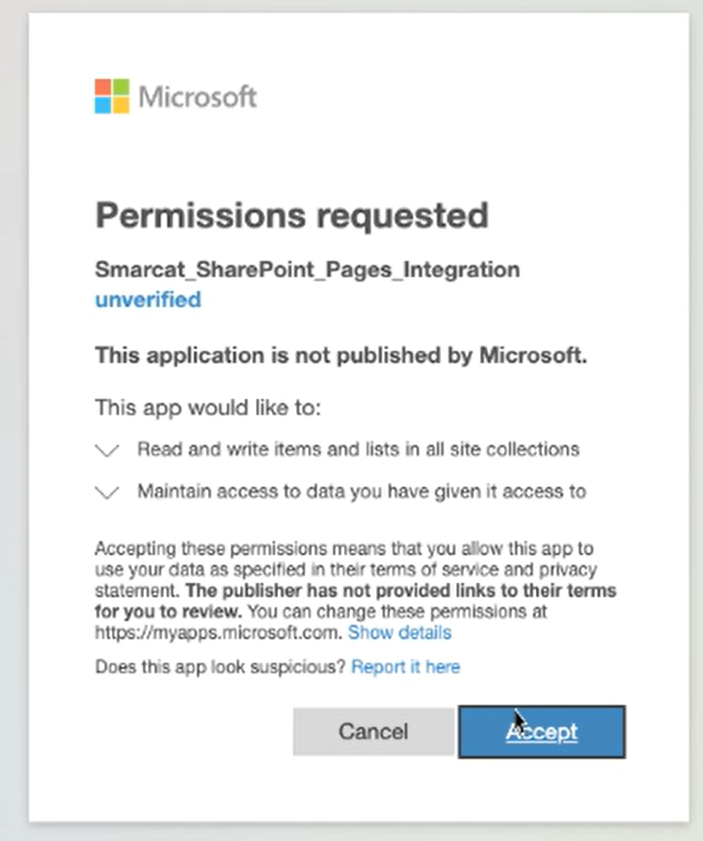
Step 3 — Authorize the connection
-
Click Connect to initiate the authorization process
-
Log into your Microsoft 365 account when prompted
-
Grant Smartcat the necessary permissions to access your SharePoint site
Step 4 — Verify the connection
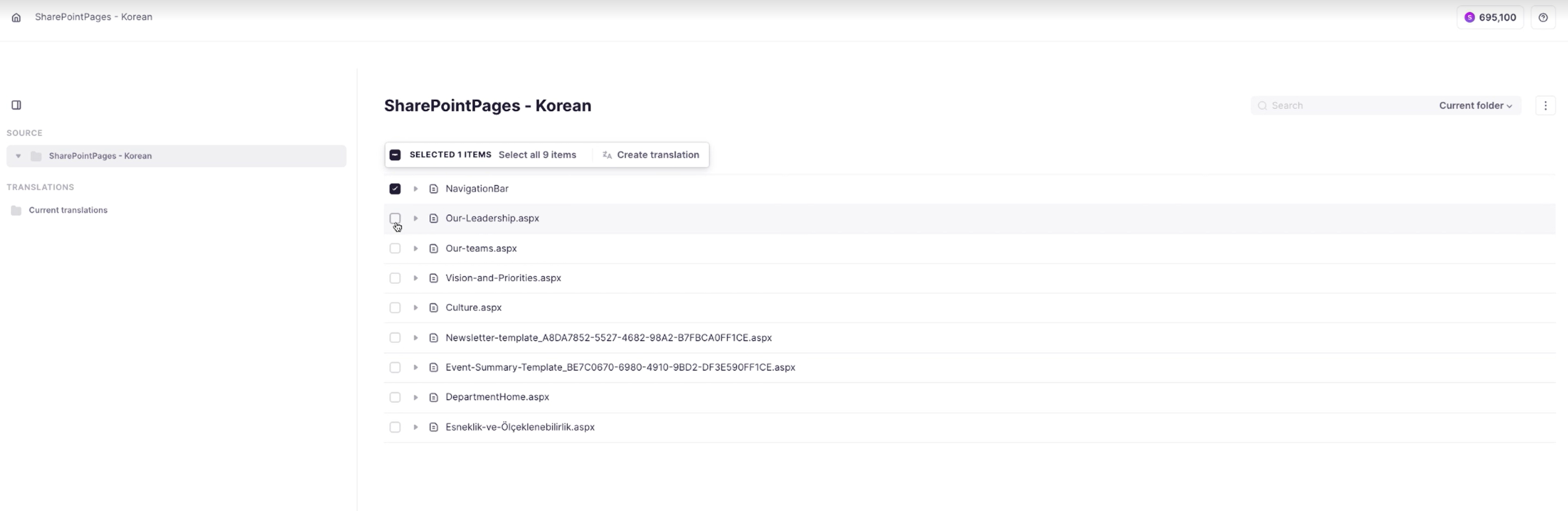
Once connected, Smartcat displays the hierarchy of your SharePoint site content, showing available pages and their translation status.
Core workflow
Preparing SharePoint pages for translation
Before sending content to Smartcat, you need to create language copies in SharePoint:
-
Open the page you want to translate in SharePoint
-
Click Edit in the top-right corner
-
From the top bar, click Translate
-
Select your target language (e.g., Spanish, Korean)
-
SharePoint creates a draft copy of the page in that language
⚠️ Language must be enabled: If your target language doesn't appear in the Translate menu, you need to enable it in your site's Language settings first.
Sending content to Smartcat
-
In Smartcat, navigate to your SharePoint integration
-
Browse the content hierarchy to find the pages you want to translate
-
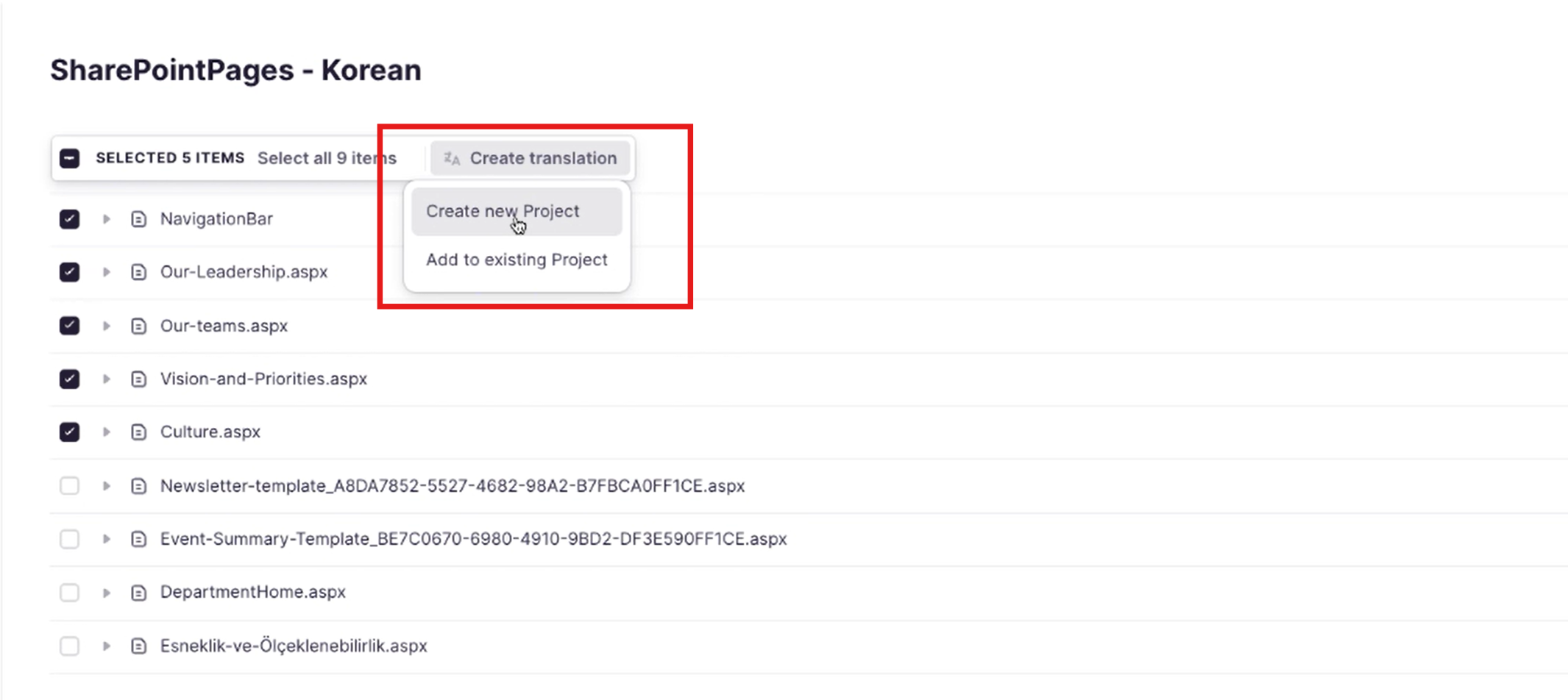
Select the pages and target languages
-
Click Create translation → Create new project to send the content to Smartcat for translation
Receiving translated content
Once translation is complete in Smartcat:
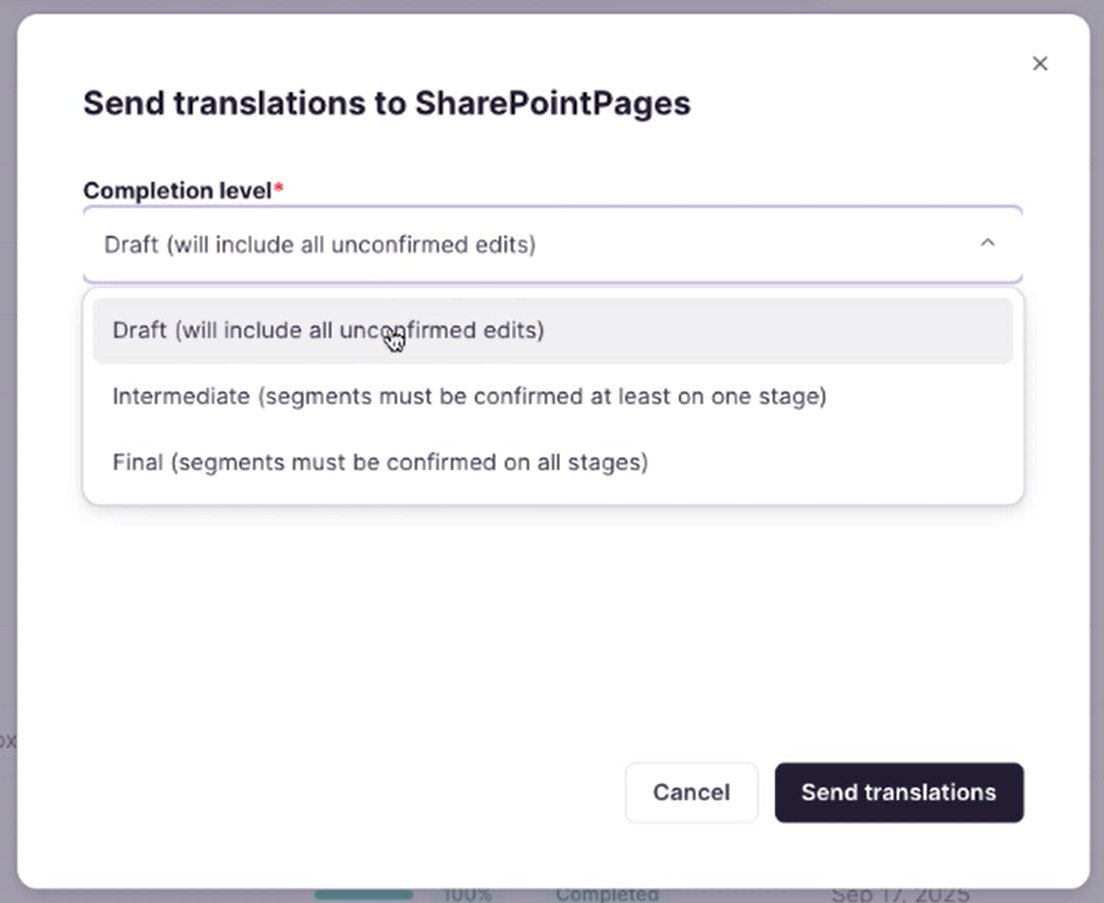
- Click Send to Sharepoint pages on the project page
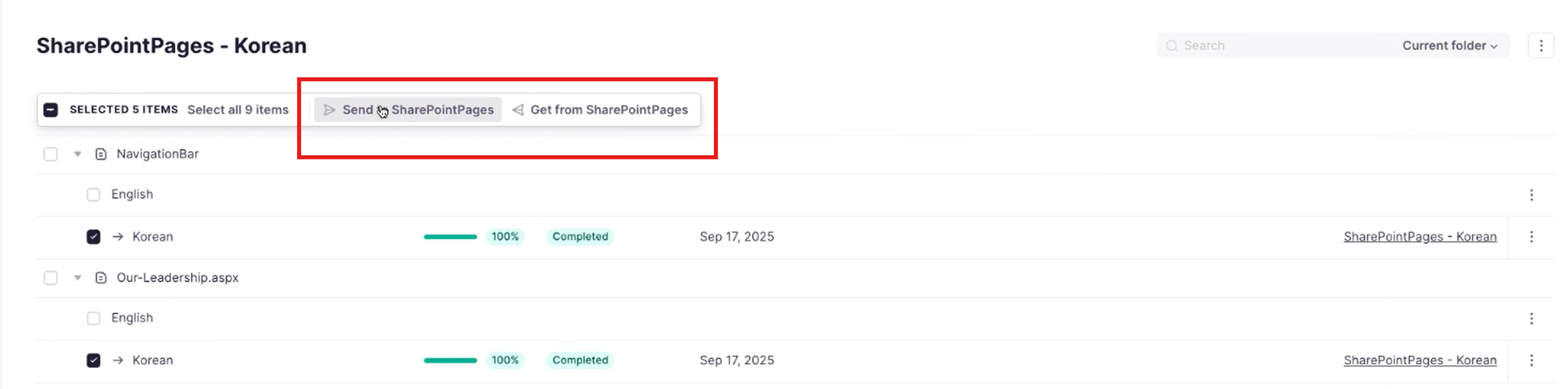
- Select the Complete level from the dropdown to confirm how much of the translation is sent to SharePoint
-
Click Send translations to send the translations to SharePoint
-
Review the translated draft pages in SharePoint
-
Publish the pages when ready to make them live
Requirements and Limitations
-
Widgets and tickers: Currently, widgets, tickers, and other dynamic site content cannot be translated. These elements contain non-translatable text that is difficult to extract.
-
Site Pages only: The integration works with SharePoint Site Pages. Document libraries and lists are not currently supported for direct translation.
-
One site per connection: Each integration connection is configured for a single SharePoint site. Connect multiple sites by creating separate integration instances.
When to contact Smartcat support
Get in touch if:
-
Authorization repeatedly fails despite having correct permissions
-
Translated content is not syncing back to SharePoint
-
Specific page types or content elements are not being extracted
What to include when escalating:
-
SharePoint site URL
-
Screenshot or recording of the error
-
The specific pages or content types affected
-
Steps already tried from troubleshooting section
Troubleshooting
Problem: Target language not appearing in SharePoint's Translate menu
Resolution: Enable the language in your site's Language settings: Settings (⚙️) → Site information → View all site settings → Language settings → Check the desired language → Save
Problem: Connection fails during authorization
Resolution: Verify you have site owner or admin permissions on the SharePoint site. Contact your Microsoft 365 administrator if you need elevated permissions.
Problem: Pages do not appear in Smartcat after connection
Resolution: Ensure the pages are published in SharePoint (not in draft status). Only published pages are visible to the integration.
Problem: SharePoint connection was working but suddenly fails with an authorization/token error (e.g. "Invalid token lifetime")
Resolution: This means the Microsoft OAuth token behind the connection has expired or been revoked — not a Smartcat-side failure. Reconnect by re-authorizing (Step 3 above) to get a fresh token; syncing quietly renews it going forward. To make this durable:
-
Authorize a shared/service account, not one person's individual Microsoft account — a dedicated mailbox that isn't offboarded or password-rotated avoids the token being invalidated when its owner leaves or resets their password.
-
Keep syncs running regularly (at least monthly) — a refresh token left completely idle for around 90 days expires from inactivity.
-
If it recurs on a fixed schedule (e.g. every 30 days), your Microsoft 365 admin may have a Conditional Access / sign-in-frequency policy forcing re-authentication. Ask your IT team to exclude the Smartcat app from that policy if it's not required by your security mandate.
-
FAQs
Where do I find this integration if it's not on the standard Integrations page?
This integration is not available through the integrations page in the Smartcat UI — you need to use a direct link provided by your Smartcat representative.
Do I need to prepare anything on the SharePoint side before connecting?
Yes — you must enable the multilingual feature and your target languages in your SharePoint site's Language settings (Settings → Site information → View all site settings → Language settings) before connecting to Smartcat.
What SharePoint content can and can't be translated with this integration?
It works with Site Pages only — document libraries and lists are not currently supported. Widgets, tickers, and other dynamic content also can't be translated.
Why doesn't a page show up in Smartcat after I connect the integration?
Only published pages are visible to the integration — make sure the page isn't still in draft status in SharePoint.
Can one integration connection cover multiple SharePoint sites?
No — each integration connection is configured for a single SharePoint site; connect additional sites by creating separate integration instances.
What permissions do I need on the SharePoint side to connect?
Site owner or admin permissions on the SharePoint site you want to connect, plus a Microsoft 365 account with access to that site.
Want to learn more?
See how Smartcat can transform your localization workflow.
Still need help?
Our support team responds within one business day.