Mark work as completed
Overview
When you finish translating a document you uploaded yourself, you can download the translated file to your computer and send it to your client if needed. If you are working on a project created by a client, the client can download the translation themselves; you mark your assigned task as finished with the Done button.
How to mark a task as completed
-
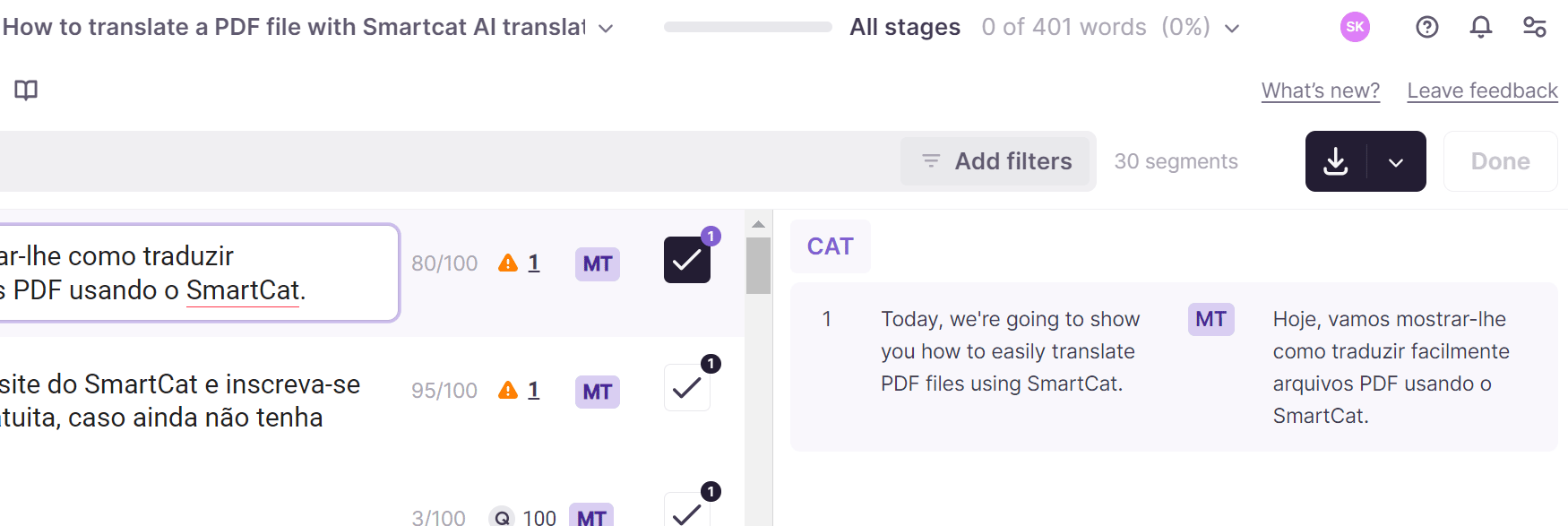
Once the work is done, click the Done button to mark the assigned task as completed

-
The button is replaced by the Completed mark
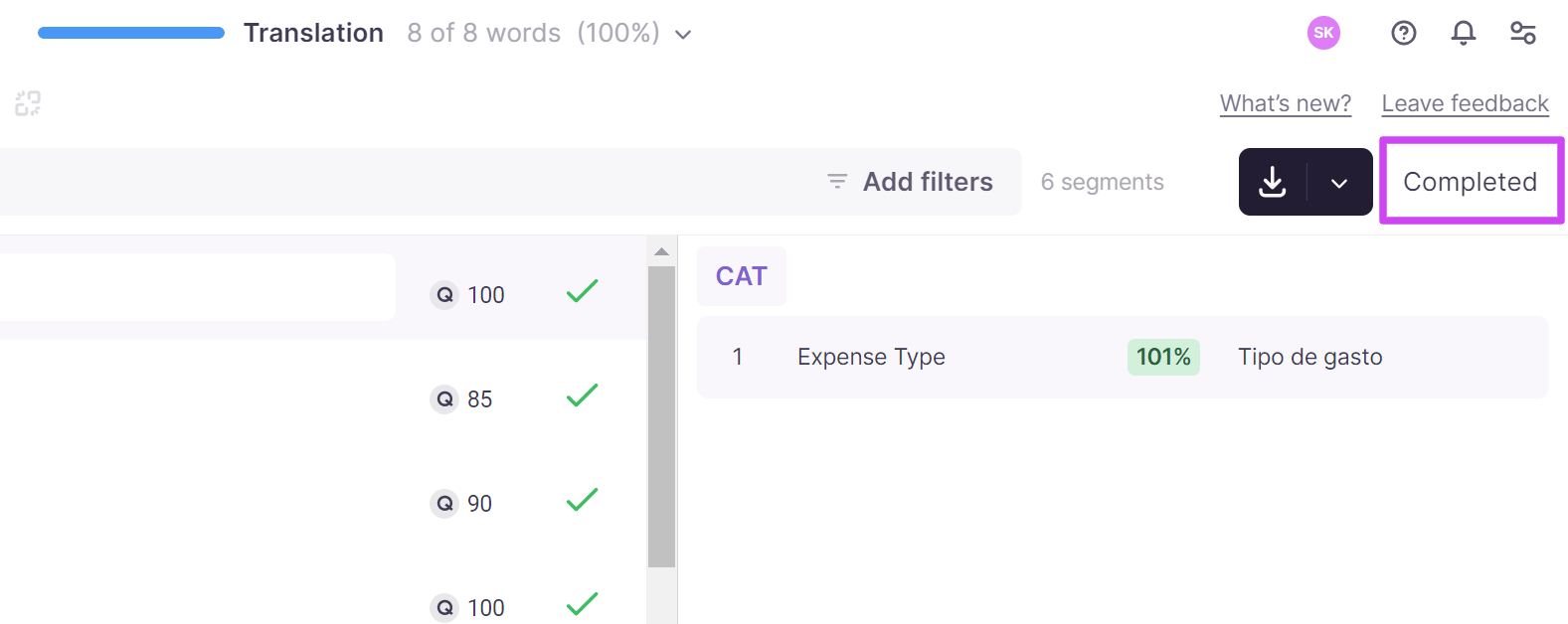
Your task is marked as completed for the current workflow stage.
📌 The Completed mark indicates only that the current workflow stage is finished. If you keep working on the document, the mark is removed automatically.
💡 If at least one segment is unconfirmed, the Done button is inactive. If all segments are confirmed but you have not clicked Done, the completion mark is set automatically after a while.
FAQs
Why is the Done button greyed out on my task?
The Done button is inactive if at least one segment in the document is still unconfirmed. Confirm all segments first.
What does the Completed mark actually indicate?
It shows that the current workflow stage is finished — not that the entire multi-stage project is done. If you keep editing the document afterward, the mark is automatically removed.
Do I need to click Done if I've already confirmed every segment?
Not strictly — if all segments are confirmed but you never click Done, Smartcat automatically applies the completion mark after a short delay.
If I'm working on a project someone else created, do I download the file myself?
No — for projects created by a client, the client downloads the translation themselves; you just mark your assigned task as finished with the Done button.
Want to learn more?
See how Smartcat can transform your localization workflow.
Still need help?
Our support team responds within one business day.