Perform layout checks on your documents
Overview
Sometimes when you upload a file to Smartcat, you may want to check it for proper formatting of the layout, including text and images, before you move on to translation. Maybe you processed the file with OCR and aren't sure about the results, or you want to make sure the resulting file's formatting isn't off. Whatever the reason, adding the layout check as an extra step in the project lets you change the document layout after it's been uploaded to Smartcat.
There are two options: the source layout check, used before you start work in the CAT editor, and the layout check/DTP for the resulting document.
📌 This workflow step is only available for company profiles.
If you are a freelancer and need to check the layout of a document processed with OCR, here's what you can do:
-
Upload the file and process it with OCR
-
Download the resulting file, which will be in .docx format. If there was no translation, it will just be the source text
-
Correct it if needed and upload it back to Smartcat
Source layout check
The source layout check often goes with OCR. Text extraction doesn't always work perfectly, so checking the document first can be a good idea, specifically for graphic file formats with poor image quality. You can add the layout check when creating a project, like any other workflow step, although it belongs to its own Pre-processing category.
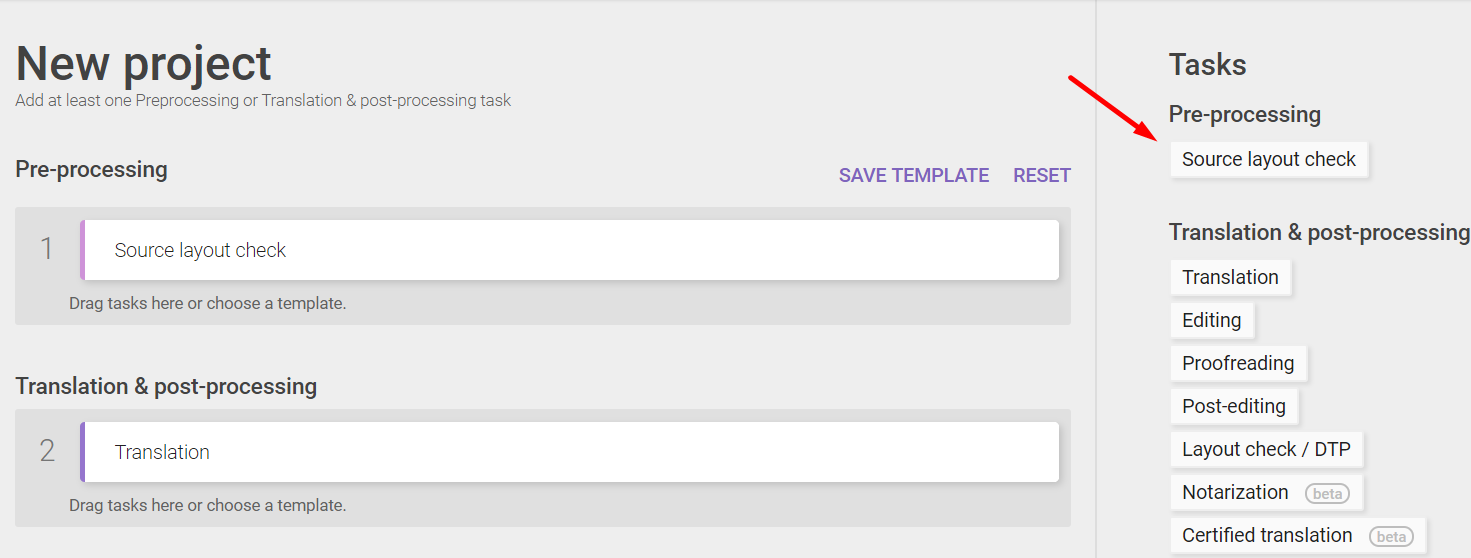
You can add the source layout check after a project has been created too, as long as the project still has the Created status. The source layout check can only be done before work on other workflow stages, such as translation, begins.
Both an assignee and a manager can export the source document, check and correct it, and upload it back.
📌 Smartcat does not apply any linguistic assets (Translation Memory, or TM, or AI translation) to the files selected for the layout check until the process is complete. Any statistics generated at that point do not include the word count from the files still at this stage.
To run a source layout check, click Open and select the Source layout check option from the context menu.
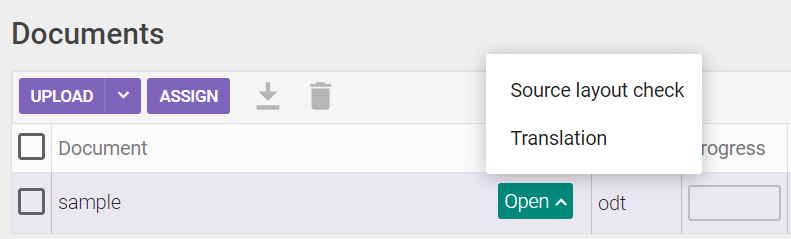
The Layout check page appears.
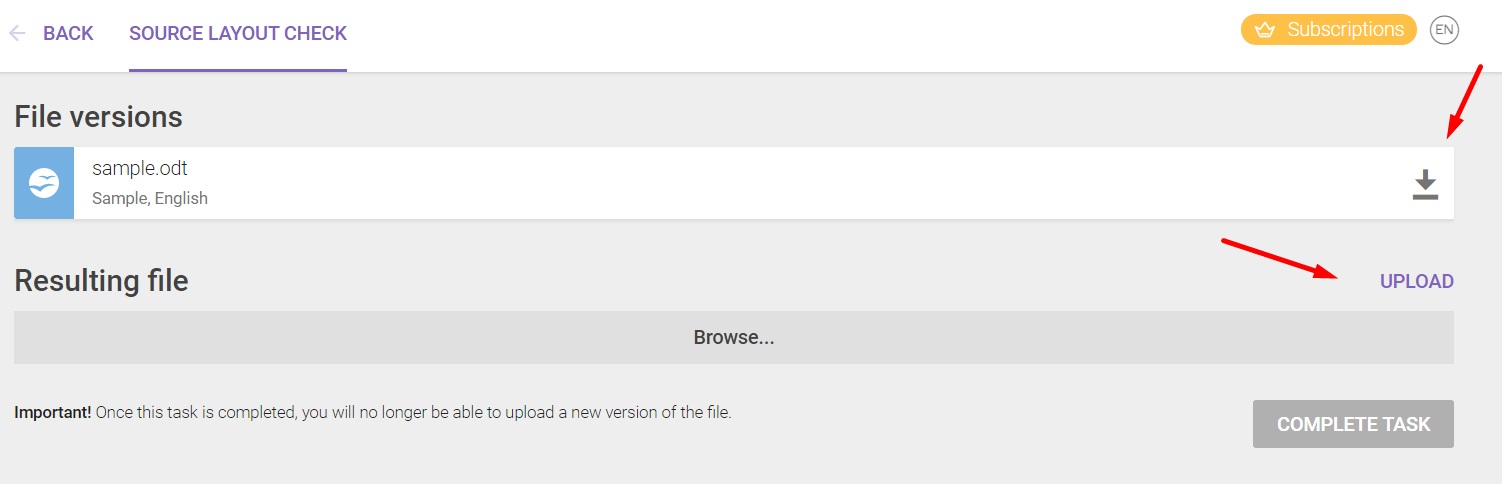
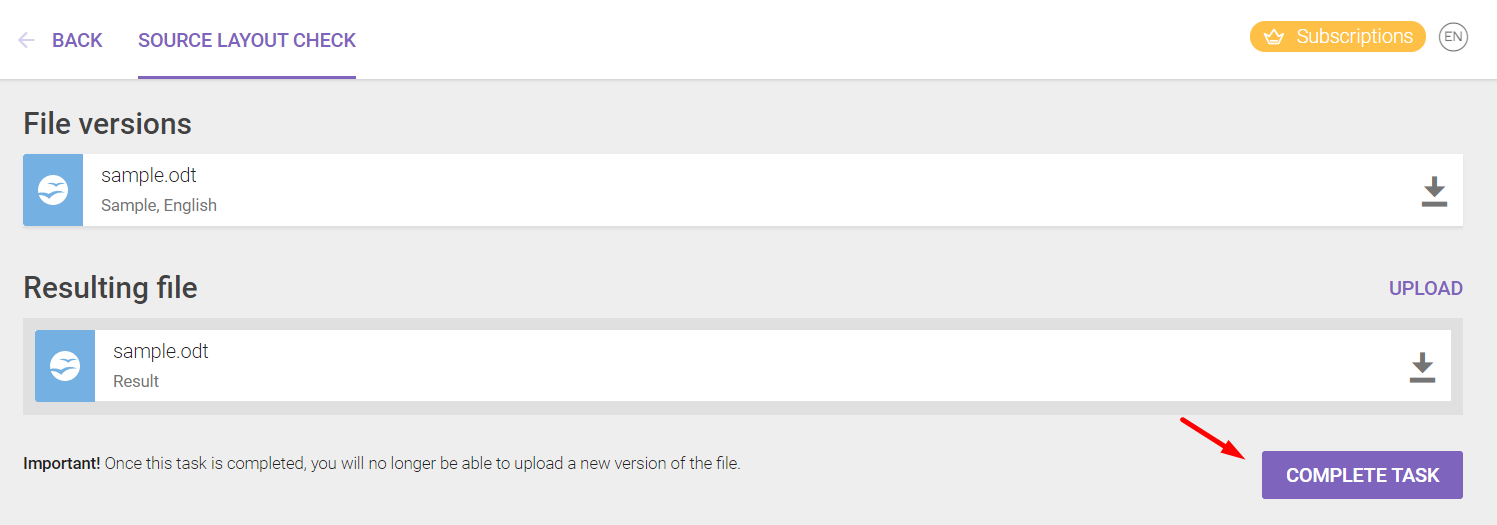
Here you can download the source document, then upload it back after checking and correcting it if needed. Once the layout check is finished, you can apply linguistic resources to it and include it in the statistics.
If you have used OCR, you can download the extracted .docx file, or use it as the resulting file for the layout check right away.
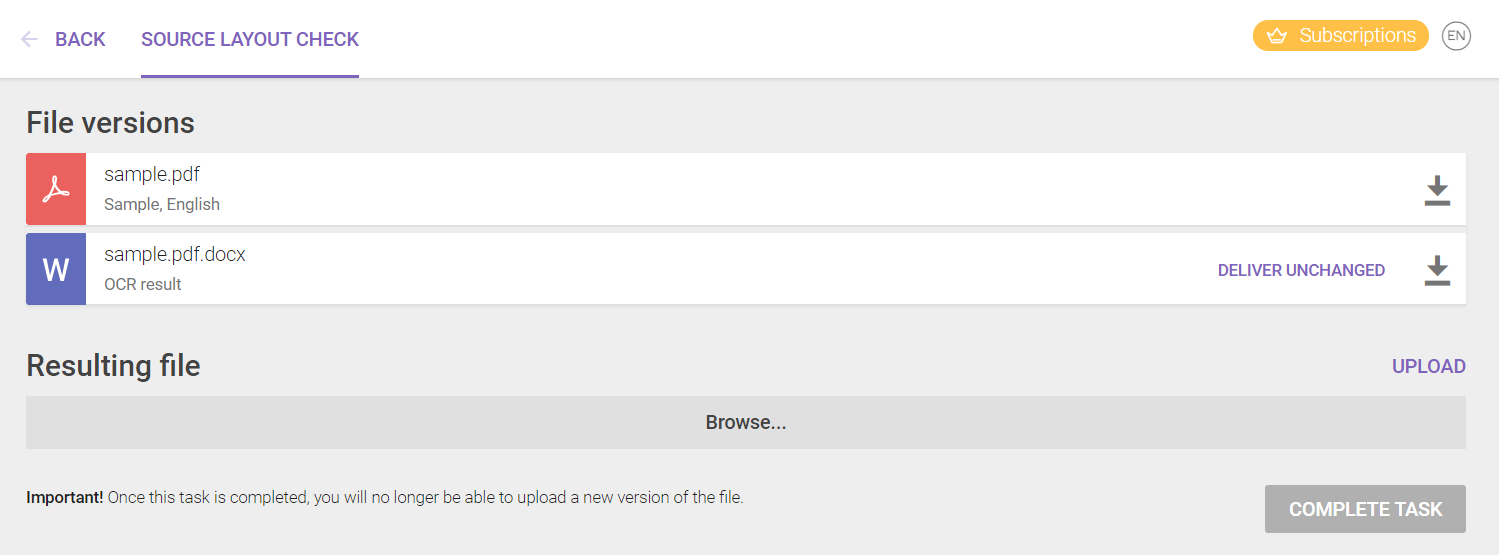
Once you are sure the file is good to go, click Complete task to finish the source layout check.
If you find that something is left to be done, you can restart the process as long as work on the next stage hasn't started yet.
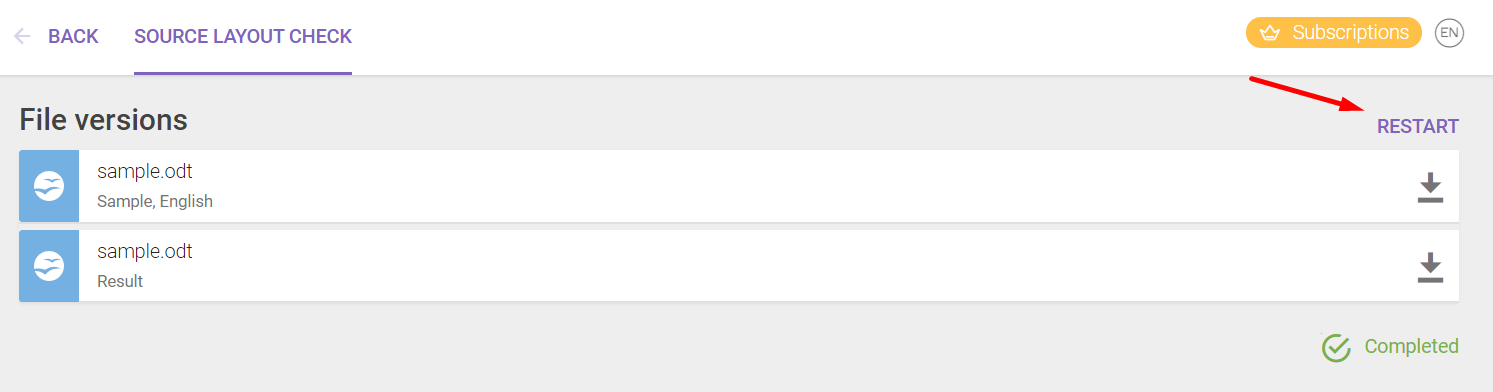
After you complete the source layout check, Smartcat applies your linguistic assets and includes the file in the project statistics.
Layout check/DTP
This option makes sure the final document looks as good as the original. This is specifically relevant for optically recognized texts but can apply to other files as well. Sometimes the translated text is longer or shorter than the source document, which can be a hurdle when working with complex files that have many elements.
Unlike the source layout check, the layout check/DTP can be added at any point in the project settings.
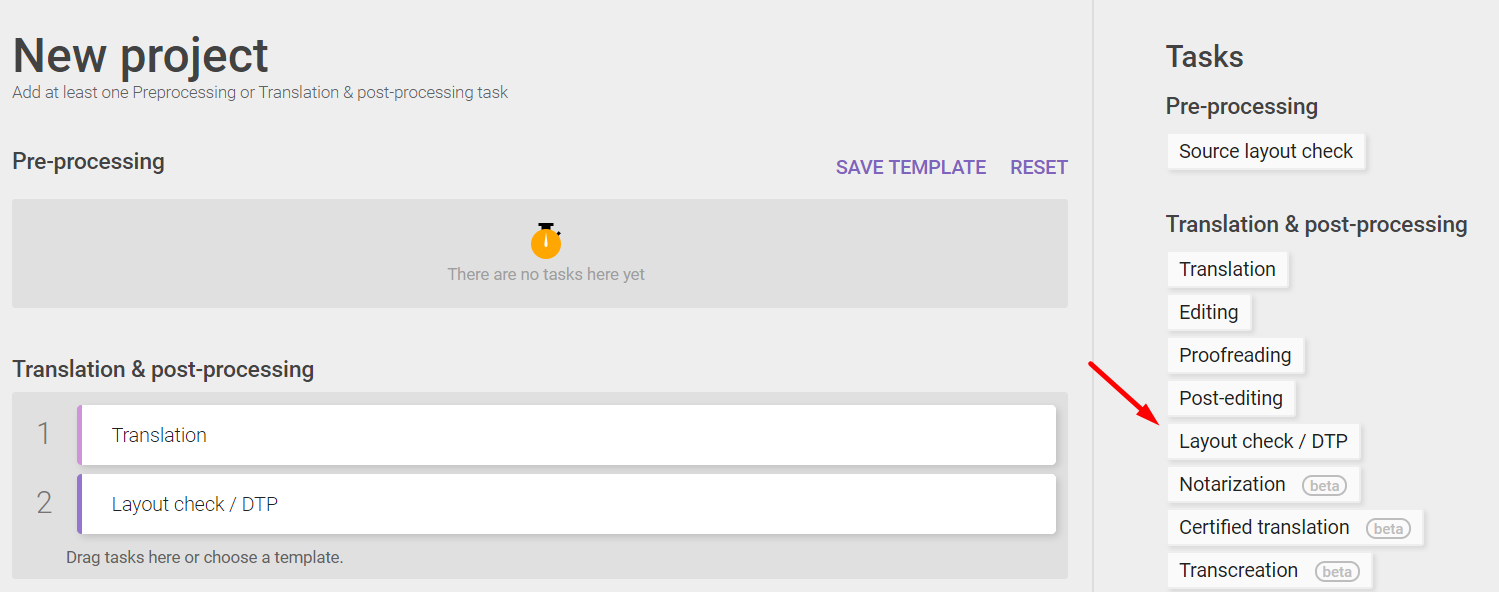
To start the layout check/DTP, select the option in the context menu.
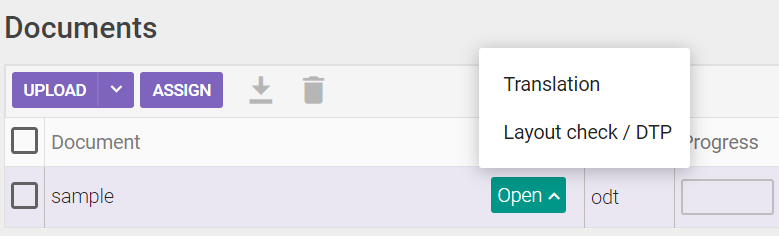
📌 The layout check/DTP can only be done once all previous tasks are finished.
For the layout check/DTP, both the source and the resulting files are available for check and comparison.
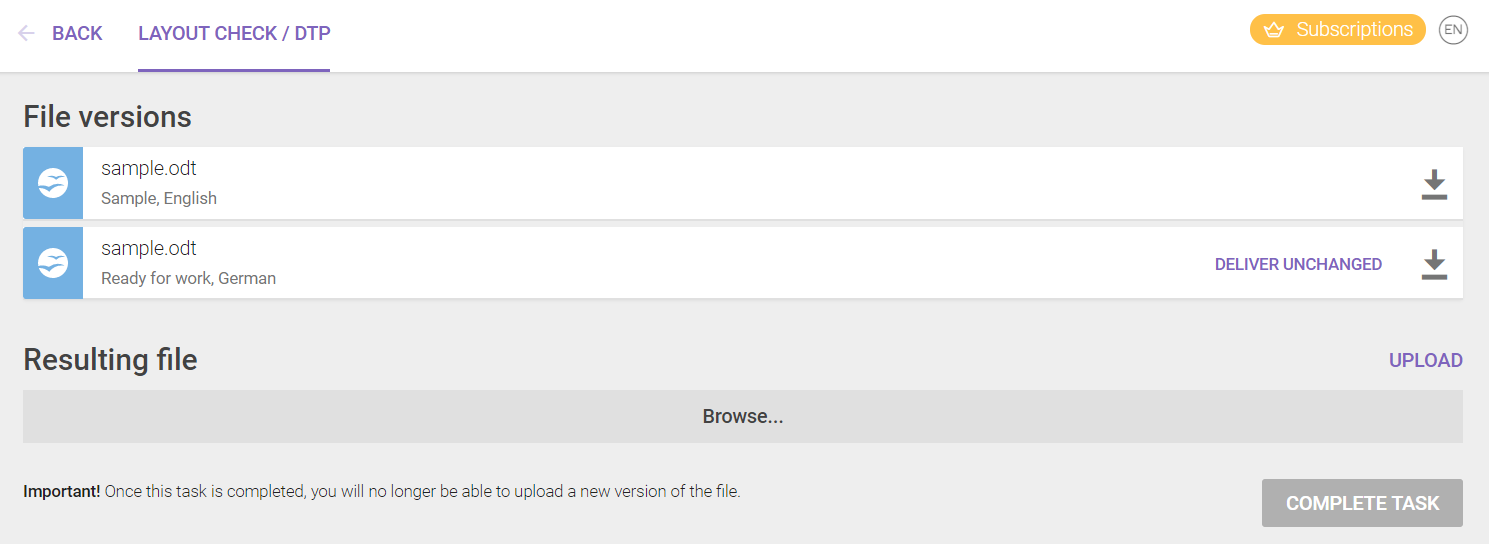
Download the translation and the source file for further adjustment, upload the result of your work, or click Deliver unchanged if everything is fine.
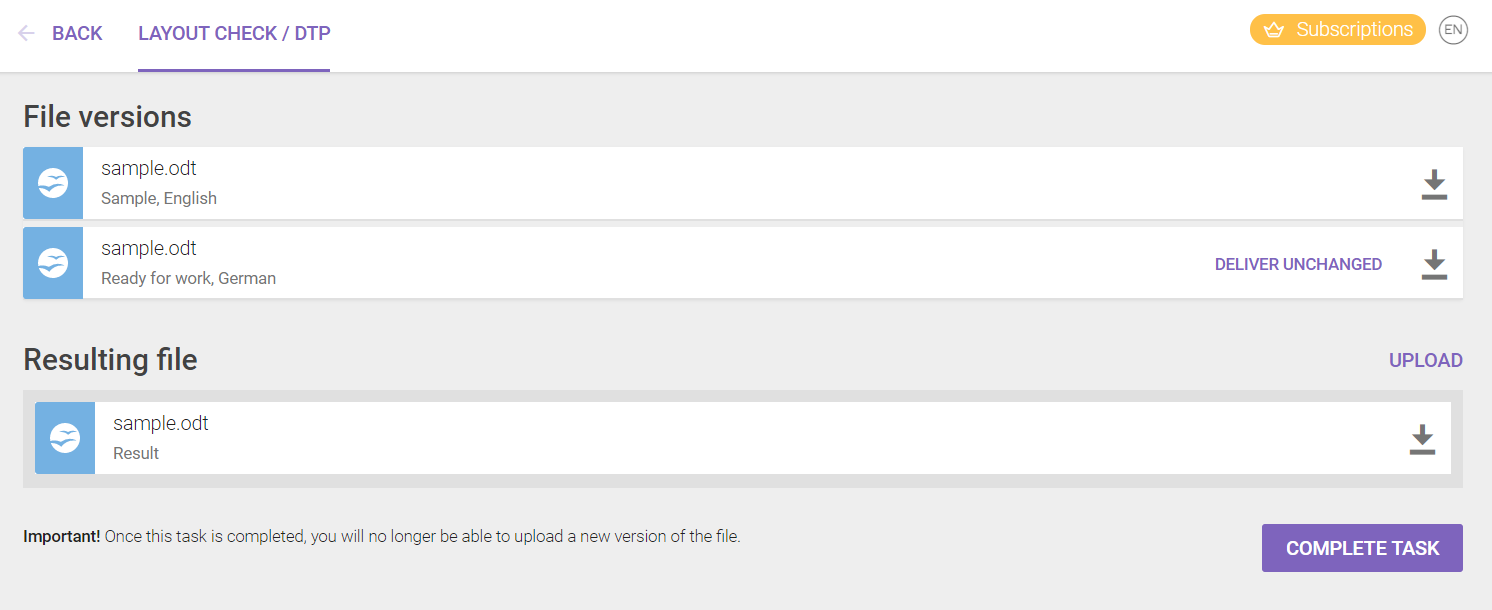
As with the source layout check, you can restart the process even after clicking Complete task.
How to assign the layout check
Layout check assignments are similar to regular assignments but have a few differences. As with regular assignments, you can select a team member for the job on the Task assignment page.
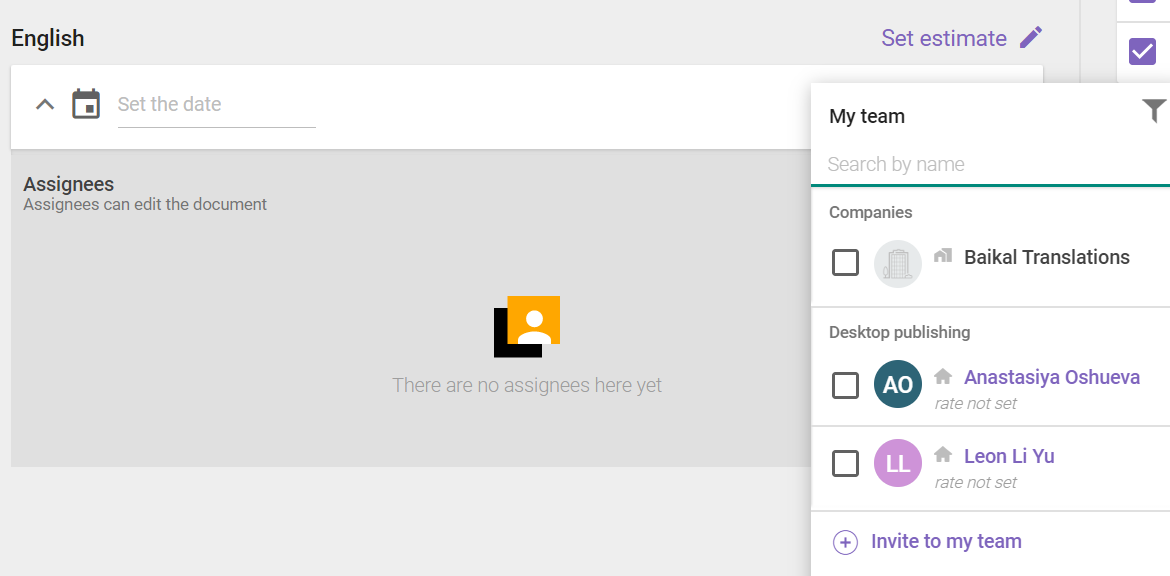
Your in-house team members show up in your team list either way, but freelancers from the Marketplace need this particular service indicated in their profiles to be assigned. You can do this in the linguists' private profiles at your end.
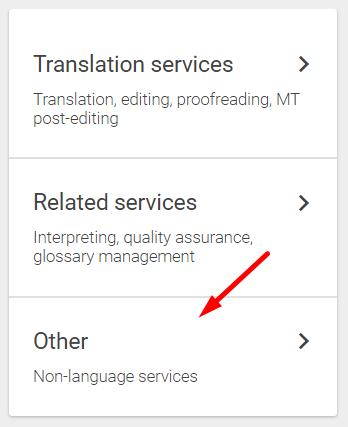
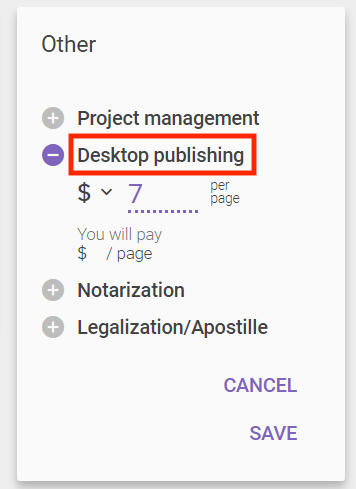
To add this service, click Add Service and select Other.
Choose Desktop publishing, set the rate, then click Save.
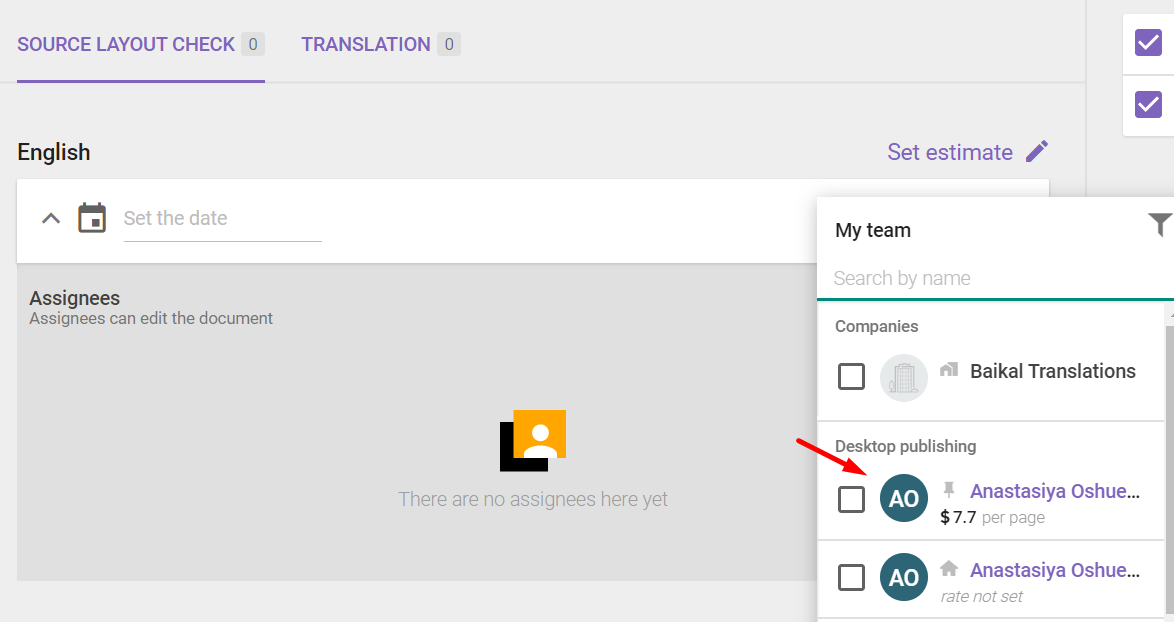
Back in assignments, the Marketplace freelancer now shows up on the list.
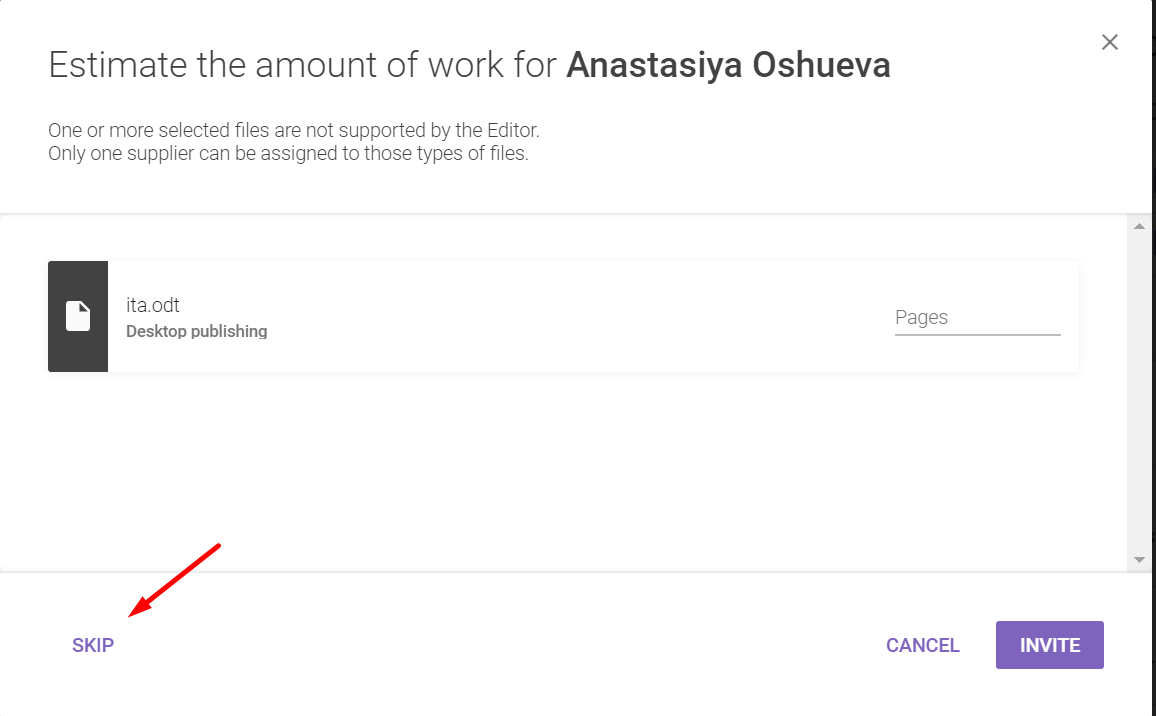
Once you've assigned a freelancer, you can set the estimate for their work in pages. You can skip this step for in-house members.
You can also use the Marketplace to look for freelancers with a Desktop publishing service.
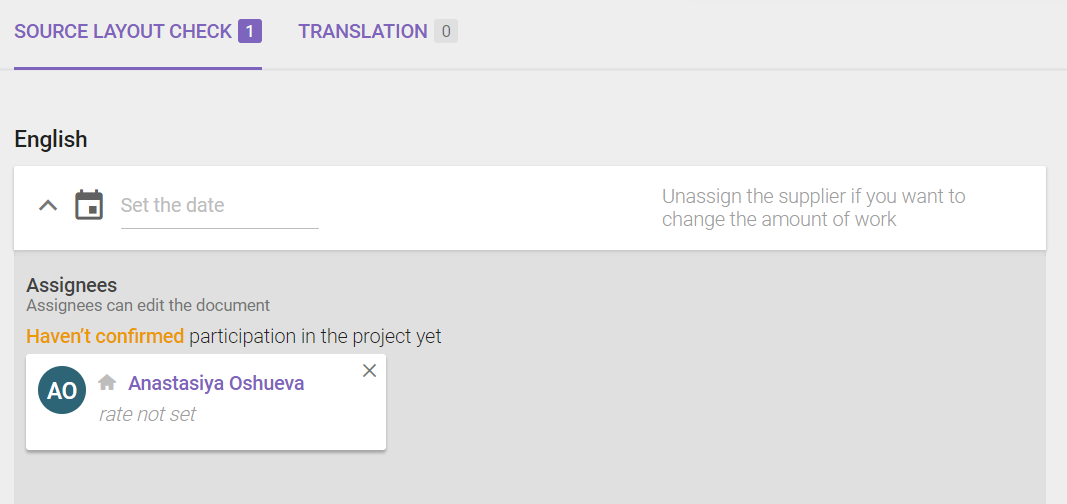
You have now added the layout check to your workflow and assigned it to a team member. It's worth trying if you work with graphic file formats or documents with complex structure and elements.
FAQs
What's the difference between a source layout check and a layout check/DTP?
The source layout check happens before translation begins (often paired with OCR, to fix extraction issues in the source), while layout check/DTP happens on the resulting translated document to make sure its final look matches the original.
When can I add a source layout check to my project?
You can add it when creating the project (as a Pre-processing step) or afterward, as long as the project is still in "Created" status — it must happen before any other workflow stage like translation begins.
Does the source layout check affect my project's word count statistics?
Yes — while a file is in the source layout check stage, Smartcat doesn't apply linguistic assets (TM or AI translation) to it and excludes its word count from statistics until the check is complete.
Is layout check/DTP available at any point in the project, or only at certain stages?
Unlike the source layout check, layout check/DTP can be added at any point, but it can only actually be performed once all previous workflow tasks are finished.
How do I assign a layout check task to a freelancer who isn't part of my in-house team?
Freelancers need "Desktop publishing" listed as a service on their profile to be assignable — add it via "Add Service" → Other → Desktop publishing, or search the Marketplace specifically for freelancers offering that service.
Is this feature available to freelancer accounts as well as companies?
The workflow step itself is only available for company profiles; freelancers who need to check OCR output can instead download, correct, and re-upload the resulting .docx file manually.
Want to learn more?
See how Smartcat can transform your localization workflow.
Still need help?
Our support team responds within one business day.