Translate memoQ documents in Smartcat
Overview
You can translate memoQ documents in Smartcat by exporting them as bilingual XLIFF files, uploading them to a Smartcat project, and then reimporting the completed translation back into memoQ. This guide walks you through each step and the import settings you can configure.
Export files from memoQ
-
In memoQ, select the files you want to translate
-
Right-click and choose Export Bilingual in the context menu
-
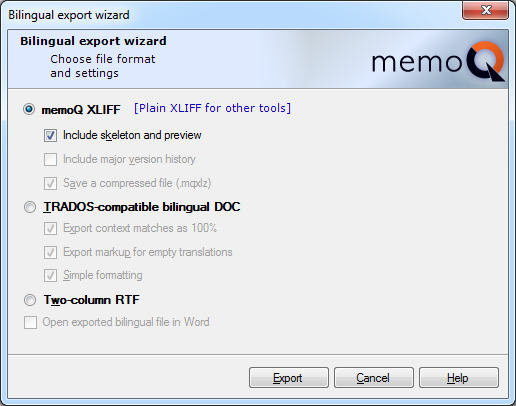
Choose memoQ XLIFF
-
Click Plain XLIFF for other tools
memoQ produces .mqxliff files that you can upload to Smartcat.
Upload the .mqxliff files in Smartcat
Create a Smartcat project or add the files to an existing project.
📌 The language pair of the Smartcat project must match the language pair of the memoQ document.
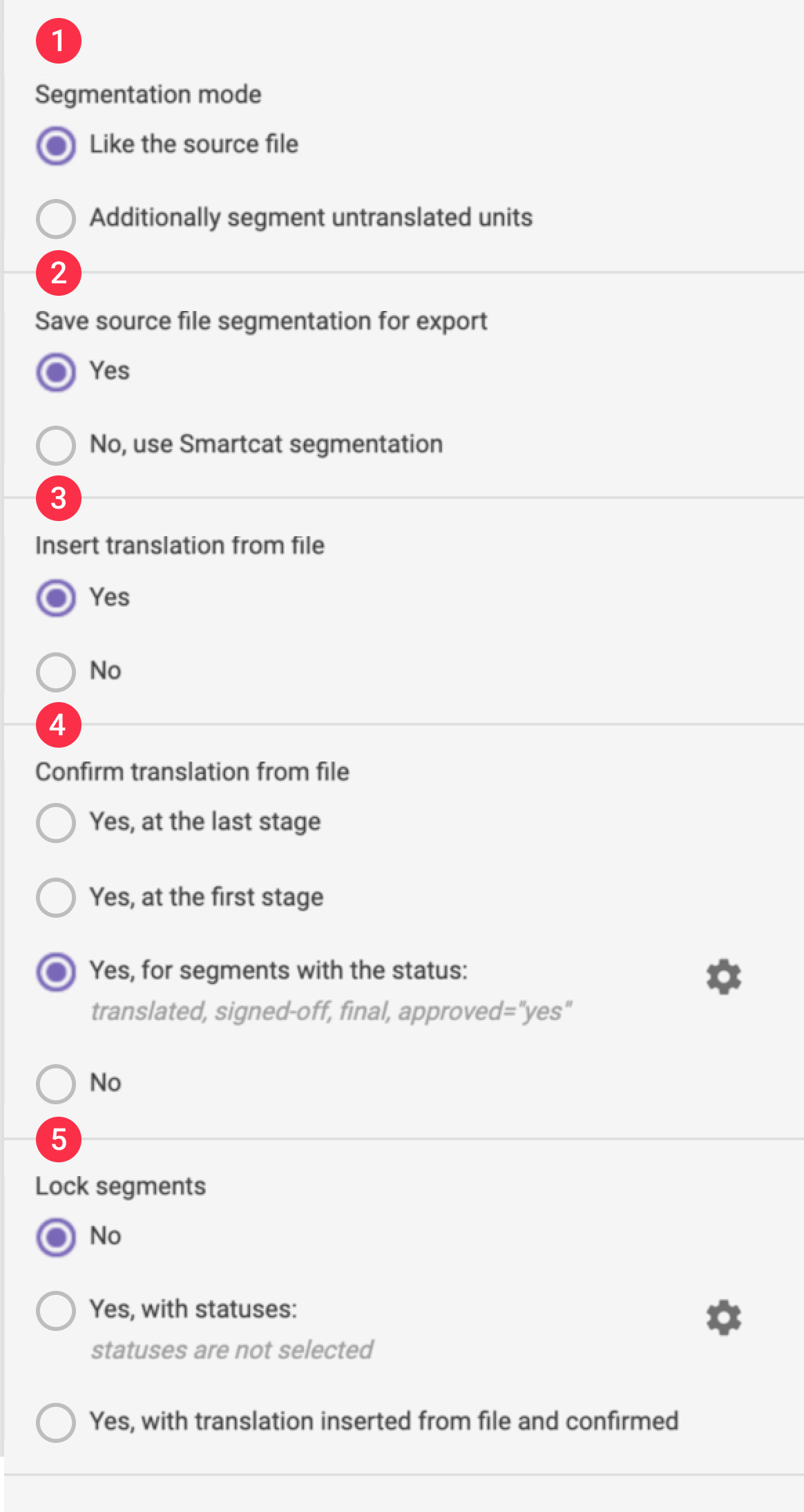
You can configure the following settings when importing the document.
Segmentation
This option lets you keep the segmentation exactly as it is in the original document by selecting Like the source file, or split existing untranslated segments into sentences by selecting Additionally segment untranslated units. Splitting into sentences can be useful if the document was originally segmented by paragraphs, because single sentences have a better chance of matching entries in the Translation Memory (TM). Smartcat does this automatically while processing the file.
Revert segmentation on export
This option refers back to the segmentation option above. If you selected Additionally segment untranslated units and split the original segments into sentences, this option reverts the segmentation back to that of the original file when you export. If you select No, use Smartcat segmentation, the exported file keeps the segmentation Smartcat applied when it re-segmented the file.
💡 It is usually better to revert the file's segmentation to the original, because a changed segmentation can cause problems when the client reimports the file.
Keep existing translations
When you import an XLIFF file, it may already contain translations. To keep them, choose Yes. This is useful when you translated the file in a different CAT editor and want to assign an editor through Smartcat. If you select No, the translated segments are ignored and the translation starts from scratch.
Confirm imported segments
If the file has already-translated segments, this option controls when those segments are confirmed inside Smartcat. For example, in a project with TEP (Translation, Editing, Proofreading) workflow stages:
-
Yes, at the last stage — segments are confirmed as Proofread and locked for the linguistic team
-
Yes, at the first stage — segments are confirmed as translated but still require Editing and Proofreading confirmation
If you select Yes, for segments with the status:, a popup opens.
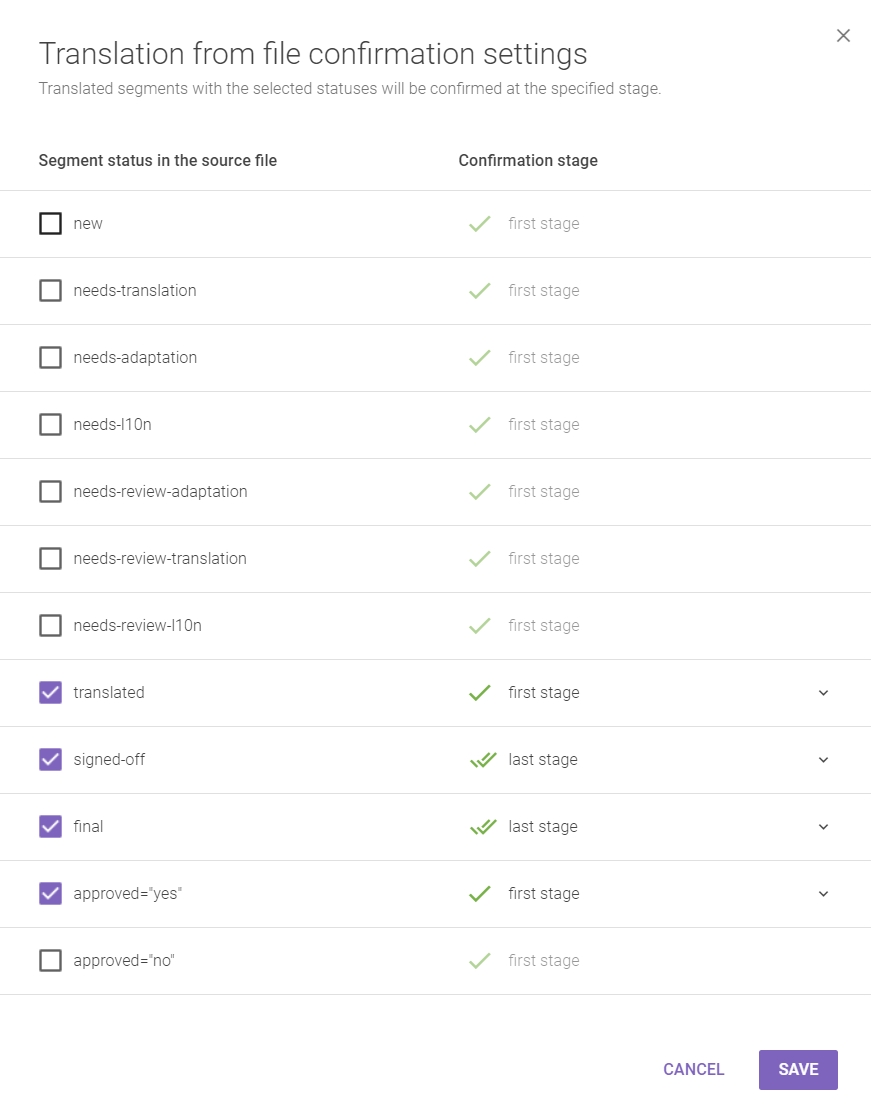
Here you can customize how segments are confirmed based on their status in the XLIFF file and their workflow stage in Smartcat. In the screenshot above, segments with the final status in the XLIFF file are approved as Proofread in Smartcat, while segments with the translated status are approved only for the translation stage.
Lock segments
This option lets you completely lock segments so that no further action can be taken. If you select Yes, with statuses:, a popup opens showing the statuses from the previous step. Select specific statuses, and when Smartcat parses the document it locks all segments whose status matches your selection.
If you choose Yes, with translations inserted from file and confirmed, the segments confirmed through the Confirm imported segments option are also locked.
Import the translated document to memoQ
-
When you finish working with the document, export the translation from Smartcat
-
In memoQ, click Import/update bilingual or open the Import menu
-
Choose Update as the action to perform on the document
memoQ updates the original document with your Smartcat translation.
FAQs
What file type do I need to export from memoQ before uploading to Smartcat?
Export a bilingual file from memoQ using Export Bilingual → memoQ XLIFF → Plain XLIFF for other tools. This produces an .mqxliff file you can upload to a Smartcat project.
Does the Smartcat project's language pair need to match my memoQ document?
Yes — the language pair of the Smartcat project must match the language pair of the memoQ document you're importing.
Should I revert Smartcat's segmentation back to the original when exporting?
Generally yes. Reverting to the original segmentation (rather than keeping Smartcat's re-segmentation) is usually safer, because a changed segmentation can cause problems when the file is reimported into memoQ.
What happens to translations that are already in the XLIFF file I'm importing?
You choose: select "Yes" under "Keep existing translations" to preserve them (useful if the file was translated in a different CAT tool), or "No" to ignore them and start the translation from scratch.
How do I get my finished translation back into memoQ?
Export the completed translation from Smartcat, then in memoQ use "Import/update bilingual" (or the Import menu) and choose "Update" as the action — memoQ then updates the original document with the Smartcat translation.
Want to learn more?
See how Smartcat can transform your localization workflow.
Still need help?
Our support team responds within one business day.