Interact with comments in the CAT editor
Overview
In the CAT editor, you can add notes and explanations to an entire document or to a specific segment. Comments help your team communicate and keep context clear throughout a translation project.
Comment on the whole document
-
Open the Document comments tab
-
Type your message
-
Press Send or Enter to add a note that applies to the entire text
A document comment is useful, for example, for instructions from project managers to the team.

Comment on a specific segment
-
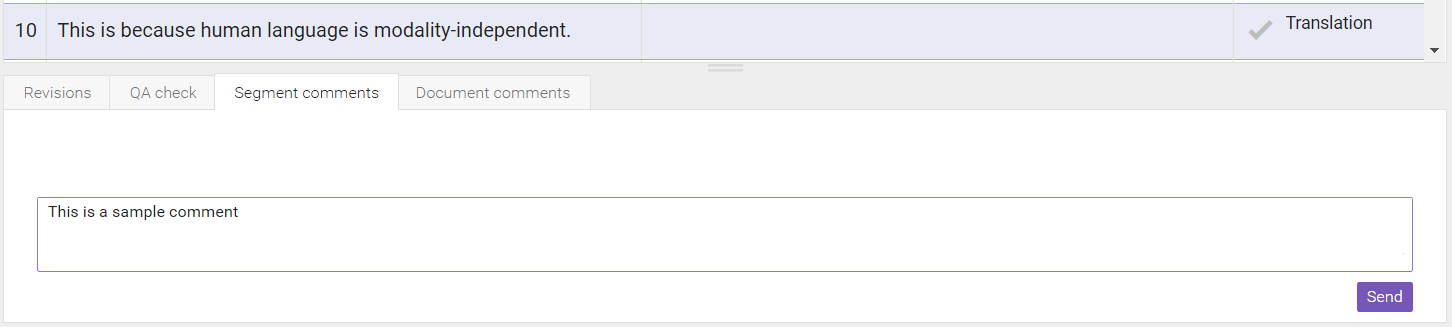
Open the Segment comments tab
-
Type your message
-
Press Send or Enter
💡 To start a new line within a message, use Ctrl+Enter.
Read and track comments
Messages within a document are visible to all users assigned to the document. When another user adds a comment to the entire document or to a specific segment, the corresponding tab is highlighted, along with the message icon in the source field.

After you read all new comments on a segment, the message icon turns black.

⚠️ You can delete a comment for up to 15 minutes after adding it. Past that time, comments cannot be deleted.
💡 In multilingual projects, comments added to segments or the document are replicated automatically across all languages, so a project manager does not need to repeat information from one language team to another. For example, if one translator asks a question about a term, the whole team sees the question and answer regardless of the language they translate into. Use the chat page for private communications.
Structured commenting
Besides commenting on the whole document or a specific segment, you can use structured commenting to annotate a word or phrase or add a quality assurance label.
- Select the element you want to annotate
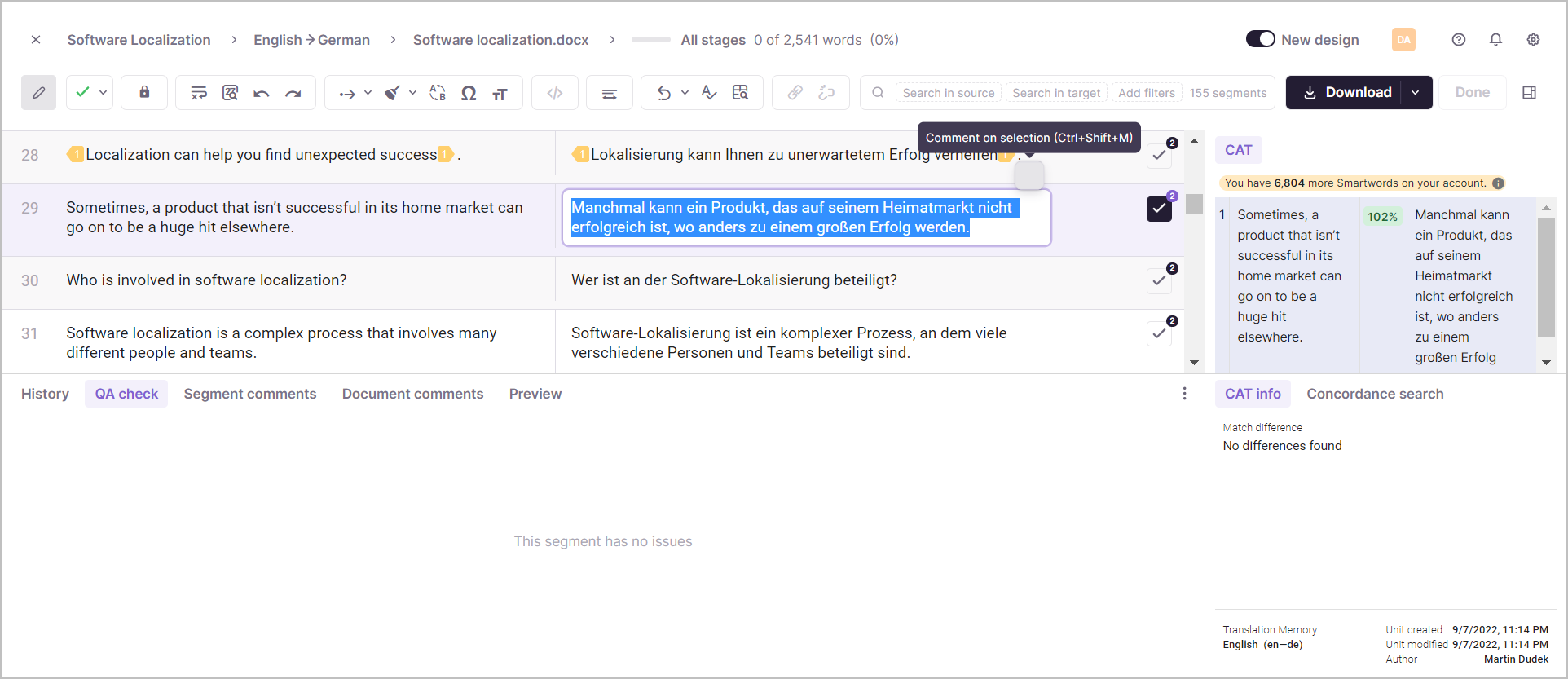
- Type your comment in free form, and select or create a quality assurance label to add
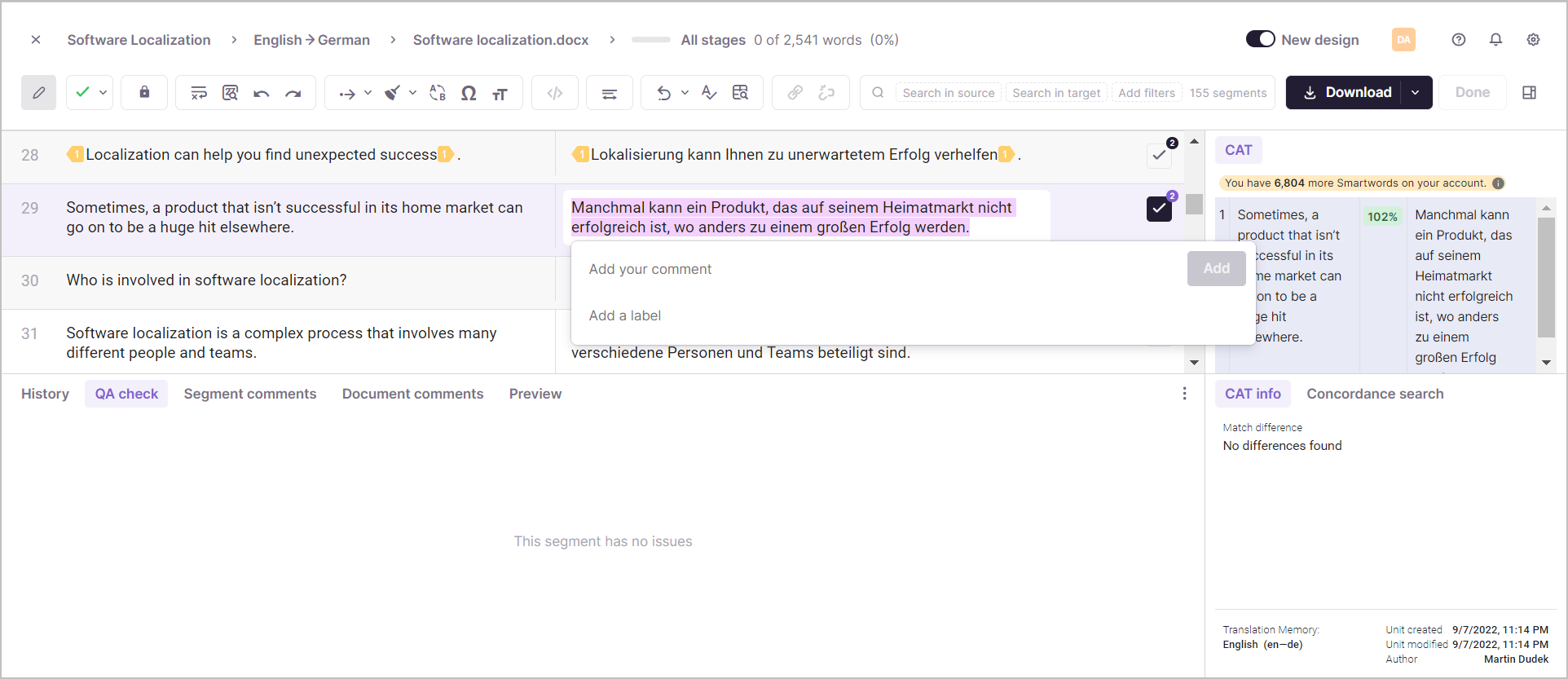
Your structured comments and labels appear in the Segment comments section.
You can now annotate specific text and track quality issues alongside your regular comments.
Want to learn more?
See how Smartcat can transform your localization workflow.
Still need help?
Our support team responds within one business day.