Getting Started with Smartcat AI
Overview
Smartcat AI introduces a new way to interact with the platform through natural language chat. You can describe what you need in plain language and Smartcat AI handles the setup for you.
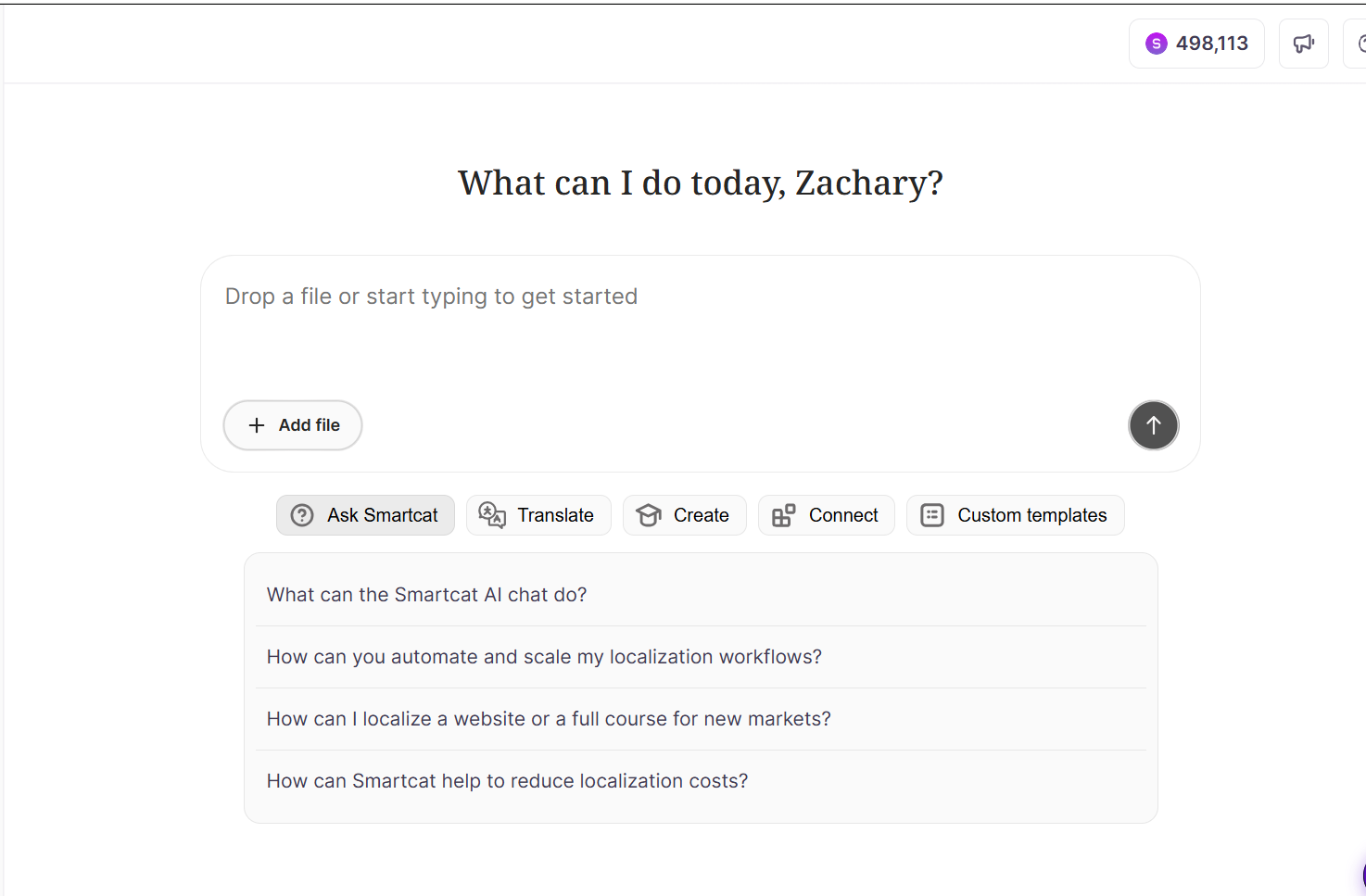
When you upload a file and describe your task, Smartcat AI:
-
Clarifies your intent, if required, by asking questions if it does not have enough input or context
-
Suggests a Smartcat workflow
-
Summarizes the tasks and waits for your confirmation
-
Creates a project and Drive folder and starts AI-translation, if AI-translation is the first workflow stage
-
Returns the result of the translation in chat. If the workflow is AI-translation only, you can download the result. If there are review steps, the chat guides you to the project.
From there, you complete your task in the familiar Project interface.
Key Benefits
-
Faster workflow initiation: No manual project setup required
-
Simplified experience: Natural language input instead of navigating tiles
-
Automatic file organization: AI creates projects and Drive folders for you
-
Seamless transition: Work continues in familiar project workflows
Accessing Smartcat AI
Existing users: You can opt in to the new experience from the homepage. You can also opt out at any time to return to the classic interface.
How It Works
Step 1 — Upload your file
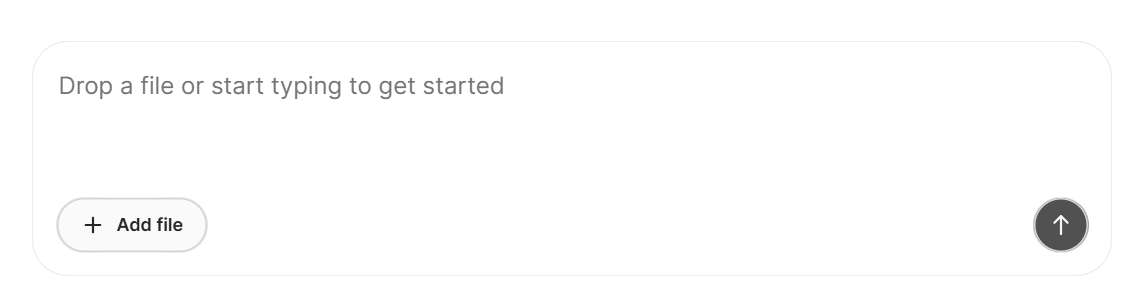
Open Smartcat AI and upload a file directly in the chat interface.
Step 2 — Describe your task
Tell Smartcat AI what you need in natural language. For example: "Translate this file to Spanish" or "Help me localize this document for the German market."
Step 3 — Confirm parameters (if needed)
Smartcat AI may ask clarifying questions about source language, target language, or workflow preferences.
Step 4 — Review the results
Smartcat AI creates your project and returns:
-
A link to the project
-
A link to the Drive folder containing your files
-
A link to the translation result (for quick translations)
Step 5 — Continue in the Project interface
Click the project link to review, manage, and complete your task using the standard Project workflow.
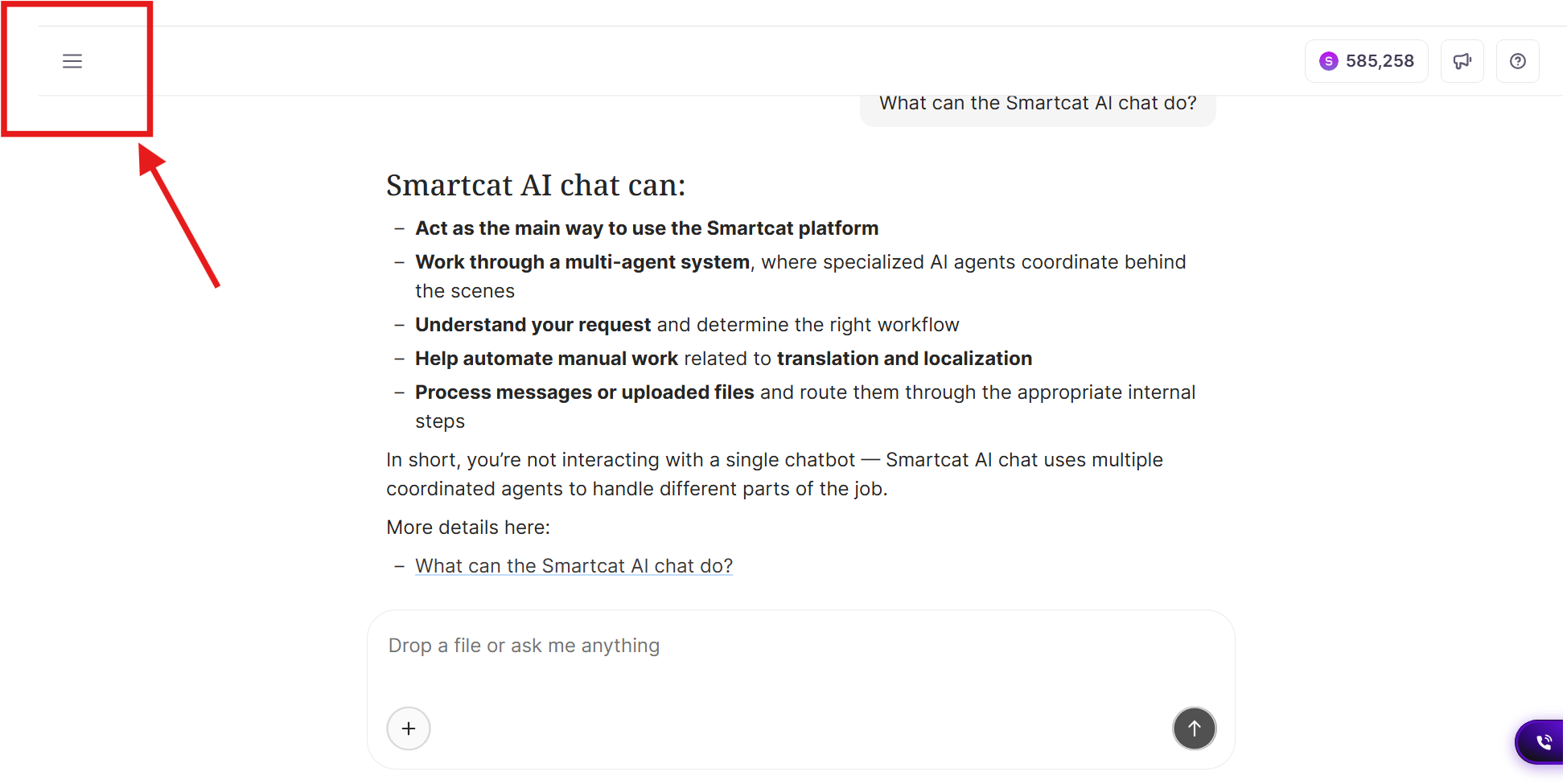
Once you begin a chat, you can return to the left navigation sidebar at any time by clicking the Menu icon at the top right of the screen
Homepage Layout
The new homepage displays:
-
Smartcat AI chat input: The primary way to start tasks
-
Shortcuts: Quick-access buttons organized by category. Click one of these shortcuts to paste a prompt directly in the Smartcat AI chat
Shortcut Categories
Ask Smartcat
Pre-configured questions to help you get started:
-
"What can the Smartcat AI chat do?"
-
"How can you automate and scale my localization workflows?"
-
"How can I localize a website or a full course for new markets?"
-
"How can Smartcat help to reduce localization costs?"
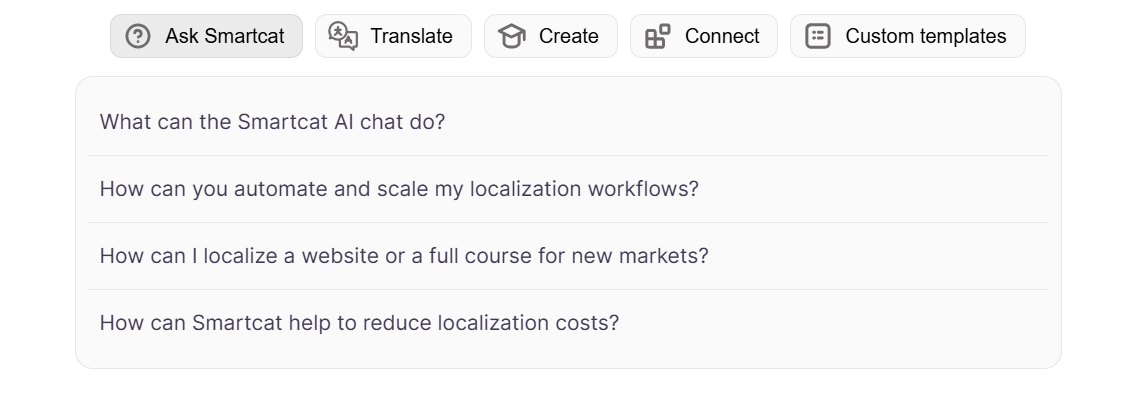
Hover over a question to preview it in the chat. Click to send it.
Translate
| Shortcut | What it does |
|---|---|
| Translate a file | Start a file translation workflow |
| Translate video | Get help with video localization |
| Translate website | Begin website translation setup |
| Translate software | Open the software localization wizard |
Create
| Shortcut | What it does |
|---|---|
| Create a course | Build a complete course with guided steps |
| Create a microlearning | Develop short, focused lessons |
| Create a quiz | Design engaging quizzes |
| Import SCORM file | Import and transform a SCORM package |
Connect
| Shortcut | What it does |
|---|---|
| Figma | Connect Smartcat to Figma |
| Google Drive | Link a Google Drive folder |
| OneDrive | Link OneDrive to Smartcat |
| Contentful | Set up Contentful integration |
| Show all connectors | View all available integrations |
Custom Templates
If you have custom project or service templates, they appear here as shortcuts. Custom workflows continue to work as before.
Google Drive Connected Folders
If you have connected Google Drive folders, they appear as shortcuts below the chat input.
-
Each folder acts as an entry point for working with files from that location
-
Hover over a folder to see the prompt: "I want to work with files from my [Folder Name] Google Drive folder"
-
Click to start working with files from that folder
Chat History
Access your previous Smartcat AI conversations from the left navigation menu under Chats.
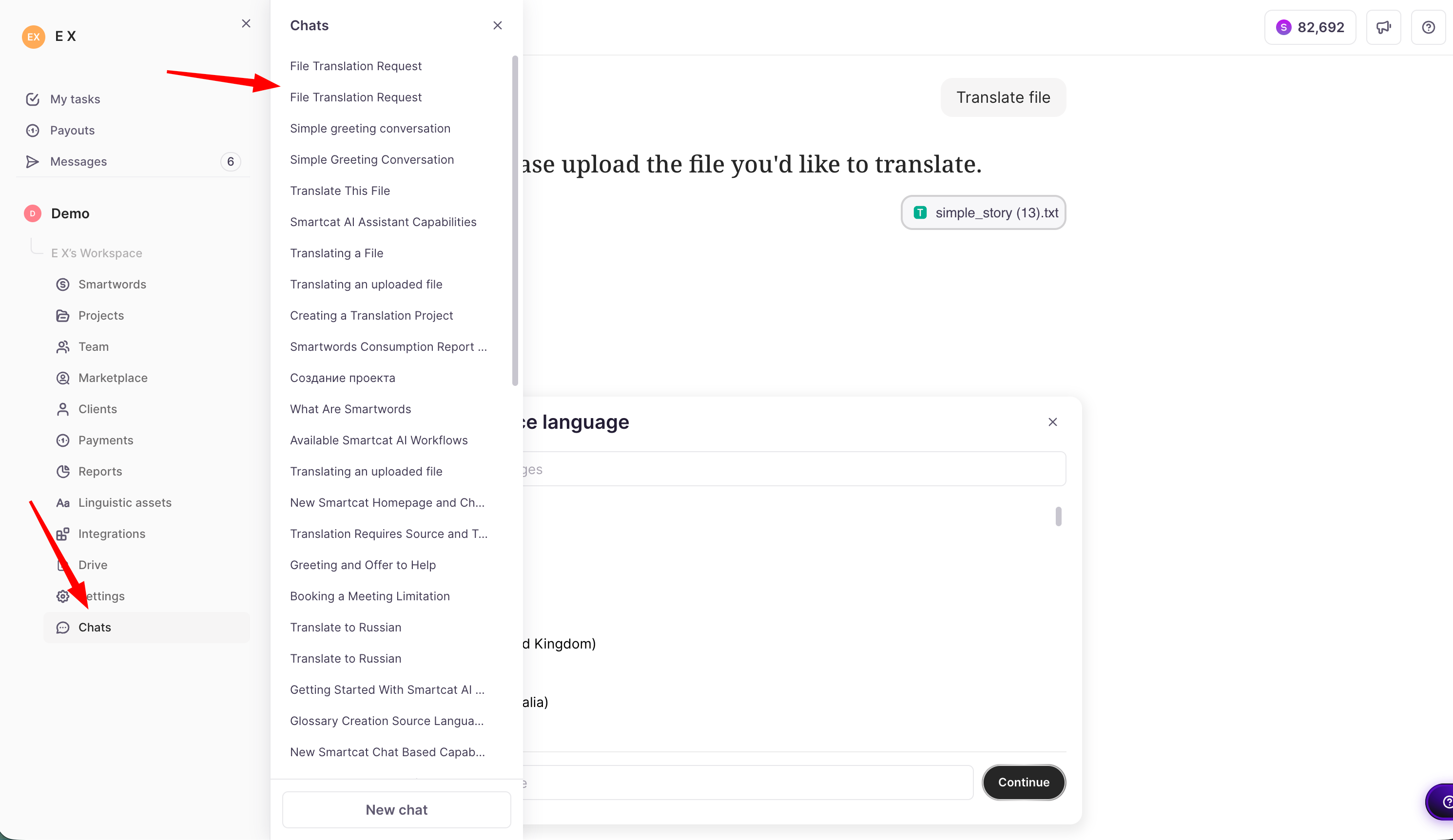
What's stored in chat history
-
Your prompts and requests
-
Smartcat AI responses
-
Links to created projects
-
Links to Drive folders
-
Links to translation results
Limitations
-
Chat history is personal — you cannot see other users' conversations
-
Files are referenced via links, not stored directly in chat history
⚠️ If you cannot find a previous conversation, verify you are logged into the correct workspace account.
FAQs
Do I have to manually configure a project before I can translate a file with Smartcat AI?
No — that's the point of Smartcat AI: upload a file and describe your task in plain language (e.g., "Translate this file to Spanish"), and it sets up the project and workflow for you, asking clarifying questions only if needed.
Can I switch back to the classic interface if I don't like the new chat-based homepage?
Yes — existing users can opt in to the new experience from the homepage and opt out at any time to return to the classic interface.
What does Smartcat AI actually create when I upload a file?
It creates a project and a Drive folder for your files, and returns links to both, plus a link to the translation result if the workflow is AI-translation only.
Can I connect my Google Drive or OneDrive folder directly to Smartcat AI?
Yes — connected folders appear as shortcuts on the homepage; clicking one starts a task using files from that folder.
Is my chat history with Smartcat AI visible to other people in my workspace?
No — chat history is personal to you; you can't see other users' conversations, and files are referenced via links rather than stored directly in the chat history.
Want to learn more?
See how Smartcat can transform your localization workflow.
Still need help?
Our support team responds within one business day.