Understand and use linguistic assets
Overview
Smartcat linguistic assets are AI-driven capabilities in Smartcat that help you achieve better quality and consistency. They include Translation Memory (TM) and glossaries, and you can access them right on your private Smartcat Workspace.
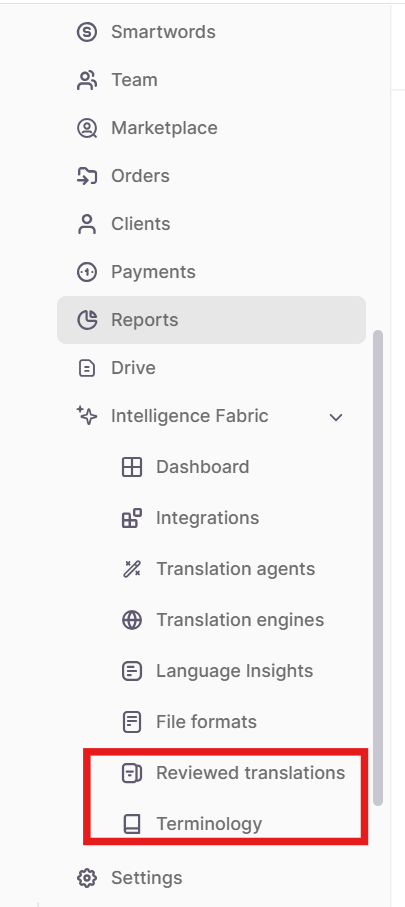
You access Linguistic assets from the sidebar under Intelligence Fabric.
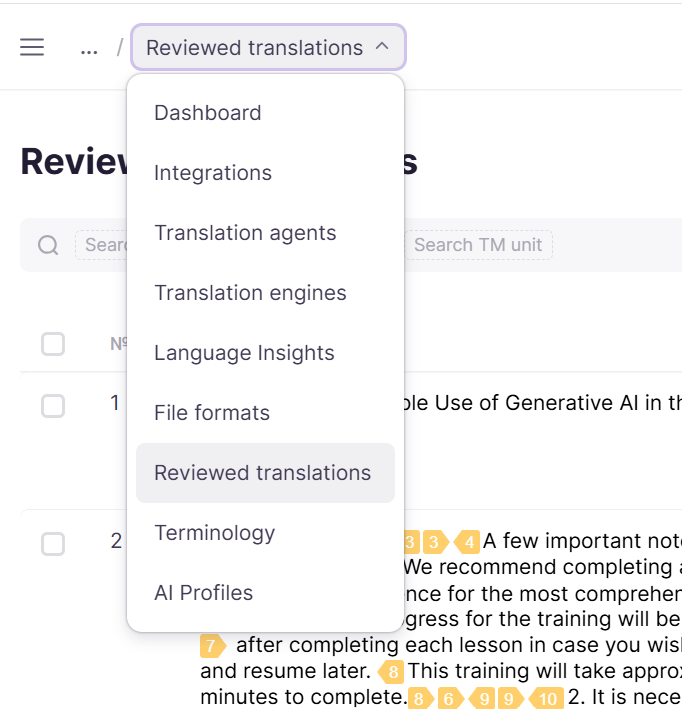
When you click Intelligence Fabric, you see a dropdown with several options. Click Reviewed translations to view and configure your translation memories. Click Terminology to view and configure your glossaries. You can switch between them by clicking the name of the asset in the top left corner and selecting a different screen.
Understanding glossaries
Glossaries, located on the Terminology page, are organized collections of approved translations for specific terms. These can be technical terms, industry-specific jargon, or set words that are used frequently in your content.
While you can use translation memories to search for previous translations of a given term, glossaries provide a much more structured and organized interface, making them easier to use and maintain.
How do glossaries work?
After you create or import a glossary, you can associate it with a specific project.
When you enable a glossary on a project, Smartcat automatically suggests the glossary-saved term during automatic AI translation.
You can create and keep separate glossaries for different subjects and clients, and add terms with translations into other languages.
Each time you create a project, you can specify a client or department for it. Smartcat automatically enables the relevant glossary from the list you have already created for this client or department.
How to create a glossary in Smartcat
Create a glossary with as many languages as you like in Smartcat. There is no limit.
-
Go to Terminology from the sidebar, as described above
-
Click Create Glossary
-
In the next window, enter a unique name and the languages to be used, along with client and project tags
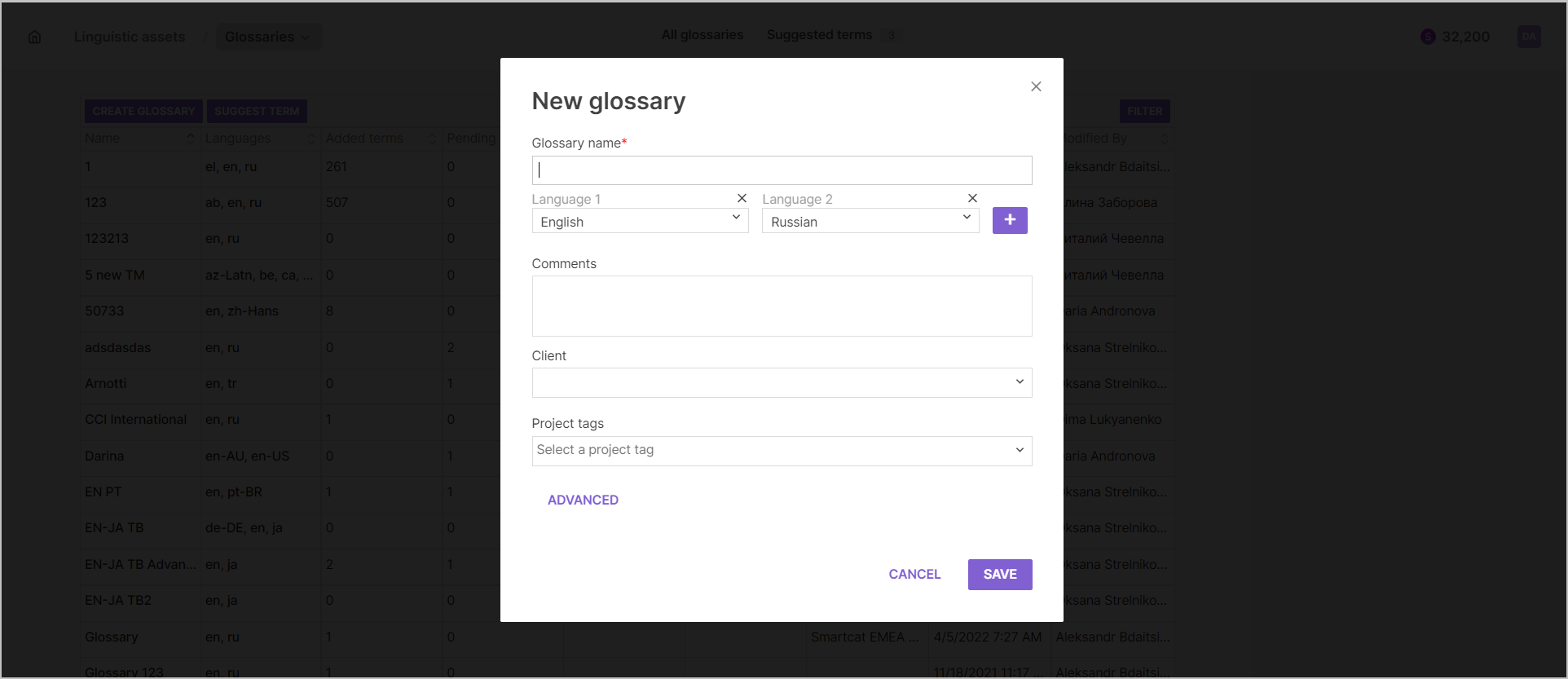
💡 Click Advanced if you already have a glossary structure in mind. This lets you change the glossary structure and properties.
- Click Save
Your glossary is now created and ready to associate with a project.
Alternatively, you can import a glossary from outside Smartcat.
Understanding translation memories
Translation memories, or TMs, are a crucial linguistic asset. They are databases of previously translated sentences. You can use them as translation references for your projects to save time and money on editing and to keep translation quality standards high.
They improve quality and consistency, reduce project turnaround times, and decrease the number of words to translate by pre-populating new translations with previously translated content that matches your current content.
How to create a TM
Once you click Translation Memories from the dropdown menu described above, click Create TM.

Clicking Create TM generates the following dialog box.
📌 The numbers have been superimposed to match the instructions below.
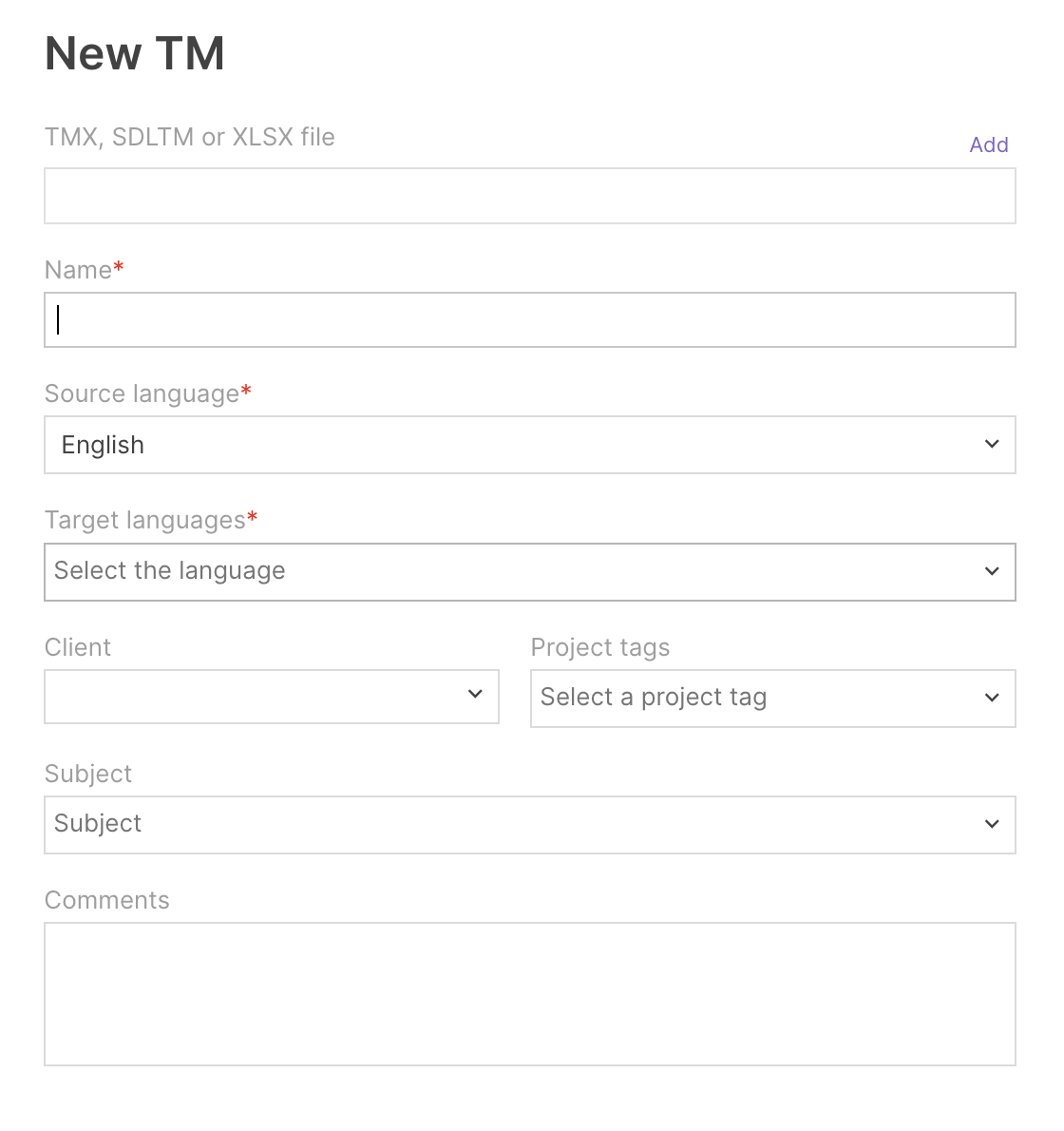
Complete the fields as follows:
-
TMX, SDLTM or XLSX file — import a TM file in one of the available formats
-
Name — choose a unique name
-
Source and target languages — select your source language (field 3) and all your target languages (field 4). You can only have one source language, but as many target languages as you require
-
Client — assign a label for the client
-
Project tags — assign a tag for the project
-
Subject — define a subject for your TM. This option is generally redundant if you need a TM for a specific client
-
Comments — add comments or a description for the translation memory
Click Save when you are done, and your new TM is ready to use on your projects.
Other linguistic assets
TMs and glossaries are your primary supporting linguistic assets. In the dropdown menu on the linguistic assets page, you also see TM Editor as an option.
TM Editor
TM Editor is Smartcat's in-house CAT editor. This is your Smartcat home for editing your translations or inviting a professional linguist to your project to perform a translation review and editing round.
AI matching
AI matching is Smartcat's automated talent-sourcing feature that identifies the best-match linguist from Smartcat Marketplace to work on your translation project.
AI matching analyzes the Smartcat Marketplace of over 500,000 linguists in seconds. It assesses a linguist's suitability based on their language pairs, areas of expertise, years of experience, availability, rates, and client reviews. It also scans the text of previous translations they have completed on Smartcat to check suitability with the content of your translation project.
FAQs
What counts as a "linguistic asset" in Smartcat?
Translation Memories (TMs) and glossaries are the primary linguistic assets — AI-driven resources that improve translation quality and consistency, accessible from Intelligence Fabric in your workspace.
What's the difference between a TM and a glossary?
A TM is a database of previously translated sentences you can reuse as reference and to reduce turnaround time and cost. A glossary is a more structured, curated set of approved translations for specific terms — easier to browse and maintain than searching a TM for a single term.
Do TMs and glossaries get applied automatically to new projects?
Yes, if they're associated with the client or department you select when creating the project — Smartcat automatically enables the matching glossary/TM you've already created for that client.
Is there a limit to how many languages a glossary can support?
No — you can create a glossary with as many languages as you like.
What is AI matching, and is it the same as TM/glossary matching?
No — AI matching is a separate feature that identifies the best-fit freelance linguist from Smartcat Marketplace for your project based on language pairs, expertise, availability, and past work, not a linguistic-asset matching mechanism.
Want to learn more?
See how Smartcat can transform your localization workflow.
Still need help?
Our support team responds within one business day.