Assign a task to another company
Overview
One of Smartcat's features lets you assign a project or document to another company so that company can work on it as if it were their own. This article covers how to set up the client-vendor connection, its use cases, and the behaviors to keep in mind.
Form a client-vendor connection
Two conditions must be met to form a connection between corporate accounts in Smartcat.
Both accounts must be on the same server
Smartcat has three servers, divided by region: USA (https://us.smartcat.com/), Europe (https://smartcat.com/), and Asia (https://ea.smartcat.com/).
You can check your server from the URL in your browser's address bar.

📌 If a client has an account on the European server, you also need an account on the European server. Smartcat support can help you find a solution and create an account on the client's server if your servers don't match. Your linguistic resources and team are unique to each server, so you need to transfer them to the new account.
A client must add a vendor account to the vendor list
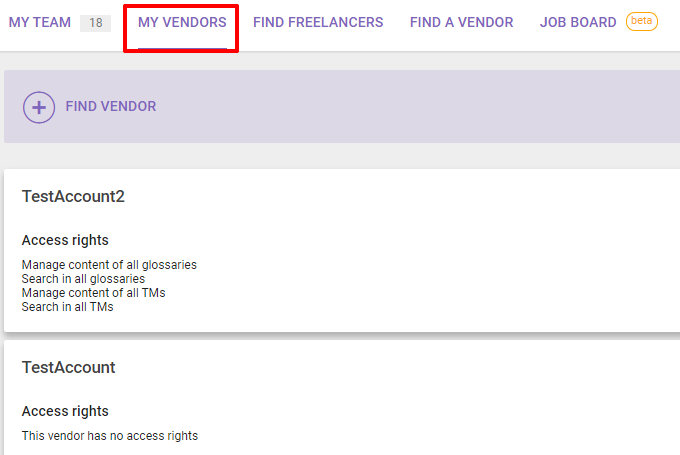
In the Team section of any corporate account, the My Vendors tab lists the companies already added as service suppliers and lets you configure access rights for each.
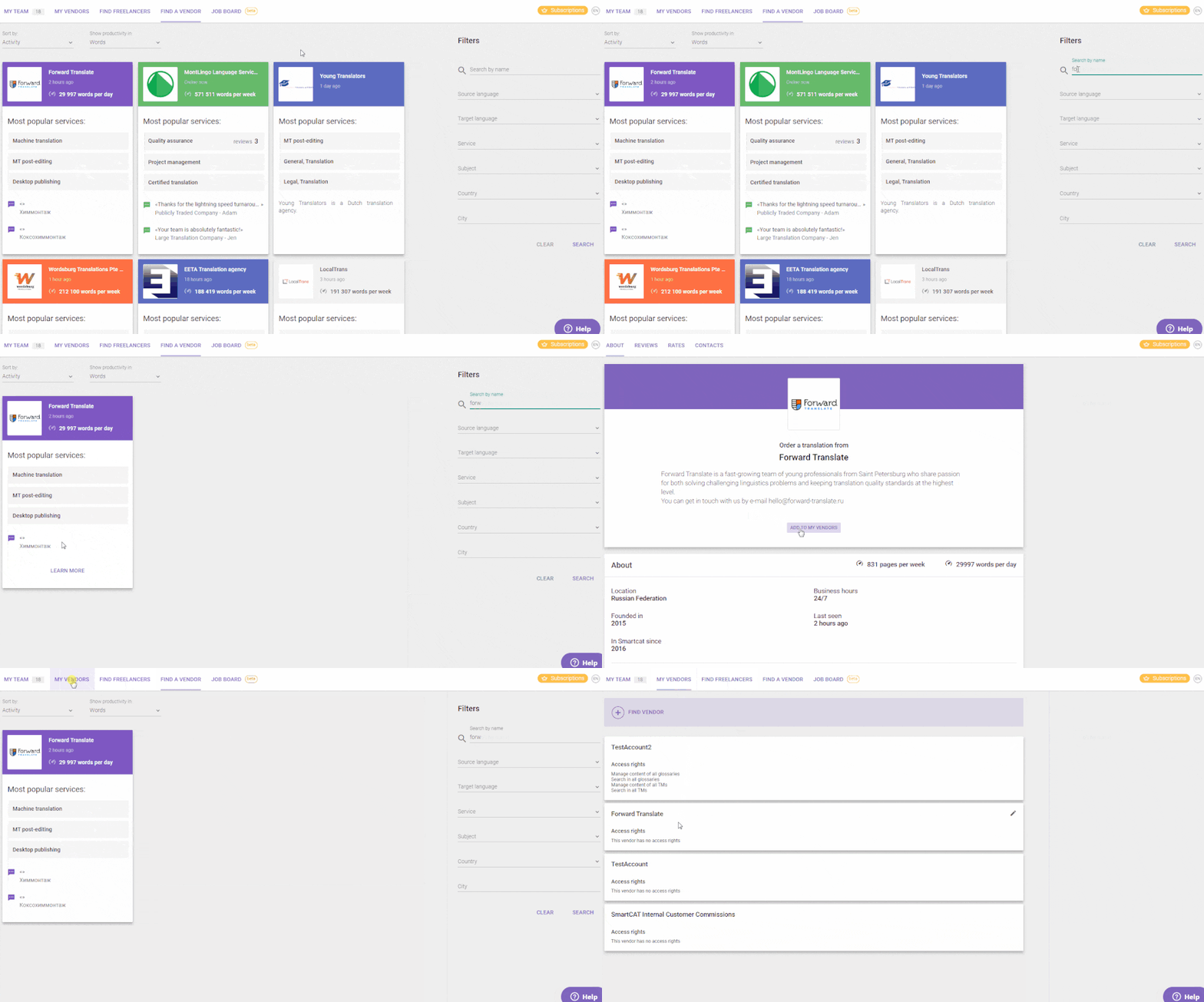
Adding a vendor takes a couple of clicks if both accounts are on the same server.
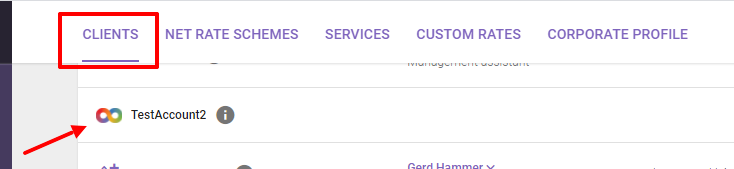
Clients that have added you as a vendor are marked in your client list with an infinity sign.
Assign vendors to a project
Assigning a vendor is much like assigning a linguist, with a few distinctions to consider.
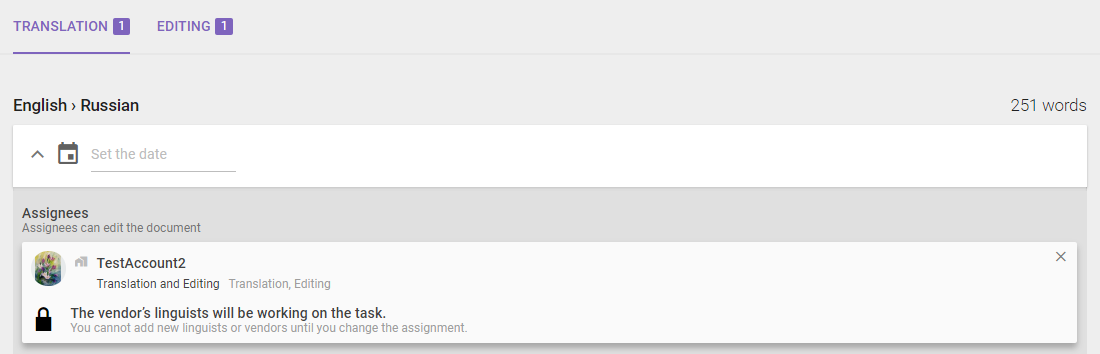
- A vendor can set a service and rate to make assignment across several stages a one-click task on the client end
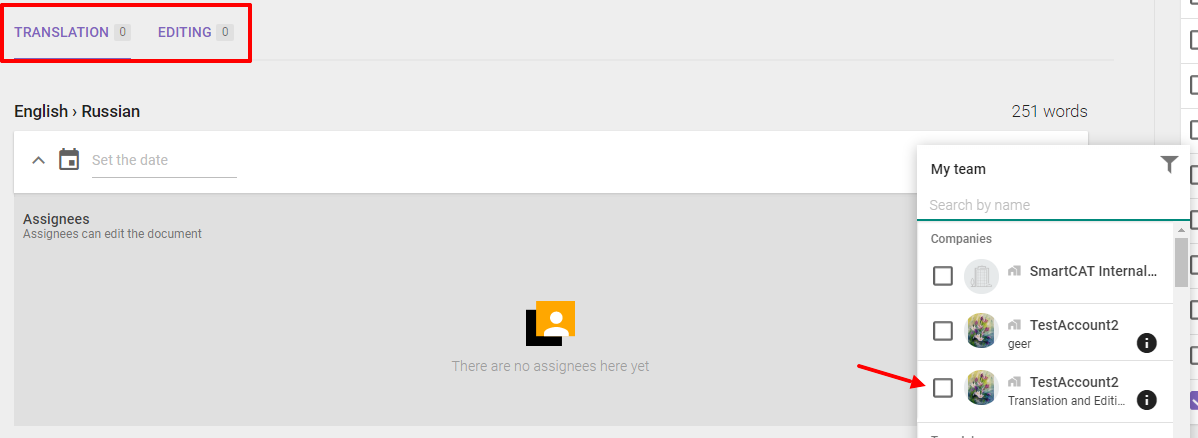
In the example above, the vendor TestAccount2 has the Translation and Editing service with a rate and language pair. Once the client confirms the assignment, TestAccount2 is assigned to both stages of the project.
- A client can assign a vendor only to a whole document, so document splitting is not possible
-
A vendor's managers cannot edit segments until they assign at least one linguist to a stage; the segments stay locked. Managers can assign themselves if linguists have not yet confirmed the assignment and some preliminary editing must be done urgently.
-
A client cannot cancel the assignment to a vendor as long as at least one linguist is assigned on the vendor end. The client needs to ask the vendor to remove all assignments first. This prevents sudden, unexplained cancellations for the vendor's linguists — communication matters, so discuss cancellation details before they happen.
-
A vendor cannot assign a project or document to another vendor. The client-vendor connection is two-tier in the current implementation. A client can still assign multiple vendors to different documents or stages within a project.
Work with an assigned project
The main difference with a project assigned by a client is that both companies can connect their Translation Memory (TM) to the project and write translations into it. The client can, however, limit the vendor's ability to write to translation memories in the project settings.
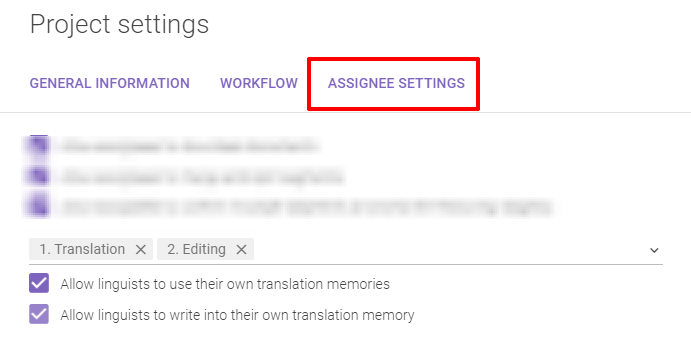
A client cannot see the linguists working on the project from the vendor end. Authors of revisions are also hidden in the CAT editor.
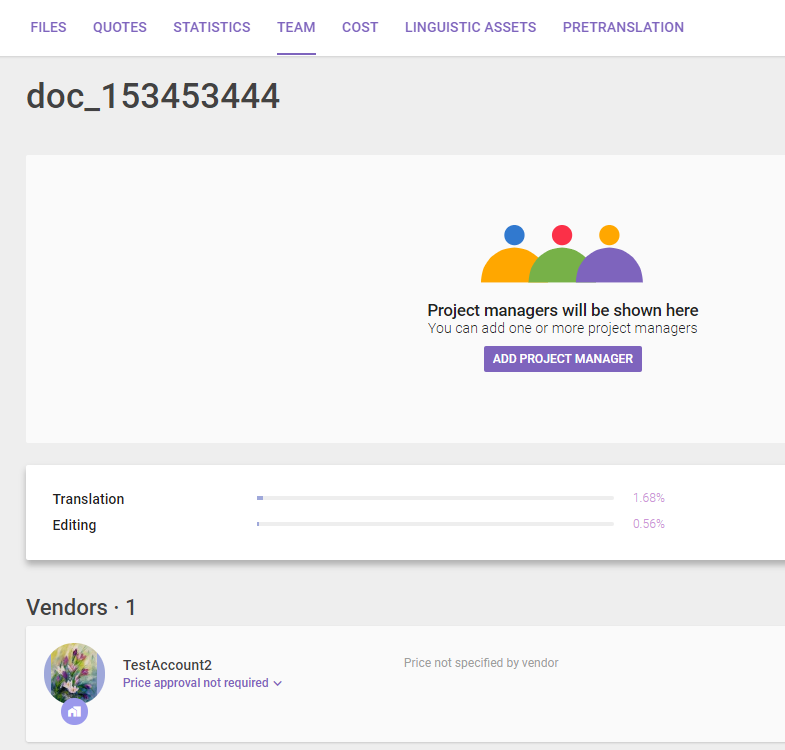
The project page on the vendor side differs from a project the vendor created independently. The vendor can specify parameters such as the project cost, deadline, and whether the cost has been agreed or the project has been paid. The vendor can also attach a quote or invoice, which the client can download in the project Team tab.
The project page on a vendor end.
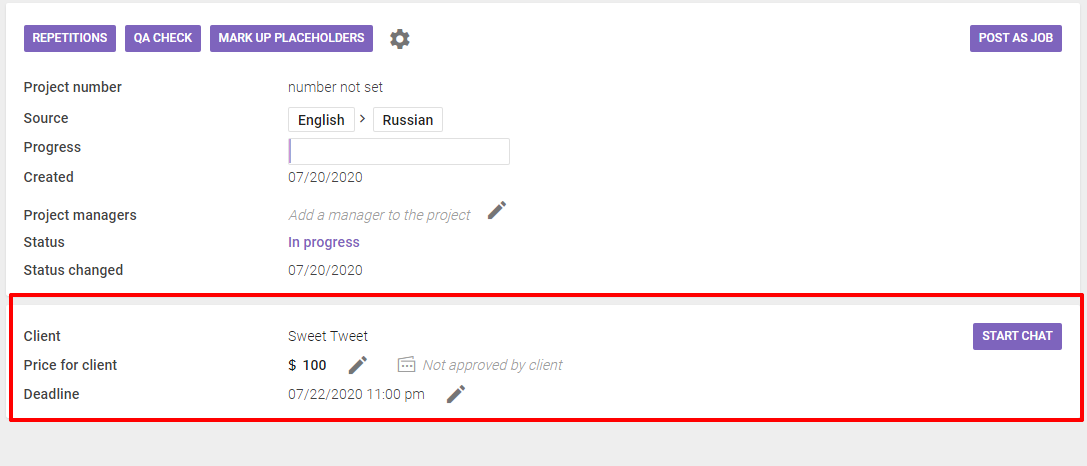
The Team tab on a client end.
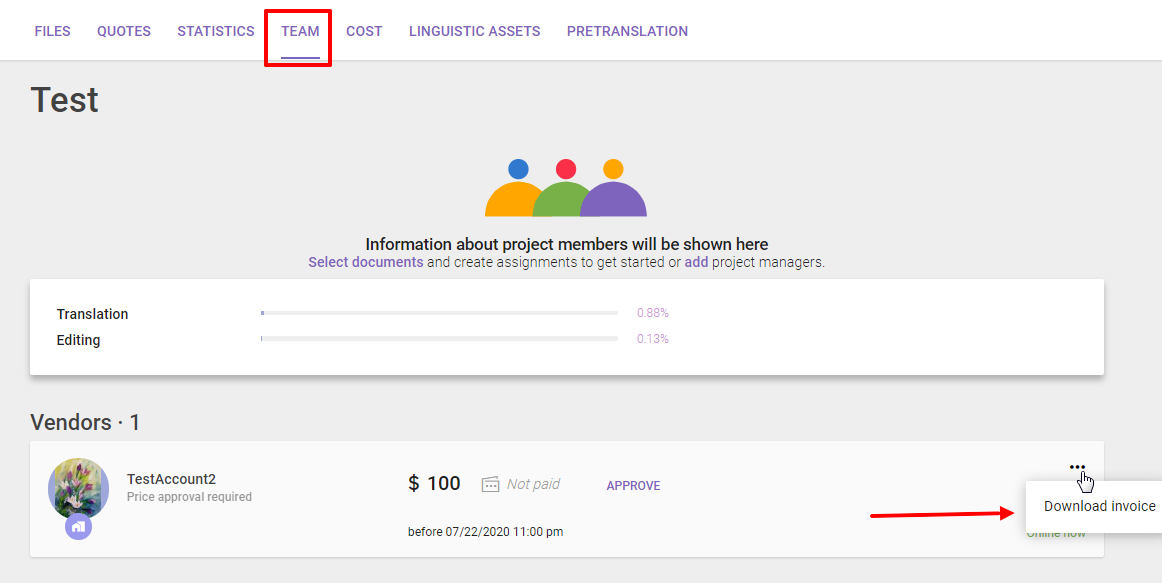
In all other respects, working on an assigned project is like working on your own project where you assign only linguists.
The client-vendor connection streamlines communication between companies, file transfer (in one click), progress monitoring, and shared use of linguistic resources. The vendor's linguists do not see that another company assigned the project — the vendor is the linguists' client, so their names and contacts remain visible only to the vendor. The result is a win-win for both the client and the vendor.
FAQs
What happens if my account and the vendor's account are on different Smartcat servers?
You'll need Smartcat support's help — since linguistic resources and teams can't automatically transfer across servers (US, Europe, Asia), support has to move things over manually before the vendor connection works.
Can a vendor split a document among multiple linguists?
No. When you assign work to a vendor company, the vendor is assigned to the whole document only — documents cannot be split across multiple vendors the way they can with individual freelancers.
Can I cancel a vendor assignment at any time?
Not if the vendor already has linguists assigned to the document. You'll need to ask the vendor to remove all their linguist assignments first before you can cancel.
Can a vendor I've hired assign the work to another vendor of their own?
No. Smartcat only supports a two-tier structure — your vendor cannot pass the assignment along to a sub-vendor.
Will I be able to see who worked on my project at the vendor's company?
No. The vendor's linguists remain hidden from you; you won't see individual linguist names or revision authorship in the CAT editor.
Want to learn more?
See how Smartcat can transform your localization workflow.
Still need help?
Our support team responds within one business day.