Import keys into a software localization project
Overview
After your main software localization project is created automatically in Smartcat, you have several options for importing keys. You can set up an integration using the API or CLI tool, or import keys through the Smartcat interface, which is the easiest option for non-developers.
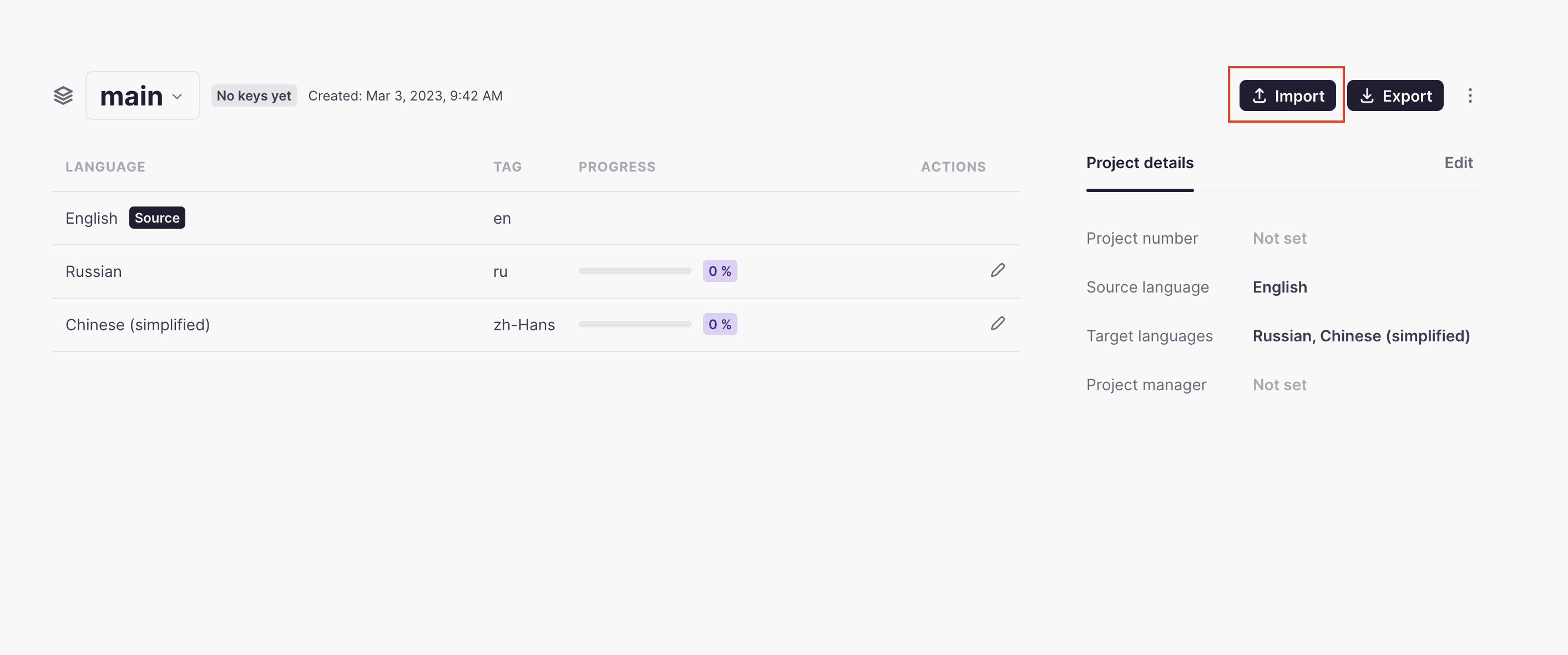
Import keys through the Smartcat interface
Follow these steps to import keys using the Smartcat interface.
-
Select a collection or create a new one
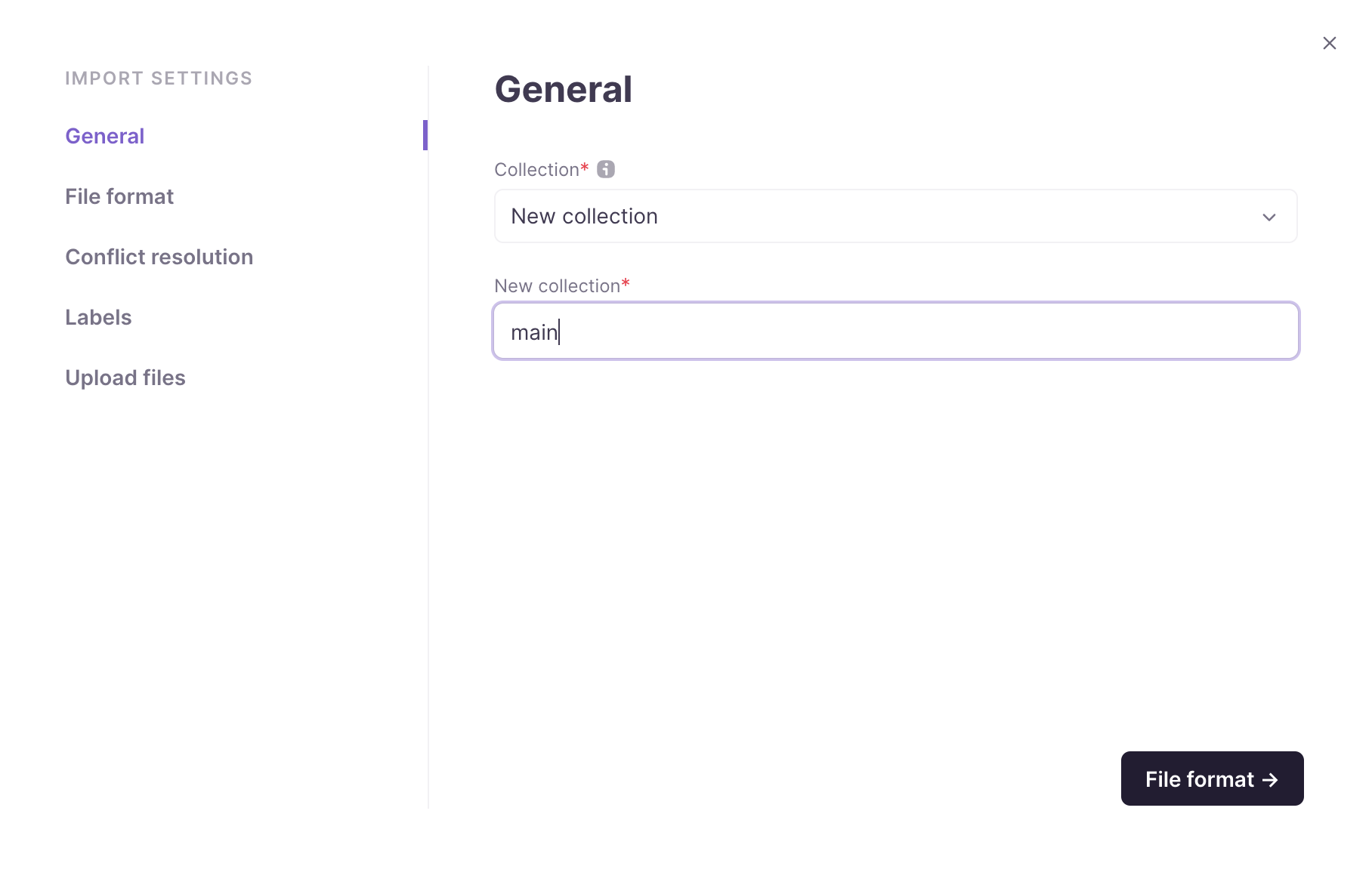
-
Select the format of your project files and import them. For some file formats, such as JSON or YAML, you can import a tree-like key structure, in which case key names are constructed using the Separator string
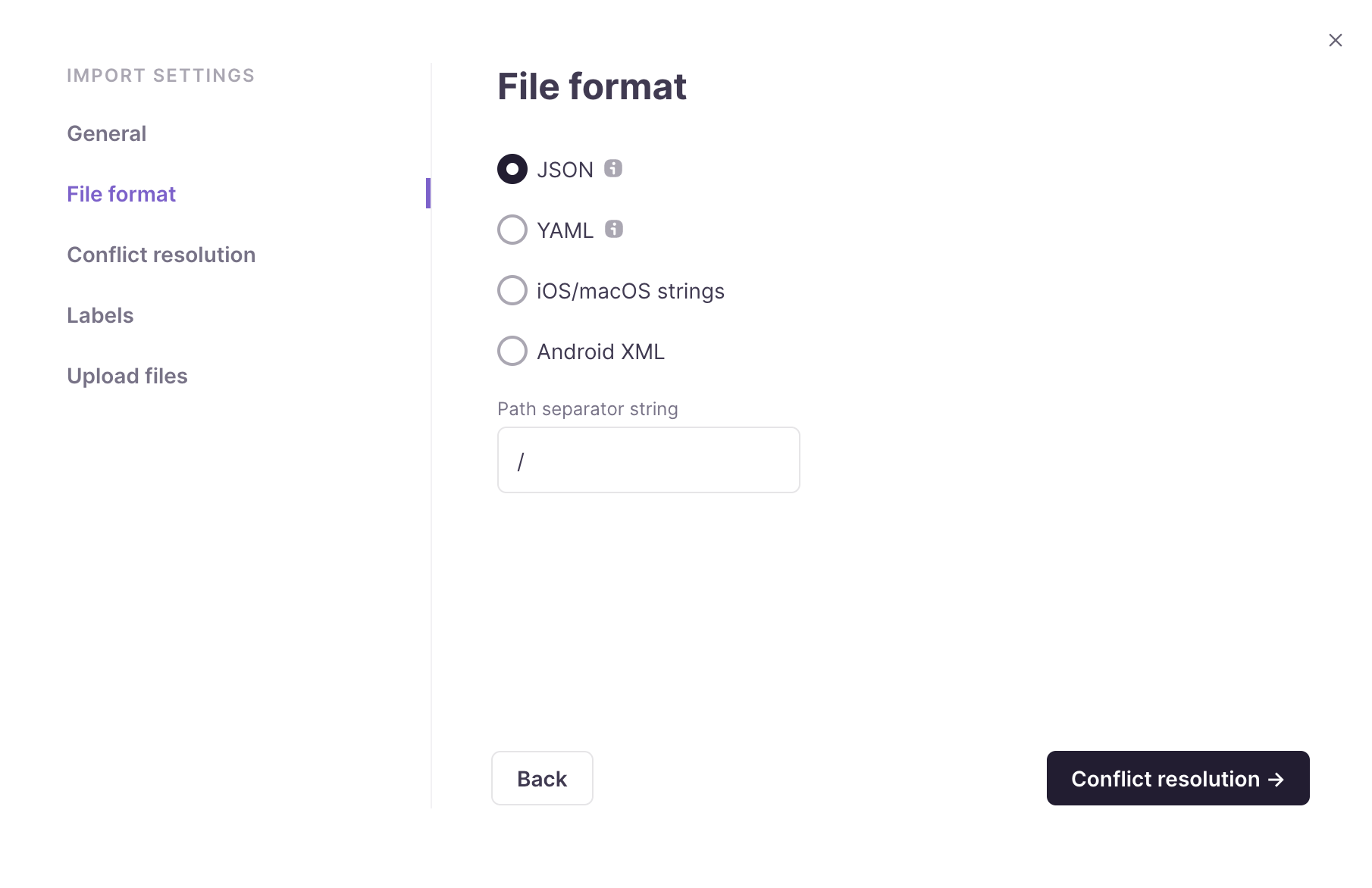
-
Specify how to resolve key conflicts (when a key exists in both the file and Smartcat, and the values differ)
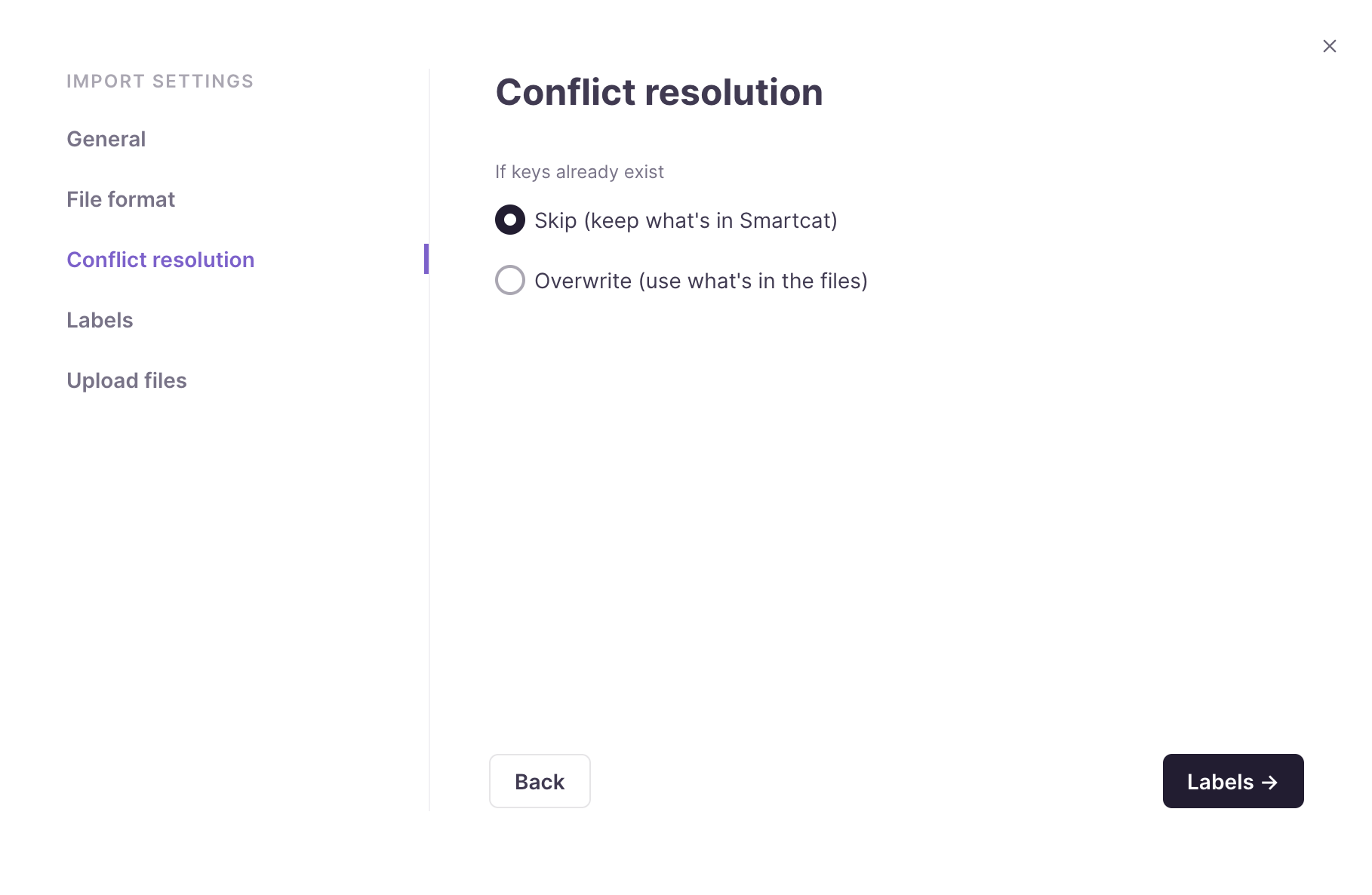
-
Skip keeps the values that exist in Smartcat
-
Overwrite replaces the values in Smartcat with the values from your files
-
-
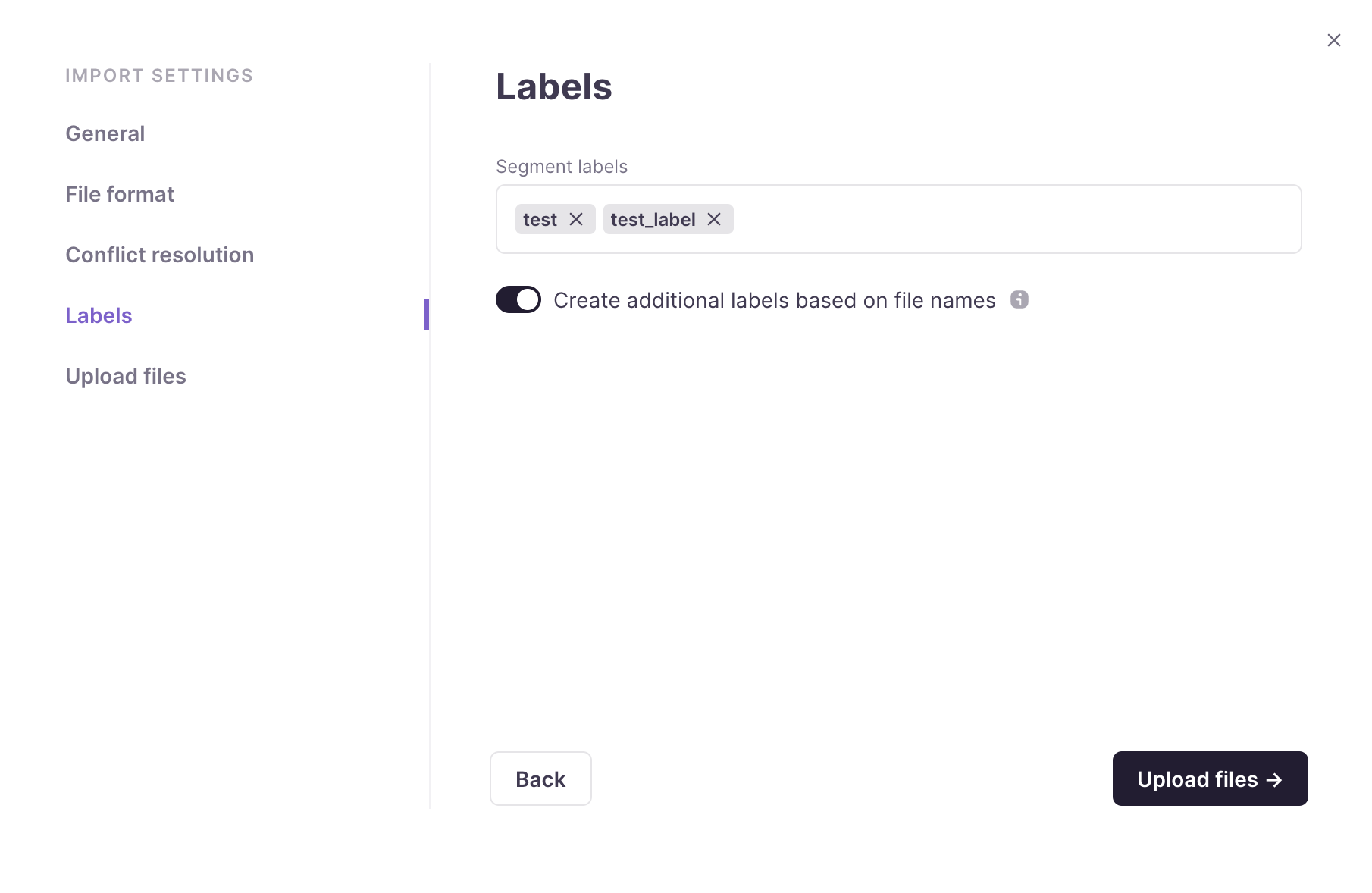
Select the labels to add to your keys. You can choose the free-form labels option, or let Smartcat auto-generate labels based on the name of the imported file. Labels let you export the same subset of keys that belong to a particular resource file when needed
-
Select one or more project files in the format you specified. Select the language for each file. You can import both source texts and their translations. Click Import
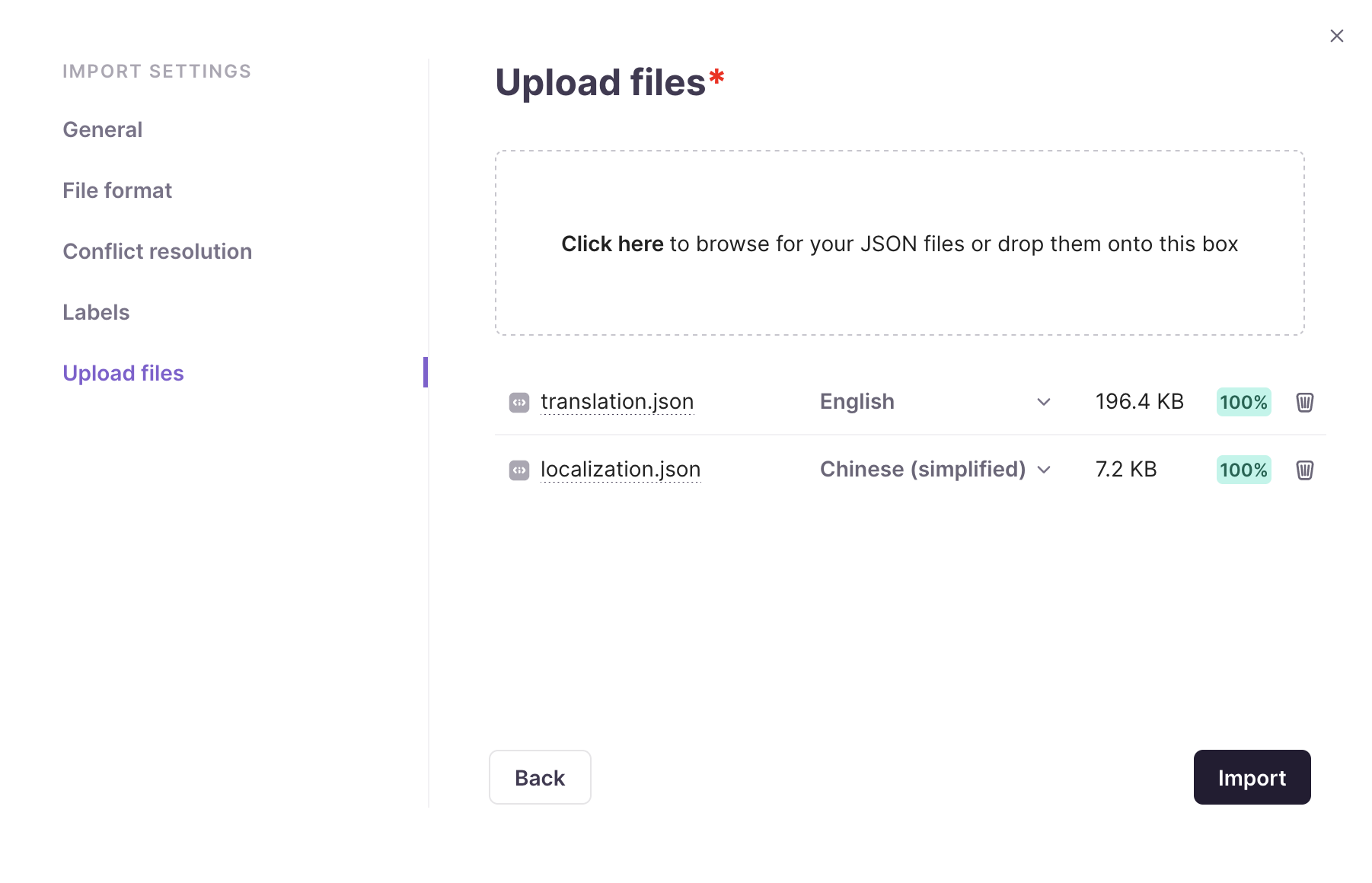
Your keys are imported into the software localization project and are ready for translation.
FAQs
What happens if a key I'm importing already exists in Smartcat with a different value?
You choose the conflict resolution behavior during import: "Skip" keeps the existing value already in Smartcat, while "Overwrite" replaces it with the value from your imported file.
What are labels used for when importing keys?
Labels let you tag imported keys so you can later export just the subset of keys belonging to a particular resource file. You can apply free-form labels or let Smartcat auto-generate them based on the imported file's name.
Can I import a nested/tree-like key structure, like from a JSON or YAML file?
Yes — for formats like JSON or YAML, Smartcat can import a tree-like key structure, constructing key names using the separator string you specify.
Can I import translations along with the source text, not just the source strings?
Yes — when selecting project files and languages to import, you can import both source texts and their existing translations.
Is there a way to import keys without going through the Smartcat UI?
Yes — you can set up an integration using the API or CLI tool as an alternative to importing through the interface.
Want to learn more?
See how Smartcat can transform your localization workflow.
Still need help?
Our support team responds within one business day.