Understand your translation quality score (TQS)
Overview
Smartcat Translation Quality Score (TQS) is a measurement tool built into Smartcat that helps you understand the quality of your AI translations. It shows you which AI translations meet your quality requirements and which ones you or a reviewer on your team should review and possibly edit.
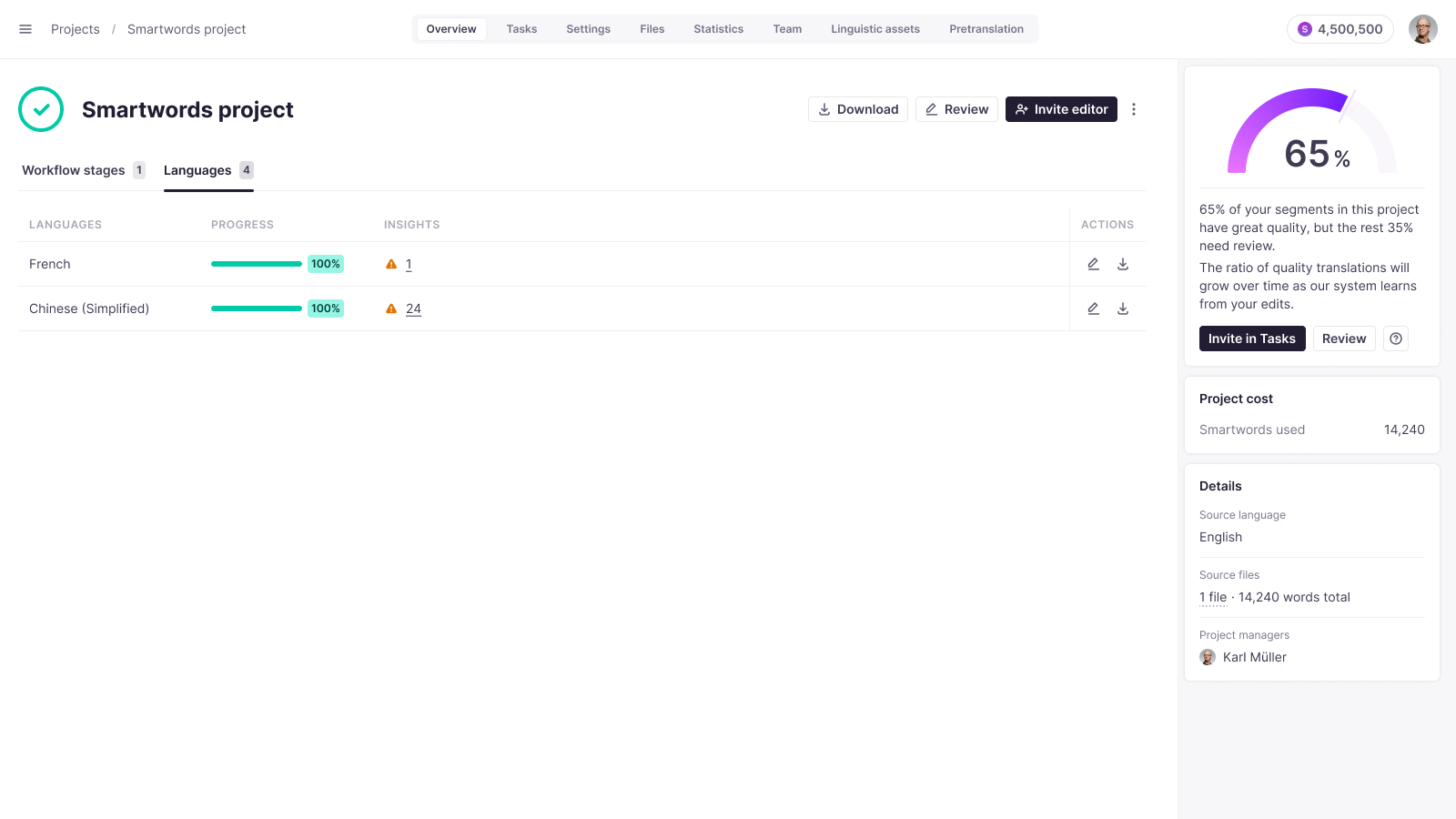
In your Workspace, TQS appears on the Project Overview page as a widget on the right-hand side. The widget shows how many translation segments in your projects received a good score. Segments with a high score can be confirmed without review and editing.
You can also see which translation segments received a low score. These require human review and possibly editing, after which you can confirm them. You can complete the review and editing yourself, invite a member of your team, or hire a subject-matter-expert reviewer from Marketplace with one-click best-match AI sourcing.
All edits made by the assigned reviewer are stored in your Translation Memory (TM), and Smartcat AI learns from these edits to increase quality for all future translations.
💡 To automate confirming segments with good translation quality, set up an AI translation rule, described later in this article.
What is TQS and how is it calculated?
The translation quality score is a number ranging from 0 to 100. It provides a quick overview of how good your translation is.
All translation segments are classified into two categories, great quality and needs review, to give project managers and reviewers a clear indication of the action to take on each segment:
-
Segments with a quality score above the threshold are considered good and can be confirmed, either manually or automatically
-
Segments with a quality score below the threshold are recommended for review by a team member to improve the translation quality
📌 TQS currently assesses only the quality of AI translation. Translations auto-propagated from Translation Memory and human-reviewed translations receive a maximum score for accurate statistics.
How to use TQS
You don't have to do anything to activate TQS. It appears automatically in two areas of your translation Workspace on Smartcat:
-
Project-level widget — a side-screen widget that displays overall quality for fast, easy access to quality information
-
Segment level — a more detailed, micro view of each specific text segment inside a translation file
3 steps to use the translation quality score to improve quality
Smartcat highlights your translation quality score for a given language pair or for a translation project overall. This helps you understand the quality level of your translation and decide how to proceed. Both AI translation and manual translation may require adjustments.
Step 1: Address any immediate issues
Ensure the translation has no obvious mistakes. Smartcat highlights critical issues such as missing formatting tags or placeholders, mistranslation of glossary terms, or punctuation issues.
Step 2: Proofread to compare source and target texts
Ensure the translation accurately reflects the source text with a proofreading step.
Some issues to look out for include making a translation too short or too long, or over-translating by adding extra content or explanations that were not in the source. Such issues, which are not faithful to the source text, result in a lower translation quality score.
Step 3: Ensure target formatting and punctuation are accurate
Proofreading doesn't just apply to language. It is essential to also ensure that punctuation and formatting mirror the source language file.
For instance, providing a translation in upper case while the source is lower case negatively affects the translation quality score.
Additionally, when proofreading, aim to guarantee translation fluency and proper grammatical gender.
Following these steps raises your translation quality score and reduces the segments that need review.
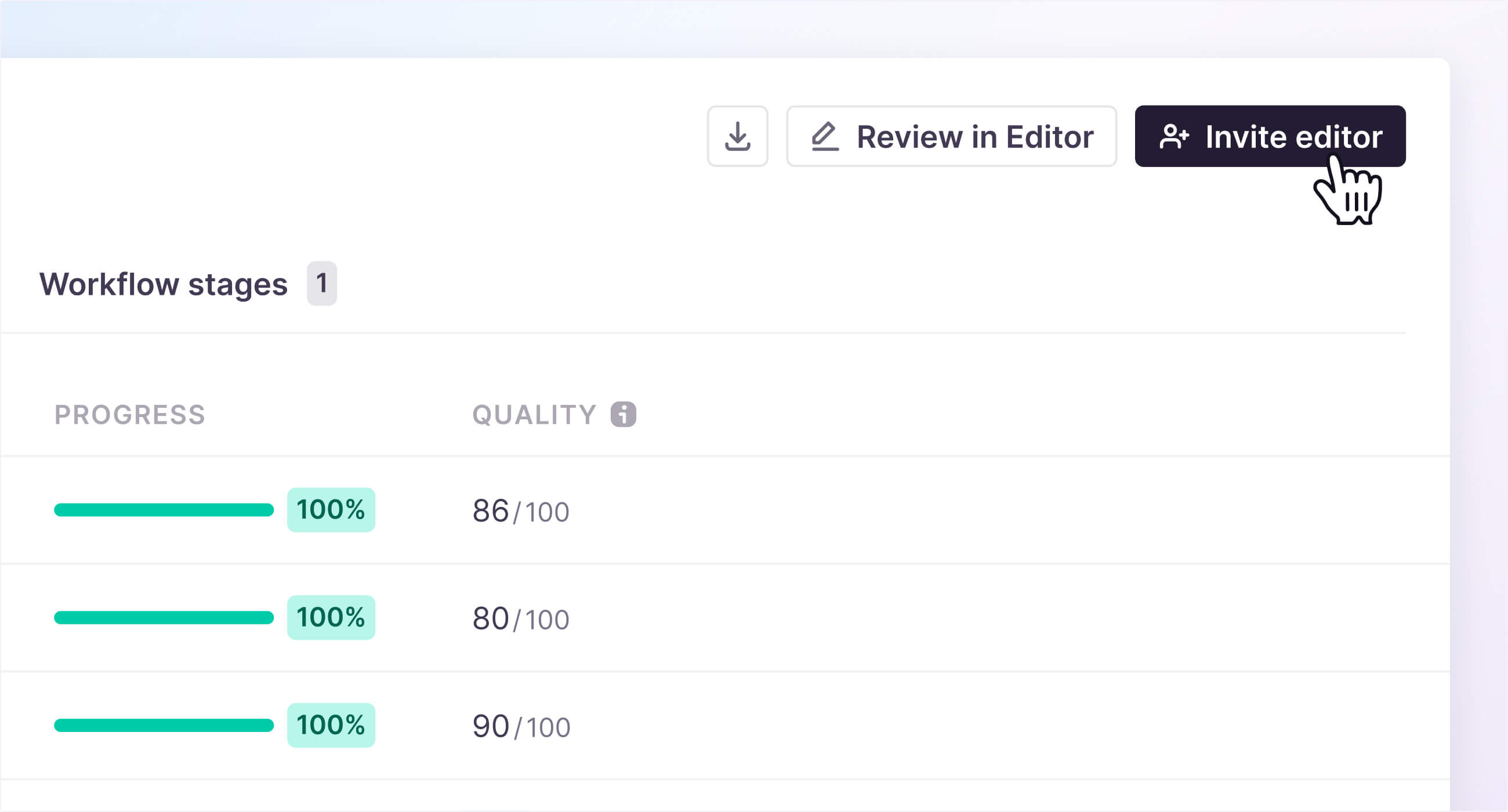
To hire a language editor or proofreader from Marketplace, click the on-screen Invite editor button.
In your Smartcat Workspace, you can review translations yourself or invite colleagues to carry out this step. You can also hire a professional linguist from Marketplace. All users can collaborate on the same files inside the same private Workspace.
In all cases, the translation quality score is the ultimate measure of the quality of the translation work performed and the faithfulness of the translated target language to the original source language.
How to set up AI-driven selective editing workflows
Set up AI-driven editing workflows to reduce the review and editing workload for internal reviewers by automatically approving translations with high quality scores.
-
Go to Projects from your Workspace home page
-
Select a project
-
Click Translation Rules in the sidebar
-
Add a new rule
-
Choose Quality-based automation
-
Select which stage of the translation workflow requires automatic confirmation
-
Choose the TQS (Translation Quality Score) threshold
-
Select Save and Run to apply the changes
-
In the CAT editor, all translation segments with a quality score higher than the threshold are automatically confirmed, so the reviewer only needs to verify the remaining segments
This workflow confirms high-scoring segments automatically and leaves only lower-scoring segments for manual review.
Click through the interactive demo:
Want to learn more?
See how Smartcat can transform your localization workflow.
Still need help?
Our support team responds within one business day.