Linguist Content Review Training Guide
Overview
This guide trains internal linguists and freelance reviewers on the content review process in Smartcat. It covers understanding your role, accessing assigned tasks, navigating the CAT Editor, and completing reviews efficiently using quality criteria and available resources.
When to use it
Reference this guide when you're new to reviewing content in Smartcat, need a refresher on the review workflow, or want to understand the differences between reviewer roles.
Key Concepts and Terminology
| Term | Definition |
|---|---|
| Translator | Creates the initial translation from source language to target language |
| Editor/Reviewer | Reviews and improves existing translations for accuracy, fluency, and adherence to guidelines |
| Proofreader | Performs final quality check for errors, typos, formatting, and consistency before delivery |
| Segment | A unit of text (usually a sentence or paragraph) displayed in the CAT Editor for translation or review |
| CAT Editor | Smartcat's Computer-Assisted Translation editor where all translation and review work happens |
| TM (Translation Memory) | Database of previously translated segments that suggests matches for similar content |
| Glossary | List of approved terminology with defined translations to ensure consistency |
| LQA (Linguistic Quality Assurance) | Formal quality evaluation process using standardized error categories |
Understanding Your Role
Role Definitions
Your assigned role determines what actions you can take and what's expected of your work:
Translator
-
Creates initial translations from source to target language
-
Has full editing access to target segments
-
Responsible for accuracy, fluency, and following project instructions
Editor/Reviewer
-
Reviews translations created by others (human or AI)
-
Improves accuracy, fluency, and consistency
-
Can edit target segments and confirm changes
-
May provide feedback to translators
Proofreader
-
Performs final quality check before delivery
-
Focuses on catching errors, typos, and formatting issues
-
Ensures consistency across the document
-
Typically the last human review stage
How Your Role Is Assigned
Your role is determined by the project's workflow configuration:
-
Project managers set up workflows with specific stages (e.g., Translation → Editing → Proofreading)
-
Each stage has assigned linguists with defined roles
-
You receive tasks based on your assignment to a specific workflow stage
-
Your permissions (what you can edit, confirm, or view) depend on your role in that stage
⚠️ If you're unsure which role you've been assigned, check your task notification or contact the project manager.
Accessing Your Assigned Tasks
Step 1 — Log into Smartcat
-
Go to smartcat.com and click Log in
-
Enter your email and password, or use SSO if your organization has configured it
-
Complete two-factor authentication if prompted
Step 2 — Navigate to your tasks
-
After logging in, you land on your My Tasks page, which displays all assignments awaiting your action

-
Tasks show:
-
Task ID - Unique identifier for each task
-
Task - Workflow stage name (for example, Translation, Editing, Proofreading)
-
Files - Names of the files included in the task. You can click this field to open the file in the CAT Editor
-
Units - Total work volume in units (words, pages, characters, etc.)
-
Files Completed - Count of completed files
-
Progress - Visual progress showing percentage of completion for the task
-
Status - Task status, including New, In Progress, Completed, Cancelled, Declined, Pending, Waiting for Payment, and Inactive
-
Task Deadline - Deadline assigned to the task
-
Languages - Language pair for the translation task
-
Creation Date
-
Step 3 — Understand task notifications
You receive task notifications through:
-
Email — Sent when you're assigned a new task or a deadline approaches
-
In-app notifications — A red dot appears next to the My Tasks tab
-
Dashboard updates — New tasks appear in your My Tasks list
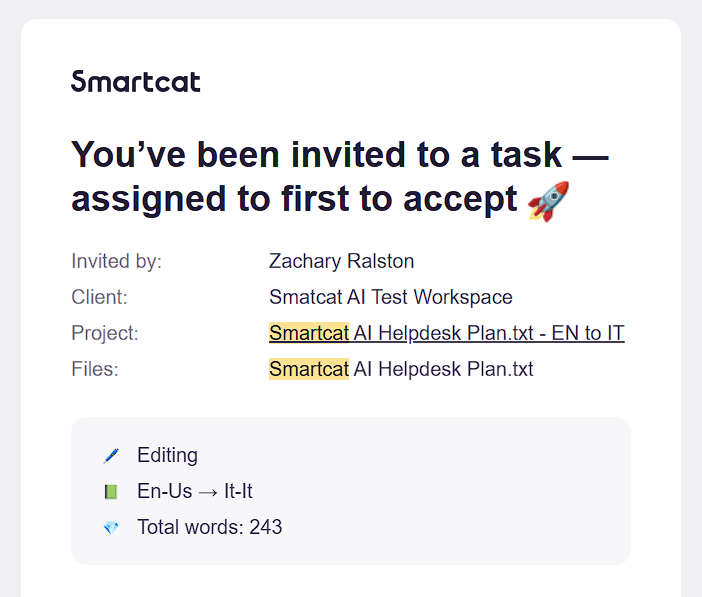
Each notification includes:
-
Project and document name
-
Your assigned role (Translator, Editor, Proofreader, etc.)
-
Word count and deadline
-
Link to open the task directly
Step 4 — Accept or decline the task
When you receive a new assignment:
-
Review the task details — Check word count, deadline, subject matter, and any special instructions
-
Accept the task — Click Accept to confirm you'll complete the work by the deadline
-
Decline if needed — If you cannot complete the task, click Decline and optionally provide a reason
⚠️ Declining a task returns it to the project manager for reassignment. Only decline if you cannot complete the work.
The Review Workflow Step-by-Step
Step 1 — Open your assigned document
-
Log in to Smartcat and locate the task in My Tasks
-
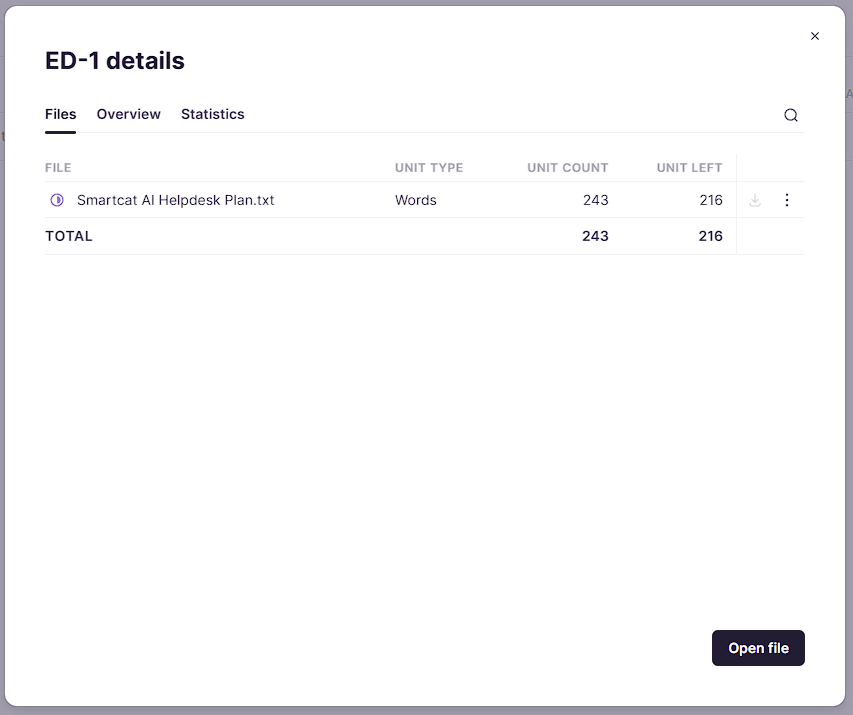
Click the document name to view the project details
-
Click Open file to open it in the CAT Editor. If there are several files in the project, click the three dots to the right of the file name to open it individually
-
The editor loads with source text on the left and target text on the right
Step 2 — Understand the editor layout
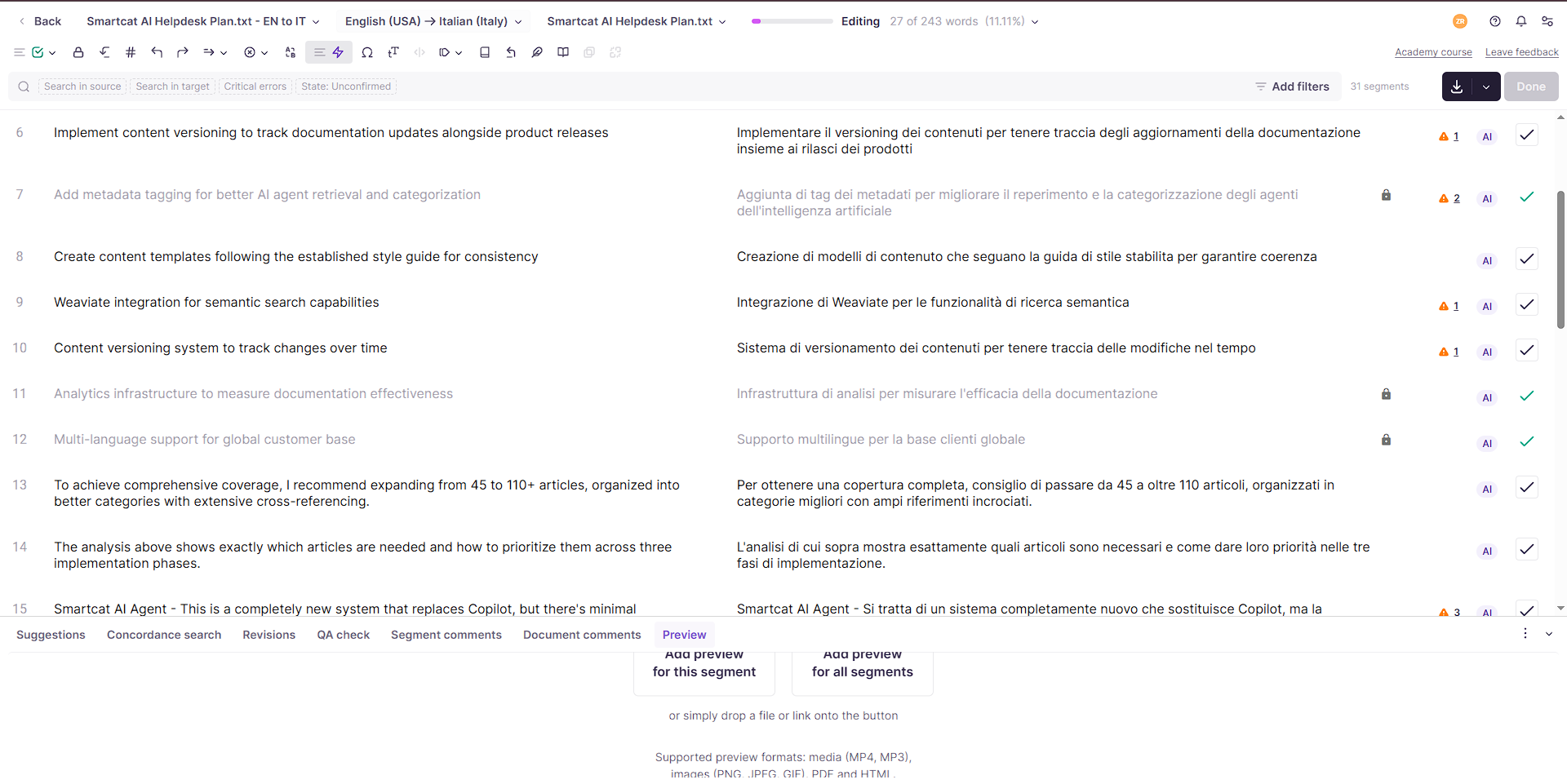
The CAT Editor displays:
-
Source panel (left) — Original text in the source language (read-only)
-
Target panel (right) — Translation text you can review and edit
-
Segment list — Each row is one segment; click any segment to select it
-
Resources panel — TM matches, glossary terms, and comments (typically on the right side)
-
Toolbar — Actions like confirm, search, filter, and settings
Segment status indicators:
| Icon/Color | Meaning |
|---|---|
| Empty checkbox | Unconfirmed — needs review |
| Green checkmark | Confirmed — approved and complete |
| Lock icon | Locked — cannot be edited (confirmed in previous stage) |
| Yellow/Orange | Fuzzy TM match applied — review suggested translation |
| Purple | Machine/AI translation — review automated output |
Step 3 — Review each segment
For each segment in your assignment:
-
Read the source text — Understand the original meaning and context
-
Review the target text — Check if the translation accurately conveys the source
-
Check TM suggestions — The Resources panel shows matches from Translation Memory; use them if appropriate
-
Verify glossary terms — Highlighted terms should match the approved glossary translation
-
Make edits as needed — Click in the target field and type your corrections
Step 4 — Confirm reviewed segments
After reviewing and editing a segment:
-
Press Ctrl+Enter or click the Confirm button
-
The segment status changes to confirmed (green checkmark)
-
Move to the next segment
When to confirm:
-
The translation is accurate and complete
-
Terminology matches the glossary
-
Formatting and tags are correct
-
The segment is ready for the next workflow stage (or delivery)
⚠️ Only confirm segments you've actually reviewed. Confirming without review can pass errors to the next stage or to the client.
Step 5 — Complete the task
When all segments are reviewed and confirmed:
-
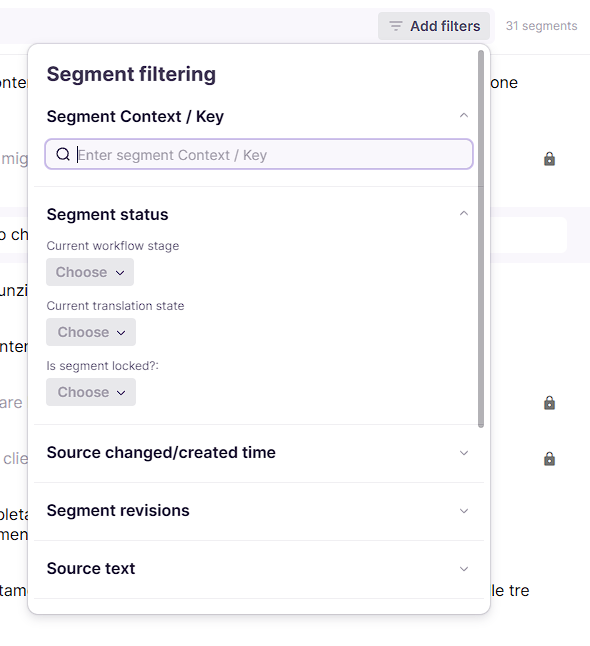
Verify completion — Use the filter to check for any unconfirmed segments (Filter > Status > Unconfirmed)
-
Run QA checks — Click the QA button in the toolbar to run automated quality checks; resolve any flagged issues

-
Mark the task complete — Click Done in the toolbar to signal you've finished your review
-
The document advances — Your completed work moves to the next workflow stage (or to delivery if you're the final reviewer)
Tips and Recommendations
Use keyboard shortcuts for efficient navigation
| Action | Shortcut |
|---|---|
| Move to next segment | Enter or Ctrl+Down |
| Move to previous segment | Ctrl+Up |
| Confirm segment | Ctrl+Enter |
| Open TM/Glossary panel | F3 |
| Insert TM match | Ctrl+1 (first match), Ctrl+2 (second match), etc. |
| Add comment | Ctrl+M |
| Search in document | Ctrl+F |
Use resources effectively
-
TM matches appear with a percentage score (100% = exact match, lower = fuzzy match)
-
Glossary terms are highlighted in the source. Hover to see the approved translation
-
Comments from previous stages appear as icons. Click to read context from translators or PMs
Quality Criteria for Reviews
When reviewing content, evaluate each segment against these criteria:
Accuracy
-
Does the translation convey the same meaning as the source?
-
Are all source elements translated (nothing omitted or added)?
-
Are numbers, dates, and proper nouns handled correctly?
Fluency
-
Does the translation read naturally in the target language?
-
Is the grammar correct?
-
Is the style appropriate for the content type and audience?
Terminology
-
Are glossary terms used consistently and correctly?
-
Is industry-specific terminology accurate?
-
Are product names and brand terms handled per project instructions?
Consistency
-
Are repeated phrases translated the same way throughout?
-
Does the style match other documents in the project?
-
Are formatting conventions followed consistently?
Formatting
-
Are tags and placeholders preserved correctly?
-
Is punctuation appropriate for the target language?
-
Are line breaks and spacing handled correctly?
Common Issues
Issue: I can't edit a segment
-
The segment may be locked from a previous workflow stage
-
Check if you have the correct role assignment for editing
-
Contact the project manager if you need editing access
Issue: Glossary terms aren't highlighting
-
Verify a glossary is attached to the project
-
Check that the glossary contains entries for your language pair
-
Try refreshing the editor (F5)
Issue: TM suggestions aren't appearing
-
Confirm a Translation Memory is assigned to the project
-
Check your TM panel settings (it may be collapsed)
-
The TM may not contain matches for your content
Issue: I accidentally confirmed a segment with errors
-
Click the segment to select it
-
Make your corrections in the target field
-
Press Ctrl+Enter to re-confirm with the corrected text
Issue: I need to leave feedback for the translator
-
Use the comment feature (Ctrl+M) to add a note to the segment
-
Be constructive and specific about what needs improvement
-
Comments are visible to project managers and may be shared with translators
Want to learn more?
See how Smartcat can transform your localization workflow.
Still need help?
Our support team responds within one business day.