XLIFF for linguists
Overview
This article is for suppliers (linguists and translators). If you are a client preparing XLIFF files for translation, see Translate XLIFF files and XLIFF export and import.
XLIFF (XML Localization Interchange File Format) is a standard format for exchanging translation data between tools. Authoring tools, such as Articulate Storyline, export course text as XLIFF so it can be translated and imported back. When you receive a task based on an XLIFF file, you translate and review it in the CAT editor like any other file. XLIFF files can contain variables that must stay in the source language and tags that carry formatting, such as hyperlinks, and both need extra care.
Smartcat is not affiliated with, endorsed by, or sponsored by Articulate Global, LLC.
When to use it
-
You are assigned a task based on an XLIFF file exported from an authoring tool, such as an eLearning course
-
A segment contains text between special characters, such as %, and you are not sure whether to translate it
-
A segment contains tags, for example around a hyperlink, and the formatting must match the source
-
A segment is hard to interpret without the surrounding content
How to use it
Leave variables untranslated
Some XLIFF segments contain variables that the authoring tool replaces when the course runs, such as a question number or a quiz score. In Storyline files, these variables are enclosed in % characters, for example %QuestionNumber%.
⚠️ Don't translate or change text between % characters. If you translate a variable, it stops working, and the translated course can show the variable name instead of the value.
-
Open the segment in the CAT editor
-
Find any text enclosed in % characters
-
Keep the variable exactly as it appears in the source, including the % characters
-
Translate the text outside the % characters, and place the variable where it fits the grammar of your target language
For example, translate the source segment Question %QuestionNumber% of 3 into French as Question %QuestionNumber% sur 3.
The variables stay in the source language, and the translated course shows the correct values.
Match tags to the source
Tags in an XLIFF segment mark where formatting, such as a hyperlink, starts and ends. Smartcat uses them to apply the formatting in the translated file.
-
Compare the tags in your translation with the tags in the source segment
-
If a tag is missing, add it. You can't confirm a segment until all tags from the source are present
-
Place each pair of tags around the translated text that corresponds to the formatted source text, and keep the tags in the same order as in the source
-
If your target language needs a different word order, rephrase the segment so that the tags stay in source order
-
If you can't place the tags correctly, ask your project manager for help
For the steps to add and move tags, see Understand tags.
The formatting from the source file applies to the correct words in the translated file.
Get context for a segment
XLIFF files contain text without the layout of the original course, so a segment can be hard to interpret on its own.
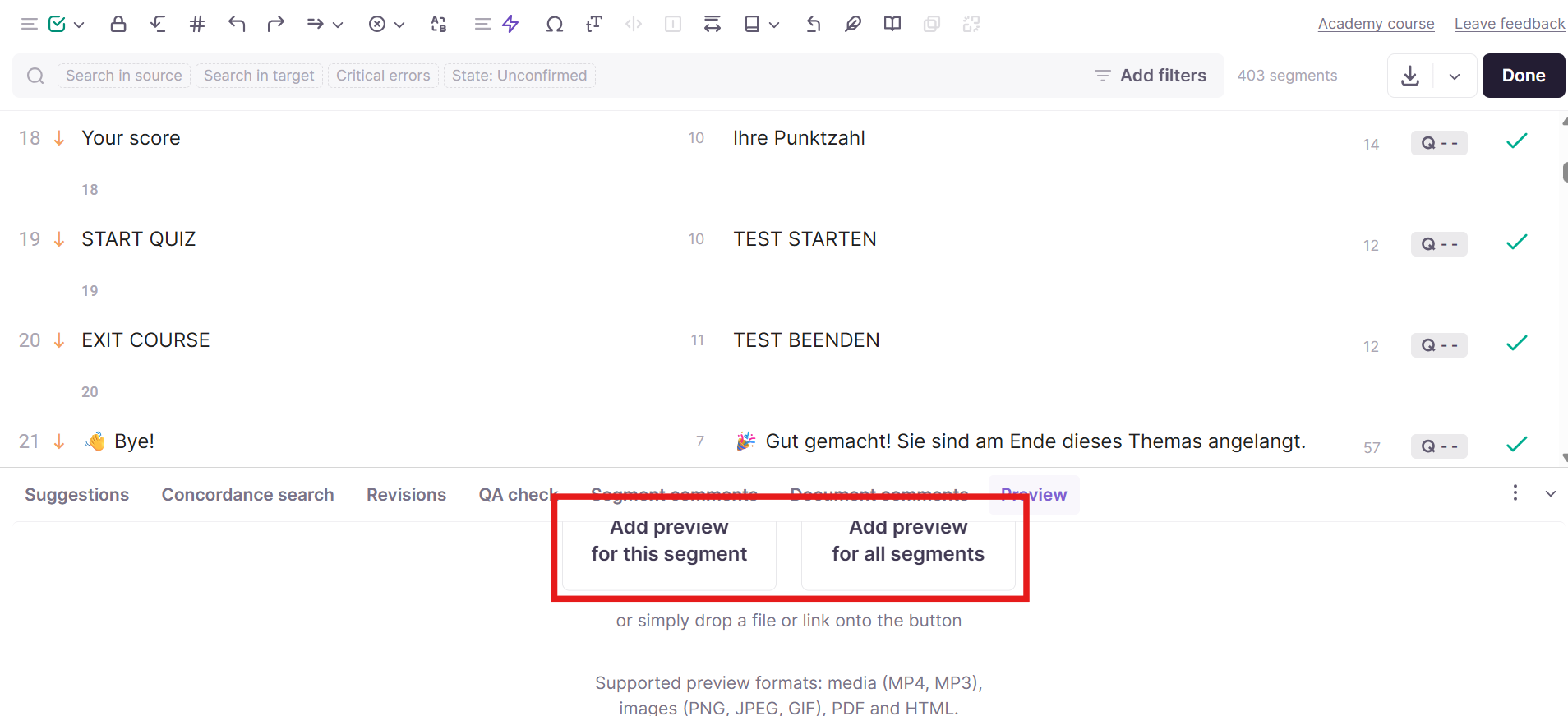
- Select the segment, and then click the Preview tab below the editor to see the source file for context
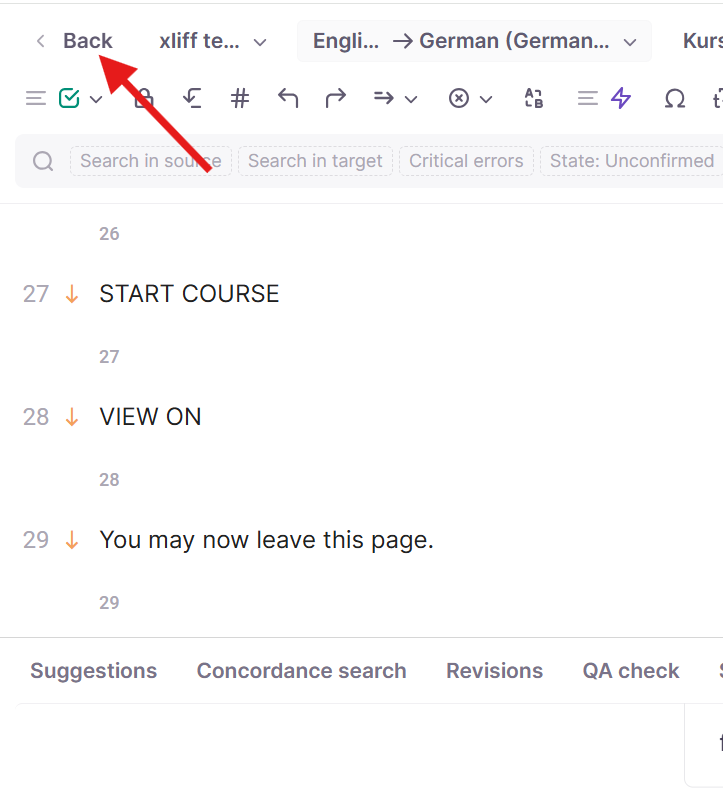
- To open reference files, select Back to project, and find the files in the Reference files section of the project page. For more information, see Reference Files: Giving Linguists Context
- If the context is still unclear, select the segment, open the Segment comments tab, and add a comment. For more information, see Interact with comments in the CAT editor
You have the context you need to translate the segment, or your question is visible to the other people assigned to the document.
Finish the task
After you confirm every segment and resolve any issues in the QA check tab, click Done. For more information, see Mark work as completed.
Requirements and limitations
-
Tags always show in Storyline XLIFF files, so you can't hide them with tagless editing
-
Segments marked as not translatable in the XLIFF file are locked, and you can't edit them. If you think a locked segment needs translation, contact your project manager. For other causes, see Locked segments in the CAT editor
Want to learn more?
See how Smartcat can transform your localization workflow.
Still need help?
Our support team responds within one business day.