Review and edit AI translations in Smartcat Editor
Overview
Learn how to post-edit AI translations in the Smartcat Editor, ensuring high quality and adherence to your brand's voice, style, and terminology.
You have just translated a document, web page, video, PDF or other piece of content using Smartcat's AI translation. Now, you want to verify the resulting translation and make edits to ensure its quality, that it adheres to your brand voice, style, and terminology.
Smartcat AI saves and learns from your edits
AI translation is good at learning about your content and starts at about 80% accuracy, depending on the language pair. Then, it further learns from your edits in what we call adaptive learning loops. You never need to edit or fix the same segment of text twice to ensure its accuracy, as it's all saved in your central record of content. Translations are correctly applied to all future content. You can choose to change the correct translation at any time if you or your company have decided that a different message or turn of phrase is needed.
How to post-edit AI translation in the Smartcat Editor
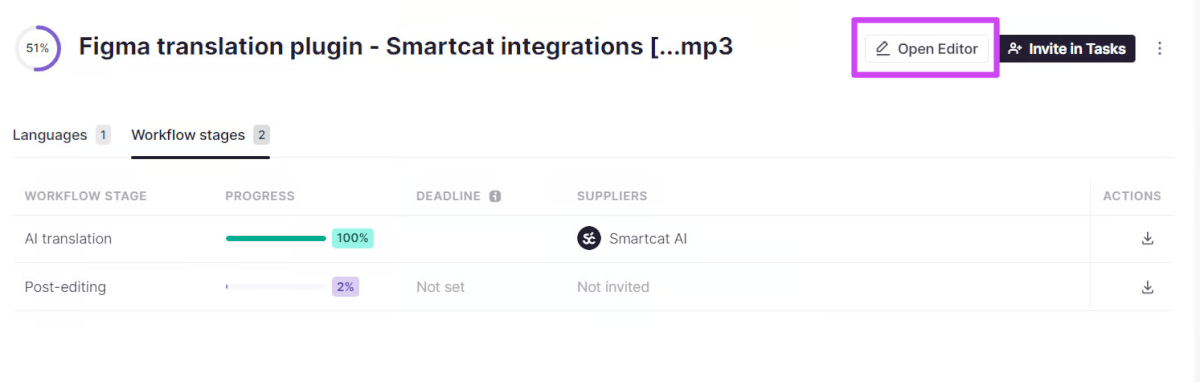
The first step is to translate your content with Smartcat AI. If you have translated a document and landed on the project overview screen, click Open Editor.
You can also reach the Editor by clicking on the file in the Files section of your project.
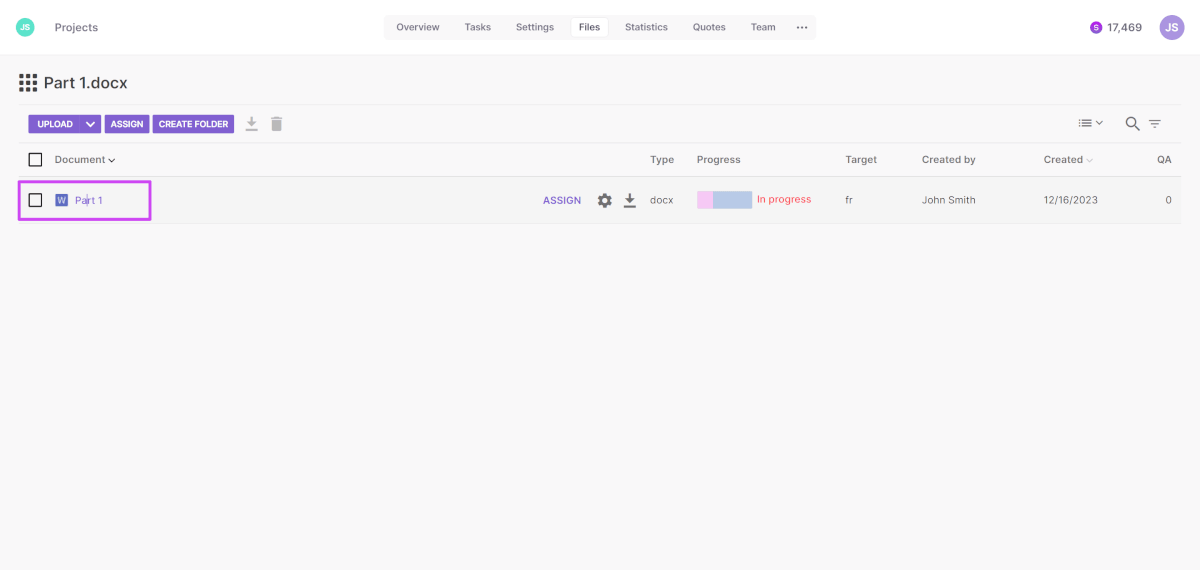
You can also see in this view that the file has been translated by Smartcat AI.
How to edit an automatic translation in the Smartcat Editor
In the Smartcat Editor, both languages are shown in two parallel columns — the source text on the left and the corresponding AI translation on the right, displayed in "strings" or segments. Segments are not broken down sentence by sentence, as that doesn't always preserve the original format when you export the file.
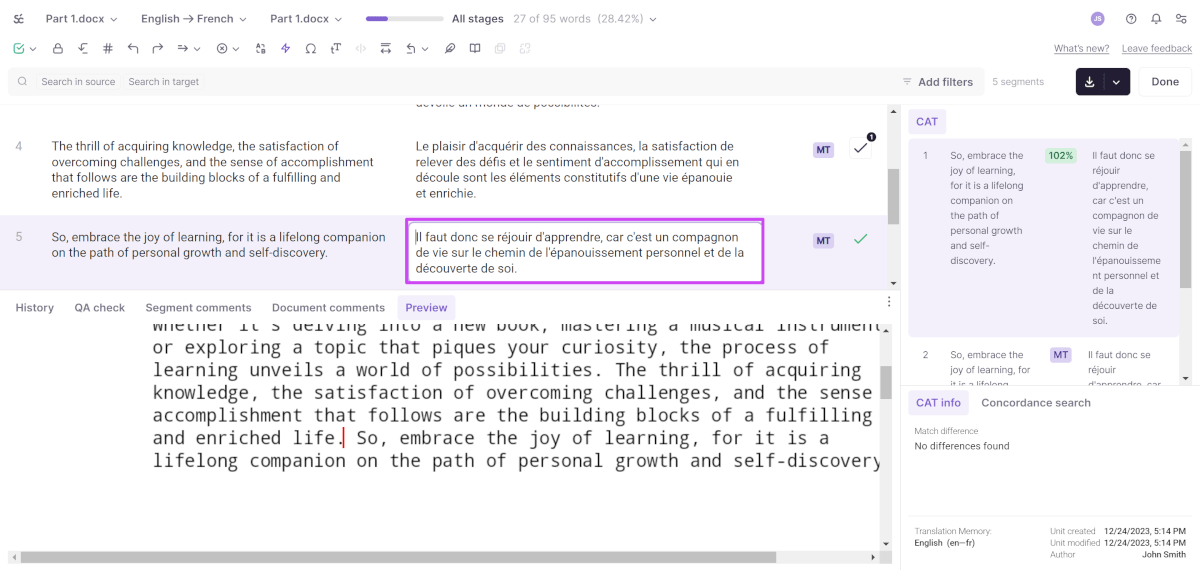
To make edits, type directly into the text box for the translation of each segment. Once you are done with your correction, check the box on the right side of the segment to confirm it. This indicates the segment has been both post-edited and confirmed for accuracy.
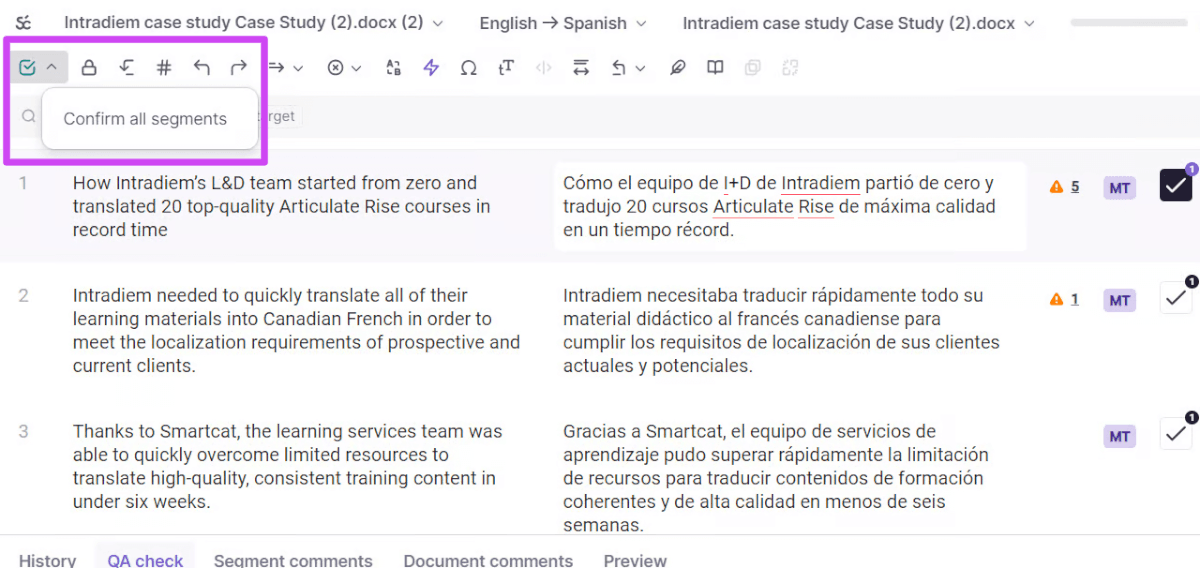
If you forget to confirm each segment individually, you can confirm them all at once by clicking the icon in the top left corner and selecting Confirm all segments.
Stage Progress
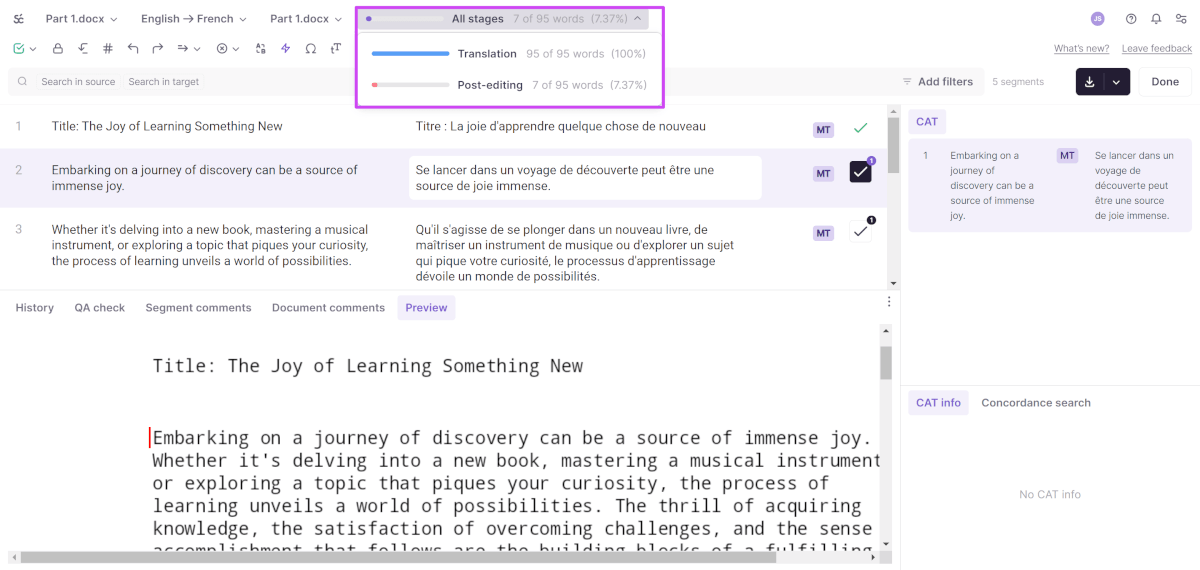
You can follow the progress of your post-editing in the top right, which indicates how much of the file you have completed. You'll also see whether the initial AI translation was complete.
Quality assurance
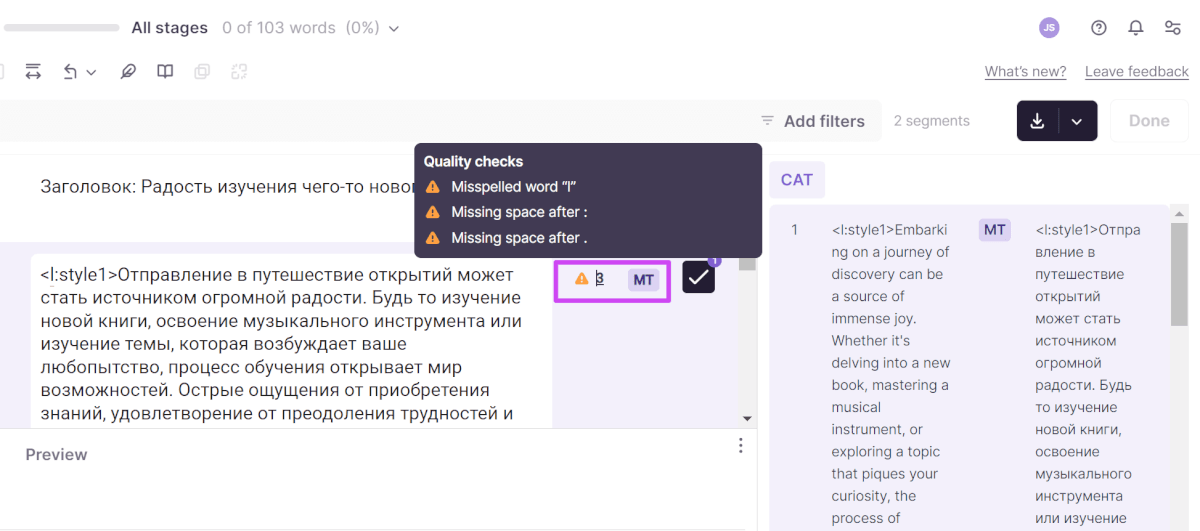
A small yellow warning sign appears if there are any spelling or grammar mistakes to pay attention to.
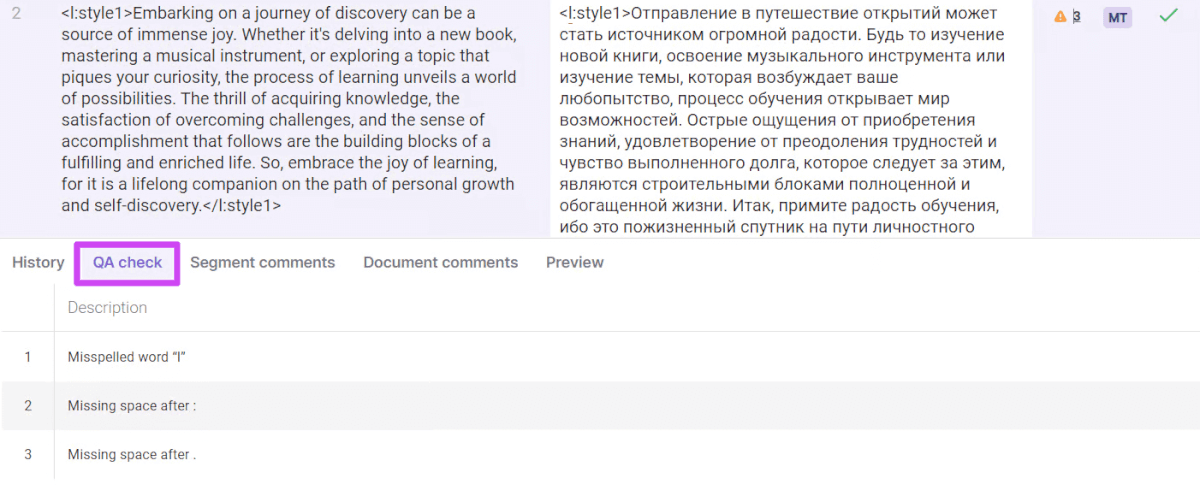
This will also be shown in the quality section of the sidebar as well as in the file preview.
Editor features
The Smartcat Editor includes many features, shortcuts, and tools to help you in your post-editing.
Go to unconfirmed segment
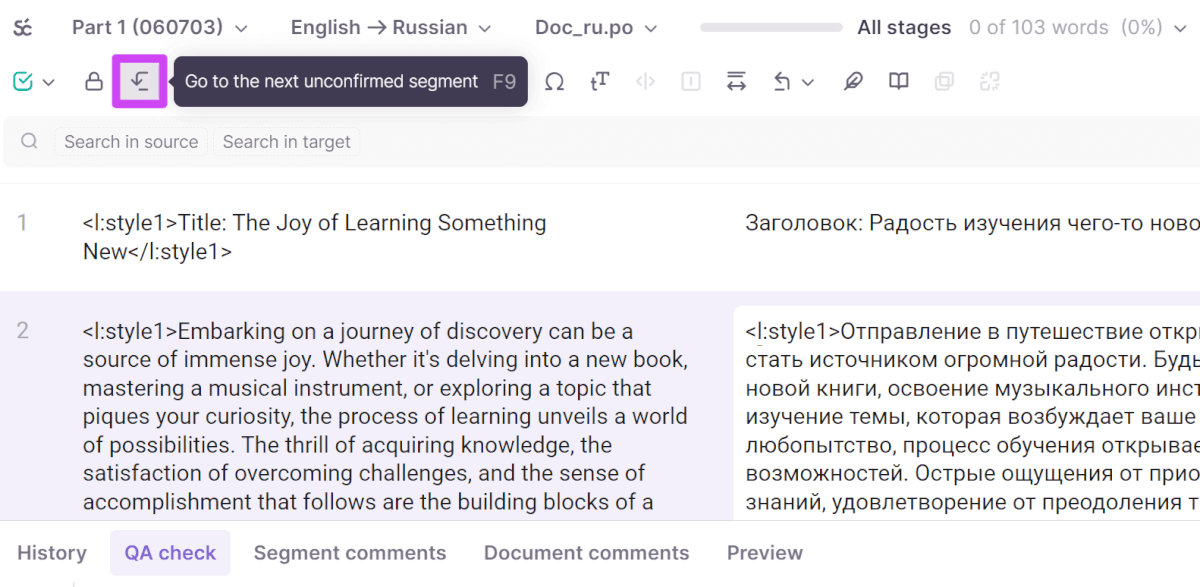
Click the Go to unconfirmed segment icon or press F9 to jump to the next unconfirmed segment that needs to be post-edited, verified, or checked. Confirm it once you are satisfied with the translation.
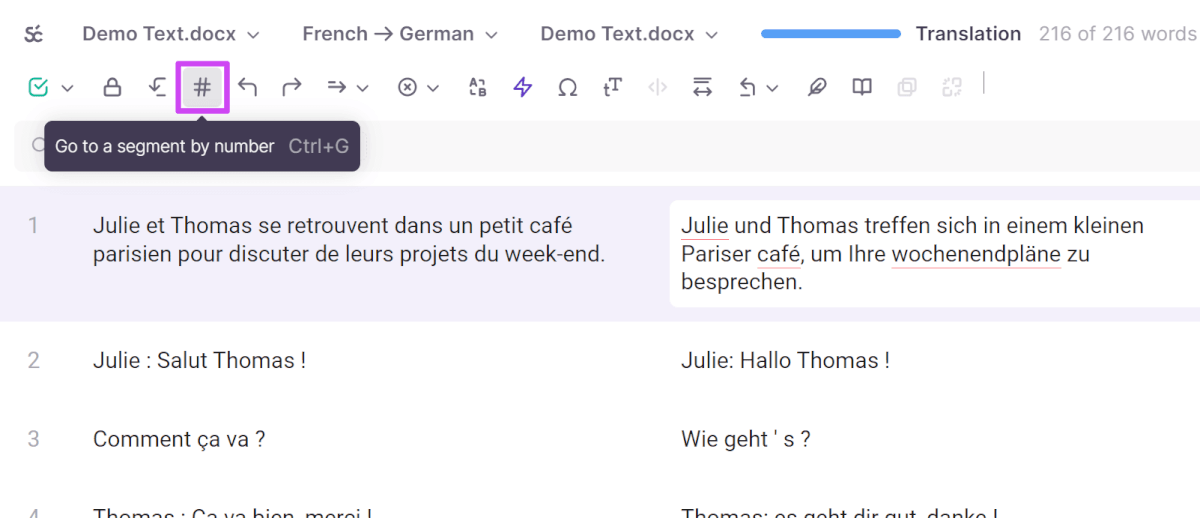
Go to specific segment number
You can go to a specific segment by number. This is useful when you and your team are collaborating and discussing a particular segment. All segments are numbered.
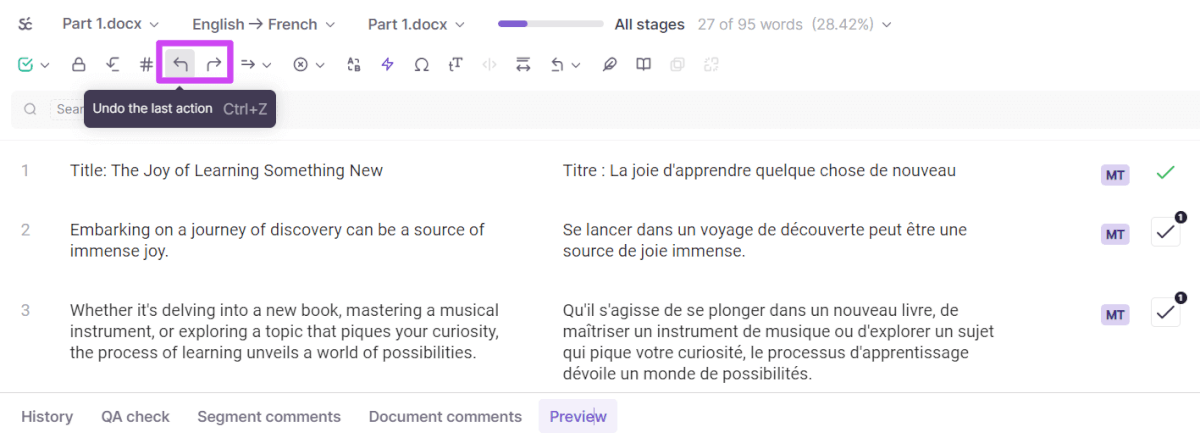
Redo / undo translation
The undo and redo buttons work as expected.
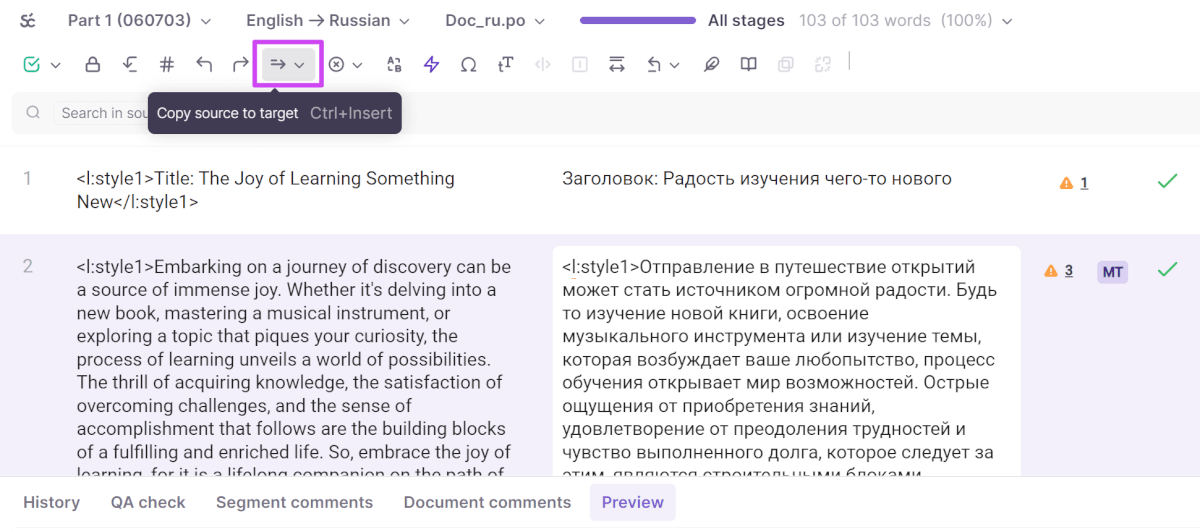
Copy source text into translation segment
You can copy the source text into the translation segment. This is useful when you need to keep the source language in the translation, such as for specific terms.
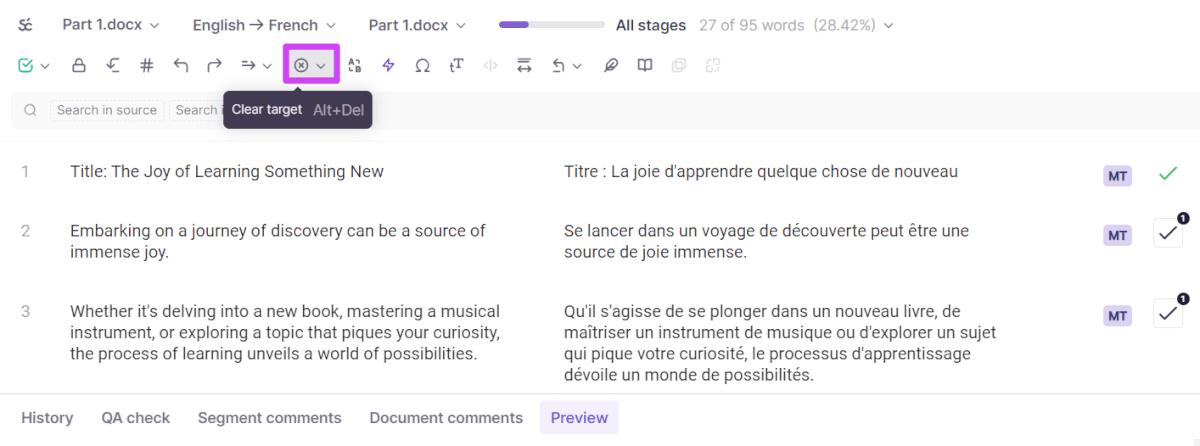
Clear translation in target text segment
You can clear the translation (the target language segment) if you want to completely redo the translation.
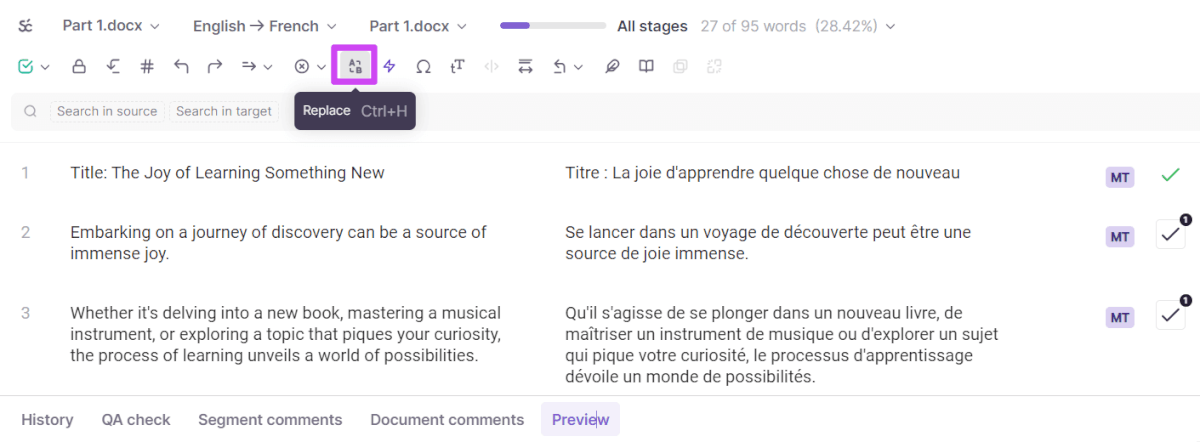
Replace terms
The replace option lets you replace a term with another across all segments at once.
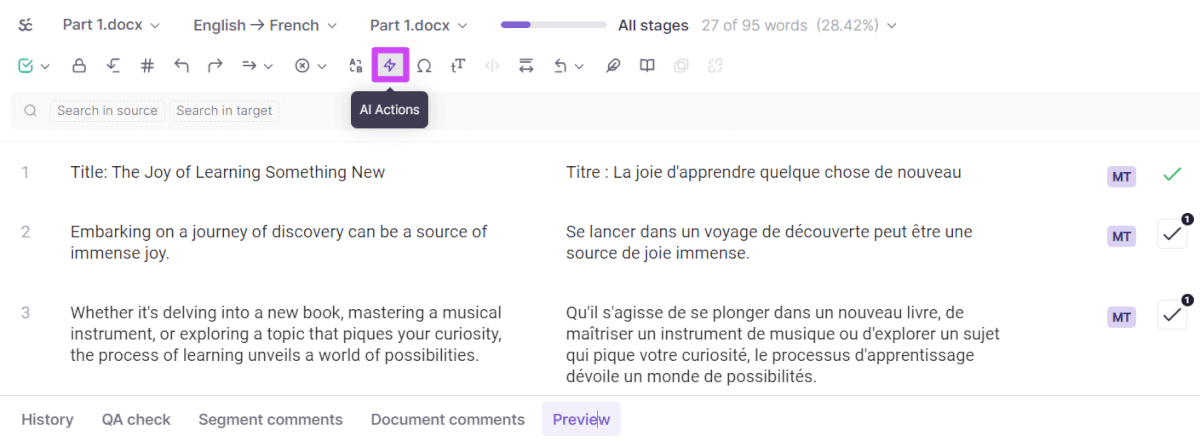
AI Actions for fast editing
AI Actions let you edit translations with a single click. These are prompts that edit the target text instantly. Available actions include:
-
Rephrase
-
Shorten
-
Translate with GPT
-
Fix punctuation
-
Fix grammar
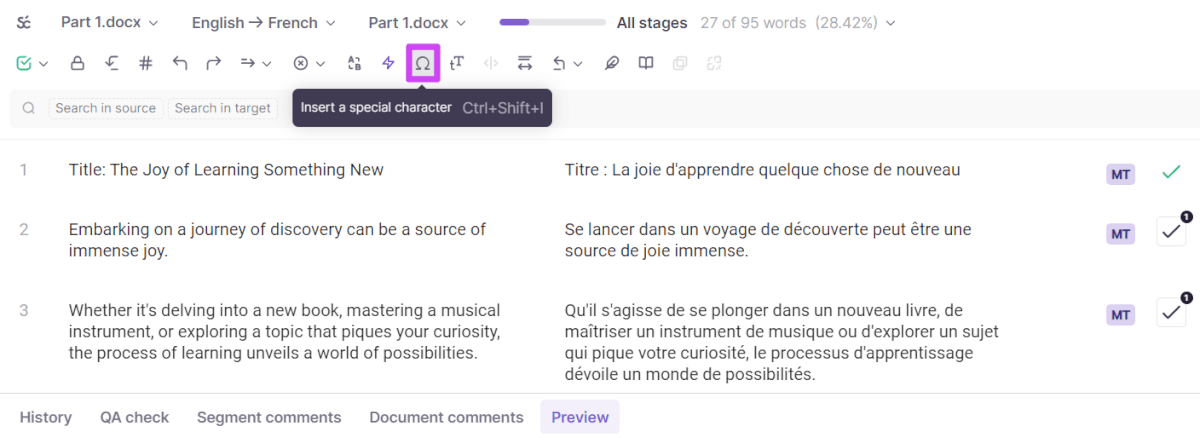
Add a special character
You can insert a special character, such as a symbol.
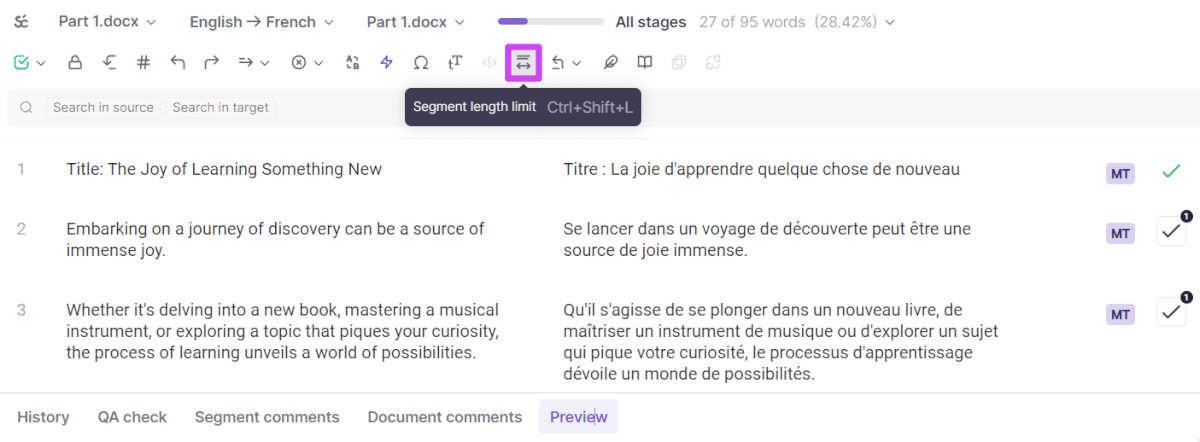
Add character count limit
You can set a maximum segment length. This is particularly important for website copy and designs where text must not exceed an allotted space.
Revert to a previous stage in the workflow
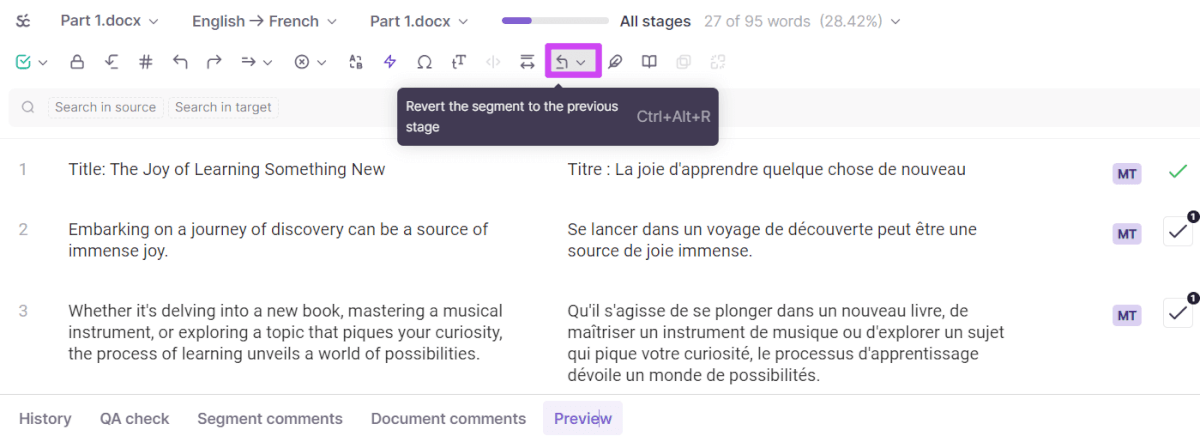
To revert a segment to a previous stage (AI translated, post-edited, proofread, etc.), click the revert icon. This signals that the segment needs to be redone.
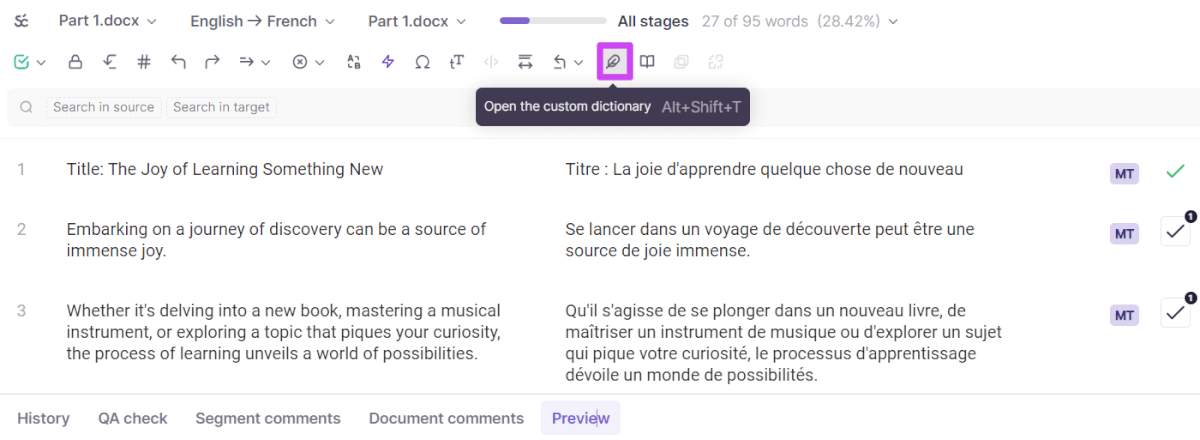
Add new term to custom dictionary
You can create a custom dictionary for each file and store terms within your linguistic assets.
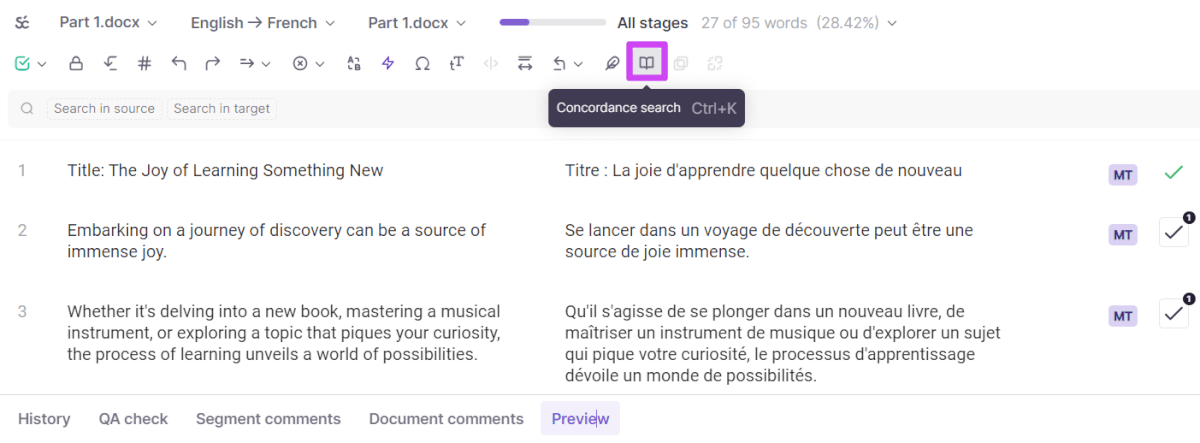
Search a term
Concordance search lets you find terms that might fit a particular word, helping you ensure it aligns with your brand voice and terminology.
Preview for extra context
As you post-edit the translation, you can view a preview of it in the Smartcat Editor.
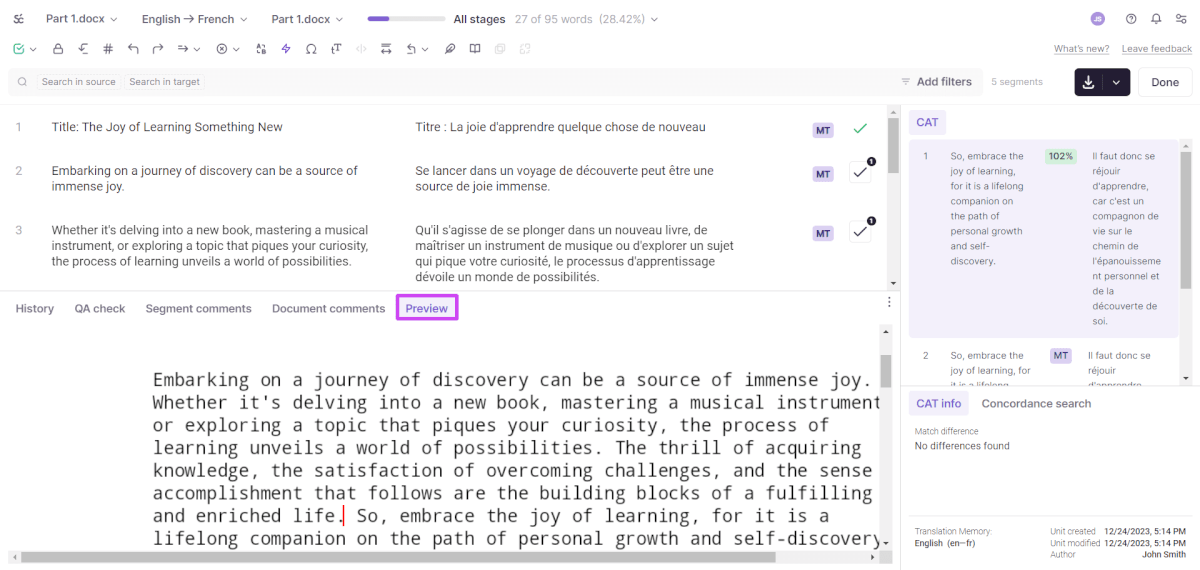
This helps you understand the context of the translation. Previews are available for documents, presentations, PDFs, videos, designs, websites, and more.
What to do when you are done post-editing an AI translation
When you are done post-editing, you have two options:
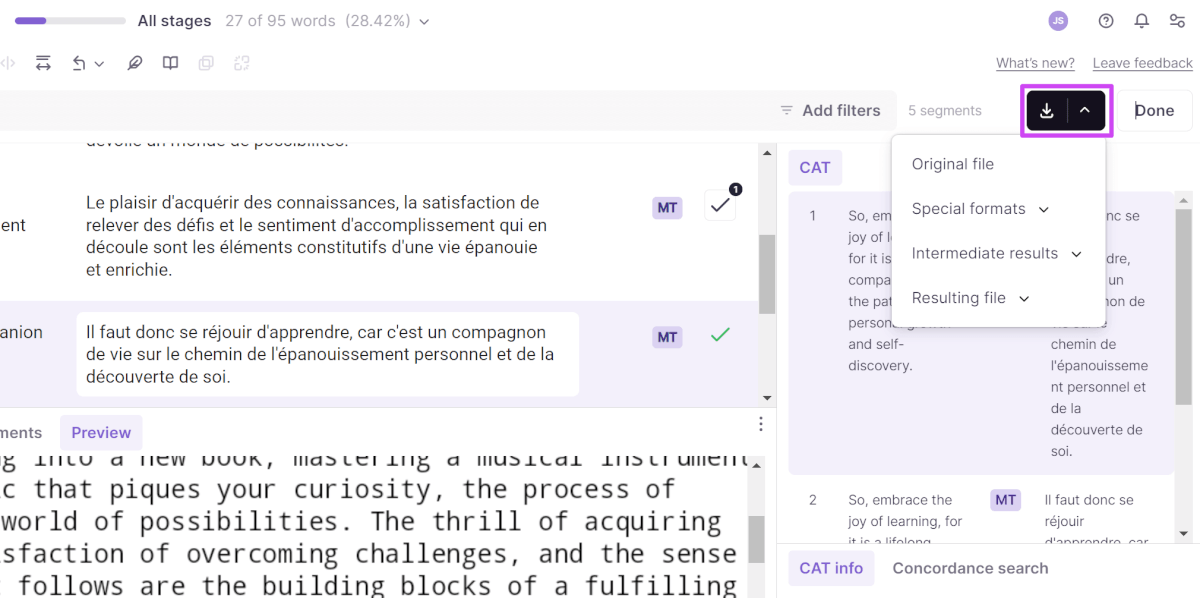
Export the file
Export the resulting file (the translation). You can export with confirmed edits or with unconfirmed edits. This is the best option if you simply want to upload a file for translation and download it again to be used immediately.
Click Done
Clicking Done notifies your project manager that you have finished post-editing. They can then have the text re-checked by internal reviewers.
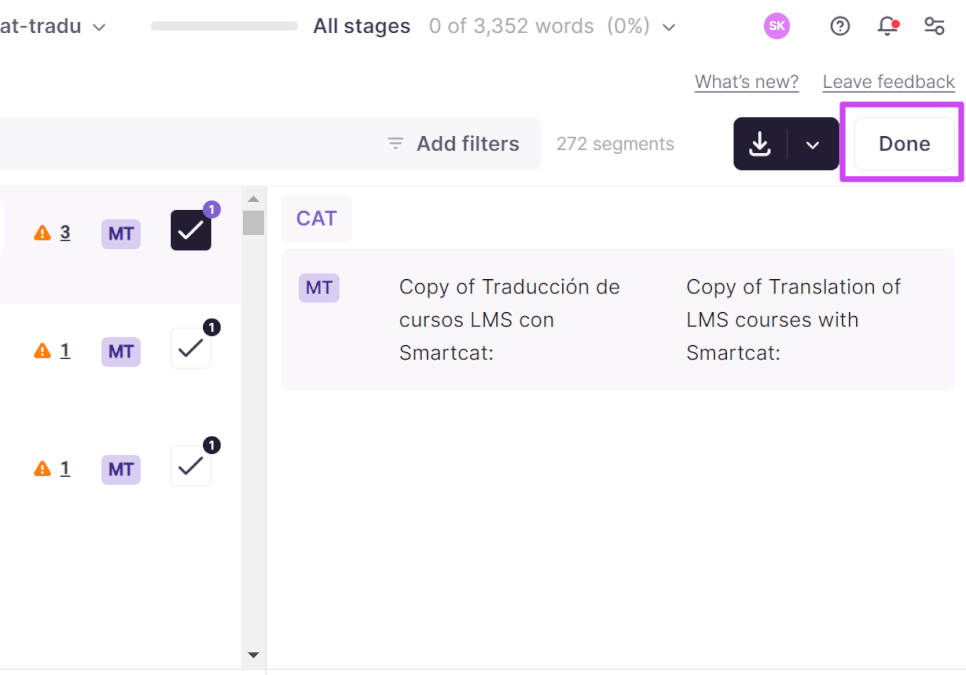
Clicking Done also signals to any continuous localization workflow setups that the translation is complete and can be pulled into integrated platforms automatically. This applies to Smartcat integrations including WordPress, Salsify, Google Docs, Google Sheets, and others.
FAQ
Does Smartcat import Word headers and footers?
Headers and footers are imported as separate segments and are placed at the beginning of the file.
In some cases, headers and footers may contain automated references such as chapter name, page number, or file name. These are replaced by tags in the editor and may not be displayed at all if the segment contains no translatable text. The same applies to tables of contents and other Word fields. Because these are generated from the file's own content, no translation is needed.
Want to learn more?
See how Smartcat can transform your localization workflow.
Still need help?
Our support team responds within one business day.