Translate text in images with the AI Image Translator
Overview
The AI Image Translator lets you translate text within images while keeping the original formatting and design layout. Smartcat uses AI-powered OCR to extract text, removes it from the background, translates it, and reinserts the translated text into the original image. You can refine translations in an editor to ensure high-quality results.
Best use cases
Image translation works for all types of images, from brand and marketing images to learning materials, software screenshots, and documents.
Why use image translation
-
Fast and accurate: Automatically detects and translates text in images
-
Maintains design integrity: Keeps the original background design, original or similar fonts, alignments, and colors
-
Flexible editing: Adjust text position, size, font, and color
-
Easy collaboration: Review and fine-tune AI-generated translations with your team
Getting started with image translation
-
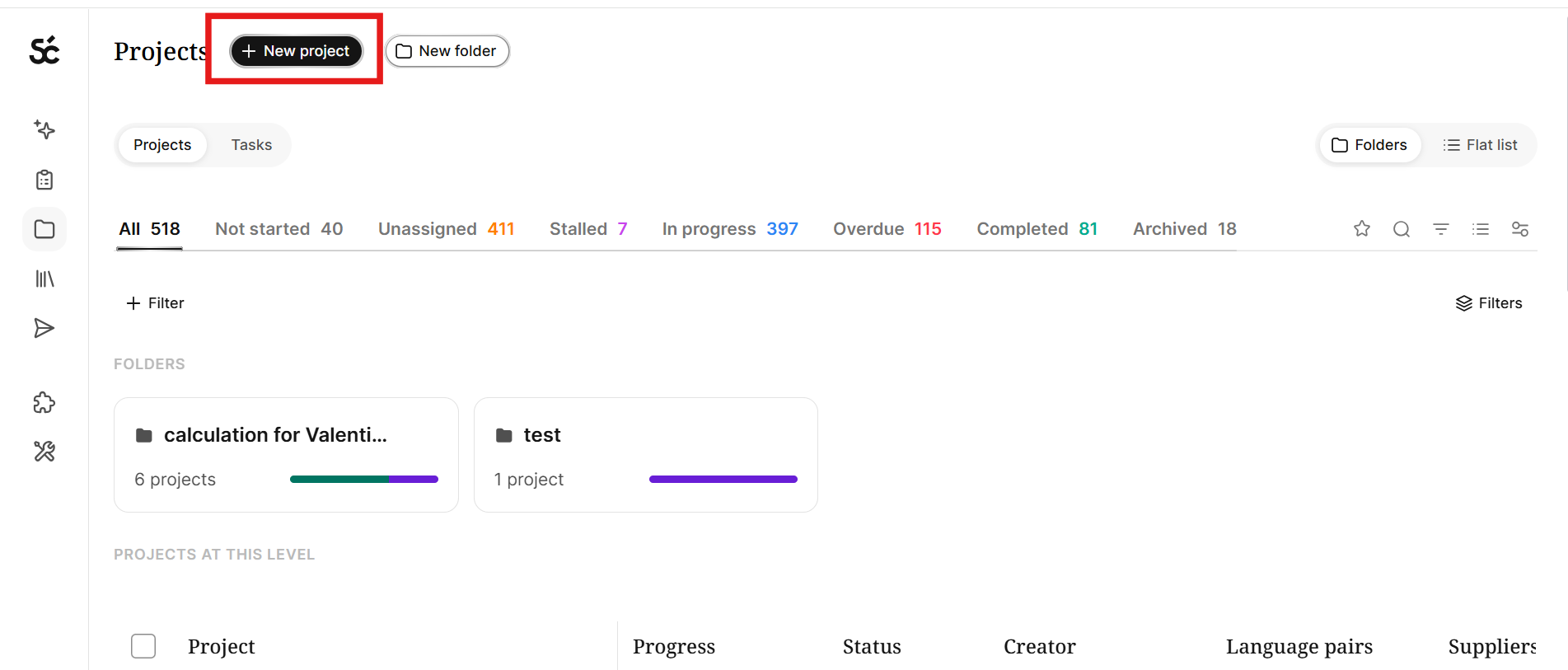
In the left navigation side bar, click Projects or ask your Chief of Staff to translate an image.
-
If you clicked Projects, then click Create New Project
-
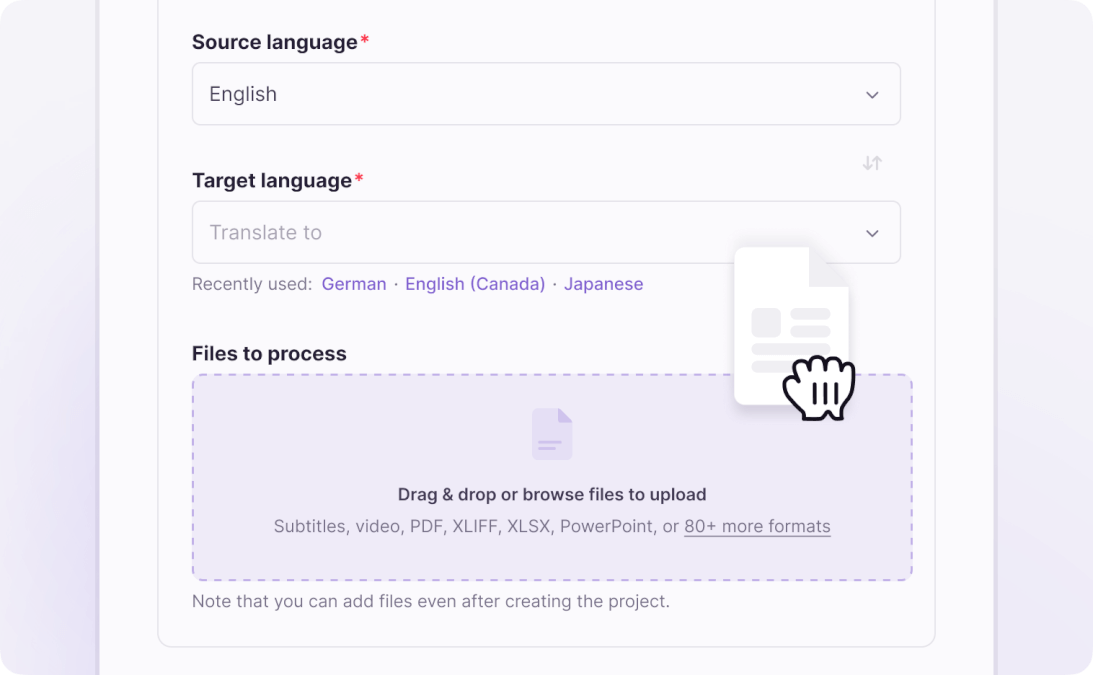
Choose your source and target languages
-
Upload images for translation. Select one or multiple image files for bulk processing (PNG, JPEG, JPG). Smartcat also supports BMP, PCX, JP, JPC, JFIF, and GIF (only the first frame for animated GIFs)
💡 The better the input quality, the better the output results. Larger image files take longer to process.
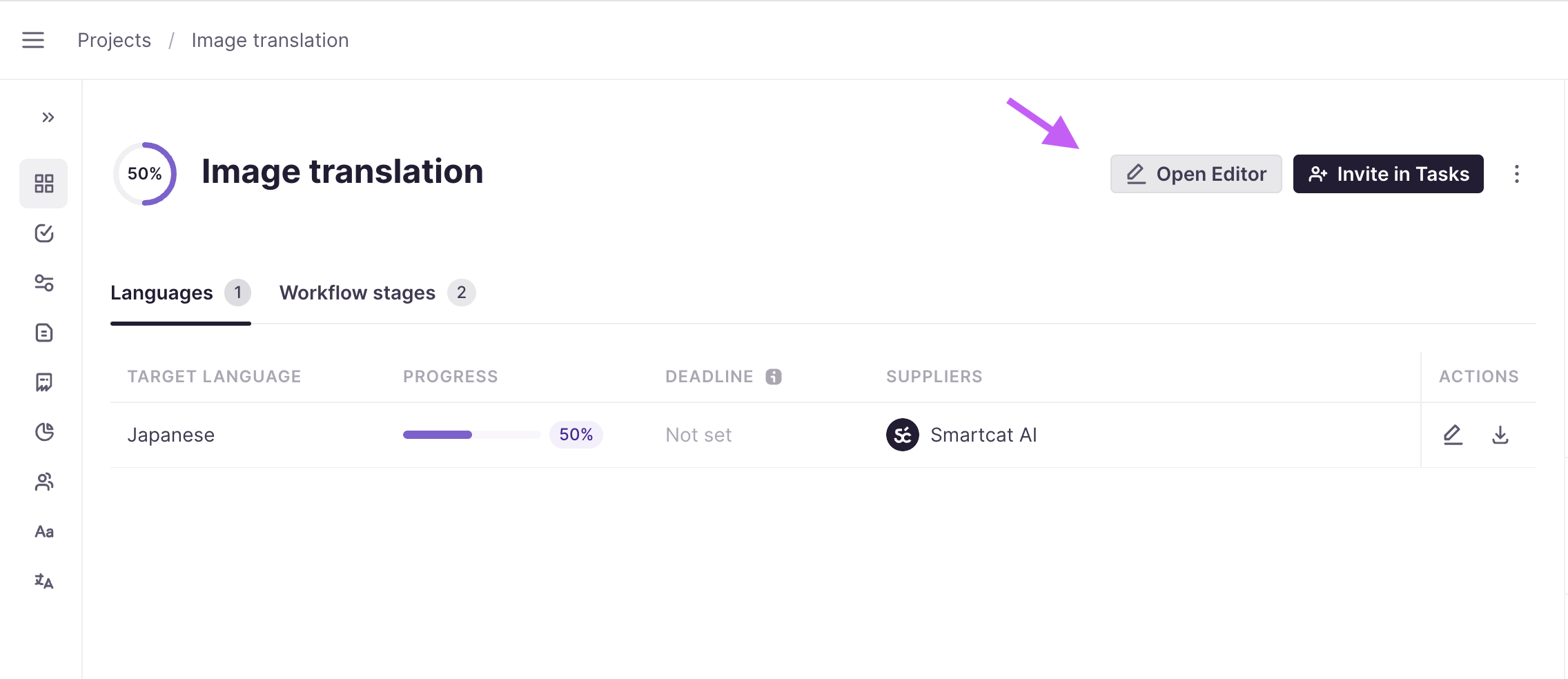
Once uploaded, Smartcat automatically processes the images, extracts text, removes it from the background, and generates AI-translated text.
You can disable auto-translation if you prefer to translate the text on the image manually. In this case, Smartcat processes the file and transforms the source text into editable text blocks, so you can make adjustments directly.
When processing is complete, click Open in Editor to begin editing.
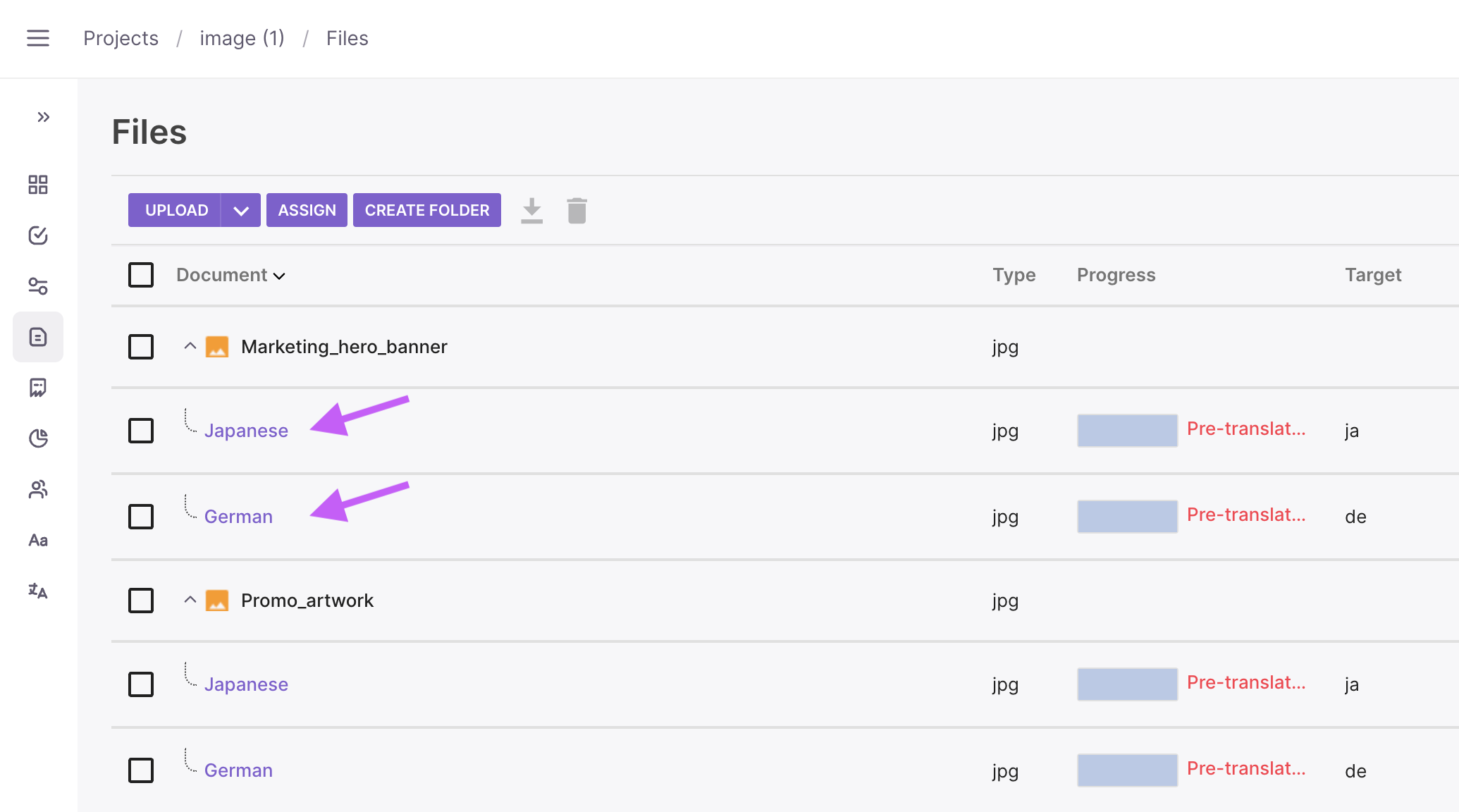
You can also go to the Files tab and select a specific file or translation to open it.
Your images are now uploaded, processed, and ready to edit.
Open the editor
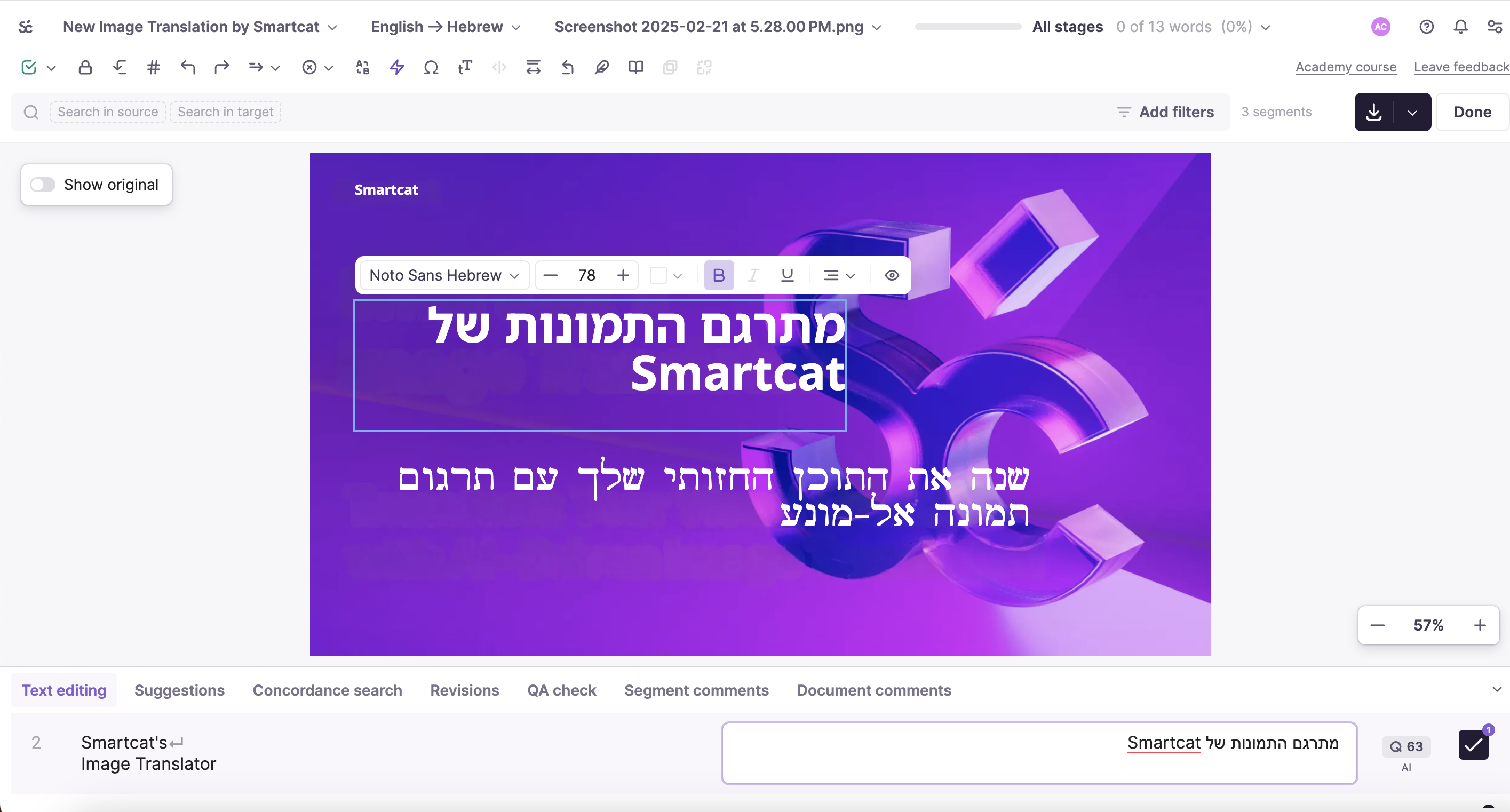
Click your processed file to open it in the Image Translation Editor, where you can review the translation and fine-tune your translated image.
Editing capabilities
-
Preview-first layout: The translated image preview appears above the text segments for better context. This is the default layout for image files. You can also select this layout for other file formats, such as DOCX or PDF
-
Drag and drop text elements: Reposition text boxes using drag-and-drop or arrow keys for pixel-perfect placement
-
Zoom in and out: Adjust zoom levels for precise editing using UI buttons, keyboard shortcuts, mouse scrolling, or touchpad gestures
You can use shortcuts to adjust the zoom level:
-
On Windows:
-
Keyboard: Ctrl + to zoom in and Ctrl - to zoom out
-
Keyboard and mouse: Ctrl + mouse scroll up to zoom in and Ctrl + mouse scroll down to zoom out
-
-
On Mac:
-
Keyboard: Command + to zoom in and Command - to zoom out
-
Trackpad: pinch outward to zoom in, pinch inward to zoom out
-
Mouse and keyboard: scroll up while holding Command to zoom in, scroll down while holding Command to zoom out
-
Text customization: Select a bounding box and use the formatting toolbar to change font type, size, color, and alignment. Apply bold, italic, and underline styling.
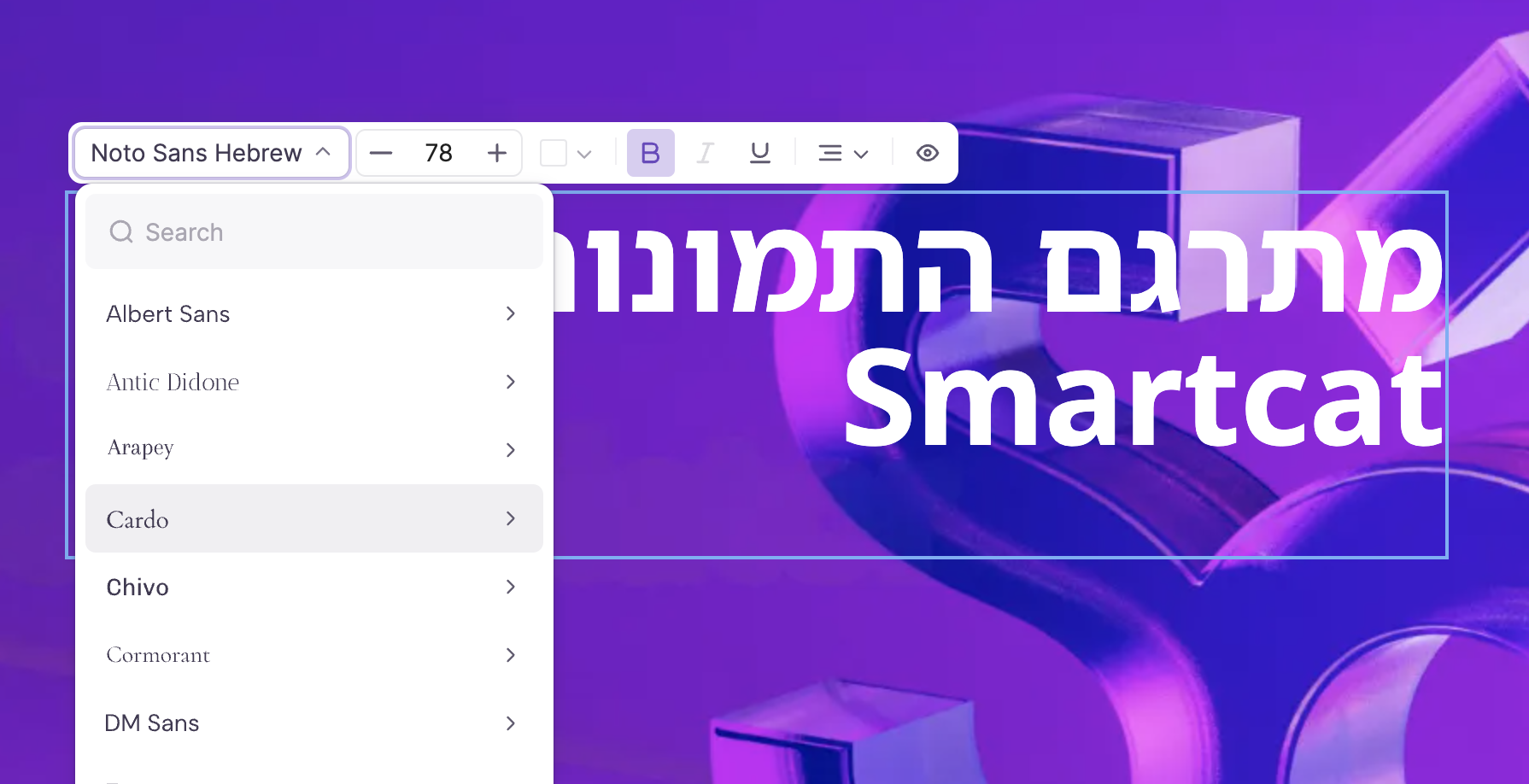
Supported fonts: This list of fonts is subject to change.
Albert Sans, Antic Didone, Arapey, Cardo, Chivo, Cormorant, DM Sans, Eczar, Fira Sans, Inconsolata, Inter, Lato, Lexend Deca, Libre Bodoni, Libre Franklin, Manrope, Merriweather, Montserrat, Neuton, Noto Sans, Noto Sans Devanagari, Noto Sans Hebrew, Noto Sans Arabic, Noto Nastaliq Urdu, Noto Sans Ethiopic, Noto Sans Georgian, Noto Sans SC, Noto Sans TC, Noto Sans Japanese, Noto Sans Korean, Noto Sans Tamil, Noto Sans Bengali, Noto Sans Kannada, Noto Sans Malayalam, Noto Sans Telugu, Noto Sans Gurmukhi, Nunito Sans, Open Sans, Oswald, Petit Formal Script, Playfair Display, Poppins, Prata, PT Sans, PT Serif, Raleway, Roboto, Roboto Slab, Rubik, Space Grotesk, Space Mono, Source Sans Pro, Source Serif Pro, Syne, Ubuntu, Work Sans.
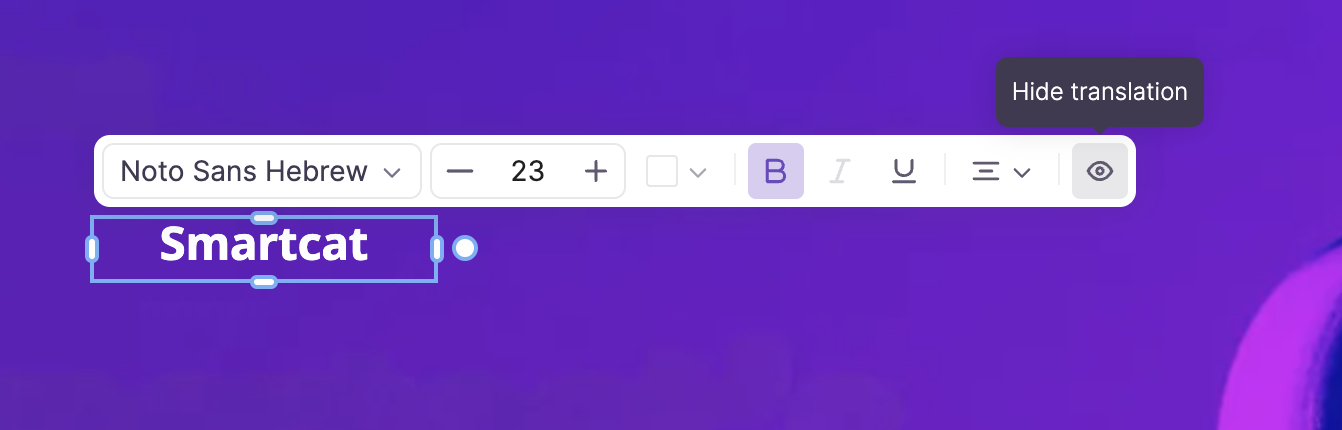
Hide translation: You can remove unwanted translated text, such as logos or brand elements, while preserving the original background. Select the text and use the Hide button to exclude it from translation.
Download the translated image
When you are satisfied with the edits:
-
Click Download to export the image in the same format as it was uploaded
-
Your translated images are ready to use, preserving the original quality and design
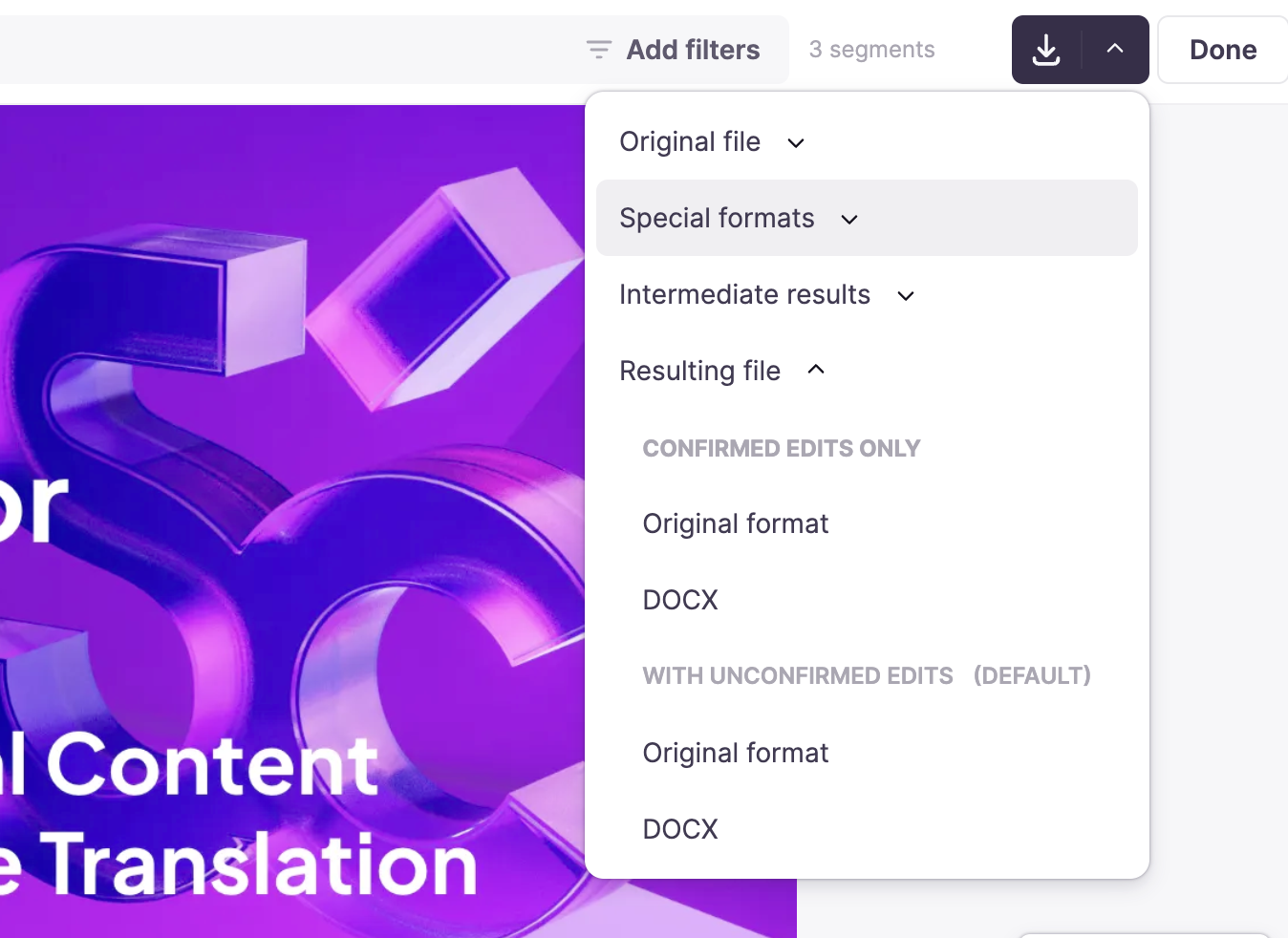
Your translated image is now exported and ready to share.
Want to learn more?
See how Smartcat can transform your localization workflow.
Still need help?
Our support team responds within one business day.