Use flexible XML parsing methods
Overview
Sometimes preset XML parsers do not let you accomplish the outcome you want, such as uploading only specific strings and elements for translation, or adding IDs and length limits for segments in the CAT editor. With the Smartcat flexible XML parser, you can set models for each case you need to handle.
Check the file format settings
-
Go to the Settings section in your account
-
Go to XML Imports, where you find the XML parsing settings
Here you set models to apply to the documents you plan to upload. You can set several models that match the requirements of different projects.
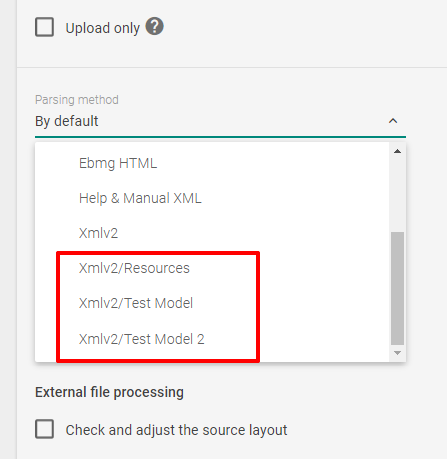
💡 Before you set new XML models, review the XPath syntax, because Smartcat looks for paths to elements in XML files according to it. A test environment such as Xpather also helps you check whether a model works or needs adjustment.
Set a custom XML parsing method
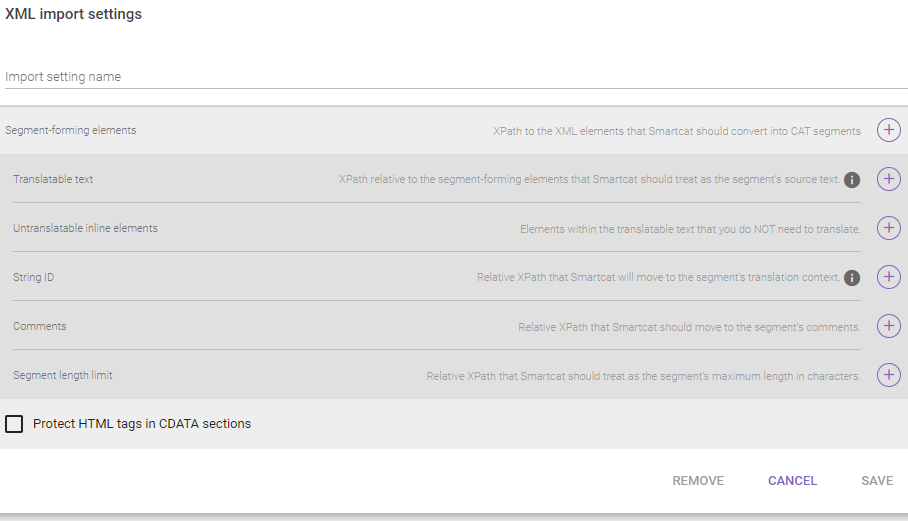
The form for setting a model has a few fields. Some are optional, while two are key and therefore mandatory. Start with the mandatory fields.
Import setting name
The name of the parsing method you are creating.
Segment-forming elements
This field sets a path to the XML elements you want to put in the CAT editor. You can set more than one element that Smartcat looks through across a whole document.
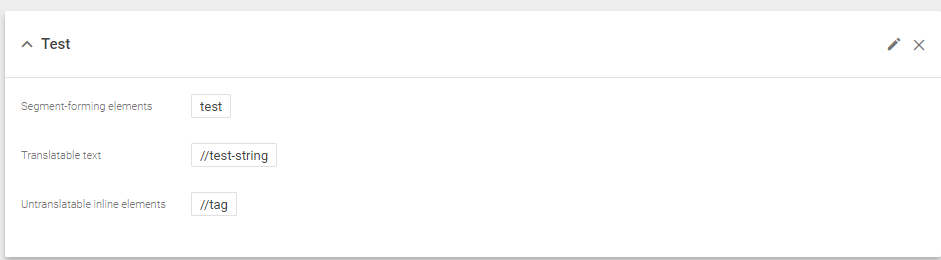
For example, the path //test-string or /test/test-string displays the string Translate me from the XML file below:
<test>
<test-string> Translate me </test-string>
</test>
📌 You cannot save a model without filling in at least these two fields.
Optional fields and checkbox
Besides the core fields, you can set paths to translatable and untranslatable nodes, string IDs, comments, and length limits. You can also choose whether to protect HTML tags in CDATA sections, covered later.
Translatable text
Segment-forming elements comprise nodes: other elements, their attributes, or text that can be translated. This setting is relative to the segment-forming elements and is searched for only within the elements set there. You can set more than one path.
Example:
The XML file has an element test, an attribute attribute-1, and another element test-string.
<test>
<test-string attribute-1= "Well"> Translate me </test-string>
</test>

Two segments appear in the CAT editor: Translate me and Well.
Untranslatable inline elements
You can set a path to an element that you do not want to translate, so the element does not reach the CAT editor. The element's content is marked as a tag in the CAT editor. You can set more than one value in this field.
This setting lets you hide technical pieces or anything else you do not want to translate.
Here is a simple example:
<test>
<test-string>Very important <tag>no</tag> content</test-string>
</test>
String ID
This field selects a unique node used as a segment ID in the CAT editor. Although optional, it is a powerful tool that lets you update a document while keeping segment revisions and assignments. You can specify only one node.
📌 The field value has to be unique for each segment within the file.
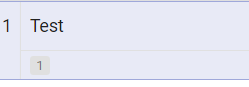
In the example below, the path to the attribute ID of the element test-string is used as a unique identifier in Smartcat.
<test>
<test-string id= "1">Test</test-string>
</test>

The segment has the ID placed at the bottom.
Comments
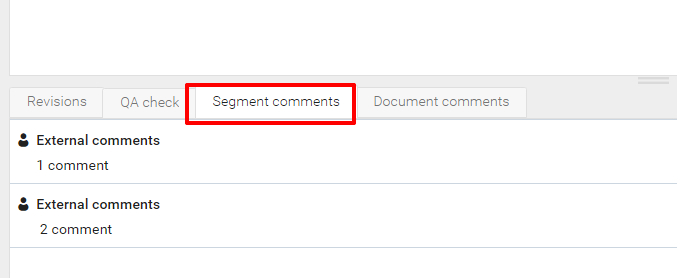
Use this field to add comments that appear in the Segment comments section in the CAT editor. You can set more than one comment.
Example:
<test>
<test-string com= "1 comment">Text<comment>2 comment</comment></test-string>
</test>
Segment length limit
Set the path to a node, which should be an integer of the string type. The integer indicates how many characters are allowed in a segment. You can set only one length limit.
The following example uses these settings:
Segment-forming element: //test-string
Segment length limit: @max
<test>
<test-string max = "10">My text</test-string>
</test>

A linguist working on the segment cannot confirm it if the length of the translation exceeds the limit.

Protect HTML tags in CDATA sections
Depending on whether the box is checked, HTML tags appear as an editable piece of text or are substituted by Smartcat tags. Without protection, tags and the text within look like this:
text. If tags are protected, Smartcat tags substitute the HTML ones.
📌 For the custom XML parser in Smartcat to work, files must contain repeating elements, each of which is turned into a source segment.
FAQs
Why would I need a custom XML parsing model instead of a preset parser?
Preset XML parsers don't always let you accomplish what you need, such as uploading only specific strings and elements for translation or adding IDs and length limits for CAT editor segments. A custom XML model lets you define exactly which elements and attributes should become translatable segments.
Which fields are mandatory when creating a custom XML parsing model?
Segment-forming elements is mandatory (the XPath to the elements you want to appear in the CAT editor), along with the parsing method's name — you cannot save a model without filling in these.
Can I exclude certain XML elements from translation entirely?
Yes — set a path in the Untranslatable inline elements field, and Smartcat treats that element's content as a tag in the CAT editor instead of translatable text, hiding technical pieces you don't want translated.
How does the String ID field help when I re-upload an updated version of my XML file?
Setting a unique node as the String ID lets Smartcat match segments to a stable ID rather than position, so you can update a document while preserving segment revision history and existing assignments.
What tool can I use to test my XPath expressions before setting them up in Smartcat?
Review XPath syntax and use a test environment like Xpather to verify your path works correctly before configuring it as a Smartcat XML parsing model.
Want to learn more?
See how Smartcat can transform your localization workflow.
Still need help?
Our support team responds within one business day.