Manage and pay freelancer payment requests
Overview
When your freelancers send you payment requests through Smartcat, jobs are created automatically in your Payments section, so you never have to create them manually. The sooner your freelancers get used to sending payment requests this way, the less cluttered your to-do list becomes.
This guide walks you through what to do when you receive a payment request.
Process a payment request
For details on how a freelancer issues a payment request, see the guide on how to issue payment requests to your clients. Forward this link to your freelancer and ask them to follow the instructions.
When you receive a payment request, complete these steps:
- Sign up for Smartcat. Click the Check and pay button in the email sent to you.
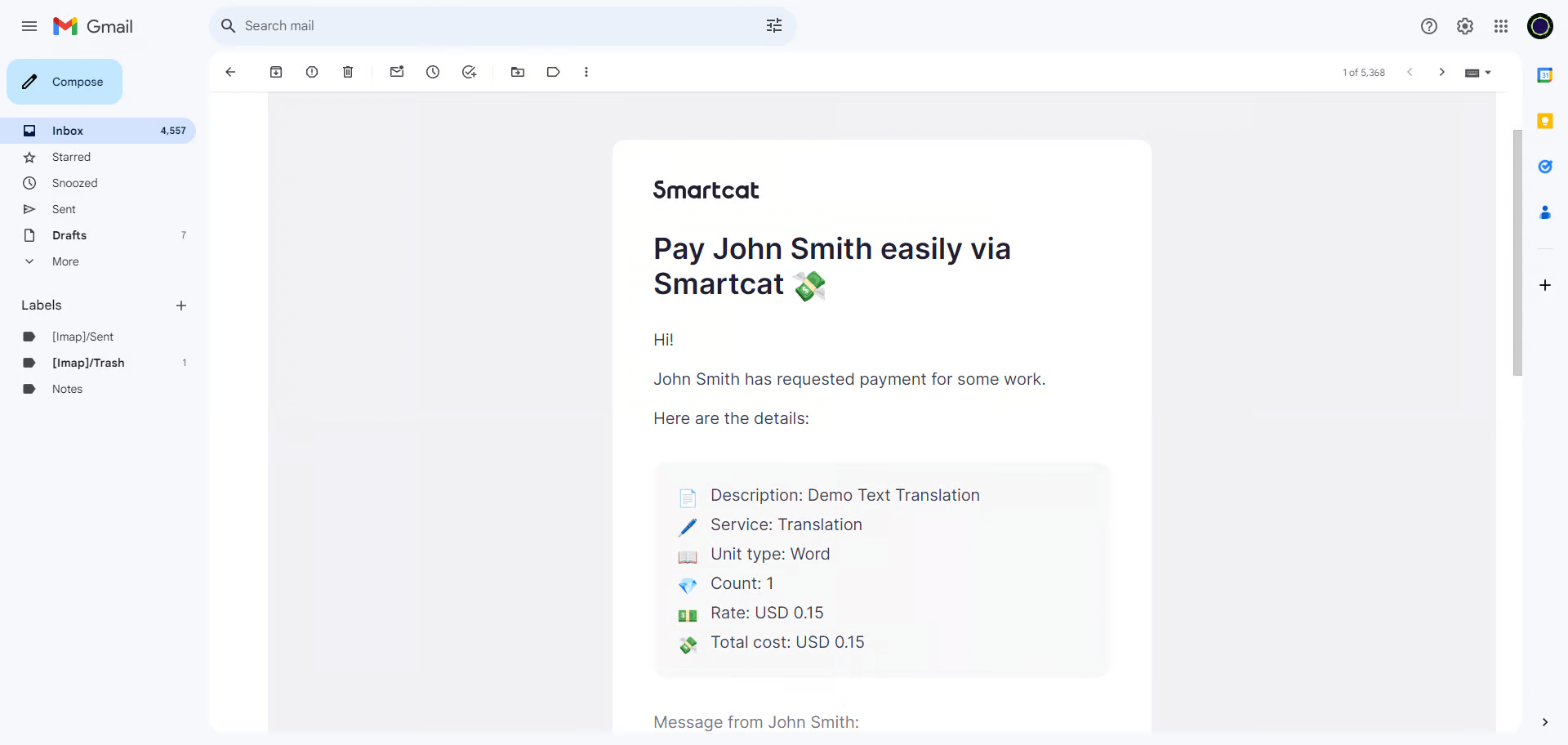
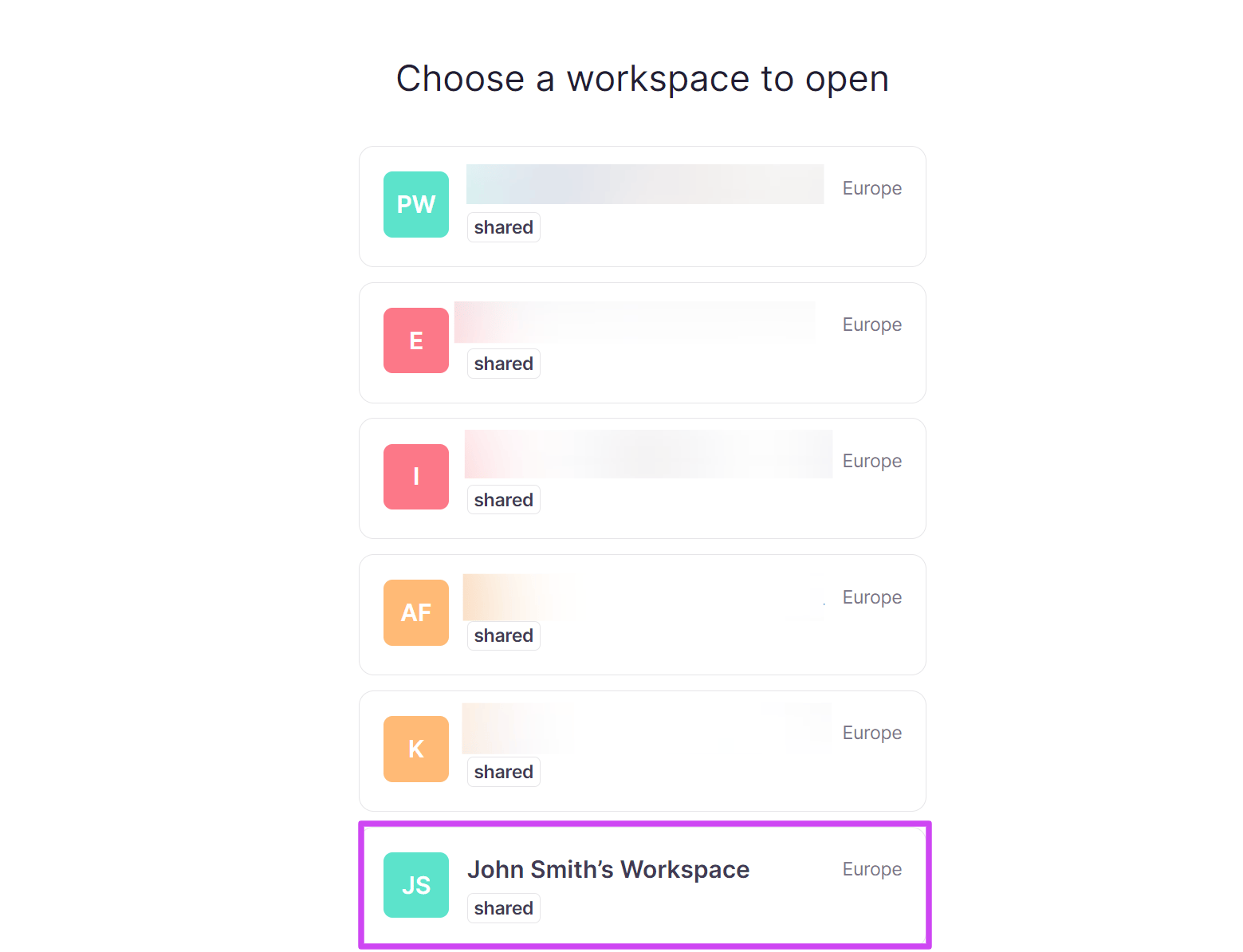
- Select your Workspace. If you haven't signed in to your account, you are asked to sign in.
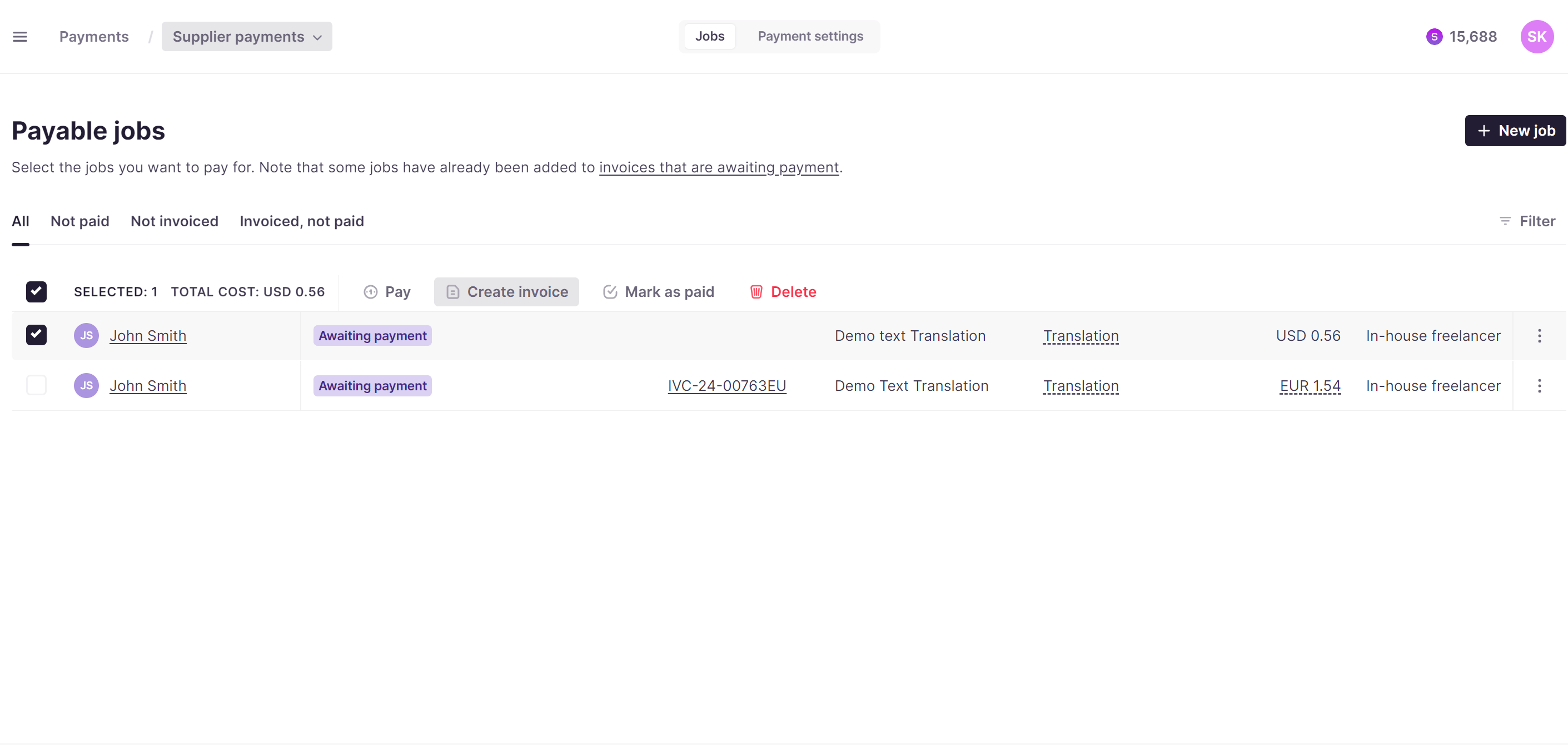
- After choosing the account, you open the Payments section. Here you see the tasks the freelancer completed and marked ready. Jobs are sorted by completion date, so the requested job may appear in the middle of the list.
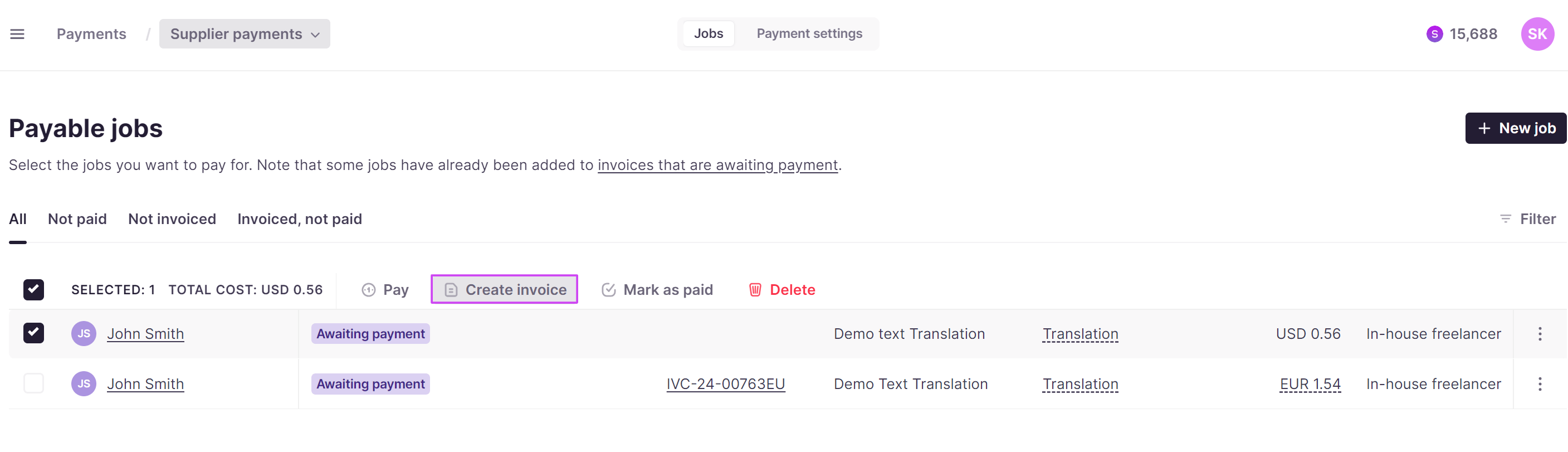
- To pay for the work, create an invoice. Select all the relevant tasks and click Create invoice. You can pay the invoice in the currency of your choice.
- Use the Invoices tab to pay the invoice. You can pay right away while creating it or at a later time. Clear invoices via credit card, PayPal, or bank transfer.
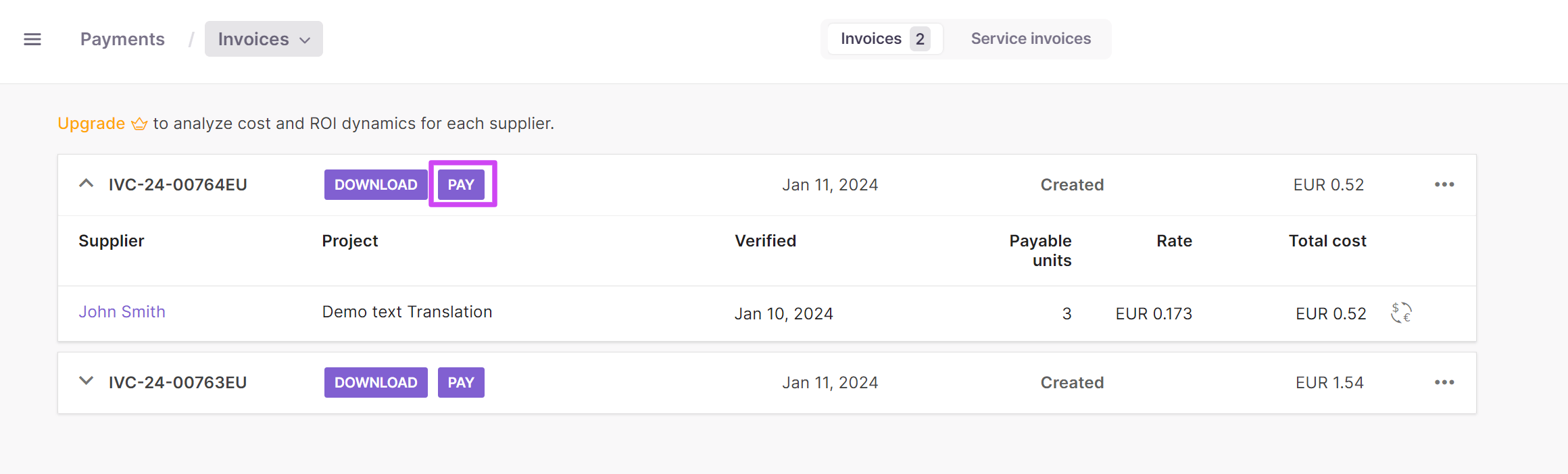
Your freelancer receives the payment through their chosen payout method once the invoice is cleared.
How much is it?
Smartcat charges you in accordance with your current account settings. You see the total cost with the fee already included.
Why paying translators through Smartcat is convenient
-
You can pay all your translators in one click in your preferred currency. All transactions are processed automatically, so you can pay any translator anywhere in the world
-
You can pay by bank card or as a cashless payment
-
You do not need to remember the translator's payment details. The freelancer chooses a convenient method to receive the payment
FAQs
Do I need to manually create a job when a freelancer sends a payment request?
No — when a freelancer sends a payment request through Smartcat, the corresponding job is created automatically in your Payments section.
How do I pay a freelancer once I receive a payment request?
Sign in via the "Check and pay" link in the notification email, go to the Payments section, select the relevant tasks, click Create invoice, and pay it via the Invoices tab using a bank card, PayPal, or wire transfer.
Can I pay multiple completed tasks in a single invoice?
Yes — you can select several tasks at once and include them all in a single Create Invoice action.
What currency can I pay a freelancer's invoice in?
You can pay the invoice in the currency of your choice.
Do I need to remember each freelancer's payment details to pay them?
No — freelancers each choose their own convenient payout method, so you don't need to track or manage their individual payment details.
Want to learn more?
See how Smartcat can transform your localization workflow.
Still need help?
Our support team responds within one business day.