Manage user roles to enable access to Drive content
Overview
As a project manager or admin, when you add a user to your Smartcat corporate account and workspace, you can assign them a specific role. Each role grants different levels of access rights. You can explore the various preset roles and their corresponding access levels for account users.
Roles such as Administrator, Project Manager, and Resource Manager can access content stored in Drive. Roles like Language Lead and Linguist do not have Drive access and can only interact with documents as assigned to their tasks.
Identify restricted access
If a user encounters a restricted access screen while trying to open a document or folder in Drive, their current role does not have the required permissions.
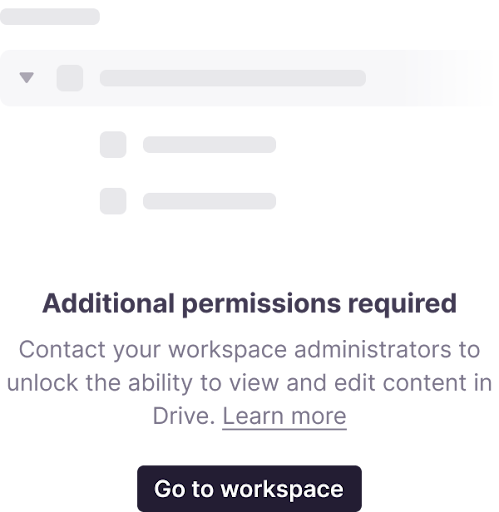
Upgrade a user's permissions
To upgrade a user's permissions so they can view and edit content in Drive, use one of these options.
- Change the user's role to Resource Manager, as shown below

- Alternatively, re-invite the user to the workspace, even if they are already a member. This time, specify Resource Manager as their role. Once the user accepts the new invitation, they gain access to Drive
After the role change takes effect, the user can view and edit content in Drive.
FAQs
Why does a teammate see a restricted access screen when opening a document in Drive?
Their current account role doesn't have permission to access Drive content. Roles like Language Lead and Linguist don't have Drive access by default and can only interact with documents assigned directly to their tasks.On some workspace configurations, this can instead appear as no response at all when double-clicking the file, with only Download / Invite / Copy link available in the row menu.
Which roles can access Drive content?
Administrator, Project Manager, and Resource Manager roles can access content stored in Drive.
How do I give an existing team member Drive access?
Change their role to Resource Manager (or another Drive-enabled role) in their user settings — no need to remove and re-add them.
Can I grant Drive access without changing an existing member's current role assignment process?
Yes, alternatively you can re-invite the user to the workspace — even if they're already a member — and specify Resource Manager as their role in the new invitation; once they accept, they gain Drive access.
Want to learn more?
See how Smartcat can transform your localization workflow.
Still need help?
Our support team responds within one business day.