Add and manage vendors in your account
Overview
Most Smartcat corporate users run a model where projects are split between internal team members, freelancers, and other language service providers (LSPs). Smartcat makes it easy to build projects around this model. You add internal team members and freelancers in the My Team section, and you can also add vendors to your account and assign them tasks in projects.
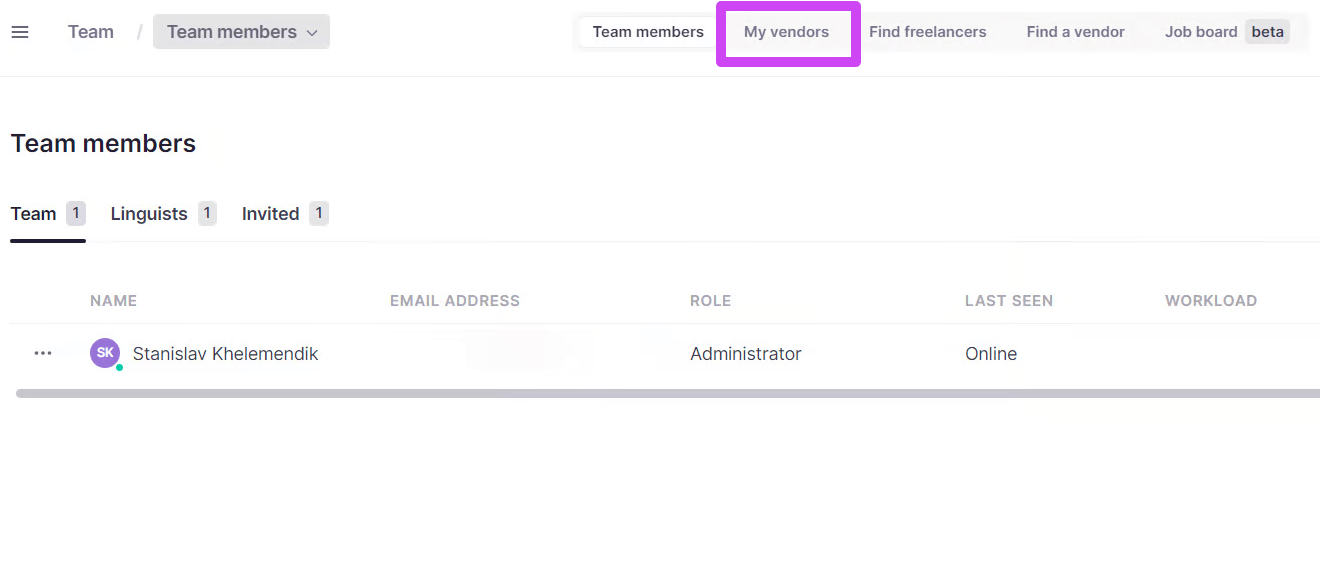
Add a vendor from the Marketplace
You can add a vendor to your account in two different ways. If a potential vendor is already listed in the Smartcat vendor Marketplace, follow these steps:
-
Go to the Find a vendor tab
-
Search for the vendor
-
On the vendor card, click Learn more to open the profile page
-
In the description section of the profile, click Add as Vendor
The vendor is added to your Smartcat account and appears on your vendor list.
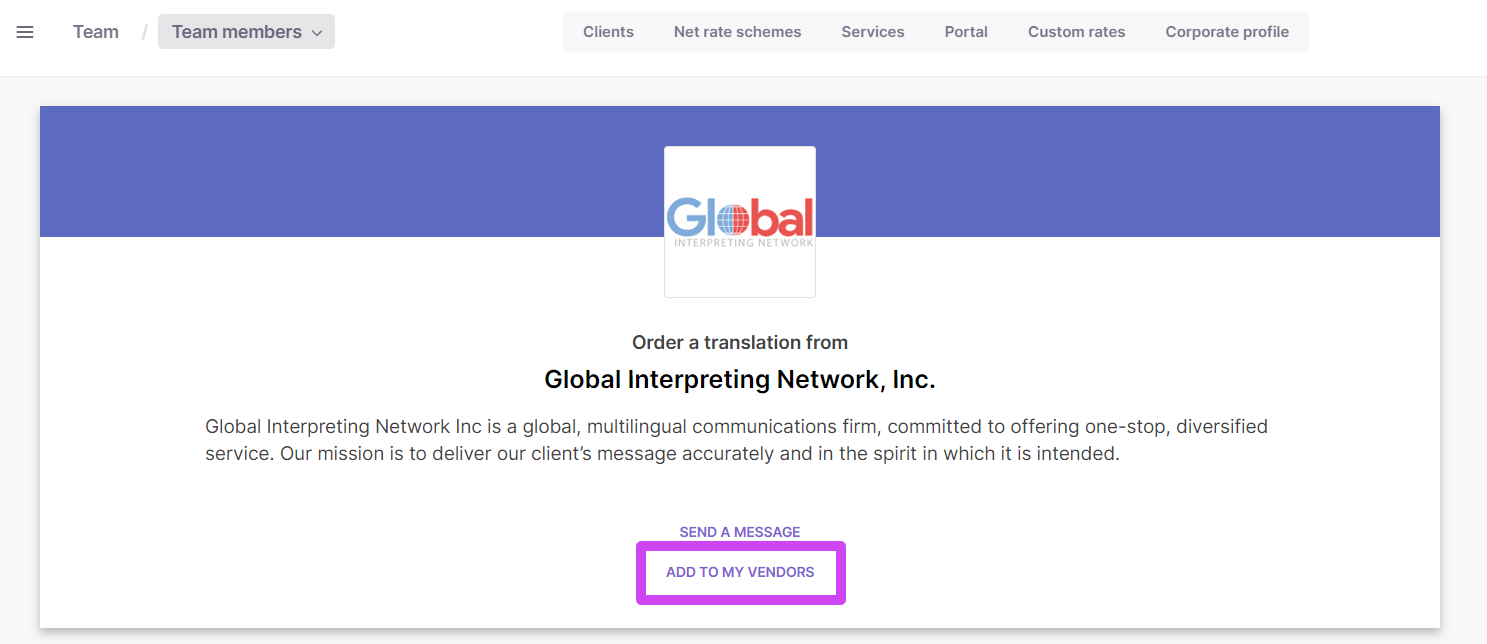
The vendor is then automatically added to the My vendor page. Once a vendor is added, the option changes to Remove vendor, so you can remove a vendor from your account if you do not plan to work with them again.
📌 For a vendor to be added to your account, both accounts must be hosted in the same server location. For example, if your account is hosted on the USA server, you cannot add a vendor whose account is hosted on the European server. To work around this, one party can create another Smartcat account on the appropriate server and link the accounts.
A vendor added to your vendor list can be assigned to individual tasks in projects. See the article about assigning tasks for more information.
Add vendor details
When a vendor is added to your My vendor list, you can add more information about the company.
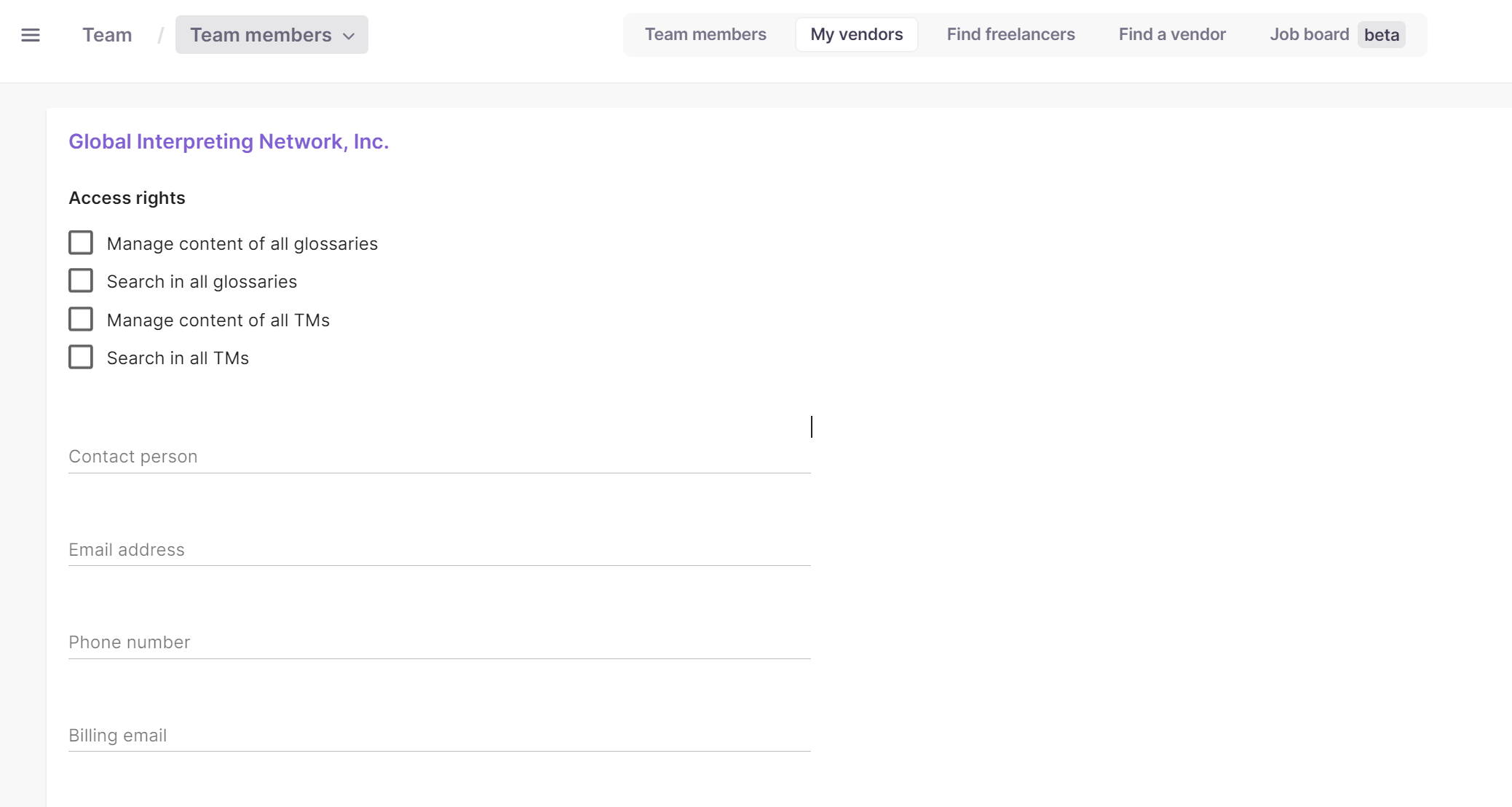
Depending on your relationship with the vendor, you can:
-
Grant greater access rights to linguistic assets
-
Add contact information
-
Add a billing email, which is used to process payments to the vendor's corporate balance in Smartcat when you pay through Smartcat
Want to learn more?
See how Smartcat can transform your localization workflow.
Still need help?
Our support team responds within one business day.