Organize projects with client and project group labels
Overview
To streamline the project creation process, use Client and Project Group labels to tag linguistic assets and projects. A client can be another corporation or a division within your company. These two labels are important for organizing your data so you get the most out of Smartcat.
Create client labels
In the left navigation sidebar, click Clients.
The Clients page lists clients you defined previously and gives you the option to add new clients.
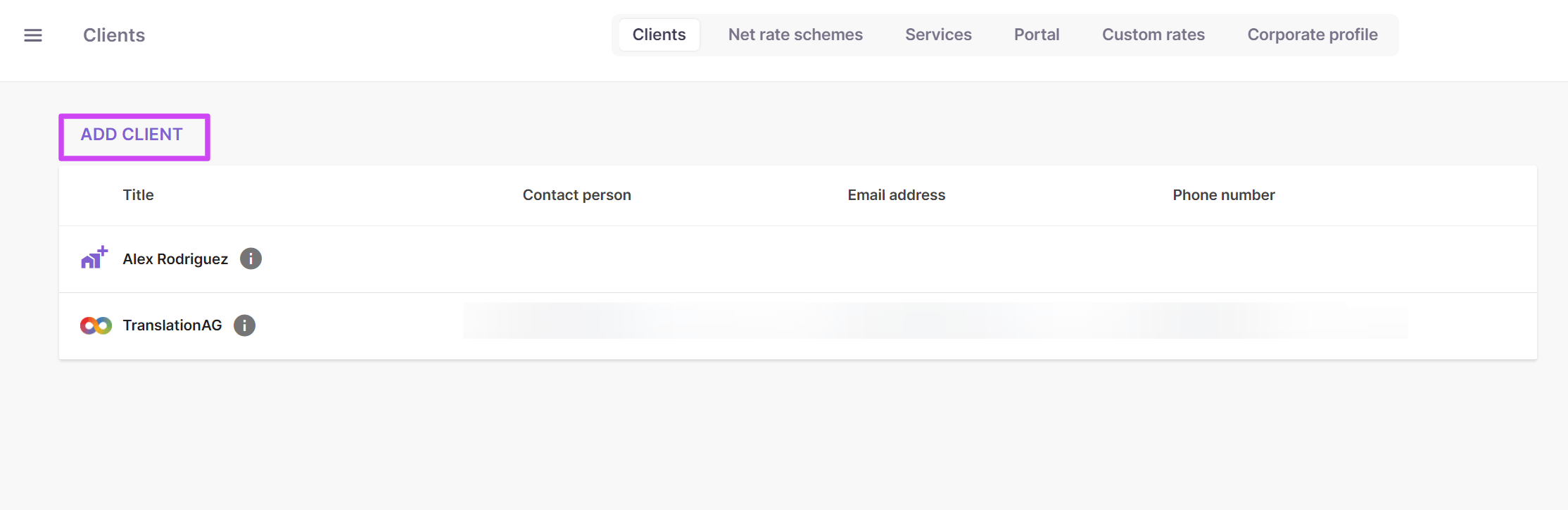
To add a client:
-
Go to the Clients tab
-
Click Add Client
-
Enter the client details, adding as many contacts as you need for each client
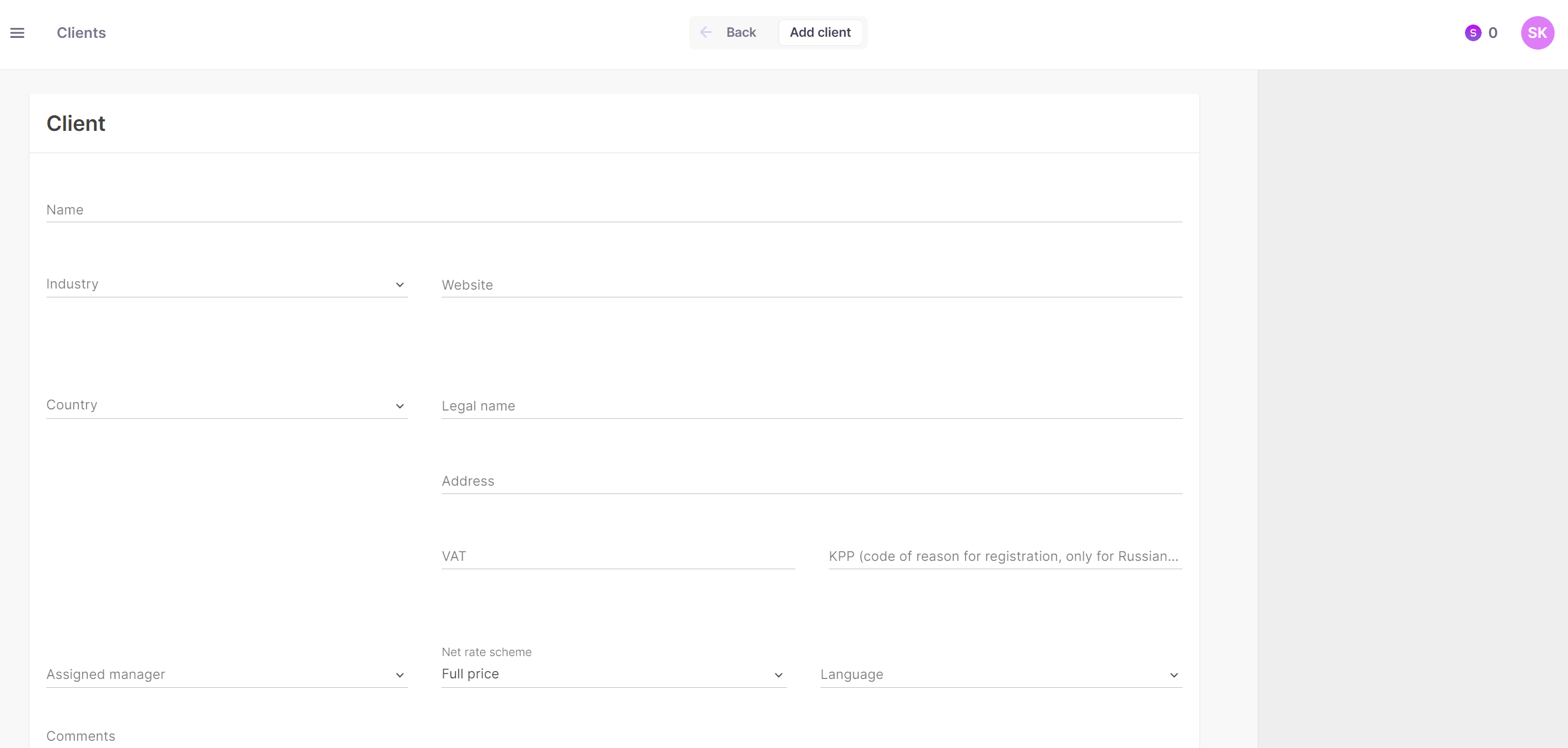
Your new client label is now available to tag linguistic assets and projects.
📌 Your client list shows two icon types: clients added automatically through the customer portal, and clients you added manually. For clients added through the portal, you cannot edit the name and contacts because the customer created them.
Use project group labels
Add Project Groups from the options in the Settings menu. Use the Project Group label together with client labels, for example to tag different divisions in a large company and keep language assets separate, or to group the linguistic assets of multiple companies in a single Translation Memory (TM).
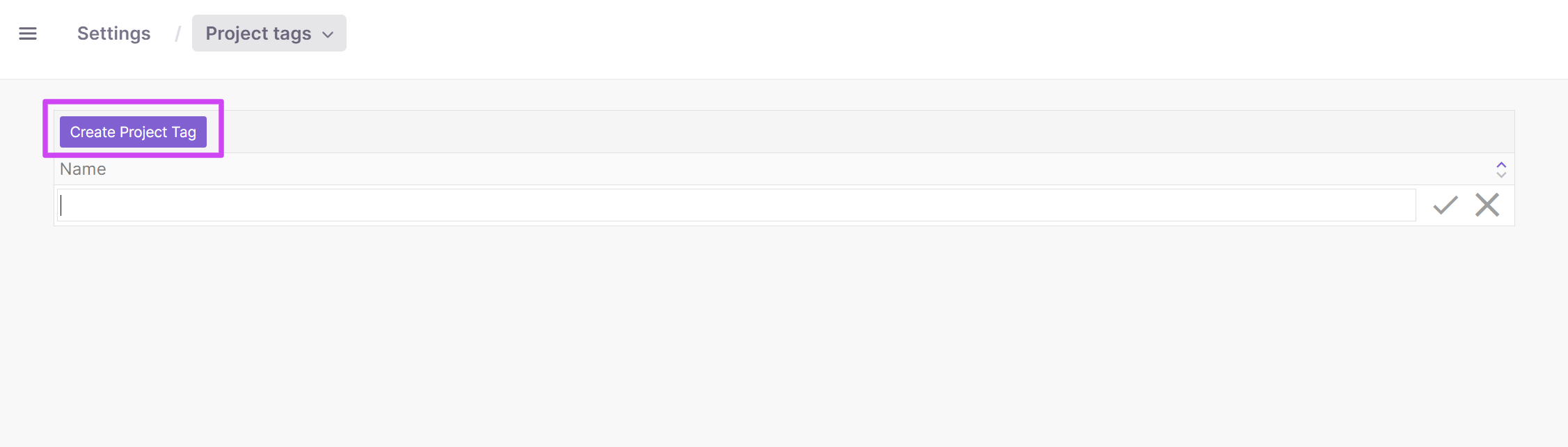
For example, one language service provider (LSP) working for many small law firms might not create a separate TM for each client. Instead, it could create a Legal project group, tag a TM and a glossary with that label, and use these two databases for all its law firm projects.
FAQs
What's the difference between a Client label and a Project Group label?
A Client label identifies another corporation or a division within your company. Project Group labels are used alongside client labels for finer organization — for example, tagging different divisions of a large client or grouping linguistic assets from multiple companies into a single Translation Memory.
Can I edit a client's name if it was added automatically through the customer portal?
No — clients created automatically via the customer portal cannot have their name and contacts edited by you, since the customer created that entry themselves. Only manually-added clients are editable.
Where do I create a new Client label?
Go to the Clients tab in the left navigation sidebar, then click Add Client and fill in the client's details and contacts.
Where are Project Groups configured?
In the Settings menu, under the Project Groups option.
Want to learn more?
See how Smartcat can transform your localization workflow.
Still need help?
Our support team responds within one business day.