Create a translation request via the Order Management Solution
Overview
The Order Management Solution lets you receive translation requests from other workspaces in your organization.
Internal stakeholders within your company can request translations from you without having to worry about the underlying workflows and processes, especially if they are not directly involved in localization or translation project management.
How to create a translation request
Step 1: Create a project using a service template
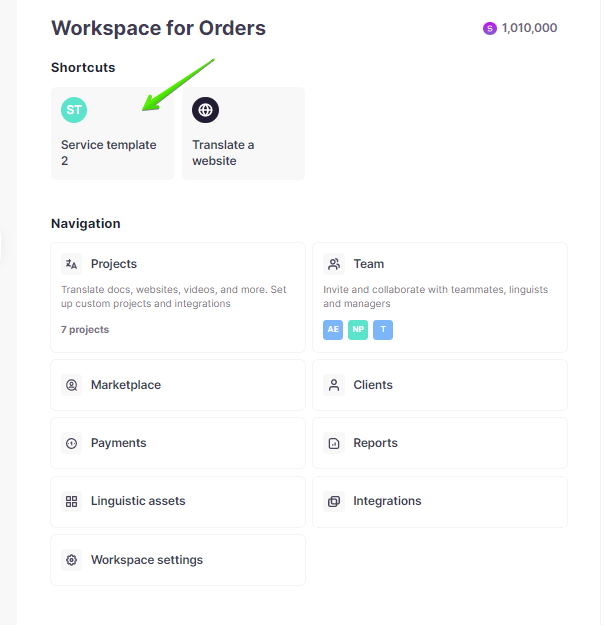
- On the Home page, select a shortcut to create a new order
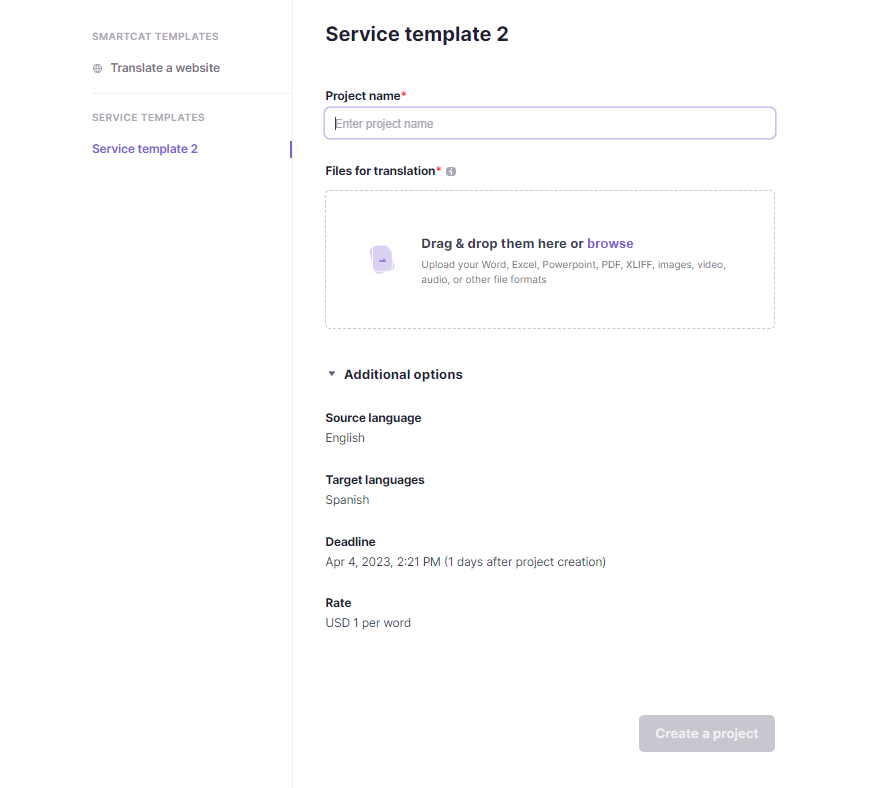
- Enter a project name and upload files for translation, then click Create a project
Step 2: Review the project
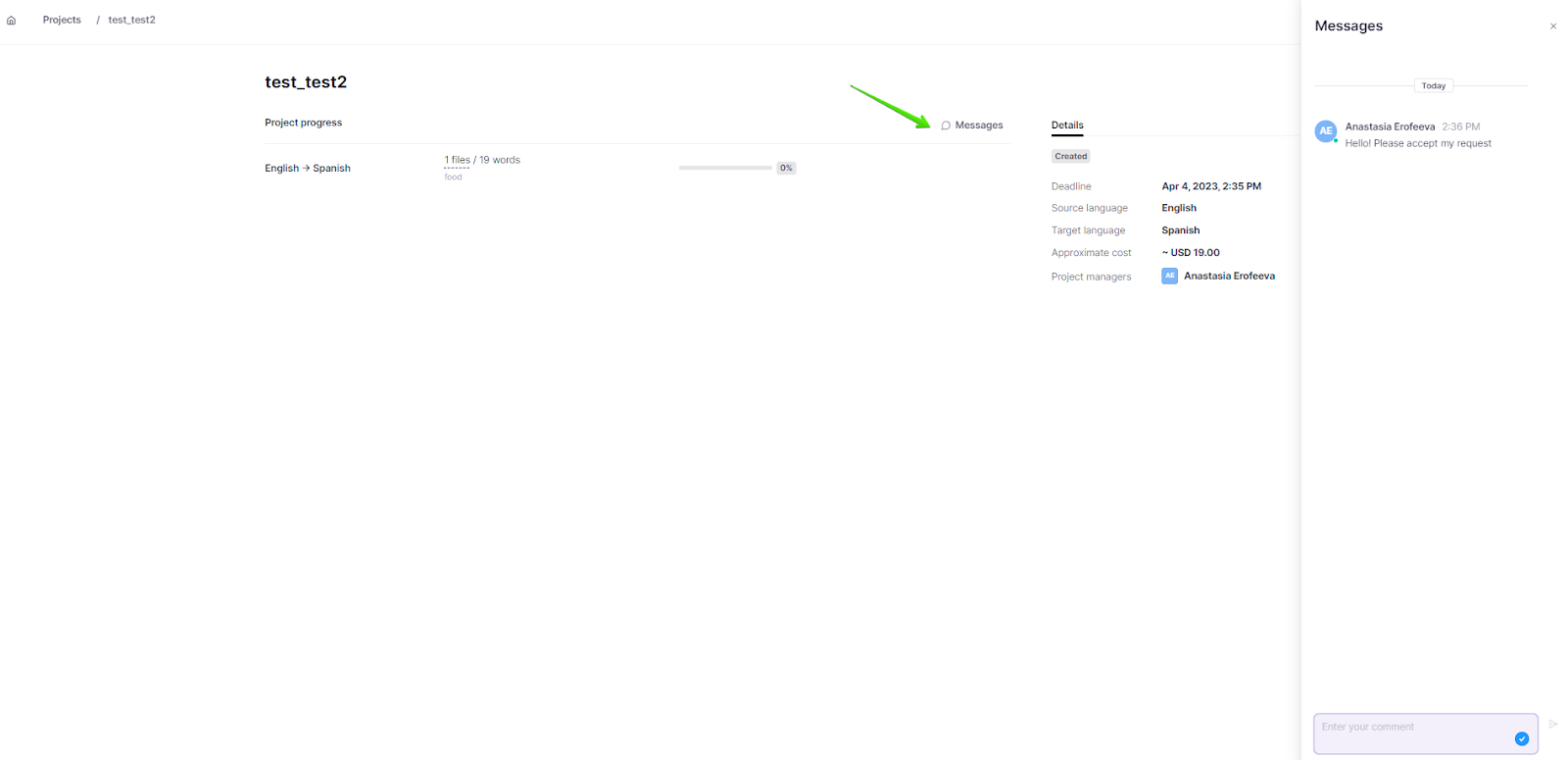
Once you create a project via a service template, it appears on the Projects page. You can contact your client via the Messages icon to discuss the project details.
Step 3: Get translations
Once the translation is completed by a manager, the project shows 100% status, and you can download the translations. Smartcat also emails you to let you know the project is ready for review.
Execute orders
Step 1: Receive a translation request
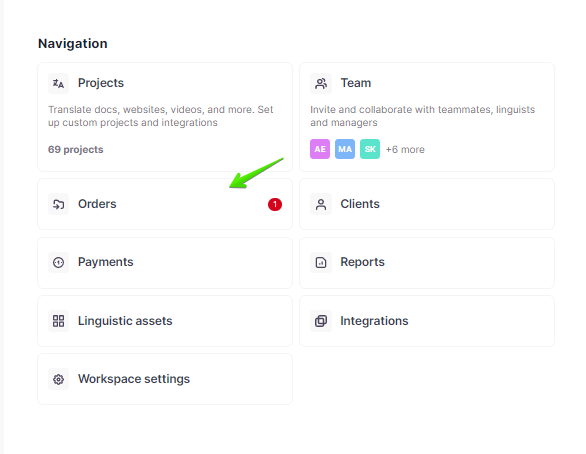
Once a translation request is created, Smartcat sends an email notification to the workspace admin. A manager can open it from the email notification or go to their Smartcat account → Home page → Orders.
Step 2: Review the order details
A manager can view the order details and files (click the file to open it in the CAT editor) before accepting the order. To discuss the order details with a requester, a manager can click the chat icon.

A manager can either accept or decline the new order:
-
Accept order creates a new project where the manager can start working on the translation as usual
-
Decline order opens a popup where the manager can explain the reason for declining
Step 3: Complete the translation
The accepted order appears among other projects on the Projects page. You can translate the documents as you would in regular projects. Once the project is finished, the Completed status is shown. The same status is reflected in the account of the user who requested the order, and they can download the translations.
The requester and the manager now share a completed order with downloadable translations.
Find out how to set up the Order Management Solution in your Smartcat account.
FAQs
How do I know when my translation request is ready?
Smartcat emails you once the manager completes the translation, and the project shows 100% status on the Projects page — at that point you can download the translations.
How do I ask questions about my translation request while it's in progress?
Use the Messages icon on the Projects page to contact your client/manager directly about the project.
Who receives my translation request when I submit it?
The workspace admin gets an email notification, and the request also appears under Orders on their Home page for any manager to pick up.
Do I need to know about localization workflows to submit a request?
No — that's the point of the Order Management Solution. Internal stakeholders can request translations without understanding the underlying project management or workflow configuration.
Want to learn more?
See how Smartcat can transform your localization workflow.
Still need help?
Our support team responds within one business day.