Create a project in Smartcat
Overview
A project in Smartcat is the container for all your translation work. It holds your source files, defines your language pairs, sets your deadline, and organizes the tasks that move your content from source to target language. Creating a project is the first step in any translation workflow.
This article walks you through creating a project in Smartcat, from accessing the project creation screen to configuring your settings.
When to use it
-
You have content that needs to be translated into one or more languages
-
You are starting a new translation initiative and need to organize files and tasks
-
You want to set up a project structure before uploading files or assigning translators
How to create a project
Access the project creation screen
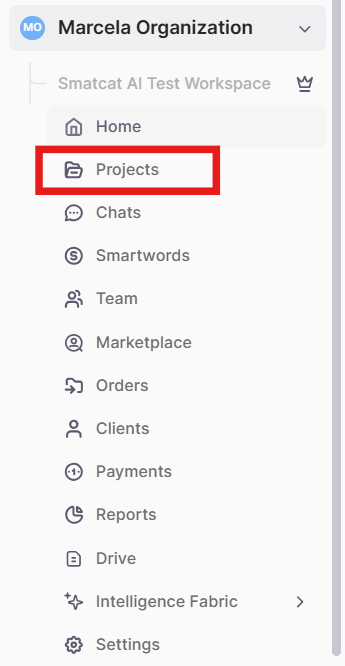
- In the left sidebar navigation, click Projects.
- Click + New project in the upper-left corner.

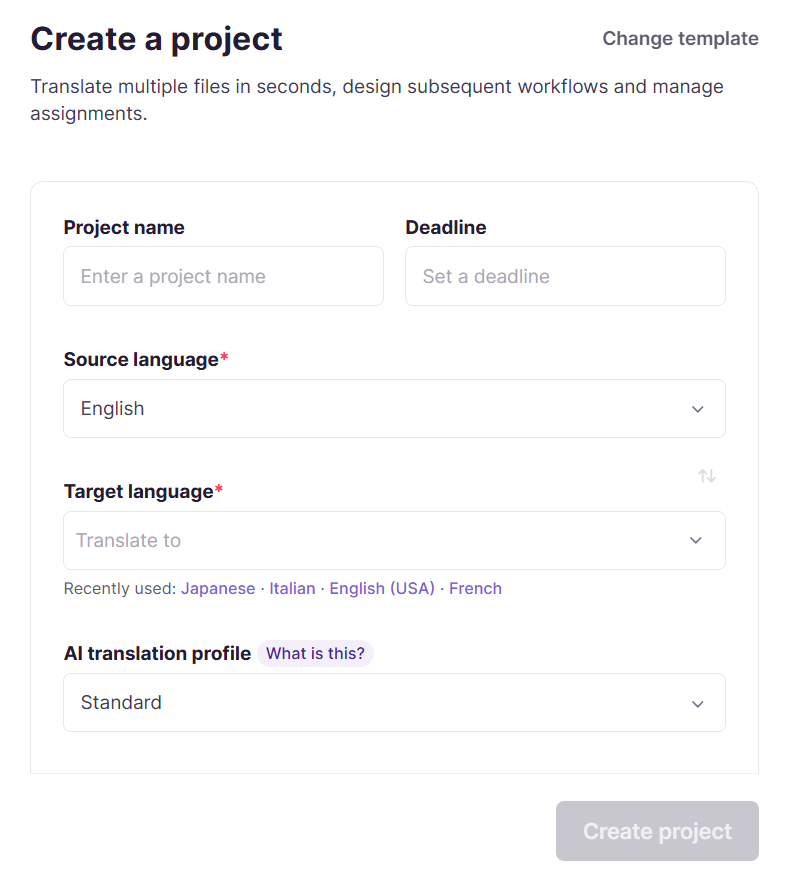
You can also select the translator agent from your homepage to start a new project quickly.
Configure your project settings
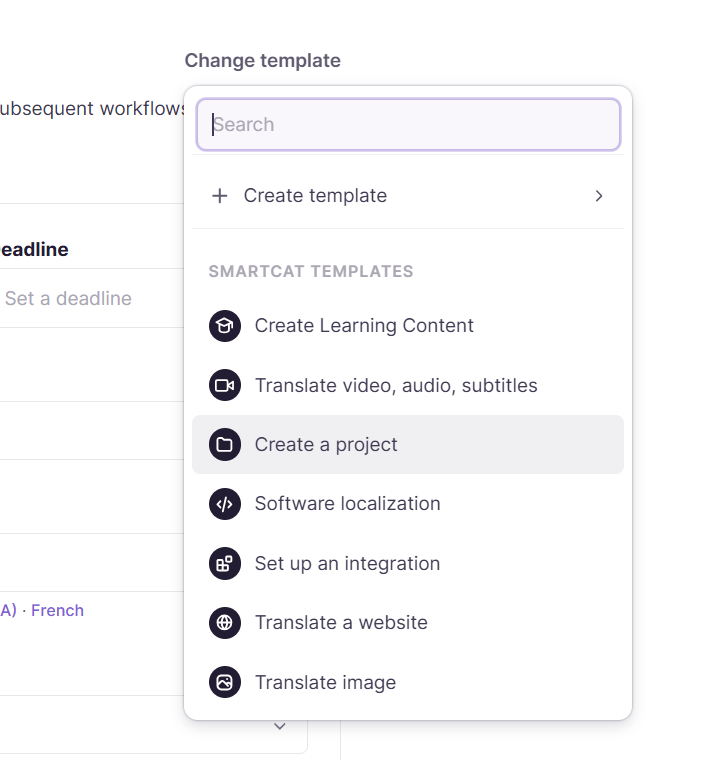
- Select a template (not required). To use a premade template, either one you created or one of Smartcat's defaults, click the Change template button at the top right of the page. You can also create a new template from here.
- Click Choose folder to choose a project folder. Select a folder from the folder menu, create a new folder, or leave it blank to leave the project at the top level. If you open the new project wizard from inside a folder, this field defaults to that folder.
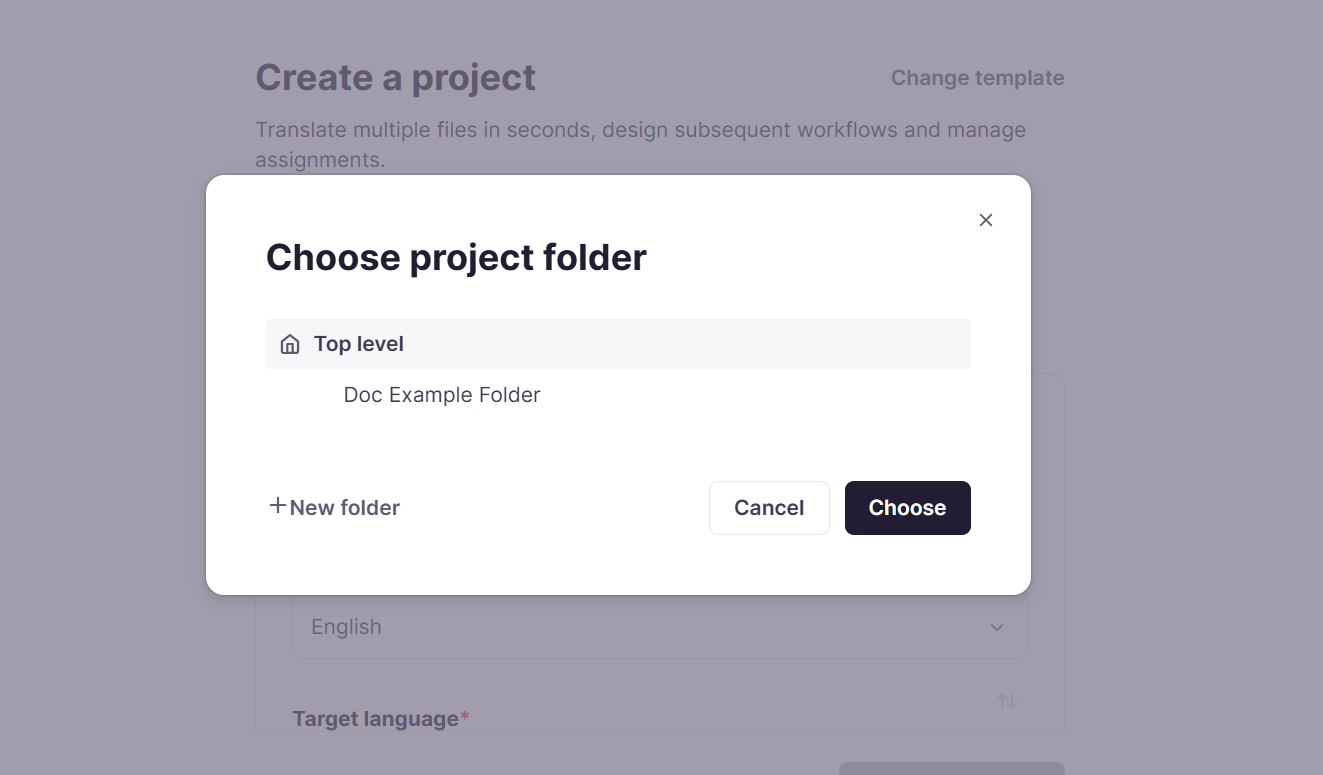
-
Enter a project name
-
Use a descriptive name that includes the content type and date (for example, "Marketing Brochure - July 2026"). Clear naming helps you find projects later and keeps your workspace organized
-
The project name field is empty by default. If you don't provide a name and don't upload any files, it is automatically named "New project" after clicking Create project. If that name is already taken, a number is be added.
-
If you don't provide a name but upload files, Smartcat will automatically name it "Project: name of the first file without extension". If that name is already taken, a number is added.
-
-
Set a deadline (optional)
-
Choose a realistic deadline so team members can plan their work
-
The deadline appears on task assignments and helps track project progress
-
-
Select your source language. This is the language of your original content and you can only select one source language per project.
-
Select your target language(s). Choose one or more languages to translate into — you can add multiple target languages to translate your content simultaneously. Languages not supported by AI translation are shown in gray
-
Upload files (not required). Upload files to be translated here. You can also add files at later stages of the project.
-
Additional settings. Open this menu to customize your project workflow. Options include:
-
Workflow - select any set of stages independently and manage their order. You can also remove eligible workflow stages from this page.
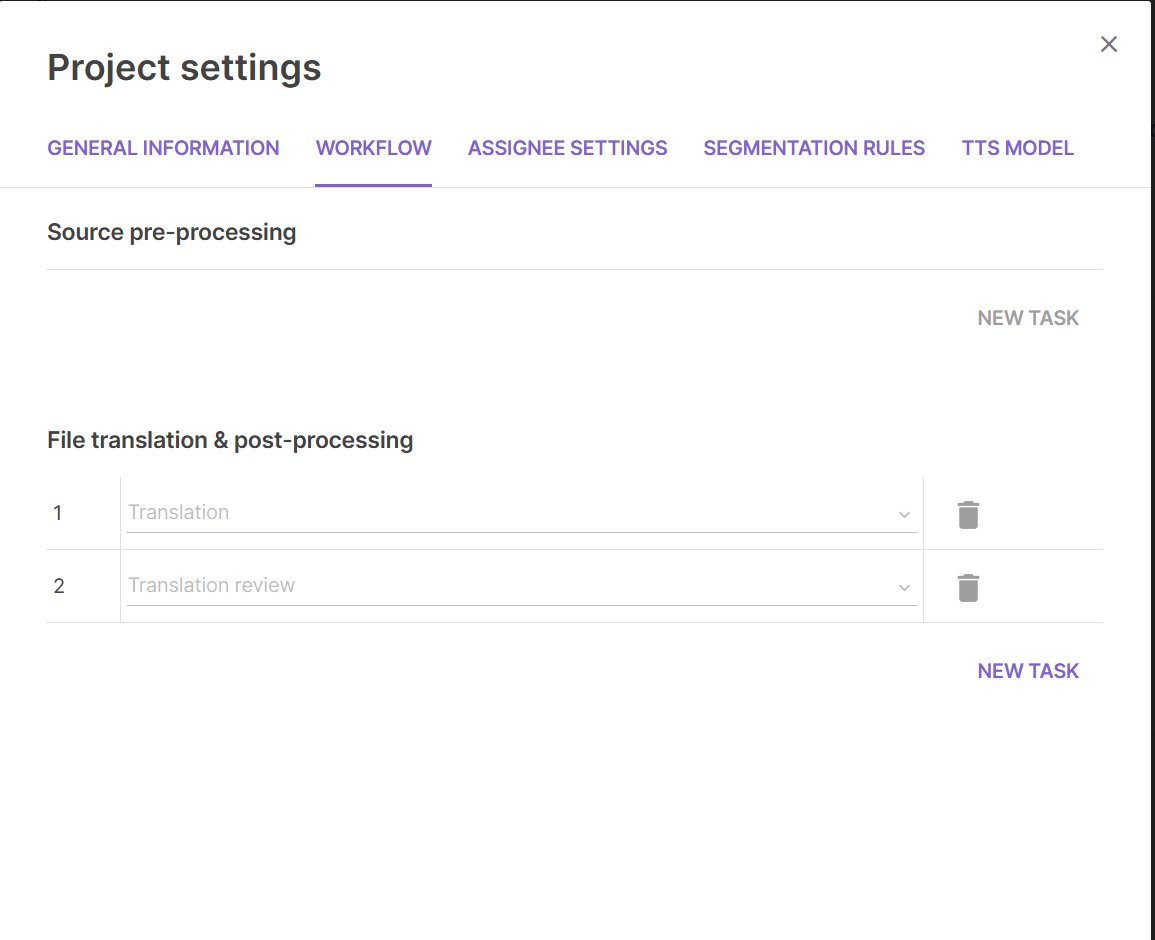
-
AI translation and review (the default) - Get high-quality AI translation in seconds. Edit the results yourself or collaborate with teammates or linguists.
-
Manual translation - Invite teammates to translate, or hire professional translators from the Marketplace.
-
Translation → Editing - Invite teammates to translate and edit, or hire professional translators and editors from the Marketplace.
-
Translation → Editing → Proofreading - Invite teammates to translate, edit, and proofread, or hire professional translators, editors, and proofreaders from the Marketplace.
-
-
Click Create project at the bottom of the workflow. Once your project is created, you can upload linguistic resources, assign tasks to team members and freelancers, and control other settings.
Add a workflow stage after AI translation is complete
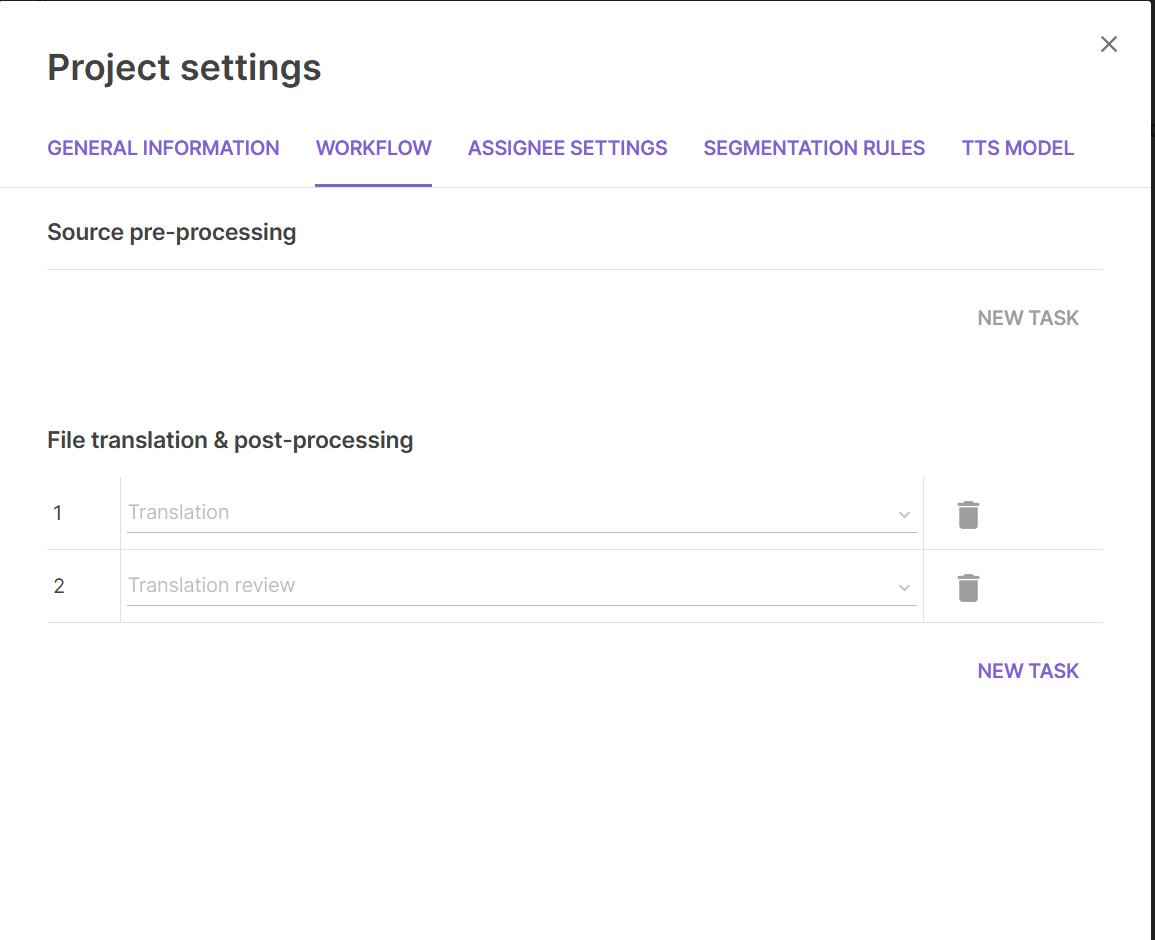
You can add a workflow stage, such as Editing or Translation Review, to a project at any time before work has started in that stage.
, click the settings (gear) icon, go to the Workflow tab, and click "New Task" (or "Add stage" if you're working from a project template).
-
Open the project
-
Click Settings in the left navigation sidebar
-
Click the Settings (gear) icon
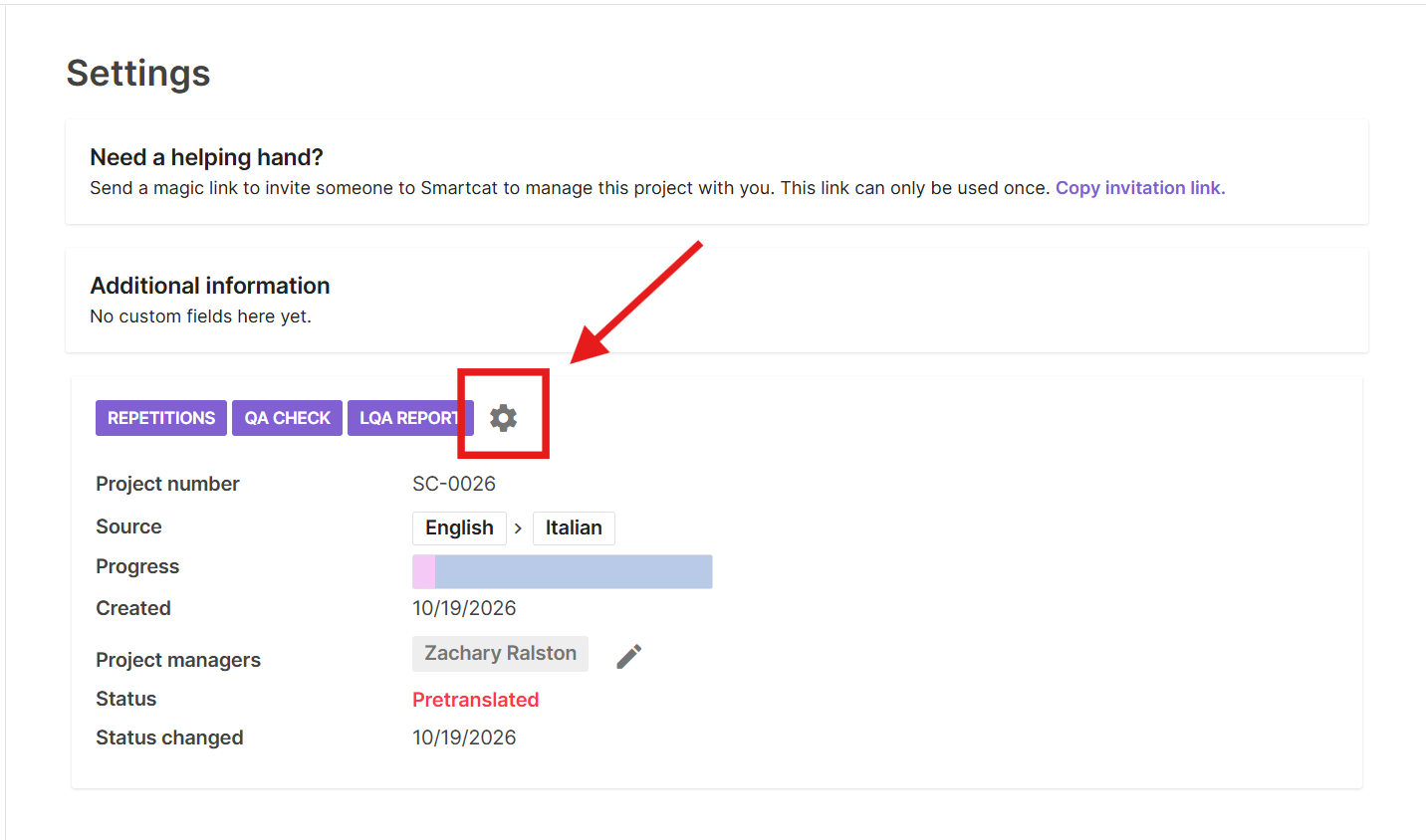
-
On the Workflow tab, click New Task (or Add stage if you’re working from a project template).
-
Select the stage you want to add — for example, Translation Review, Editing, or Proofreading — and save. The new stage then appears on the Tasks tab, where you can invite or assign linguists to it.
📌 Once segments have actually moved into a stage, that stage locks and can no longer be added, removed, or reordered. Stage changes work cleanly either before upload or before assignments begin for that stage.
Project Deadlines and Task Deadlines
Smartcat uses two related but separate deadlines: a project deadline that applies to the whole project, and a task deadline that applies to one specific task (one workflow stage for one document). A task deadline can never be later than the project's deadline — the date picker for a task only offers dates up to and including the project deadline. If you need a task deadline later than what's offered, first go into the project's settings and move the project deadline out; that frees up later dates for the task.
The other key rule is timing: a task deadline has to be set before you invite suppliers to that task. Once an invitation has gone out — even if the supplier hasn't accepted yet — the deadline field for that task locks and can no longer be edited directly. If you need to change it at that point, cancel the existing assignment on the task, set or update the deadline, and then re-invite your suppliers. Cancelling doesn't lose any work already done: Smartcat calculates and preserves payment for whatever was completed before the cancellation, and the supplier simply needs to accept the new invitation to continue.
To set a project deadline: open the project, go into its settings, and set the deadline there (this is also offered when first creating the project). To set a task deadline: go to the project's Tasks page, select the task, and use Set deadline before sending any invitations for that task. Note that the project deadline and each task's deadline are tracked as two separate fields, each shown in its own place — setting one does not automatically update the other.
FAQ
Can I change the project name or deadline after creating the project?
Yes. You can edit project settings at any time from the project dashboard.
Can I add more target languages after creating the project?
Yes. You can add additional target languages to an existing project from the project settings.
Can I delete a language from a multilingual project?
You can delete target languages from the project settings, as long as you have not assigned any tasks for those language pairs.
What happens if I don't set a deadline?
The project is still created, but teammates do not have a target completion date. Setting a deadline is recommended for better project management.
Is there a limit to how many target languages I can add?
Smartcat supports translation into multiple languages simultaneously. There is no practical limit for most use cases.
Can I add, remove, or reorder workflow stages?
Yes, depending on the status of work in the project. Smartcat prevents you from changing workflow stages once work has started in a project. Before you upload files, you can add or remove workflow stages freely. Once you’ve uploaded files, but before any assignments have started, you can add or remove workflow stages. Once translation segments have moved into a workflow stage, however, the stages are locked in and you cannot change them.
Can I upload a folder of files at once?
Smartcat doesn't have a native folder picker, but you can upload a whole folder by compressing it into a ZIP archive first.
How it works:
-
Compress your folder into a .zip file.
-
Upload the ZIP during project creation in the new-project wizard.
-
Smartcat automatically extracts the archive and preserves the folder structure — including when you download the translated files.
Can I edit a project's settings after I've created it?
Yes. You can edit project settings at any time from the project dashboard, including adding target languages later.
What happens if I don't name my project?
Smartcat automatically names it "New project," or uses the name of the first uploaded file if you added files. If a project with that name already exists, a number is appended.
Can I delete a target language after I've already added it?
Yes, as long as no translation work has started for that language.
Do I have to upload files immediately when creating a project?
No. Uploading files is optional at creation — you can add them later.
What's the default workflow if I don't change anything?
AI translation & review is the default workflow option, though you can switch to manual stage selection, manual translation only, or multi-stage workflows like Translation → Editing → Proofreading.
Can I assign a project number, and does it have to be unique?
Yes — every project can optionally have a project number (up to 20 characters, standard text only) to match it to an external reference like a PO number, job code, or billing reference. You set it manually in the project's Settings, or it's generated automatically if your account admin has configured a numbering pattern (a prefix + auto-incrementing counter, e.g. PRJ-0001). A project number must be unique within your account — it can only be assigned to one project at a time, with no exception for folders, workspaces, or project groups. This is enforced at the database level, so trying to reuse a number produces the error: "Project number: [number], is already used in this account."
Who can set up automatic project numbering?
Account admins can configure a numbering pattern (prefix + counter). Contact Support for help setting this up.
Can I delete a PDF or file from a project?
A PDF you upload and the folder Smartcat automatically generates from it (containing the converted/compiled file) are treated as a single linked unit — by design, you can't delete just one part of that unit from the Files tab. You need to delete the whole unit together (deleting the source PDF first also removes its generated folder). Separately, once a document has already been translated, it can no longer be deleted from the editor side. If you were previously unable to delete a PDF-and-folder unit at all, please contact Support.
Want to learn more?
See how Smartcat can transform your localization workflow.
Still need help?
Our support team responds within one business day.