Understanding Smartwords
Overview
Smartwords are the fuel for your Smartcat account. They can be used for AI-powered translation services, and, for customers on the Accelerate, Anticipate, and Autonomous plans, to pay Freelancers for marketplace translation services performed through the Smartcat Marketplace. Smartwords function as a shared pool of credits at the organization level that team members can draw from to use AI features like AI translation, AI Actions, and Content Generation, or to settle Marketplace Translation Services.
Understanding how Smartwords work helps you monitor usage, manage costs, and avoid unexpected depletion of your translation budget.
Prerequisites
-
Active Smartcat account with Smartwords allocation
-
Organization admin or workspace member access
-
Understanding that Smartwords are shared across your entire organization
⚠️ Important: Smartwords are shared at the organization level. Any team member with access to your organization can consume from the shared pool.
How Smartwords are consumed
Smartwords are consumed when you use AI-powered features in Smartcat. The basic consumption rate is 1 Smartword per source word processed multiplied by the number of target languages.
For example, if your document contains 1,000 source words and you translate it into 5 languages, you are charged 5,000 Smartwords.
💡If you are on one of Smartcat’s current pricing plans, (Adapt, Accelerate, Anticipate, or Autonomous), TM matches of 100% or higher do not consume Smartwords; fuzzy matches of 50-99% still consume 1 Smartword for each source word. Repetitions, including cross-file repetitions, do not draw from your Smartword balance.
On Smartcat’s legacy pricing plans, TM matches still consume 1 Smartword for each source word.
AI features that consume Smartwords:
-
AI Translation
-
AI Actions (rewrite, shorten, expand, etc.)
-
AI Content and Course Generation
-
AI Assistant
-
AI Dubbing
-
Reviewer and/or QA coworkers in a workflow
Special consumption rates:
- AI Dubbing: 10 Smartwords per dubbed word in the target language. AI Dubbing counts Smartwords based on the dub generated in target language, not the source language. Dubbing is only charged when you download the result.
Tracking and filtering your usage history
The Smartwords Usage Report gives you a full breakdown of consumption events across your organization. Use it to investigate unexpected balance drops, monitor team usage, or audit project costs.
To check your current balance
- Find the Smartwords counter in the lower left corner (displays your current balance)
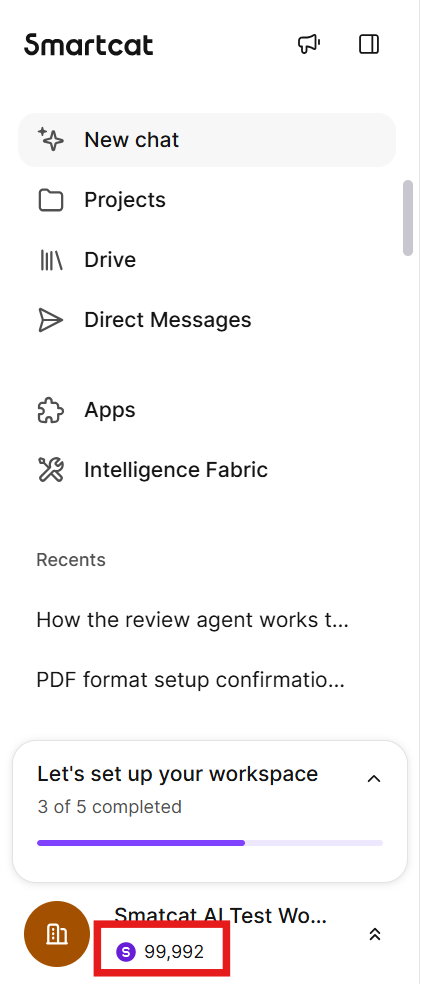
To access your usage history:
-
Click the Workspace icon → Finance and Payments → Smartwords usage to see detailed balance information and recent activity
-
The report loads with your most recent consumption events listed chronologically.
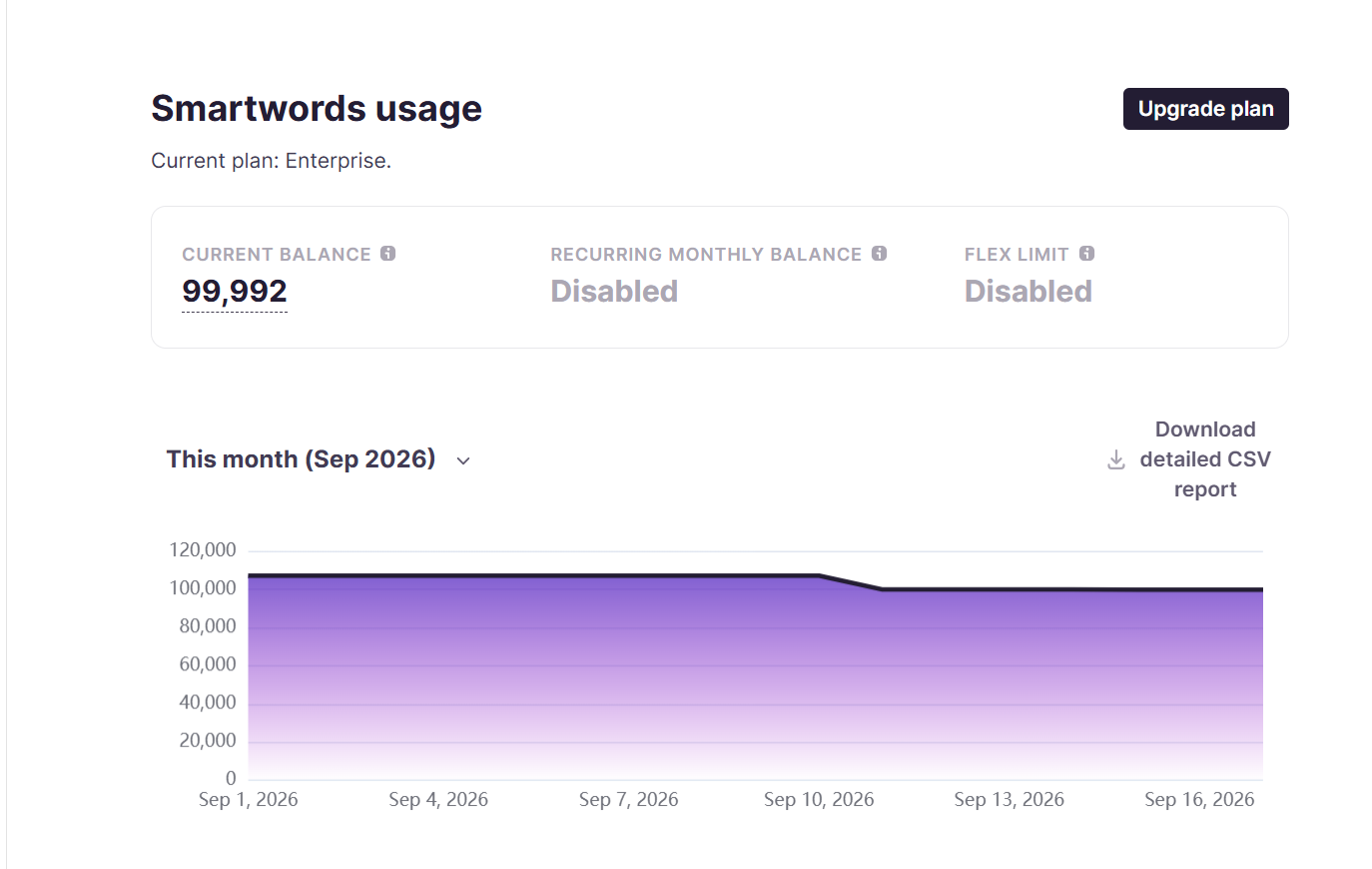
To filter your usage history:
- Use the date range selector at the top of the report to narrow results to a specific period.
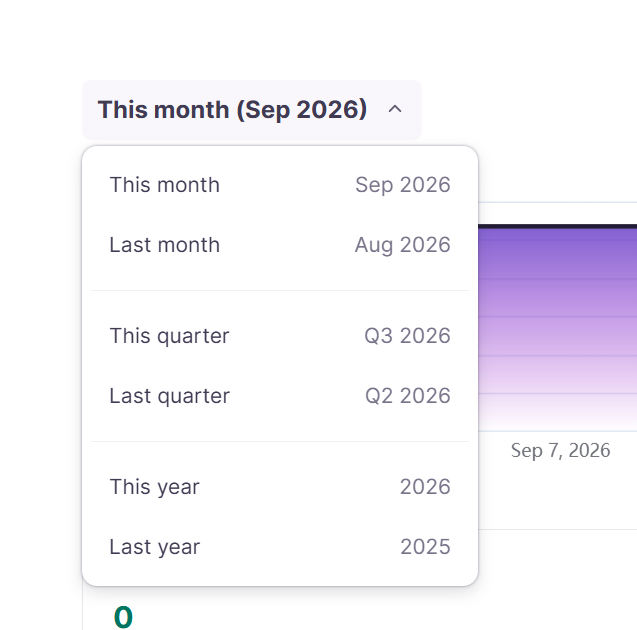
- Sort your usage breakdown by amount or date.

To export your usage data:
-
Apply any filters you need to scope the export.
-
Click Download detailed CSV report at the top of the report.
-
The CSV includes all visible columns: date, action type, project name, and Smartwords consumed.
💡 Tip: If your balance dropped unexpectedly overnight, filter by date to the relevant period and check the Action type column to identify the source quickly.
⚠️ Reminder: Smartwords are shared at the organization level. Consumption events from any team member will appear in the same report.
How Smartwords are calculated
Understanding exactly how Smartwords are calculated helps you anticipate costs before processing files and avoid unexpected balance depletion.
Base calculation
The standard rate is 1 Smartword per source word processed. For example, a 2,000-word document translated into a single target language using AI translation consumes 2,000 Smartwords.
Special rates
Some content types and features use rates that differ from the base calculation:
-
Image translation — 1,000 Smartword flat rate. Translating text within images (via OCR) costs a flat rate of 1,000 Smartwords per image, regardless of the amount of text in the image. This flat rate reflects the additional processing required to detect, extract, and translate embedded text.
⚠️ Note: If a document contains multiple images with text, each image is charged separately at the 1,000 SW flat rate. -
PDF Translation through the AI PDF Translation and Image Pipeline — 1,000 Smartword flat rate. PDFs translated through the Standard PDF translation pipeline is translated at the standard rate of 1 Smartword per source word, multiplied by the number of target languages.
-
AI Dubbing — 10x multiplier. AI Dubbing also applies the 10x multiplier due to the additional processing required for voice synthesis and lip-sync alignment.
Course Editor (AI Course Creation) — Variable rates
The Course Editor uses different consumption rates based on content type:
-
Text elements: 1 SW per generated word
-
Video generation: 10 SW per word (based on script length)
-
AI-generated images: 20 SW per image
Understanding your balance
Balance types
-
Trial balance: Trial balance: 15,000 Smartwords for 15 days, no credit card required.
-
Subscription balance: Included with your plan, expires at subscription renewal
⚠️ Shared consumption: When your balance decreases unexpectedly, check if another team member used Smartwords from your shared organizational pool.
Allocation types: monthly, annual, and top-ups
Your Smartwords allocation depends on your subscription plan and any additional top-ups you have purchased. Understanding the differences helps you plan usage and avoid unexpected depletion.
Monthly vs. annual allocations
Smartcat subscription plans include a Smartwords allocation that refreshes on a recurring basis:
-
Monthly plans receive a Smartwords allocation that renews each month on your billing date. Unused Smartwords from the current period do not carry over — they expire at the end of each billing cycle.
-
Annual plans receive a Smartwords allocation at the start of the subscription year. The full annual amount is available immediately and does not refresh monthly — you draw from the same pool throughout the year.
⚠️ Expiration: Subscription Smartwords — whether monthly or annual — expire at renewal by default. If you do not use your full allocation before your subscription renews, unused Smartwords are forfeited.
Top-ups
If you exhaust your subscription allocation before your renewal date, you may be able to purchase additional Smartwords for your workspace as a pay-as-you-go top-up, depending on your workspace settings:
-
Go to Workspace → Smartwords.
-
Select the pay-as-you-go option.
-
Choose the amount and complete payment.
-
Your balance updates immediately for card payments.
💡 Top-up validity: Unlike subscription Smartwords, pay-as-you-go top-ups are valid for one year from the date of purchase and are not tied to your subscription renewal cycle. If you upgrade your subscription plan, any unused Smartwords from your previous plan carry over.
What happens when you run out of Smartwords
If your Smartwords balance reaches zero:
-
AI-powered features — including AI translation, AI Actions, AI Content Generation, and AI Dubbing — will be unavailable until your balance is restored.
-
OCR processing requires a minimum Smartwords balance to initiate. If your balance is too low, OCR jobs will not start.
-
Your projects and files remain accessible — only AI features are affected.
To restore access immediately, purchase a pay-as-you-go top-up or contact Smartcat Sales to discuss a plan upgrade.
Managing your subscription and top-ups
To add more Smartwords:
-
Subscription upgrade:
- Contact Smartcat Sales team
-
Bulk packages:
-
Contact Sales for large volume pricing
-
Available through account dashboard
-
⚠️ Expiration: Subscription Smartwords expire at renewal.
Smartwords for Marketplace Translation Services
On the Accelerate, Anticipate, and Autonomous plans, you can use Smartwords to pay freelancers for marketplace translation services performed through the Smartcat Marketplace.
How settlement works
When you submit a Service Task to a freelancer, the estimated cost is reserved from your Smartword balance. When you accept the created works, the Smartwords are deducted from your balance
💡 Reserved Smartwords are not deducted until you accept the completed work — if a Service Task is cancelled before acceptance, the reservation is released.
When Marketplace Translation Services are settled by invoice
Not all marketplace translation services are settled through Smartwords. You continue to be billed by invoice, on either an advance-payment or post-payment basis, if either of the following applies:
-
Smartcat has confirmed in writing that your account is billed by invoice for Marketplace work, or
-
The Service Task was performed by in-house personnel, rather than a Marketplace freelancer
⚠️ Non-payment consequences: If invoiced fees aren't paid when due, Smartcat may disable post-payment on your account, move you to advance payment, and/or suspend your access to the Smartcat Marketplace. See Configure invoicing and payment settings for how invoicing and payment terms work.
Tips for efficient Smartwords usage
Reduce consumption:
-
On one of the updated Smartcat pricing plans, use Translation Memory to avoid re-translating identical content
-
Review AI settings before processing large files
-
Consider file format impact (XLIFF preserves segment IDs, Word files don't)
Monitor proactively:
-
Set up multiple workspaces for departmental tracking
-
Check usage reports regularly
-
Maintain a buffer for OCR processing (requires minimum balance)
-
Monitor team member usage patterns
Troubleshooting
Problem: Balance decreased overnight with no active projects
Solution: Check the usage report for scheduled projects, integrations running automatically, or other team members' activity. Contact support if no matching consumption events appear.
Problem: File re-upload charged full amount again
Solution: Word, Excel, and PowerPoint files don't have unique segment IDs, so all content is re-processed. Use XLIFF or other formats with unique IDs to avoid this.
Problem: Balance shows "N/A" or incorrect amount
Solution: Data sync issues between systems. Check both the main counter and usage report. Contact support if discrepancies persist.
Problem: Balance decreased but no translated file was produced
Pre-processing (OCR text extraction, PDF/scanned-document disassembling) is billed separately from translation, based on the estimated page count of the source file — not on translation output. This charge can occur even if the subsequent translation step fails or is never completed, because the two steps are written off independently. If a file is retried, pre-processing may run (and be charged) again. Pre-processing charges are not refunded automatically; contact Support if you believe a charge was made in error.
FAQ
Do unused Smartwords carry over to the next subscription period?
No, subscription Smartwords expire at renewal. Only pay-as-you-go Smartwords (valid for one year) carry over.
Are Smartwords refundable if consumed by mistake?
Smartwords are generally non-refundable once consumed. Contact support for configuration errors, but refunds are not guaranteed.
Why was I charged more than my file's word count?
Common reasons include multiple MT engines enabled (each charges separately), OCR estimation, heavy code formatting, or file re-uploads re-processing all segments.
How do monthly and annual Smartwords allocations differ?
Monthly plans receive a Smartwords allocation that renews each month on your billing date — unused Smartwords from the current period expire at renewal and do not carry over. Annual plans receive their full allocation at the start of the subscription year, available to draw from throughout the year. In both cases, subscription Smartwords expire at renewal. Only pay-as-you-go top-ups carry over, as they are valid for one year from the date of purchase regardless of your billing cycle.
What happens when I run out of Smartwords?
When your Smartwords balance reaches zero, AI-powered features — including AI translation, AI Actions, AI Content Generation, and AI Dubbing — become unavailable until your balance is restored. Your projects and files remain accessible; only AI features are affected. To restore access immediately, purchase a pay-as-you-go top-up from Workspace → Smartwords, or contact Smartcat Sales to discuss a plan upgrade. Note that OCR processing also requires a minimum Smartwords balance to initiate — if your balance is too low, OCR jobs will not start.
My AI translation paused because I didn't have enough Smartwords. I've added more, but the translation hasn't resumed. What should I do?
Topping up your Smartwords balance does not automatically resume a paused AI translation run — you need to manually re-trigger it. The most reliable way to do that is to go to Translation Rules in the project, and click Save & Run again. This re-evaluates the project with your now-sufficient balance and continues the AI translation.
If clicking Save & Run doesn't pick up the remaining untranslated content, this is a known issue our engineering team is tracking — contact Support rather than repeating the top-up or re-upload, since neither will resolve it on its own.
Does the Quick Translation app consume Smartwords?
Yes. Quick translations consume 1 Smartword per source word. If you translate the source text into multiple languages, each translation consumes 1 Smartword per source word.
Will re-running a project charge Smartwords twice for the same content?
No. Smartwords are only charged for segments still requiring translation — not for the whole document's word count on every run
For example, if you set up a project, AI-translated the content, and later click Save & Run again, this does not charge Smartwords a second time for segments that already have translated text sitting in them. Save & Run only consumes Smartwords for segments that still need translation.
The detail that actually determines whether a segment is treated as "already translated" is whether it has non-empty translated text, not whether it has been confirmed.
Tip: If you want to avoid any risk of re-charge on a future run, resolving critical QA errors on translated segments (rather than confirming them) is what actually matters. Confirmation itself doesn't affect Smartwords consumption, though it's still good practice for saving translations to your TM for reuse elsewhere.
Can I transfer Smartwords between workspaces?
Each workspace's Smartwords balance is separate and cannot be moved to another workspace by users — even workspaces belonging to the same organization. There is currently no self-service option to transfer a balance from one workspace to another.
If you need to reallocate Smartwords between workspaces (for example, from a main workspace into newly created DEV/QA workspaces), contact Smartcat Support with your organization ID. Support can review your account and, where possible, process the reallocation manually — this is handled case by case and is not a standard product feature.
How do charts and graphs in a document consume Smartwords when translated?
The rate depends on how the chart or graph is stored in the file. Image-based charts/graphs (a screenshot, exported graphic, or any chart/diagram flattened into a picture with the text baked into the pixels) are not picked up by the standard document translator. They must go through the separate Image Translation workflow instead, which is billed at a flat rate of 1,000 Smartwords per image — regardless of how much text the chart contains. A report with multiple image-based charts is billed per image. Text-based (editable) charts/graphs — where the chart's data labels, axis text, or legend are native, extractable text (e.g., a live chart object in PowerPoint or Excel, not a flattened picture) — are treated like any other document text and billed at the standard rate of 1 Smartword per source word, per target language.
Can I use Smartwords to pay a vendor/supplier directly?
No. Smartwords settle Marketplace Translation Service Tasks completed by Marketplace freelancers on Accelerate, Anticipate, or Autonomous plans — they aren't a general-purpose payment method for vendors. Direct vendor/supplier payments outside Marketplace jobs are handled through Finance/Payments in real currency.
I’ve added more Smartwords to my account. How do I resume a translation that stopped due to insufficient Smartwords?
In these cases, the project overview for the stopped translation includes a Resume AI Translation button. This appears only when your balance is sufficient to cover the untranslated words. Click the button to restart the translation.
Balance structure and consumption order (technical reference)
This section covers the underlying mechanics behind the balance types described above.
Packages. Both an Organization and a Workspace have their own Smartwords balance, made up of one or more packages. Each package has: initial amount, creation date, available amount, start date, expiration date, price, tags, a free-form comment, and a unique identifier. A balance is simply the sum of available Smartwords across all of that account's active packages.
Org ↔ workspace consumption. Whether a workspace can draw from its parent organization's balance is a per-workspace setting, and it's binary — a workspace either cannot consume organization balance at all, or can consume the entire organization balance without restriction. There's no partial/capped option.
Consumption order. Smartwords are always consumed from a specific package, and consumption is always initiated from a specific workspace. Within that, packages are drawn down in this order:
-
The soonest-expiring package first (regardless of whether it's a workspace or org package).
-
Workspace's own packages before the organization's packages.
Effective Smartwords Balance (ESB). This is the number shown as the balance counter in the Smartcat UI — the sum of all active available workspace package balances, plus whatever organization quota the workspace is allowed to draw from.
Recurring Monthly Balance. Both organizations and workspaces can have a rule that automatically creates a new Smartwords package every calendar month (starting the 1st, expiring at month end). This mechanic is mostly relevant to archived/legacy subscription plans (e.g., Rise) rather than the current Adapt/Accelerate/Anticipate/Autonomous tiers.
Realtime and API consumption. Beyond the project-based translation flows described above, Smartwords are also consumed by realtime translation through the API or integrations — the Figma connector, desktop apps, the Google Sheets app, and the Chrome extension — and by automatic insertion of content like numbers, using the same per-source-word rate.
No double-charging, with one exception. Smartcat never charges twice for translating the same segment via different methods — e.g., if a segment was machine-translated and a reviewer then pulls in a TM match instead, source words are only counted once. The one exception is AI Actions: an AI Action is charged even if Smartwords were already charged for translating that same segment via MT/TM.
Want to learn more?
See how Smartcat can transform your localization workflow.
Still need help?
Our support team responds within one business day.