Navigate the My Tasks section
Overview
The My Tasks section in Smartcat streamlines task management for reviewers and project managers, giving you a single interface for handling assignments. This article explains where to find it, how to use it, and its key features and settings.
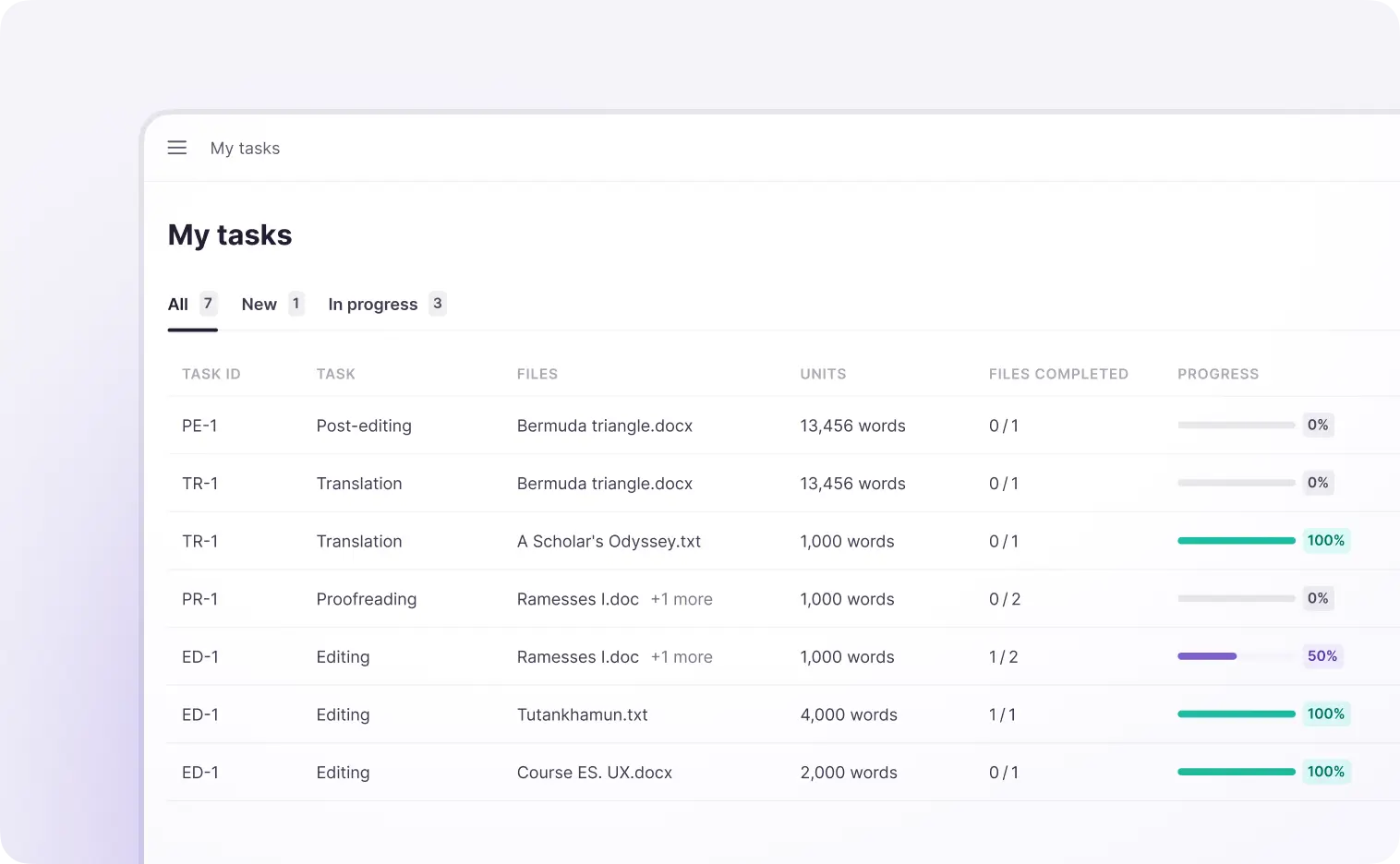
The My Tasks section is available to all internal reviewers and is typically found in workspaces. It handles internal assignments (referred to as My team assignments). External assignments from the Marketplace (called Jobs) are managed separately.
You can access the My Tasks interface by going to the appropriate section of your Smartcat workspace. It presents all your tasks in one place, ensuring easy navigation and task management.
How to use the My Tasks interface
Task list overview
The My Tasks section displays all your tasks in a clean, organized list. Editors don't need to go to each project to see their tasks. Instead, you have all of your project tasks in one overview on a single page.
You can click each task to view detailed information, including task scopes and progress. This lets you manage your workflow efficiently without leaving the page.
Key features and settings of the My Tasks interface
Customizable columns
-
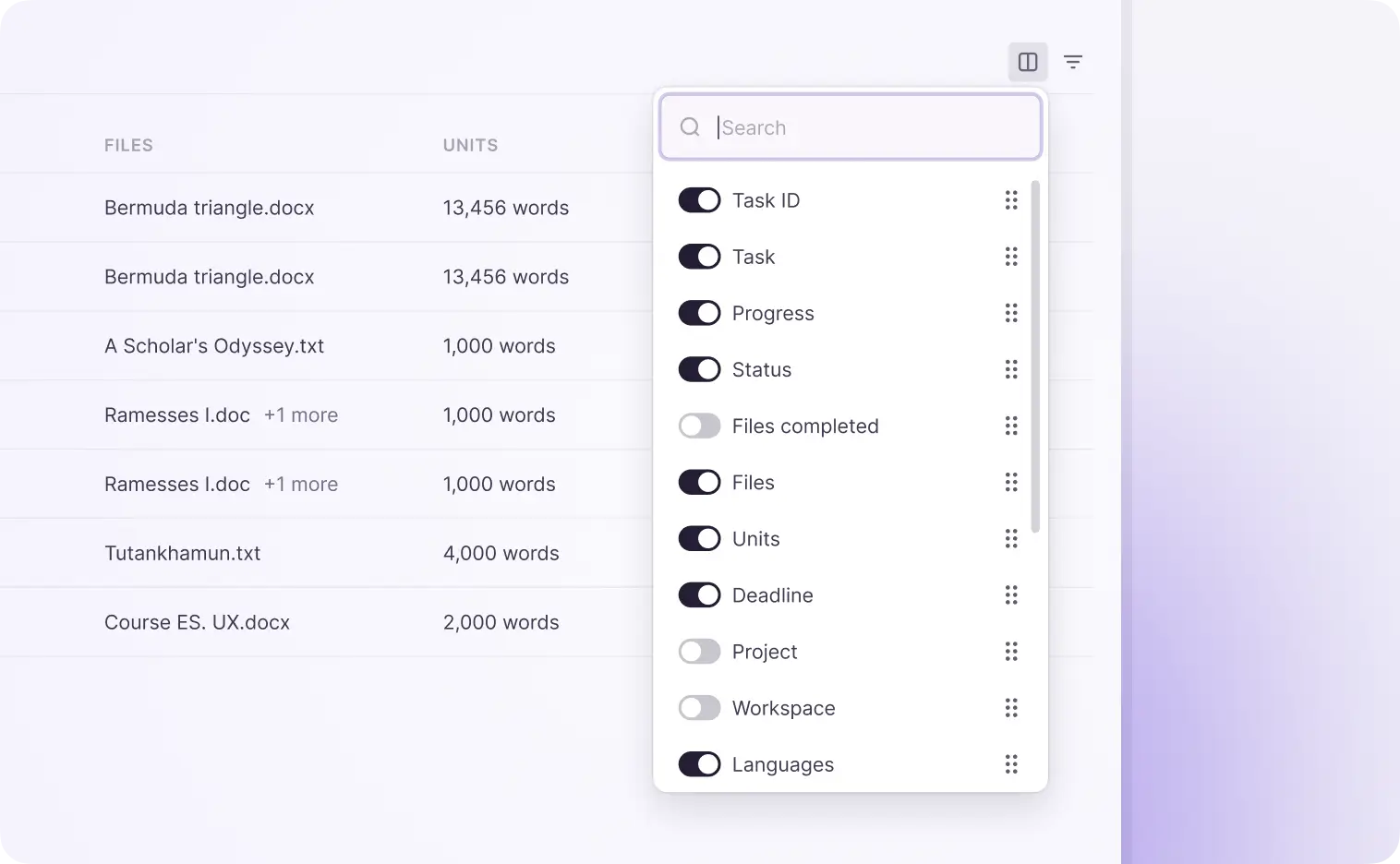
The interface lets you customize the table columns based on your preferences. Columns like Task ID, Files, Units, and Progress can be rearranged, and some can be turned off for a cleaner view
-
Task ID is a fixed column and cannot be moved or hidden
Task details
-
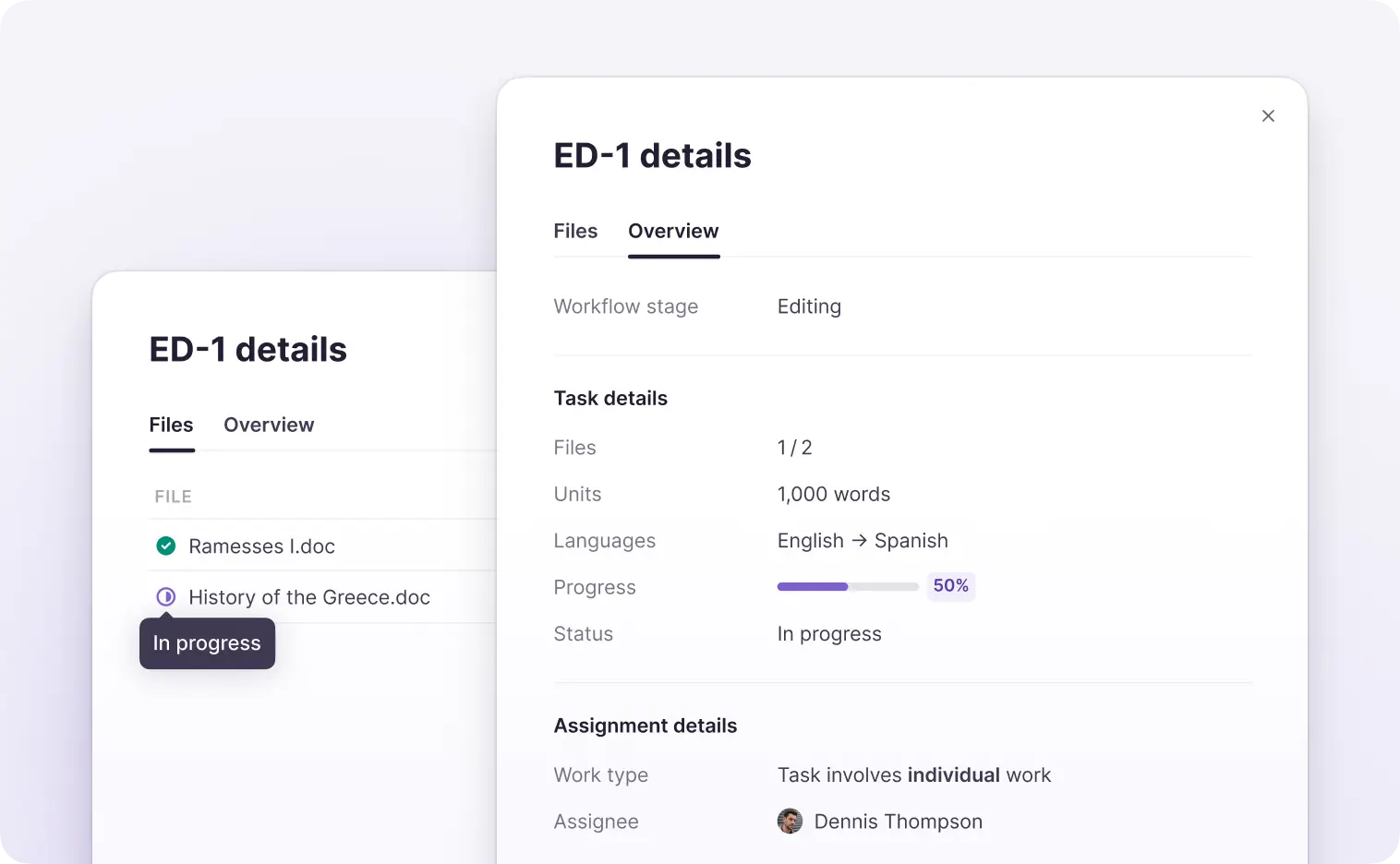
Clicking a task opens a detailed view that includes a breakdown of task-related files and an overview tab. The Files tab lets you manage specific task scopes, filter files, open files in the CAT editor, or download them
-
The Overview tab provides context about the task owner, status, and other relevant details
Task statuses
Each task can have various statuses:
-
New: Tasks that haven't been accepted or rejected
-
In Progress: Tasks that have been accepted and are being worked on
-
Pending: Tasks that are blocked by another workflow stage
-
Waiting for Payment: Tasks that are completed but awaiting payment
-
Completed: Finished tasks, with or without payment required
Task controls
Before accepting a task, you can:
-
Accept the task to start working on it
-
Preview File to check the task before deciding to accept it
-
Decline the task, which removes it from your task list
After accepting the task, you can:
- Open File directly in the CAT editor for editing
Filters
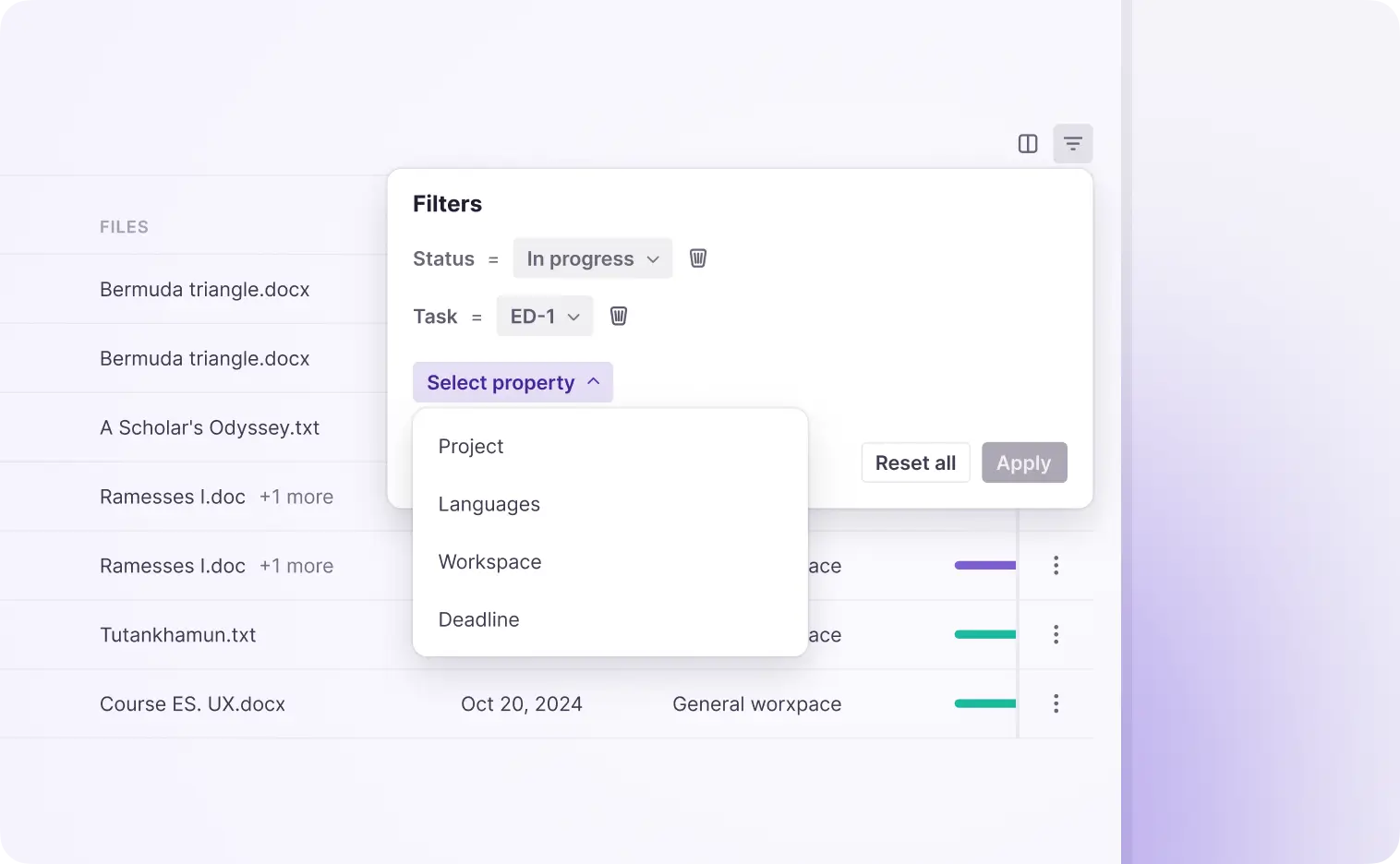
The My Tasks interface includes robust filtering options, letting you apply multiple filters to focus on specific tasks. The filters you select are saved, even if you leave or refresh the page, making it easier to maintain personalized settings across sessions.
Additional settings and task actions
Task actions such as rearranging columns, saving filter settings, and managing task controls are accessible via an intuitive menu. For more detailed controls, clicking the three-dot menu (context menu) next to a task provides additional options like accepting, previewing, or declining tasks.
How to view and access task details
To view detailed information about a task:
-
Log into Smartcat and go to the My Tasks section from your workspace
-
Locate the task you want to view in the task list. You can filter tasks by status (for example, New or In Progress)
-
Click the task row to open its details
The task details open in a pop-up with two tabs:
-
Files tab: Displays all task-related files and their statuses
-
Overview tab: Shows general task information such as task owner, deadlines, and assignment context
You can now review everything you need about the task in one place.
How to accept or decline
When a new task is assigned, you can choose to accept or decline it.
-
Locate the task in the New section of the My Tasks list
-
Click the three dots (context menu) next to the task
-
Choose one of the following options:
-
Accept: If you are ready to take on the task, click this option. The task moves to In Progress
-
Preview File: If you want to inspect the task before accepting it, preview the associated files
-
Decline: If you are unable to work on the task, click to decline. The task disappears from your list
-
Your choice updates the task immediately in the My Tasks list.
How to open a task file
Once you have accepted a task, you can open its files directly.
-
Click the accepted task in your In Progress list to view the task details
-
Go to the Files tab in the task details pop-up
-
Select a file from the list of task files
-
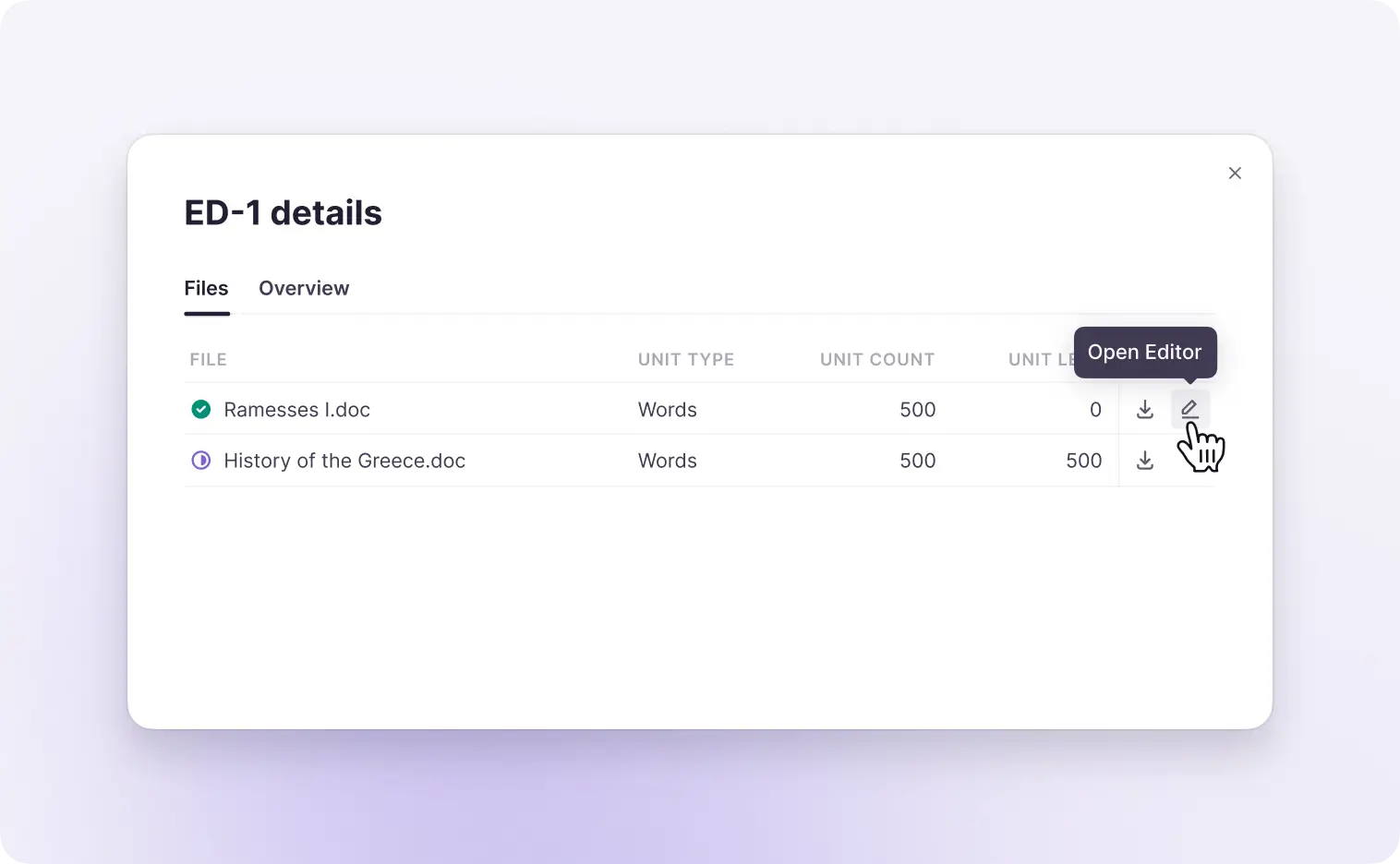
Choose the Open Editor button to open the file directly in Smartcat's CAT editor
The file opens in the CAT editor, ready for you to work on.
How to go to the editor from a task
To start working on a task in the CAT editor:
-
Open the task details by clicking the task row from the My Tasks list
-
In the Files tab, select the file you wish to edit
-
Click the Open Editor button to access the file in the CAT editor, where you can begin your work
The selected file opens in the CAT editor for editing.
How to keep track of task statuses
You can monitor the progress of all your tasks in the My Tasks section.
-
View the My Tasks list, where each task is displayed with its current status
-
The Status column shows the following statuses for each task:
-
New: Task is unaccepted
-
In Progress: Task is currently being worked on
-
Pending: Task is blocked by a previous workflow stage
-
Waiting for Payment: Task is completed but awaiting payment
-
Completed: Task is finished, and no further action is required
-
-
Check the progress of individual files within a task by opening the Files tab in the task details. Each file shows a scope status:
-
Pending: Not yet started
-
In Progress: Work on the file is ongoing
-
Completed: The file has been fully processed
-
This gives you a complete picture of where every task and file stands.
The My Tasks section in Smartcat offers a flexible, user-friendly interface that simplifies task management for reviewers. Its customizable features, comprehensive task details, and easy-to-use controls help you stay on top of your assignments, whether you manage tasks for yourself or work as part of a team.
Want to learn more?
See how Smartcat can transform your localization workflow.
Still need help?
Our support team responds within one business day.