Video translation and multilingual AI dubbing: complete workflow guide
Overview
Smartcat supports end-to-end video translation workflows, including subtitle translation and multilingual AI dubbing. This guide covers the full process from uploading your video to publishing translated output.
Prerequisites
-
A Smartcat workspace with video translation enabled
-
A video file in a supported format:
-
Video formats: 3GP, 3G2, AVI, FLV, M2V, M4V, MKV, MOV, MP4, MPEG, MPG, OGV, QT, WMV
-
Audio formats: WAV, WMA, AAC, FLAC, M2A, M4A, MP2, OGG, MP3
-
Source language and target language(s) configured in your workspace
📌WebM format is not supported
Step 1: Create a video translation project
-
From the left navigation, select Projects → New Project
-
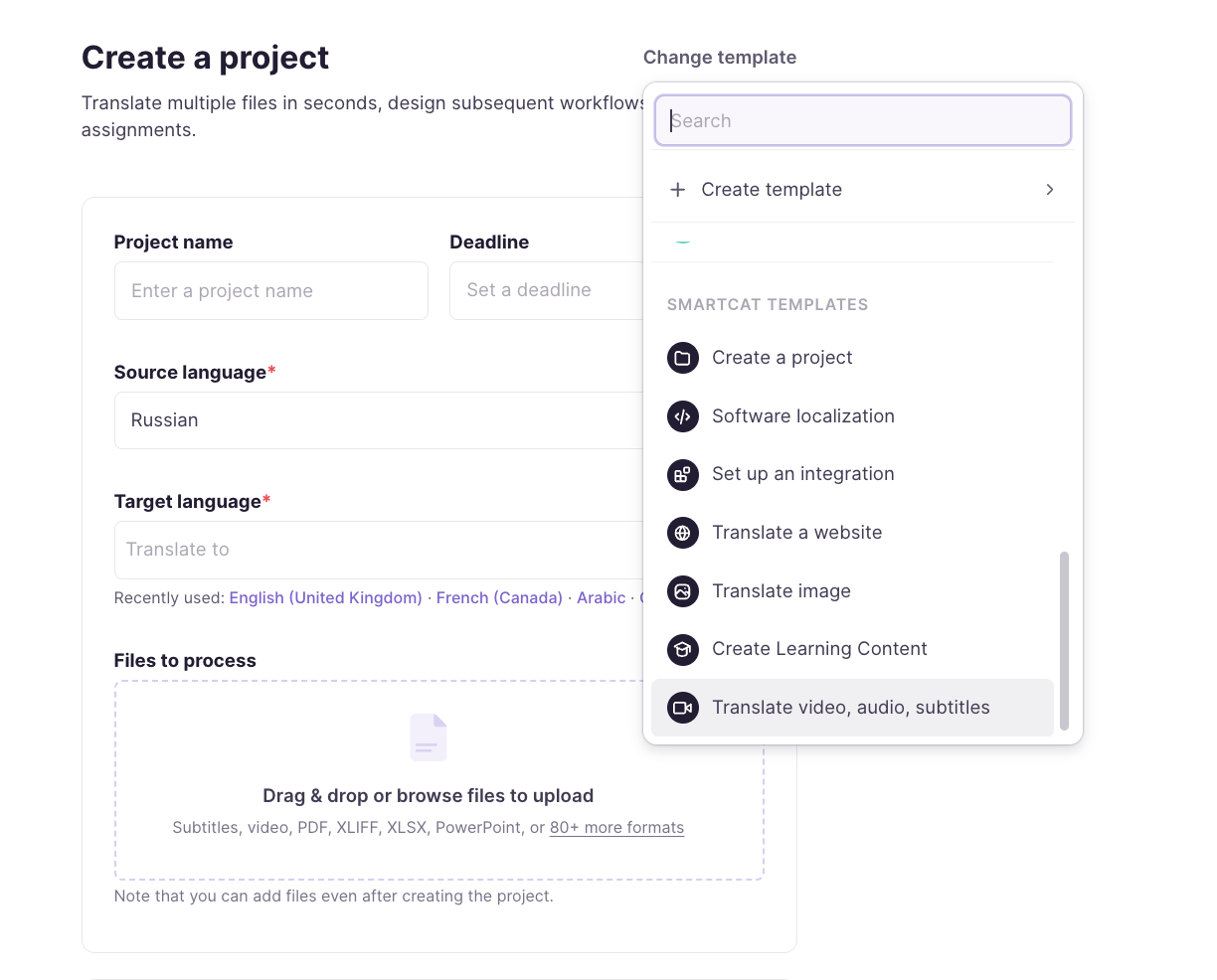
Upload your video file and select the Translate video, audio, subtitles template
-
Select the source language
-
Select one or more target languages
-
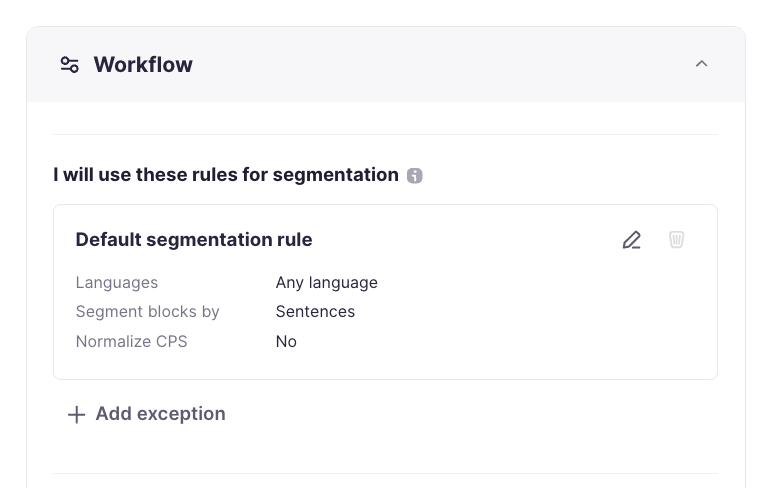
Recommended: set segmentation rules. These rules define parameters like maximum segment length, timing constraints, and line breaks to ensure segments meet specific formatting requirements for different media types and specifications.
- Then select workflow template and enter any additional details
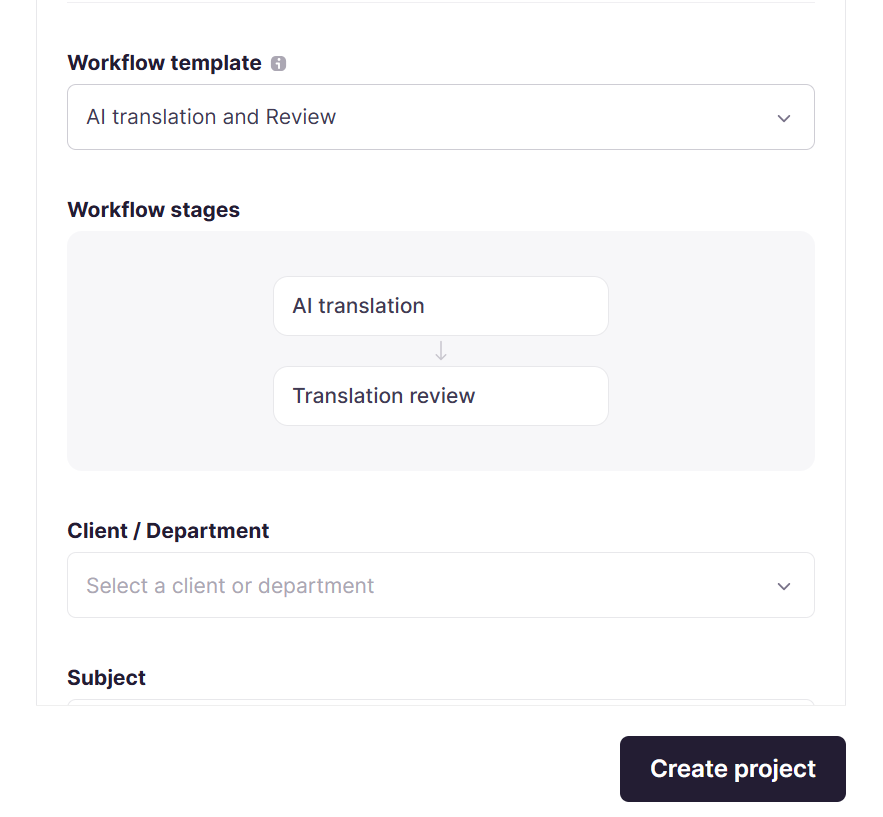
- Click Create Project
Smartcat automatically extracts the audio track, generates a transcript for translation, and enables the video subtitles editor.
Step 2: Review and edit subtitles
If your workflow includes the Source Layout check stage, once the transcript is generated:
- Open the project in the Video Subtitles Editor (may also appear as "VTT Editor")
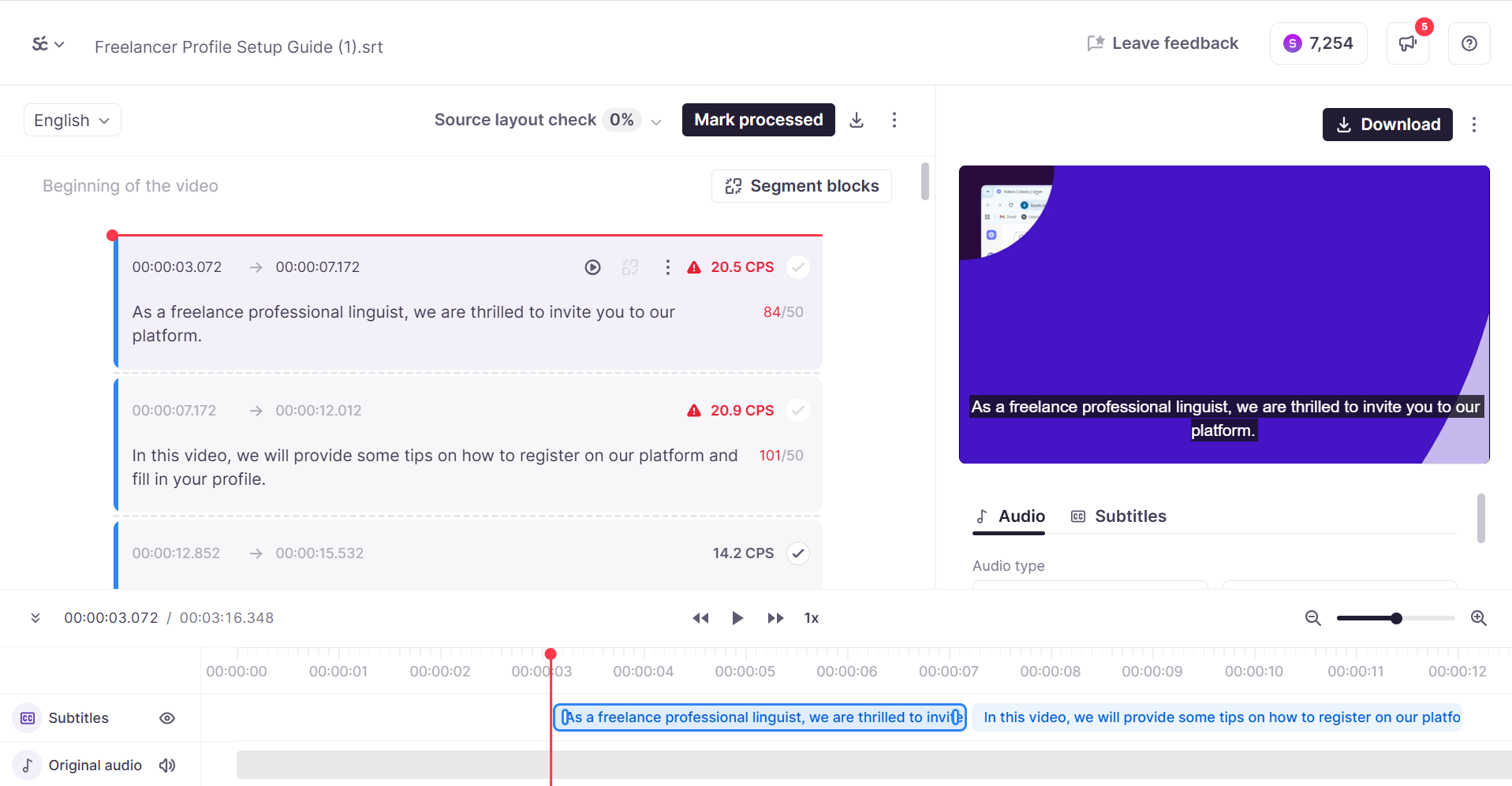
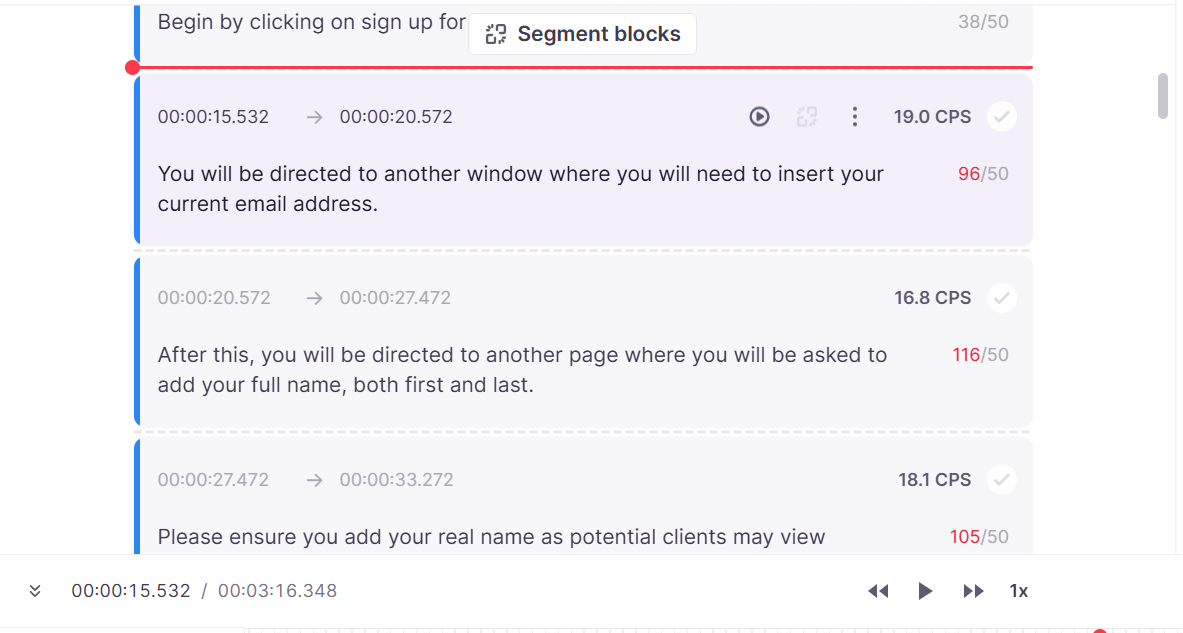
- Review the auto-generated transcript segment by segment
-
Edit any segments with transcription errors before translation begins. Edits may include:
-
Cue Management:
-
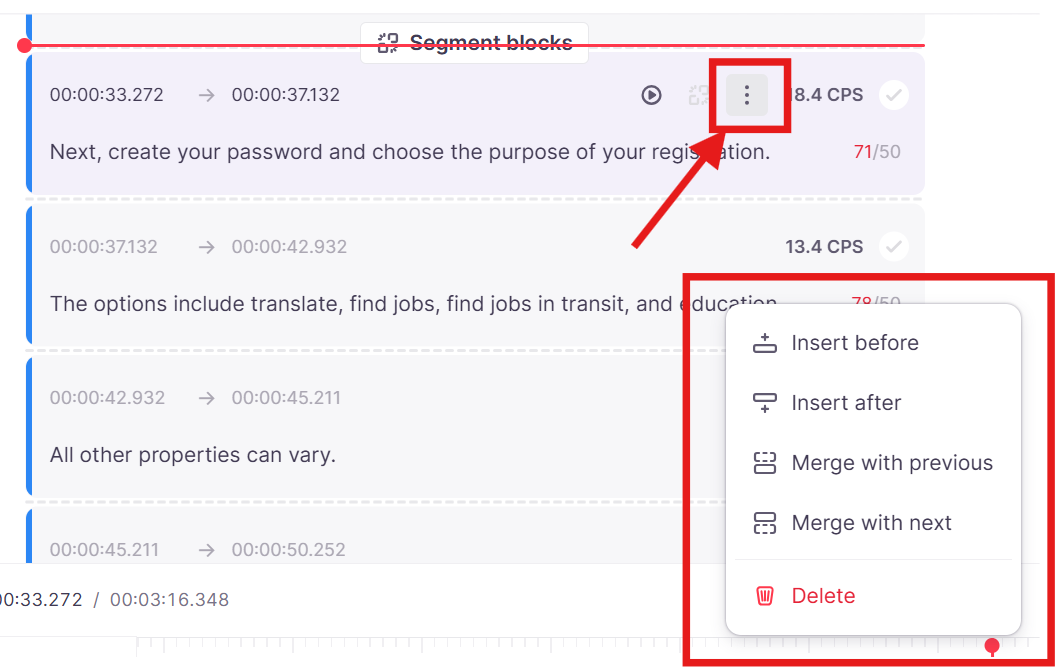
Merge cues: Combine selected segments into one subtitle block
-
Split cues: Divide long segments using the "Split by line" button
-
Insert new cues: Add empty subtitle segments before or after existing ones
-
Delete cues: Remove unwanted subtitle segments entirely
-
-
Line Breaking:
-
Press Enter to create multiple lines within a single cue
-
Ensure complete sentences or clauses stay in one cue (especially important for AI dubbing)
-
Split multi-line cues into separate segments when needed
-
-
-
Click the checkmark to confirm segments and to approve them for translation

- Mark the file as processed to complete the review stage and trigger the next stage. Once you mark the source file as processed, you cannot edit it. Make sure your work is complete before proceeding.

Step 3: Translate subtitles
-
With segments confirmed, Smartcat completes the AI translation
-
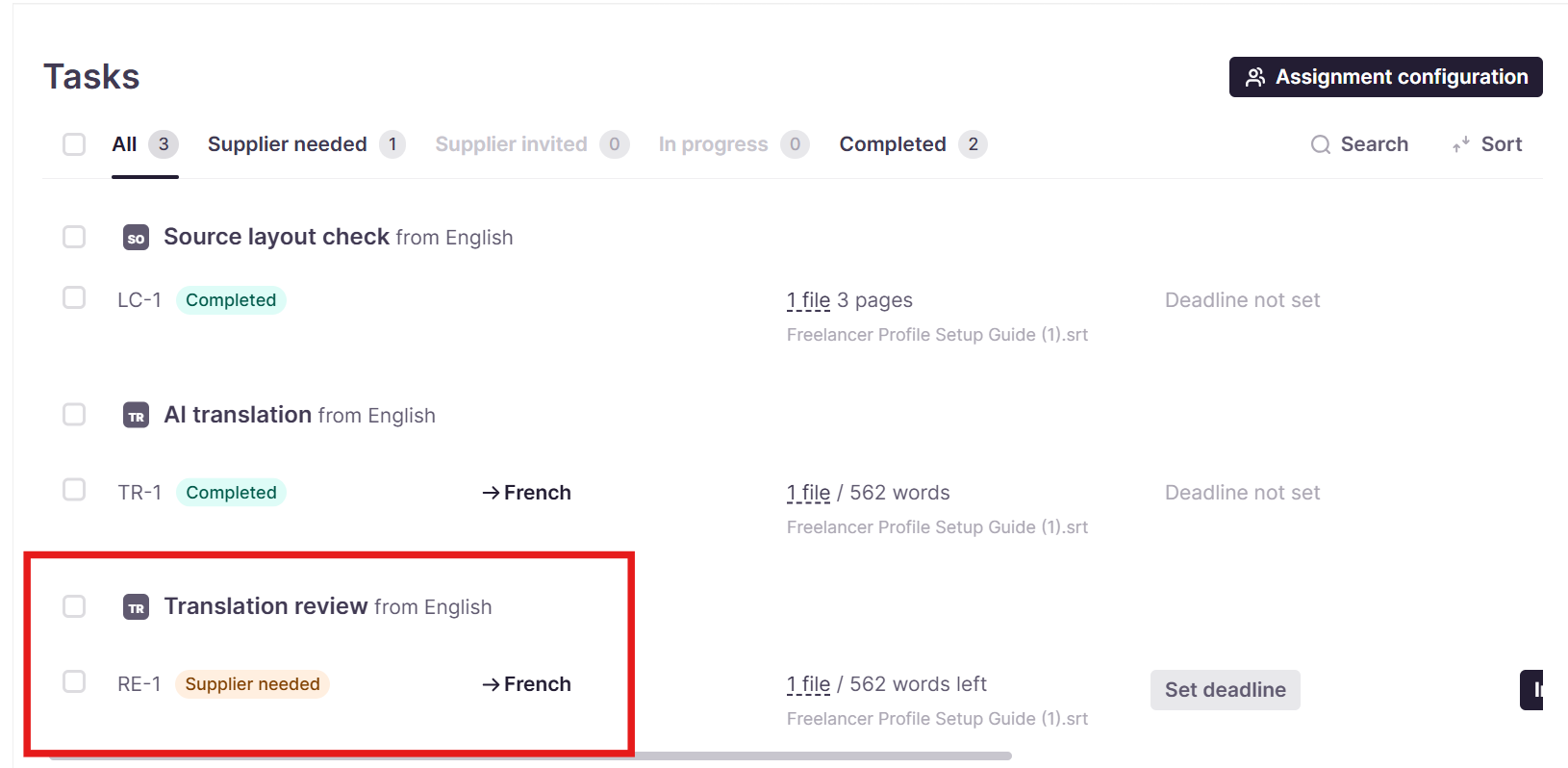
Open the Translation Review task
-
Edit any segments requiring post-editing. Key considerations include:
-
Text Expansion/Contraction
-
Some languages expand significantly (e.g., German and French can be 20-30% longer than English)
-
Others contract (e.g., Chinese or Japanese may be shorter)
-
You may need to adjust timing or split/merge cues to accommodate these differences
-
-
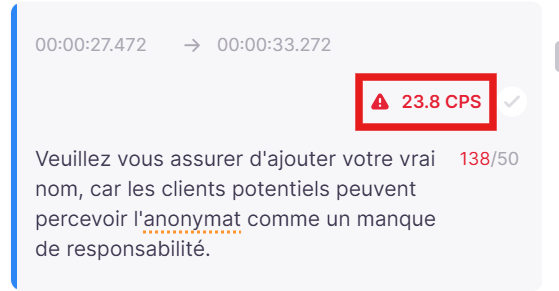
CPS (characters pers second) Recalibration
-
The reading speed that worked for the source language may not work for the target
-
Review and adjust CPS limits in the Settings tab for the target language if needed
-
-
Cultural Adaptation
-
Review any culturally-specific content that may need localization beyond direct translation
-
Ensure humor, references, and tone translate appropriately
-
-
-
Confirm all translated segments. You cannot confirm segments whose reading speed or character limit is above the limits you set in the segmentation rules.
Step 4: Add multilingual AI dubbing (optional)
If your project requires dubbed audio in addition to subtitles:
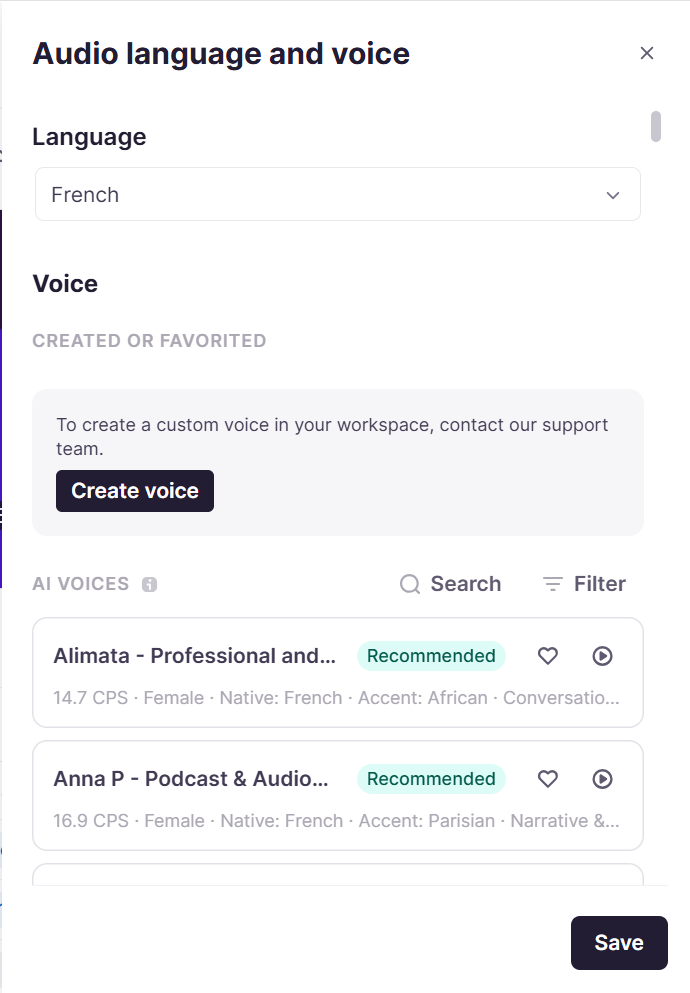
- In the Video Subtitles Editor, click the dubbing options to open the voice selection sidebar. You may need to scroll down to see this.
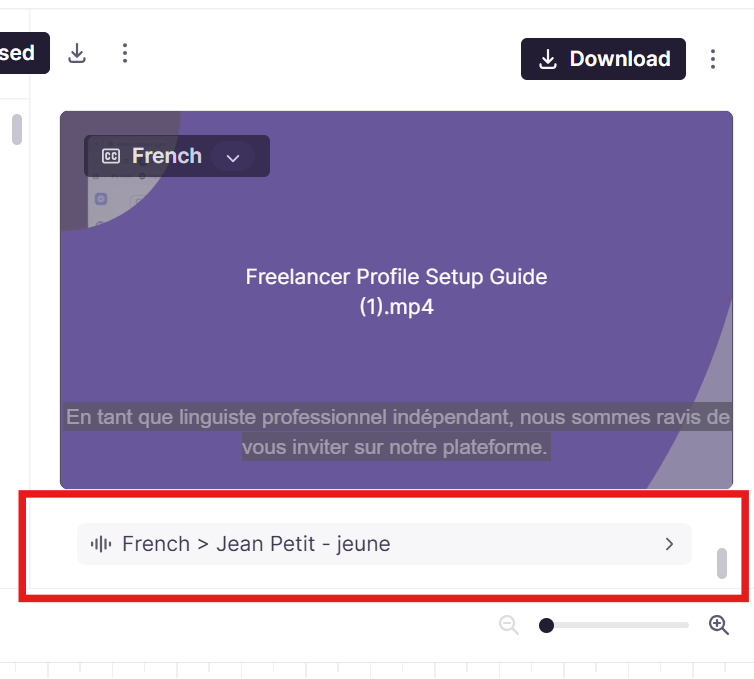
-
Select target languages for dubbing
-
Choose a voice profile for each language from the available options. Click Save
-
Configure dubbing settings in the audio settings panel
-
Generate AI dubbing (powered by ElevenLabs)
-
Review the output. Play back the dubbed audio against the video timeline
-
Make any timing or segment adjustments as needed.
-
Confirm all segments.
Step 5: Download your project
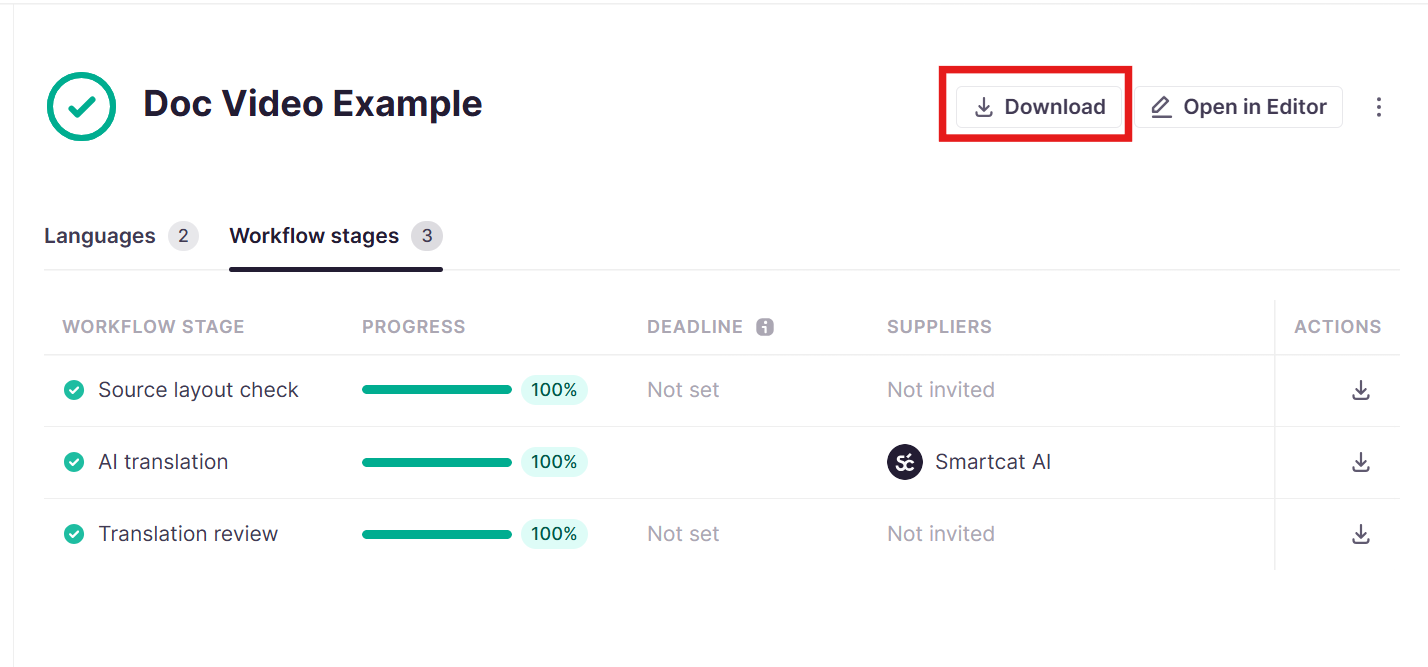
- Once you have approved the translations and dubbing, return to the project overview and click Download
-
Choose your output format:
-
Subtitles only (SRT, VTT, or other formats)
-
Video with burned-in subtitles
-
Video with AI voiceover (dubbed audio track)
-
Video with AI voiceover AND burned-in subtitles
-
-
Download or send to your delivery destination
Working with actual voiceover duration on the timeline
When you generate AI voiceover, the translated speech is often a different length than the original subtitle segment. Some languages run longer, others shorter. The Subtitle Editor timeline shows you the actual duration of the generated voice track, so you can see exactly where the spoken audio starts and ends rather than relying on the subtitle timing alone. In the screenshot below, the subtitle length appears on the top track, and the spoken length appears on the bottom.
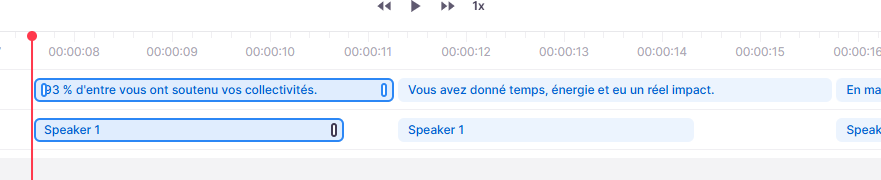
How the timeline represents voiceover:
-
Actual audio duration is shown on the timeline. The timeline displays the real length of the generated voice for each cue, not just the subtitle boundaries.
-
When speech is longer than its subtitle, the two are shown differently. The subtitle block appears at its original length as shown in the video, while the actual audio is shown as a different block, so you can immediately see when the voice extends past where the subtitle ends.
-
Original subtitle timings stay untouched. Smartcat attempts to fit the voice into your existing subtitle timing; it does not rewrite your subtitle timings.
How Smartcat fits the voice to the timing
Smartcat automatically adjusts speaking speed within a limited range (0.7x to 1.2x) to fit the generated speech into the available time. If the speech already fits comfortably, no adjustment is made. If it doesn't, Smartcat regenerates the cue at an adjusted speed within that range.
Warnings and Errors
-
Warning (orange block and tooltip on the timeline + yellow banner at export): Warnings appear when there are voiceover segments with overlaps. This does not block confirming the cue.
-
Critical error (red): The speech is too long and exceeds the project’s maximum CPS. You cannot confirm this cue until you resolve it.
Resolving an Overlap
If a cue is flagged with an overlap, you can:
-
Shorten the translated text so the speech is shorter
-
Adjust the voice speed within the 0.7x–1.2x range
-
Drag-resize the cue on the voiceover block’s right edge to change the speed
-
Choose a different voice
If you start the final export with unresolved critical overlaps, Smartcat does not cut the audio to force it into the cue boundary, and does not play two voices at once. Instead, it plays the audio tracks sequentially, one immediately after the next, to preserve the full generated speech. This may shift the timing of the audio cues that follow.
📌 This behavior depends on length control being enabled in your default AI translation profile. If you don't see actual audio durations on the timeline, check that Length control is turned on in your default AI profile — it applies to all new projects and to new documents in existing projects until you disable it.
Known limitations
-
AI dubbing is available for selected languages only. Voice availability varies by language and is powered by ElevenLabs. Check the current supported language list in your workspace settings.
-
Automated transcription accuracy varies by audio quality and speaker clarity.
FAQs
How does Smartword consumption work for video translation and AI dubbing?
Smartword costs vary depending on the action:
-
Extracting text from video and audio files: No Smartword consumption (requires a positive Smartword balance)
-
Translating subtitles: Smartwords are charged when translated subtitles are downloaded, not during the actual translation process. Standard rate of 1 Smartword per word applies.
-
AI dubbing/voiceover: 10 Smartwords per word. For example, if your video transcript contains 500 words, AI dubbing costs 5,000 Smartwords.
You can view detailed Smartword consumption reports at smartcat.com/app/smartwords-usage using the Download detailed CSV report button.
What should I do if I can't hear any audio during preview?
If you can't hear audio during preview, check the following:
-
Browser audio settings: Ensure your browser tab isn't muted and system volume is up
-
Background sound toggle: If you're using AI dubbing, check whether the "Background Sound" option is turned on or off. Background sound ON means AI voice plus original background audio. Background sound OFF means AI voice only.
-
AI voice selection: Make sure you've selected an AI voice for the target language — without a voice selected, there won't be any dubbed audio to preview
-
Click "Preview with AI voice": Use the preview button in the subtitle segment or the main preview area to hear the AI-generated audio
If issues persist, try refreshing the page or using a different browser.
My exported file only has subtitles but I wanted AI dubbing. What happened?
This typically happens when AI dubbing wasn't enabled before export. To get a video with AI voiceover:
-
Before downloading, select a target language in the Preview section
-
Choose an AI voice from the voice selection panel
-
Preview the video to confirm the AI voice is working
-
When clicking Download, select the option that includes AI voiceover: "Video with AI voiceover" for dubbed audio only, or "Video with AI voiceover AND burned-in subtitles" for both
If you only downloaded subtitles (SRT/VTT files), you'll need to re-export and select a video output option with AI dubbing enabled.
What if my video has text on screen that needs translation?
Smartcat's video translation workflow focuses on audio/subtitle translation and does not automatically translate on-screen text (such as titles, lower thirds, graphics, or text overlays embedded in the video).
For videos with on-screen text:
-
Burned-in text: This text is part of the video image and cannot be extracted or translated automatically. You would need to edit the original video source files to change this text.
-
Subtitles as a workaround: You can include translations of on-screen text in your subtitle track, though this may result in subtitle overlap.
-
Best practice: When creating source videos intended for localization, keep on-screen text in editable layers (in your video editing software) separate from the final render, so text can be swapped for different languages before export.
For image translation within documents (not video), Smartcat offers separate image translation capabilities at 1,000 Smartwords per image.
:pushpin: This behavior depends on length control being enabled in your default AI translation profile. If you don't see actual audio durations on the timeline, check that Length control is turned on in your default AI profile — it applies to all new projects and to new documents in existing projects until you disable it.
Want to learn more?
See how Smartcat can transform your localization workflow.
Still need help?
Our support team responds within one business day.